Usage noteOn current plans, this feature uses AI Credits. Learn more about tracking your Media Minutes and AI Credits.Legacy and Sunset plans track usage differently. See our Understanding your Legacy and Sunset plan guide for details.
Supported languages for dubbing
You can now dub content into these supported languages using stock voices.Recommended voices (Business & Enterprise only)
If you’re on a Business or Enterprise plan, you’ll also have access to Recommended voices—these are designed specifically for dubbing. These voices offer improved clarity and natural pacing for translated speech in the languages below.How to dub translated content
- Open the AI Tools panel, then choose Translate under the Repurpose section.
- Choose your target language(s). Any language you’ve already translated to will display a green dot. Re-translating will overwrite the existing version, including any manual edits.
- Check the box labeled Dub speech. Assign each Speaker label to a stock voice for dubbing.
- Click Apply. Descript will generate a translated composition with dubbed voiceover using the selected Speakers.
Change the Speaker
To change the Speaker for a translated and dubbed composition:- Click the translation dropdown menu at the top of the composition.
- Hover your mouse over the translation with the Speaker you’d like to change. Click the ellipsis icon that appears.
- Select Change Speakers.
- The Change speakers window will open. Select a new AI speaker to replace the existing audio, and Descript will recreate your translated audio with the new Speaker.
Regenerate dubbed audio
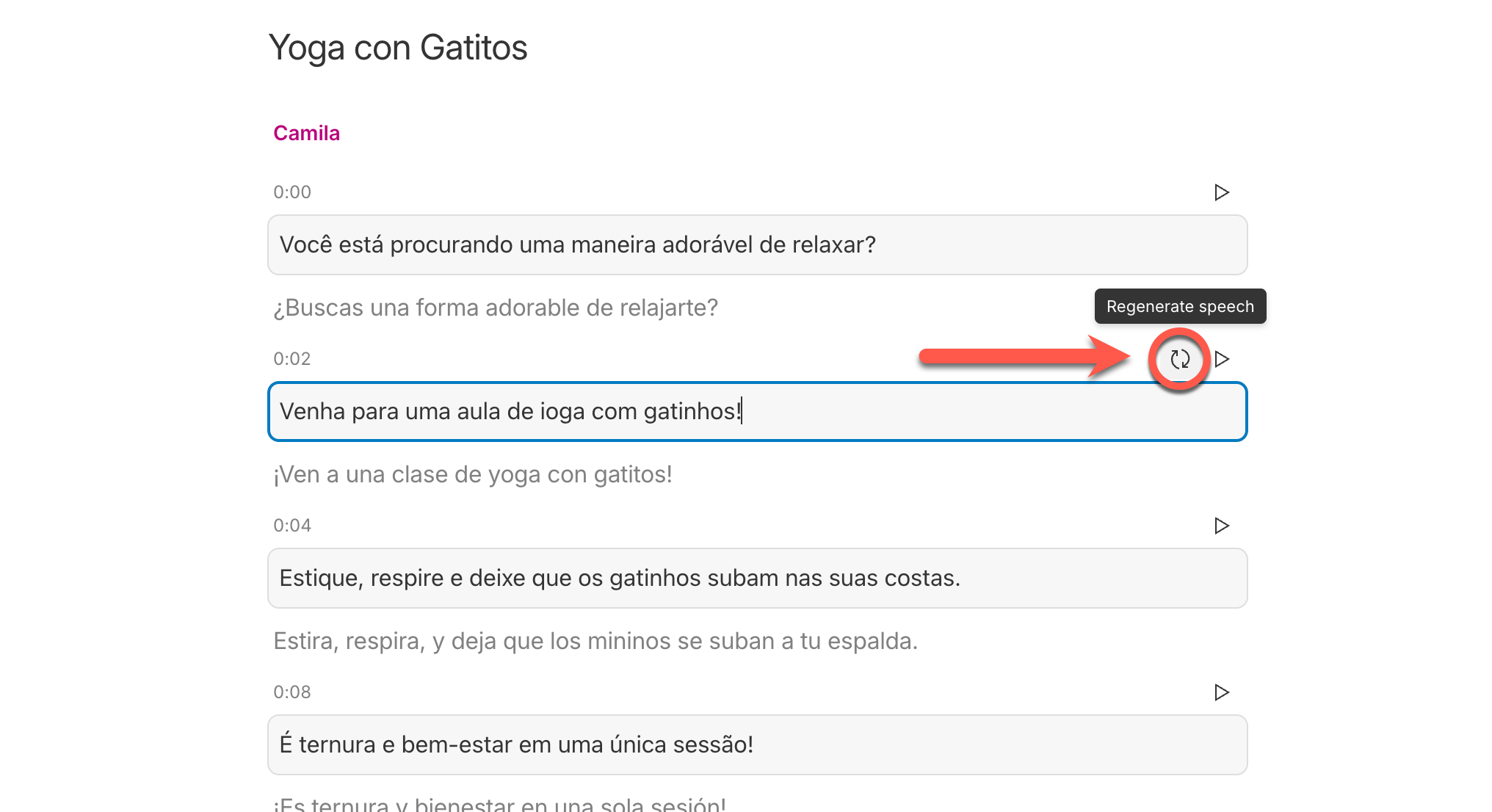
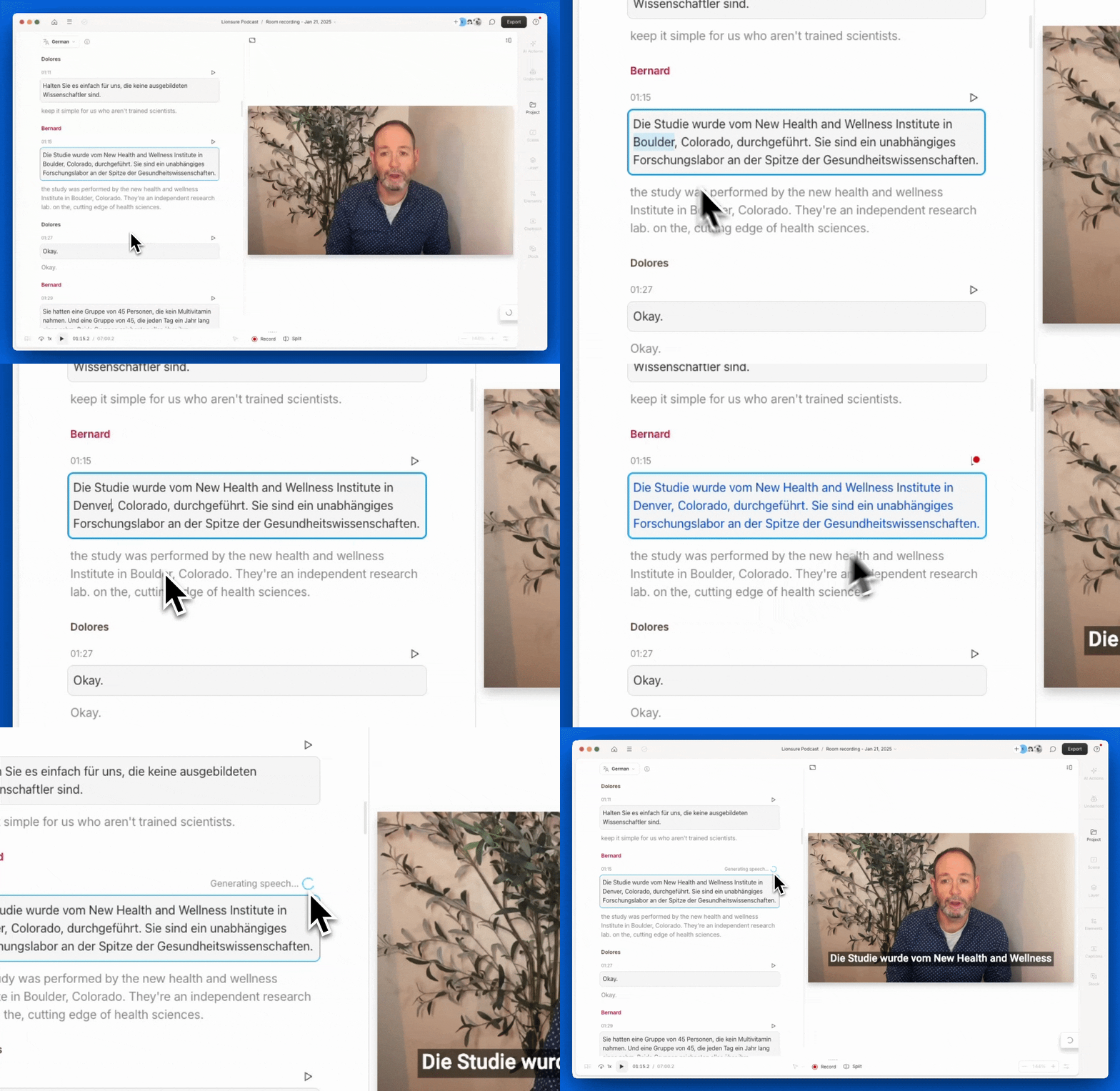
Want Descript to “re-do” a section of your dubbed audio? Click the Regenerate button.