Views
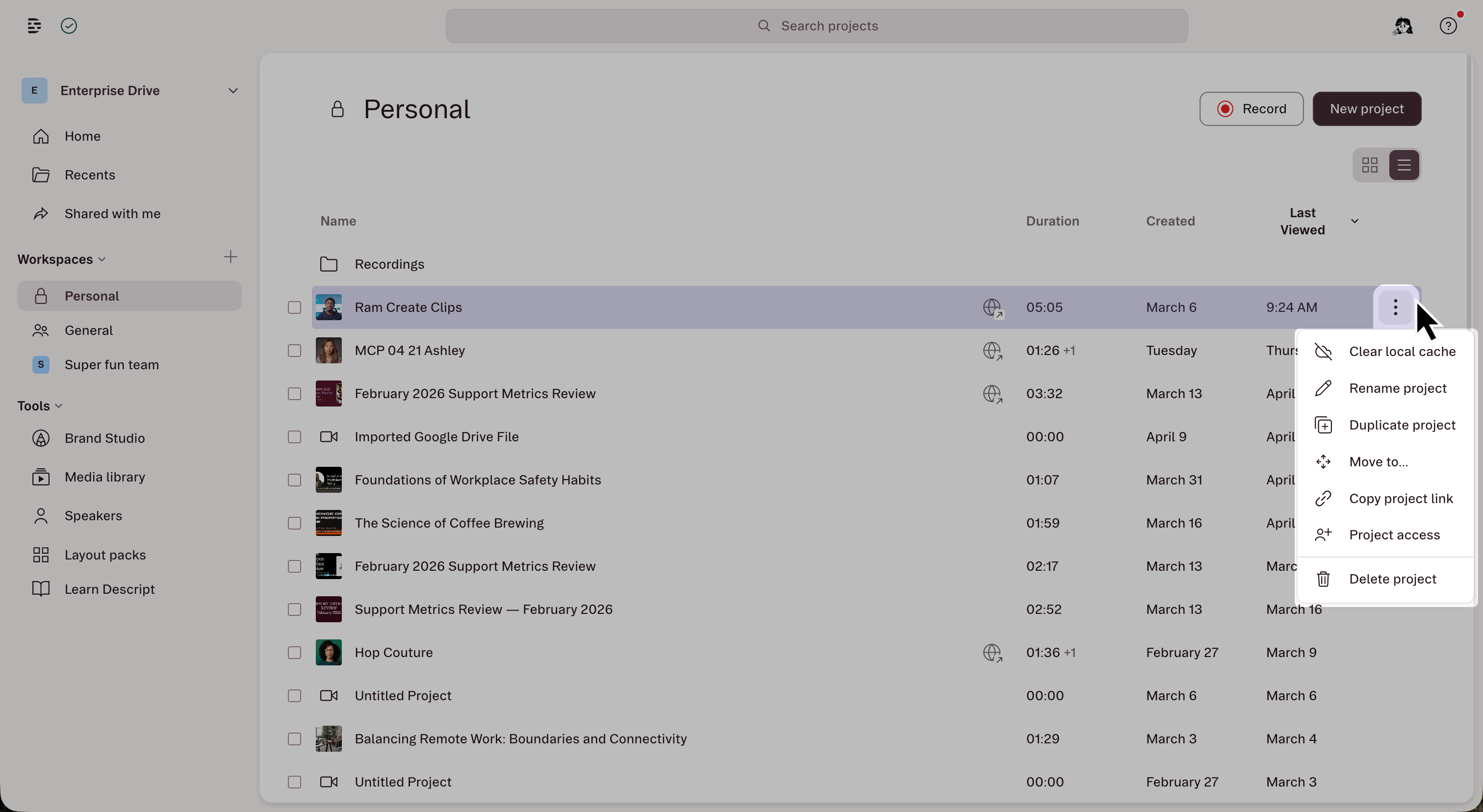
The top section of the left sidebar contains three views:- Home: Start new projects with skills, see popular features, and get quick access to the AI video maker.
- Recents: Projects you’ve recently opened on the currently selected drive, sorted by last viewed. Includes projects from both general and personal workspaces.
- Shared with me: Projects others have shared directly with you across all drives.
Workspaces
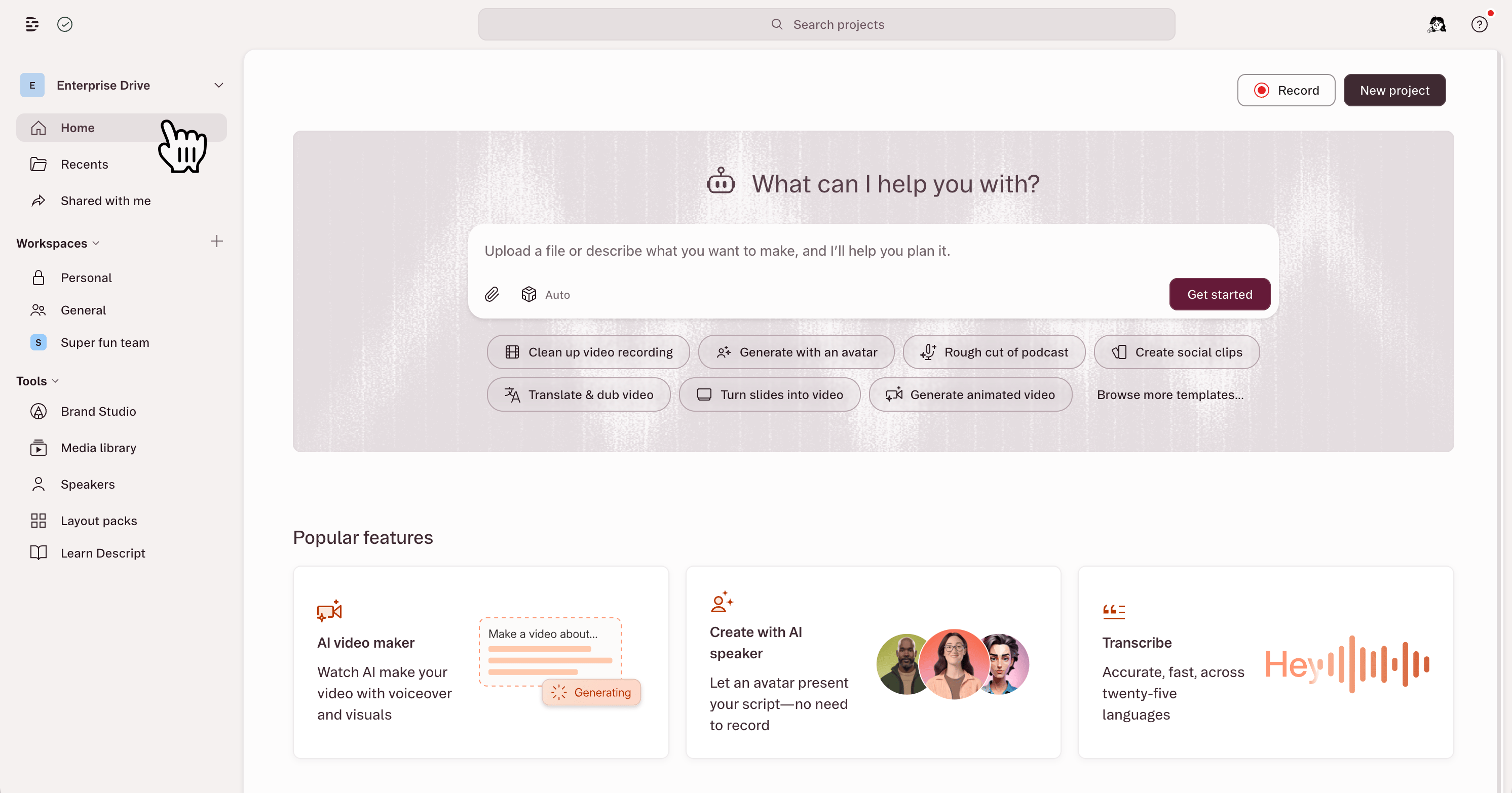
Below the navigation, the sidebar lists your workspaces. Workspaces organize projects inside a drive. Every drive includes the Personal workspace and, unless hidden by a drive admin, the General workspace. Enterprise plans also support custom workspaces.- Personal: A private space only the individual drive member can see. New projects save here by default.
- General: The shared workspace. When visible, all drive members can access the general workspace, and projects here are visible to everyone on the drive.
- Custom workspaces (Enterprise only) — Drive admins can create additional workspaces to organize projects by team, client, or function. Custom workspaces can be open (anyone on the drive can join) or private (admin adds members manually).
Tools
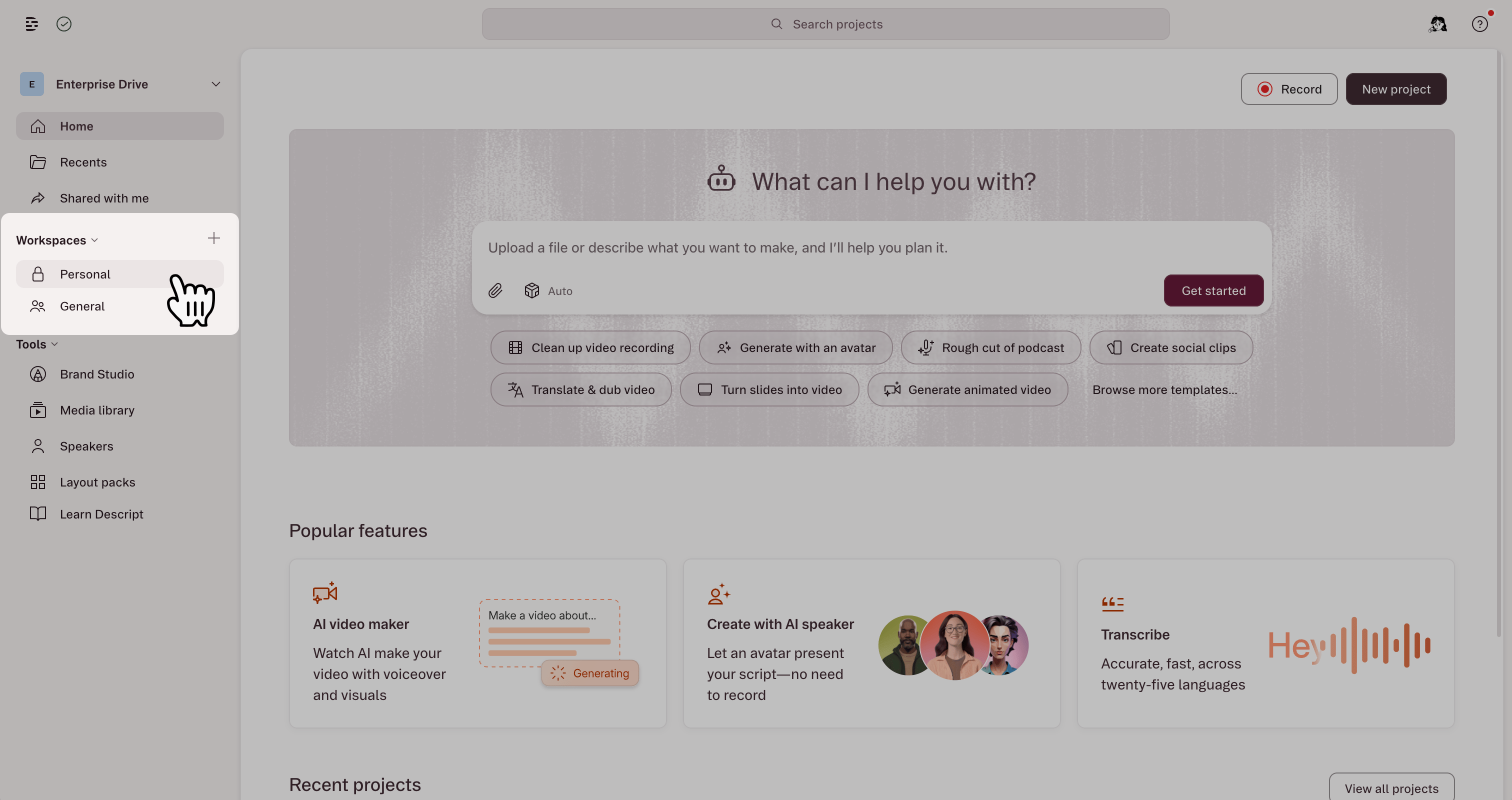
The bottom section of the left sidebar gives quick access to drive-level tools:- Brand Studio: Manage shared brand assets like logos, fonts, and colors.
- Media library: Store and reuse files (images, video, audio) across projects.
- Speakers: Create and manage AI voice models.
- Layout packs: Build and manage reusable scene layouts.
- Learn Descript: Tutorials, guides, and learning resources.
Header
The header bar at the top of the drive view includes:- Search: Find any file, project, folder, or asset across your drive, or use the Location filter to narrow your search to your personal, general, or custom workspaces.
- Record: Start a new video or audio recording.
- New project: Create a new project.
- Profile and settings: Access your account, switch drives, and open app settings.
Project actions
Right-click a project or click the ⋯ menu to access project actions:- Rename: Change the project name.
- Duplicate: Create a copy on the same drive.
- Move to…: Move to a different workspace or folder.
- Copy project link: Share the project URL.
- Project access: Manage who can view or edit.
- Delete: Move the project to Trash, where it stays for 30 days before Descript permanently deletes it.