

First, choose a voice generation model
Descript supports three AI speech models from ElevenLabs. Your selection applies across projects. To select a model manually:- Open App Settings > AI models.
- Under Media generation, open AI speech.
- Select a model.
- Multilingual v2
- ElevenLabs v3
- ElevenLabs v4
Then, generate text-to-speech audio
The exact workflow is slightly different for single speaker vs multi-speaker TTS generation.Single speaker
- Click Add speaker at the top of your composition and select a Speaker.
- Enter Write mode and type your script.
- When finished, click Done writing. Descript automatically generates AI speech for the entire script using your assigned Speaker.
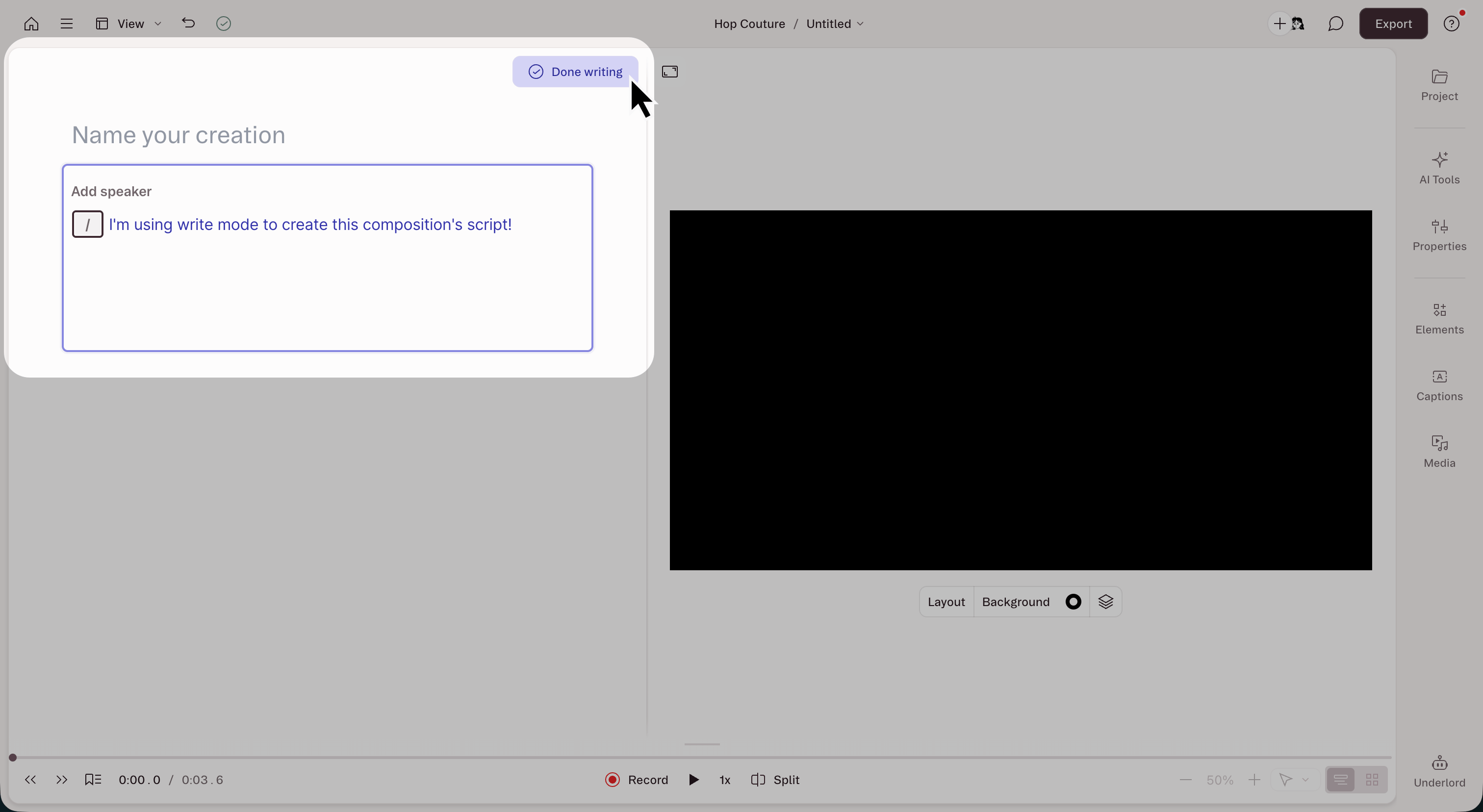
Multiple speakers
- Enter Write mode before selecting a Speaker.
- Write or paste your full script into the script panel. When you’re done, click Done writing to exit Write mode.
- Highlight a paragraph (or any portion of text), press the @ key, and assign a Speaker. Descript will generate TTS audio in that voice for the selection. Repeat for each section that needs a different Speaker.
Direct AI voice performance with tone tags
With the ElevenLabs v3 or v4 model, add tone tags to direct how the AI speaks — for example, telling it to whisper, laugh, sigh, or speak seriously. Tone tags appear in your script as gray text inside parentheses and are interpreted by the model when audio is generated. Tone input isn’t available on non-TTS content, on AI speech that’s been converted to audio, or when using the Multilingual v2 model.Add a tone tag
- Highlight a selection in your script.
- Click the Tone button (wave icon) in the selection toolbar.
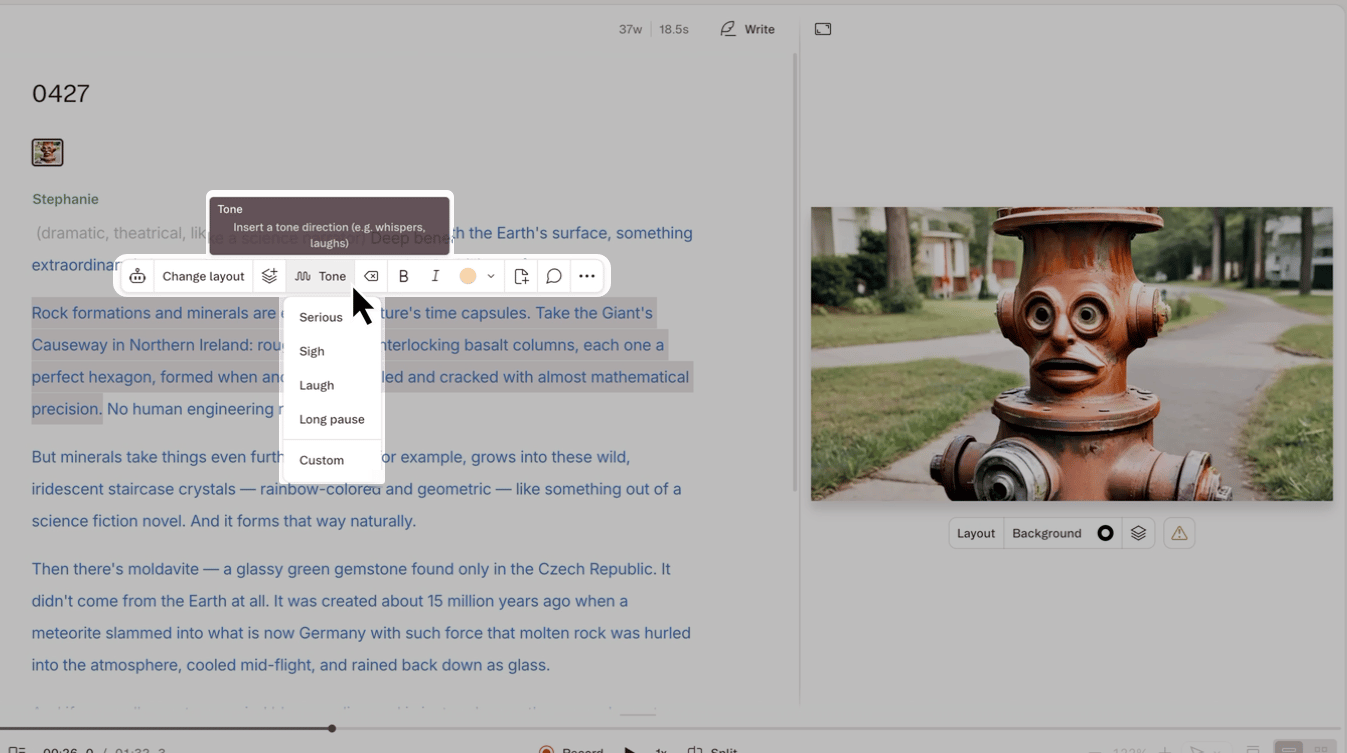
- Pick a preset like serious, sigh, laugh, or long pause — or choose Custom to write your own.
Other ways to add a tone tagThe Tone button is the easiest way, but you can also:
- Type it manually. While in Write Mode, place your cursor where you want the tag, type an opening parenthesis
(, enter your tag, and close it with). - Use the action bar. Open with
command/ctrl + Kand search for Inline note.
Where tone tags appear
After you generate
AI-generated speech behaves differently from recorded audio. To make timeline edits, apply fades or crossfades, or get precise control over playback, you’ll need to convert it to a standard audio layer first.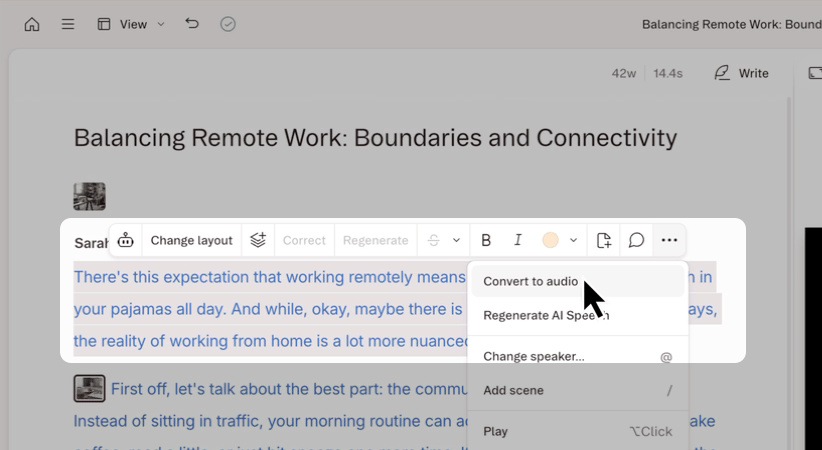
Known limitations
- Generation speed. Voice generation with ElevenLabs v3 is slightly slower than Multilingual v2, especially for long paragraphs or when tone tags are included.
- Tone and voice continuity. You may notice inconsistencies in how the output from this model sounds across paragraphs. This can include shifts in tone, volume, accent, or even speaker identity. These variations affect both custom and stock voices and are more likely to occur in longer or more complex scripts.
- Custom tone tags are experimental. Short, direct instructions like
(annoyed)or(slowly)tend to work, but longer descriptive prompts may be spoken aloud instead of treated as direction. If a custom tag isn’t working as expected, try shortening it. - Tone tag scope. A tone tag affects delivery in the paragraph where it’s added. The model decides how long the effect lasts — Descript doesn’t control which exact words a tag applies to. Use paragraph breaks to reset the delivery.
FAQs and troubleshooting
Audio isn't generating
Audio isn't generating
Confirm the Speaker has a voice assigned. If not, assign one in the Speaker card.
Mispronounced words
Mispronounced words
AI Speakers may occasionally mispronounce words. See our pronunciation guide.
Black frames appear after generating TTS
Black frames appear after generating TTS
TTS and Regenerate don’t work over sequences. If used on a sequence, video may be removed.Workaround:
- Convert the AI voice clip into an audio layer.
- Cut the AI audio clip from the script (
Cmd + X/Ctrl + X). - Restore the original script track by expanding the clip in the timeline or using Undo.
- Paste the AI audio as a layer above the original script track.
- Split and mute the original script section using the Blade tool.
Unexpected background noise
Unexpected background noise
Artifacts usually come from the original training audio. Try to avoid:
- Static or sudden loud sounds
- Background noise (traffic, appliances, music)
- Excessive mouth noise or breathing