

Create a first-draft video with Quick design

Quick design uses AI to turn your script or transcript into a more produced-looking video β€” breaking content into scenes, applying layouts and styling, and optionally pulling in B-roll. Use it when the goal is a solid starting point you can polish.

Usage note

On current plans, this feature uses AI Credits. Learn more about tracking your Media Minutes and AI Credits.

Legacy and Sunset plans track usage differently. See our Understanding your Legacy and Sunset plan guide for details.

This article covers:

How Quick design works

Quick design does three things when it runs:

  • Creates scenes β€” Splits your content into logical moments so visuals change over time instead of staying on one continuous shot.
  • Applies layouts and styling β€” Chooses scene layouts and applies basic formatting so the project looks intentionally designed.
  • Adds B-roll (optional) β€” Pulls from stock and AI-generated media to cover cuts and add visual variety.

It works best on single-speaker videos: explainers, tutorials, and talking-head recordings with simple timelines. The result is a rough cut β€” expect to swap media, tweak layouts, adjust pacing, and rewrite on-screen text before it's done.

Important notes:

  • Quick design requires a project with media in the Script track. If you haven't set one up yet, add your script or record your content first.
  • Quick design can only be used on single-scene projects. Run it before adding any scenes manually.

How to use Quick design

  1. Open a new or existing project.
  2. Import your media.
  3. Click the AI tools button in the sidebar.
  4. Select Quick design from the Look good section.
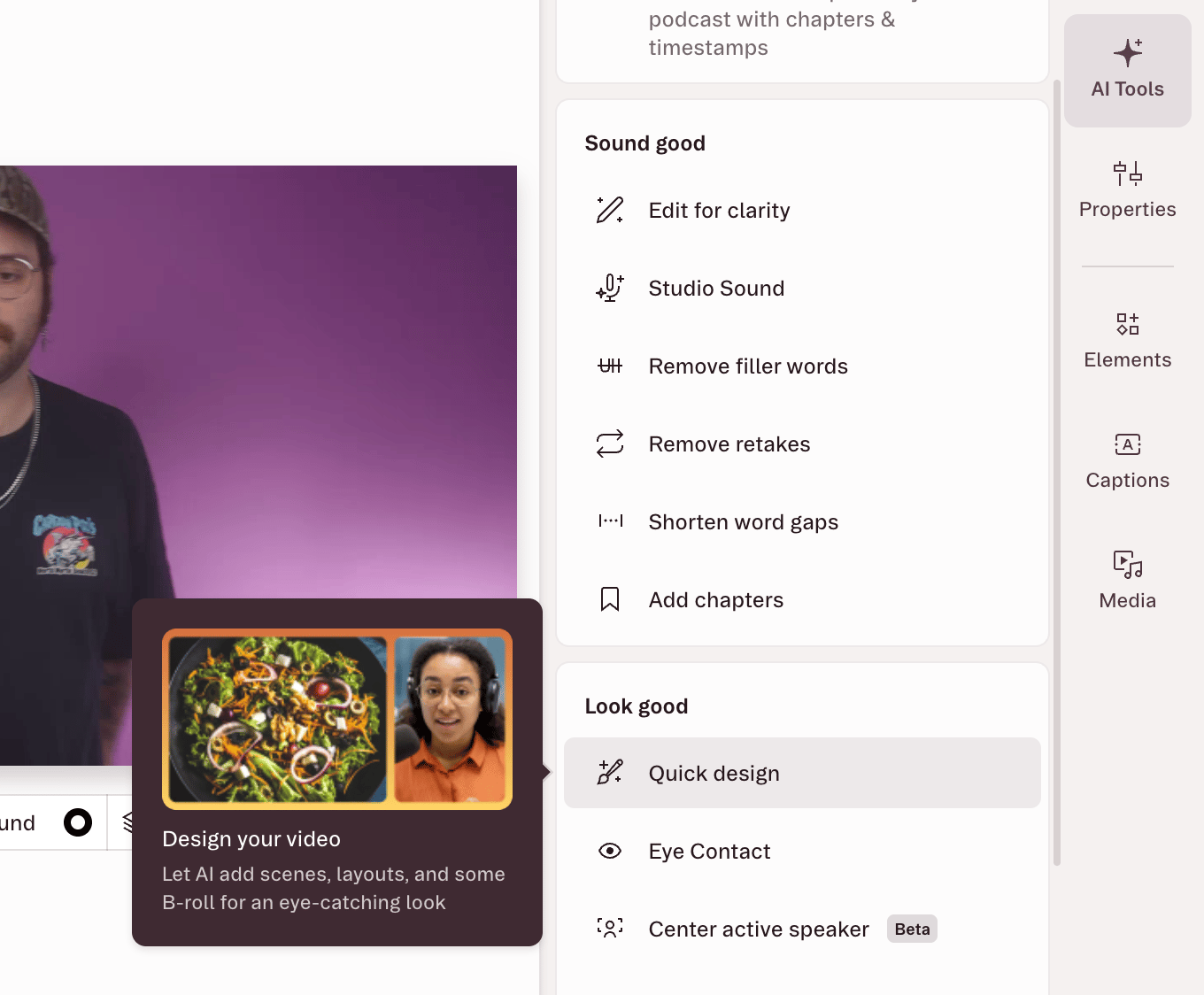
  5. Choose whether to include B-roll. If enabled, Quick design will add supporting visuals using stock or AI-generated media.
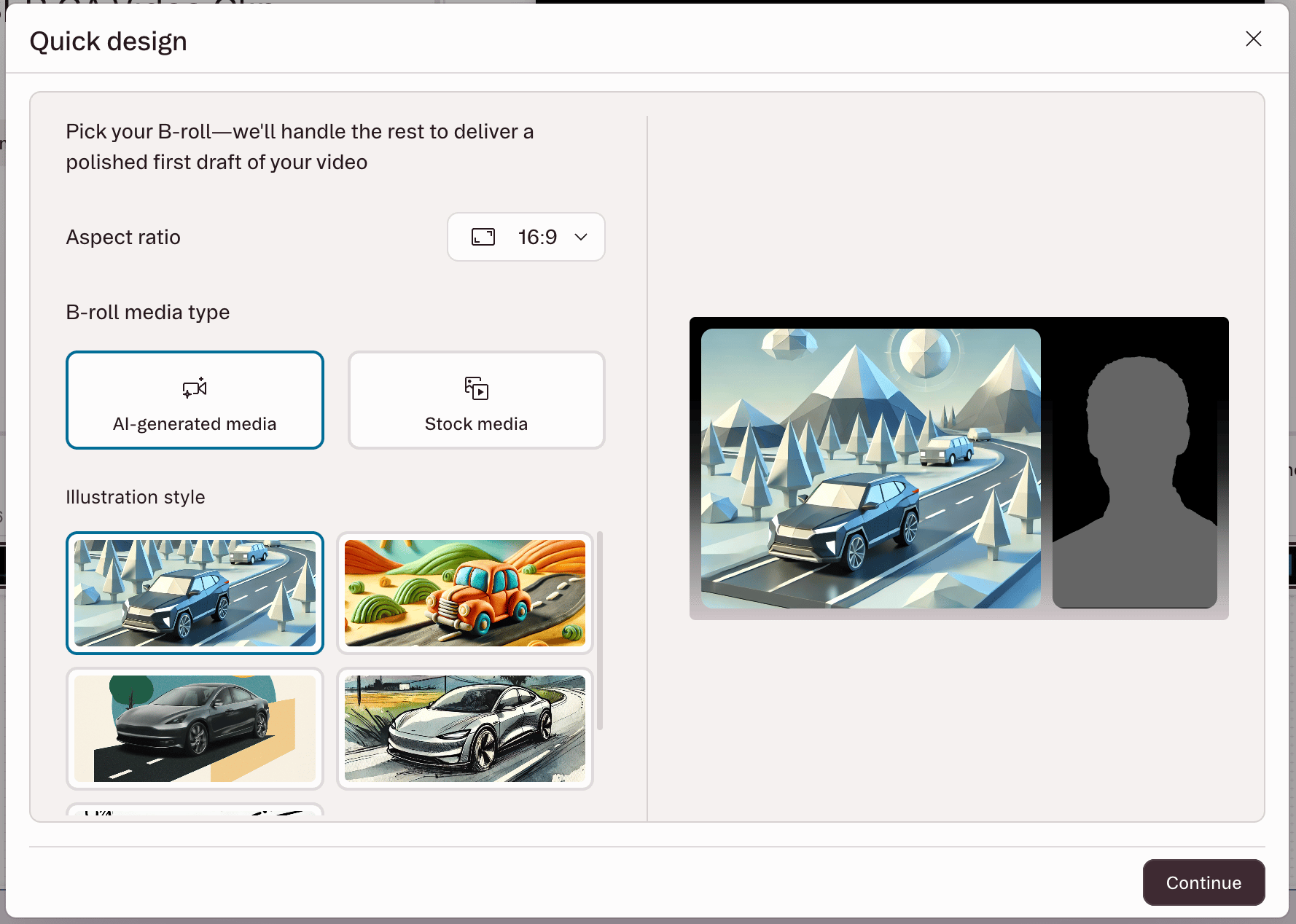
  6. Click Continue to start processing.

When it finishes, your project will have scenes, layouts, and styling applied. From there, make your adjustments: swap out media, change layouts, tune pacing, and refine any on-screen text.

Known limitations and tips

Multi-speaker projects need a cleanup pass. Quick design may not always pick the right active speaker per scene. After it runs, go through your scenes and manually update the visual source where needed.

Complex timelines produce less predictable results. Quick design is optimized for simple, single-track compositions. Multi-track or heavily layered projects may come out less consistent.

Longer scripts take longer. Expect processing times to scale up in proportion to total project length.

It's a starting point. Quick design gets you most of the way there. Swapping media, adjusting pacing, and refining on-screen text are all normal parts of the workflow after it runs β€” that's by design. If you’re not sure what do next, try asking Underlord.