How Rooms recordings appear in your project
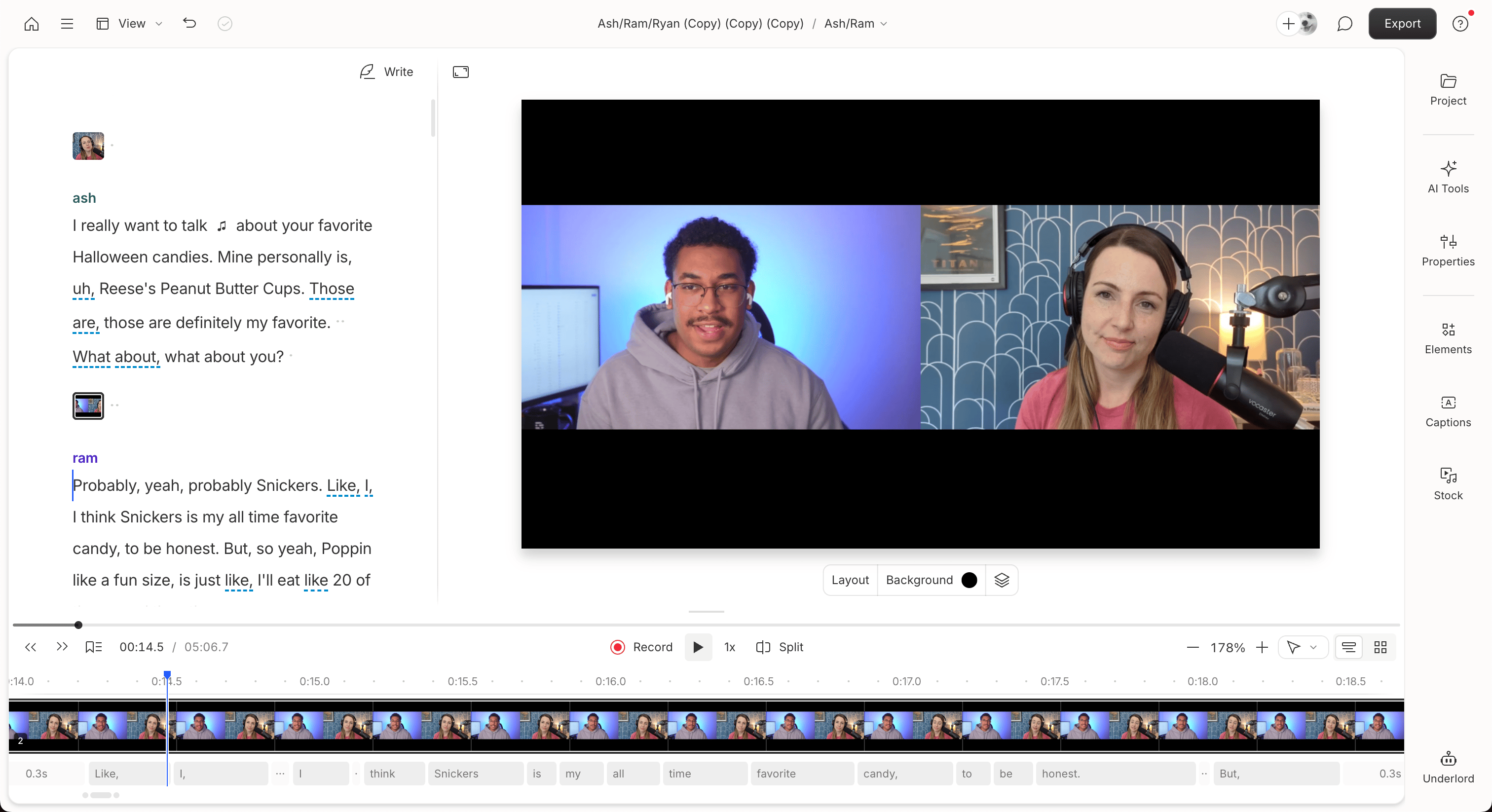
When your recording ends, Descript begins uploading each participant’s high-quality primary and backup recordings. These files appear in your project once all uploads are complete. High-quality recordings may take longer to show up—they’re uploaded directly from each participant’s device. Backup recordings appear sooner, but are browser-based and lower quality.Need help with partial or recovered files?If any recordings didn’t upload completely, participants can rejoin the Room to finish uploading automatically, or use a Rooms recovery link if they cannot rejoin. You can begin editing with backup or partial files in the meantime. Once recovered, the full file can be added to your project. Learn how to recover and replace stalled Rooms recordings.
File organization in Project Files
All files from your Rooms session are stored in the Project Files panel under a folder labeled Recordings.- Room – [date and time]: Contains the high-quality primary recordings
- Backups: Nested folder for browser-based backups
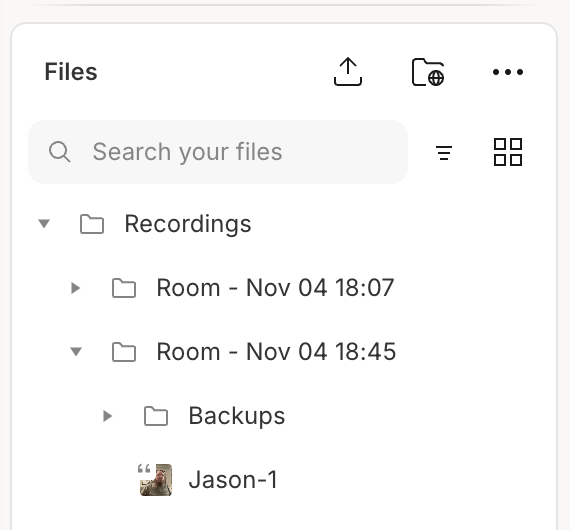
Need to download your files?Right-click a file in the Project Files panel (or use the three-dot menu), then select Download. Learn more about project file actions.
How recordings are added to the composition
Once all primary recordings have uploaded, Descript automatically creates a sequence, inserts it into the script panel of a composition in the project, and transcribes the audio. Speaker labels are based on the names participants used in the Room. Descript automatically organizes your recording into scenes and applies professional multicam layouts based on the number of participants and screenshare layers. You can customize this behavior in the Video tab of your Rooms settings.