

New to layouts?Start with these Help Center guides:
How Descript matches your content to a new layout
Camera and media layers are interchangeable Descript treats talking-head footage and other media layers, such as images or video clips, as interchangeable when matching them to a new layout:- If your scene includes camera footage and the new layout contains only media placeholders, Descript places your camera footage into those media slots.
- If your scene includes images or video clips and the new layout contains talking-head placeholders, Descript places your media into those slots.
What happens to layers that don’t fit
If a layer from your original scene doesn’t match any placeholder in the new layout, Descript removes it and shows a notification listing the removed layers.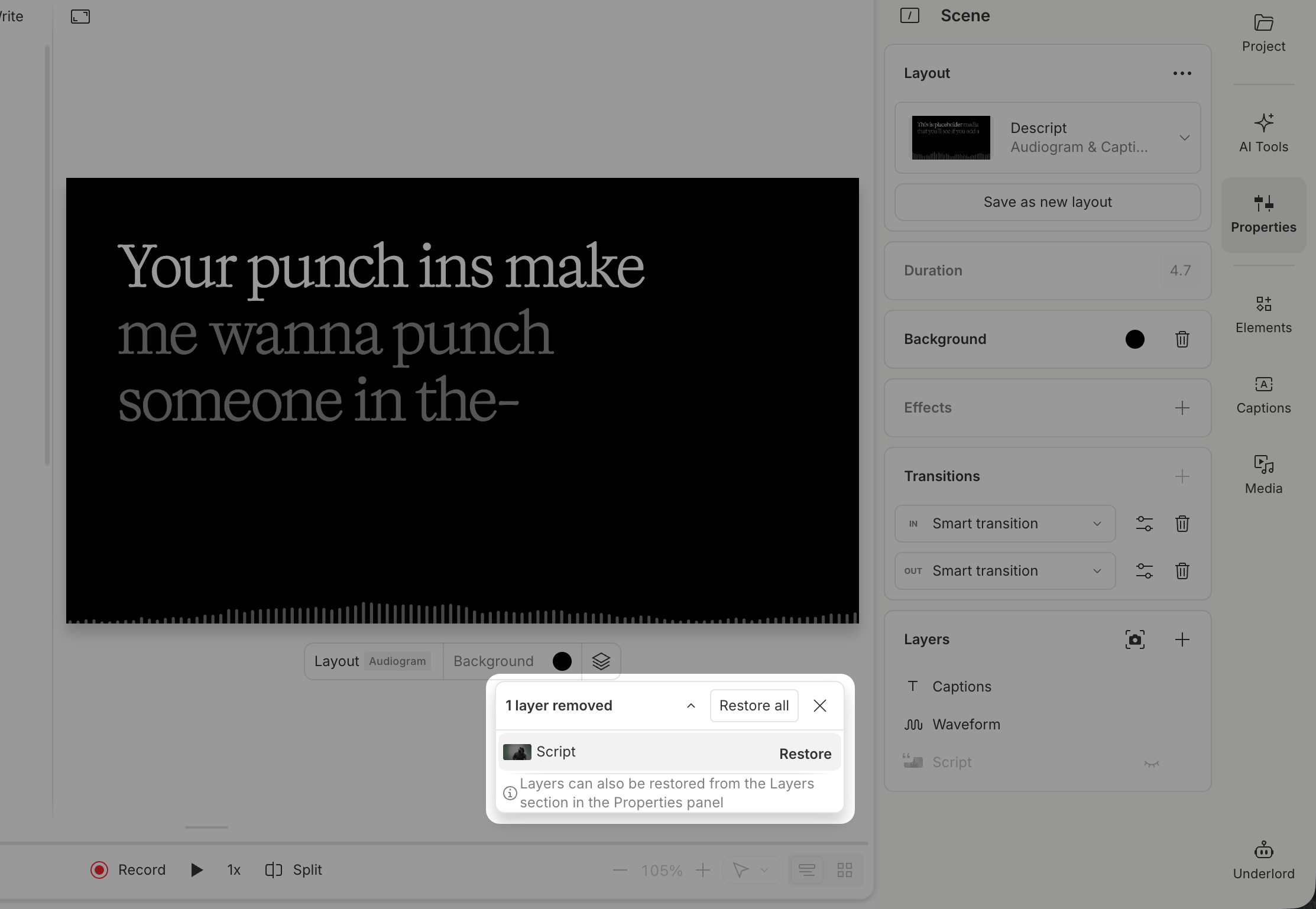
- Restore individual layers by selecting them one at a time
- Restore all layers using the Restore All button
- Dismiss the notification if you don’t need those layers
Apply a layout to an empty scene
When you apply a layout to a scene without script content, Descript adds all content included in the layout. This approach works well for reusable elements like intros, sponsored segments, ads, or outro scenes.Smart Fill and text layer types
Smart Fill uses AI to automatically generate editable content for text layers when a layout is applied. It analyzes your script content, scene context, and the layout’s design to create contextual text like titles, intros, or section headings. Smart Fill does not affect text layers set to dynamic types (Speaker, Timer, Marker, Composition name). For example: a text layer set to Speaker will continue showing the active speaker name; a text layer set to Timer will continue displaying the countdown/countup Learn more about text layer types. Smart Fill is enabled by default in gallery layout packs. When you create your own layout packs, you can enable or disable Smart Fill for each layout. Learn how to create and save custom layoutsMulticam layouts and complex scenes
Multicam layouts work best when both the layout and the scene include sequences with the same number of media tracks.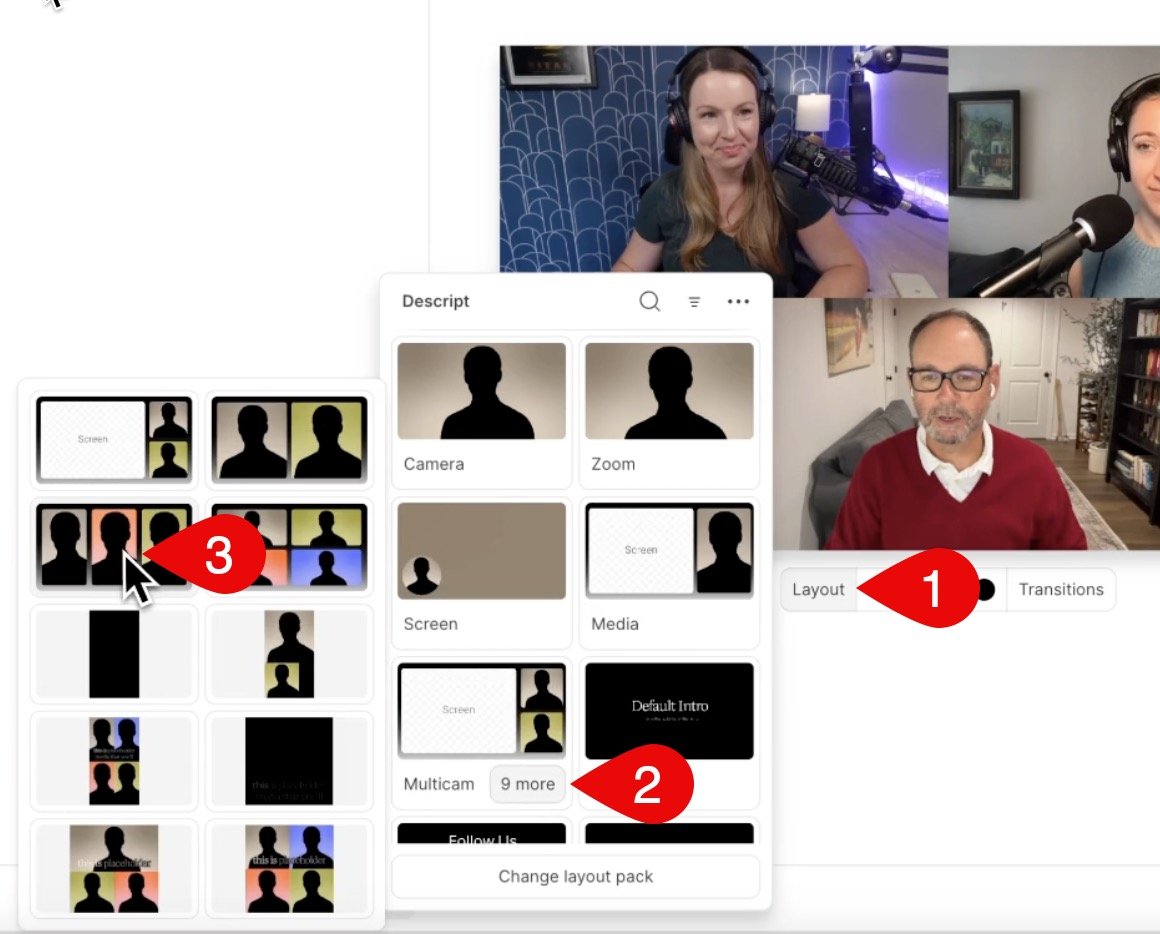
- If you haven’t edited a layer, Descript replaces it with the new layout’s version.
- If you edit a layer, Descript preserves your changes and updates only untouched layers.