

Billing name, address, tax ID / VAT number : Add this before an invoice is finalized. It cannot be added to or changed on invoices that have already been generated, and it does not apply retroactively.For step-by-step instructions for adding a these details and VAT ID to your invoices, see our Add billing details and tax ID to your account guide.
Check your invoice history
- Open App Settings, keyboard shortcut
Command/Control + , (comma) - Select the Invoices tab.\
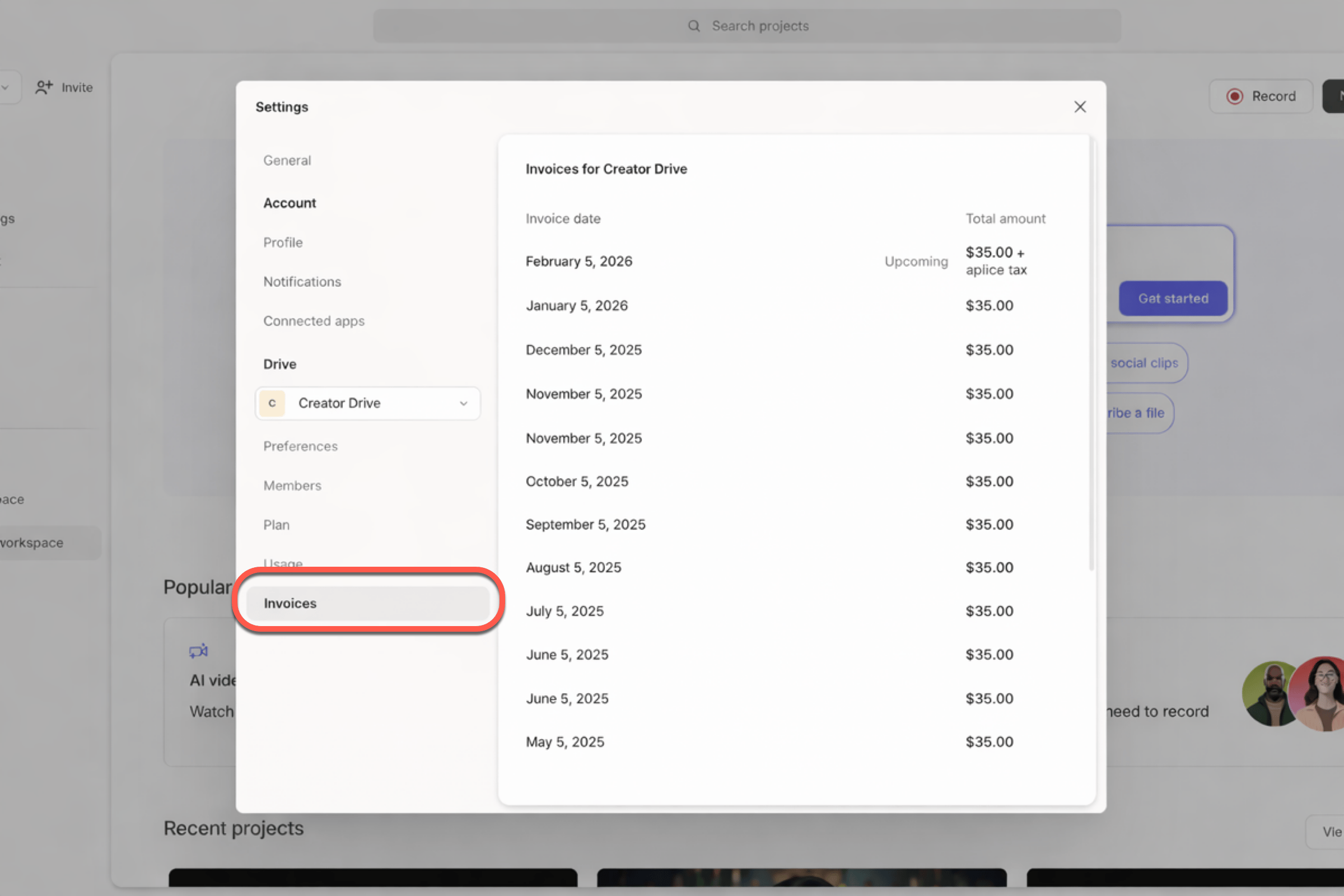
- Click on any invoice to open it.
Invoices are not emailedAt this time, Descript does not send invoices via email. They’re only available through your account on the web or in-app.
Paid in a local currency
Invoice totals are reflected in USD. If you pay in another currency, the invoice list and detail show those details next to the USD total, plus the exchange rate used. Upcoming invoices are displayed in USD. If your last payment wasn’t in USD, the upcoming invoice notes that you may be charged in that currency. To change the currency used at checkout, see Pay in your local currency.Save or download a receipt
To save or download a PDF copy of your invoice, click View Receipt in the top-right corner of the invoice view.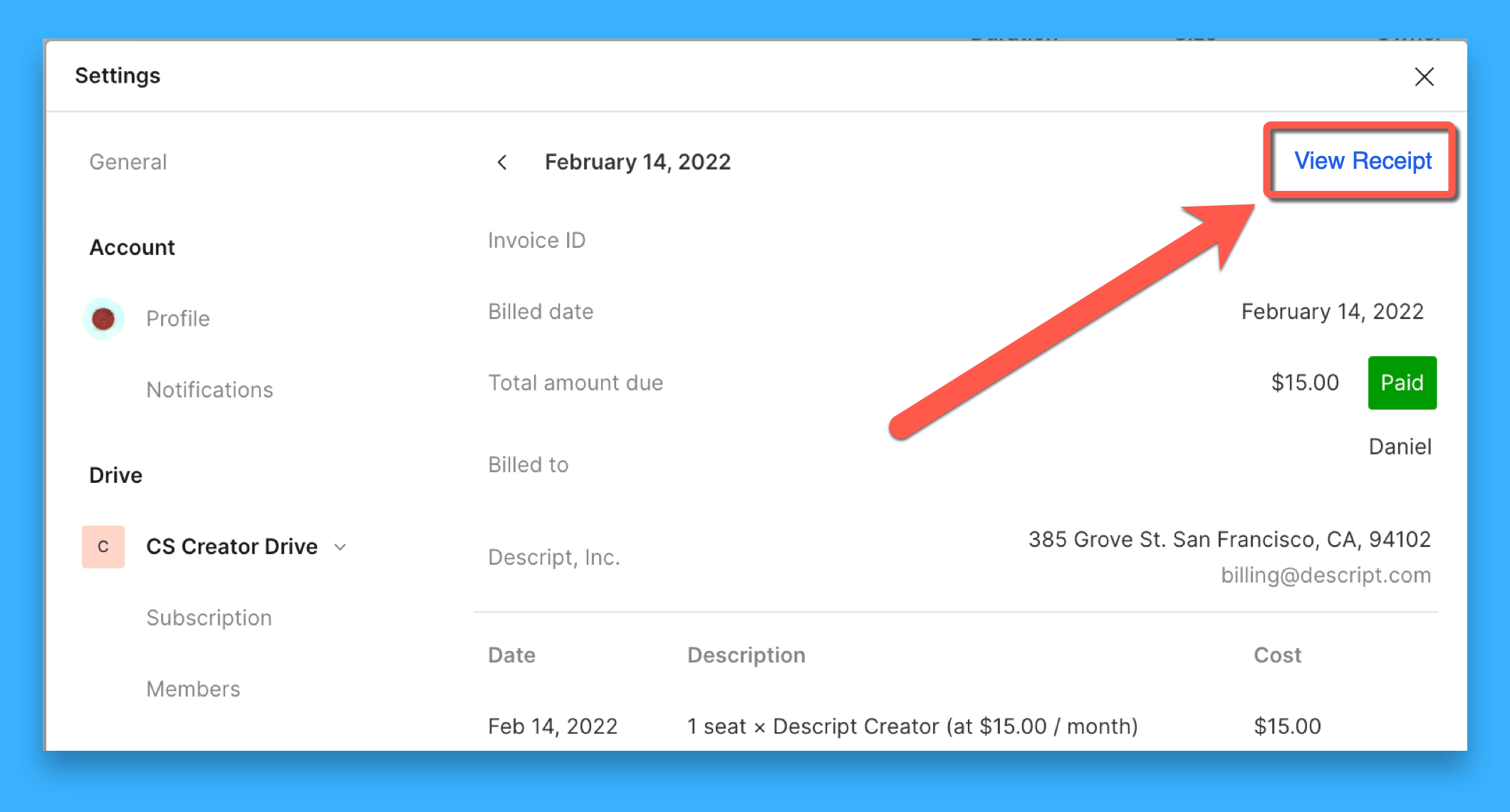
Missing the View Receipt button?The View Receipt option won’t appear for $0.00 invoices or invoices generated from free promotions or coupon codes.
Can’t find your invoice?
- Make sure you’re signed in as the Drive owner. Only Drive owners can view invoices.
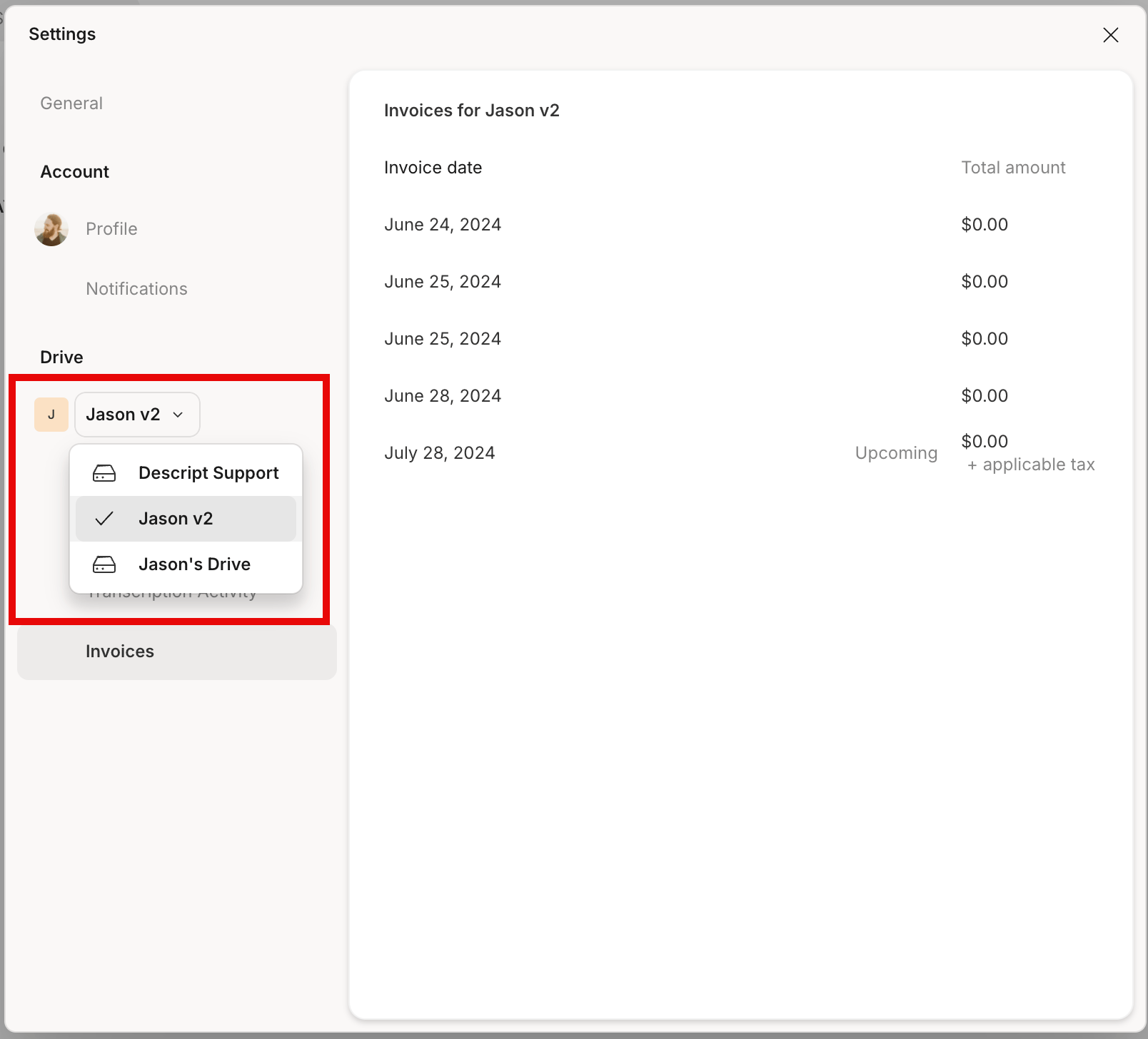
- If you belong to more than one Drive, double-check that you’re viewing the correct Drive in your account settings.\
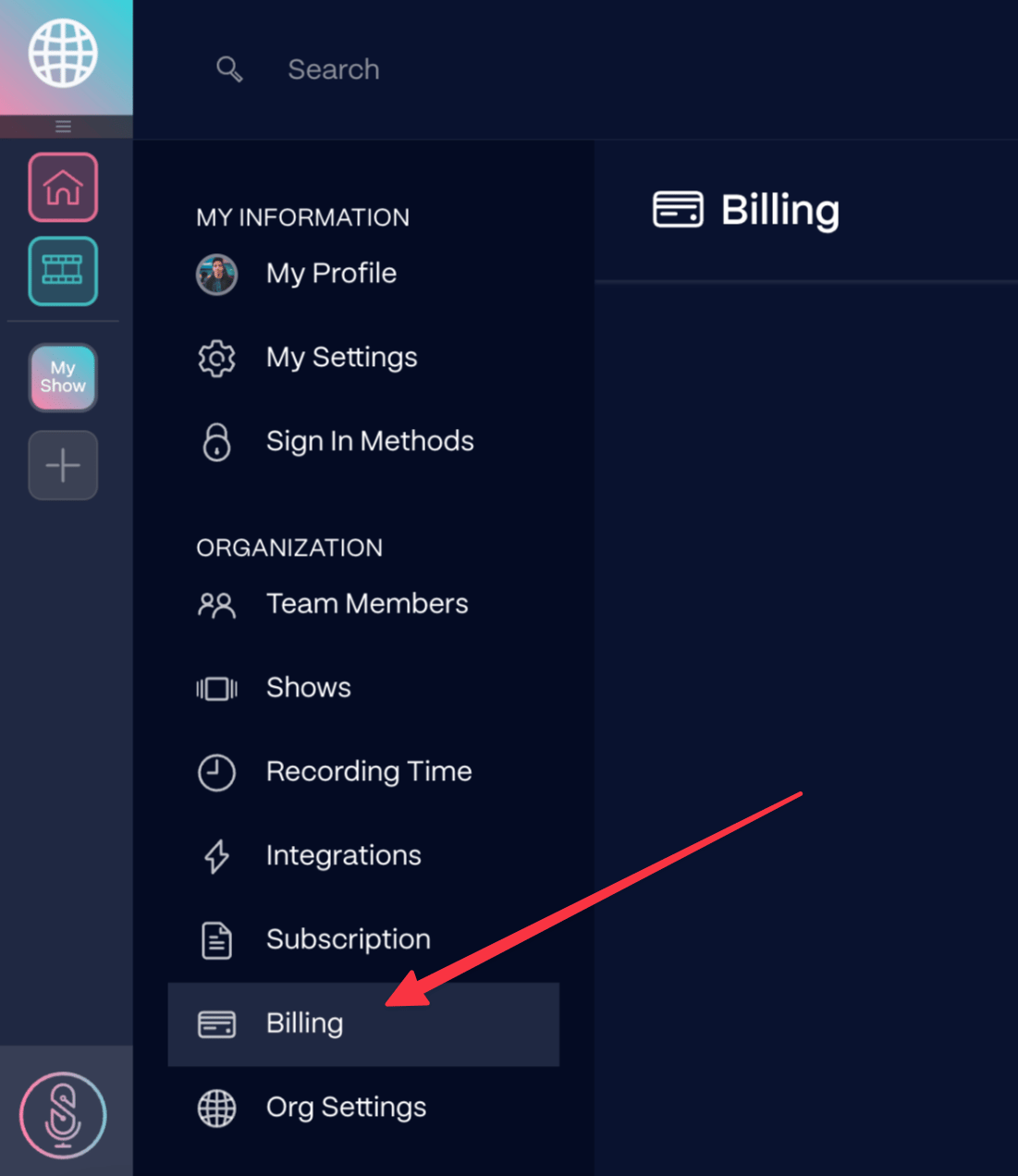
- If your SquadCast subscription is not connected to Descript, you’ll need to visit Settings > Billing in your SquadCast account to retrieve those invoices.\
- If you have paused your subscription, you will not be able to access your invoices unless you resume or cancel your subscription.