Billing considerations
Editor seat limits by plan
Each plan has a maximum number of Editor seats per Drive:
When your Drive reaches it’s Editor seat limit, you won’t be able to invite more Editors. To add more Editors, upgrade to a plan with more seats. Or, invite the person as a Viewer instead.
If someone accepts their Editor invitation after your Drive reaches the seat limit, they will join the drive as a Viewer.
Seat charges when you add an Editor
When you add an Editor to your subscription mid-cycle, the cost is prorated and co-termed with your existing subscription term. Descript will charge for the additional Editor based on the time remaining in your current annual or monthly billing cycle. On your next invoice, you’ll be charged for the full cost of that Editor seat for the upcoming term.Does the Editor you added have their own Descript plan?If you add an editor to your drive who already has their own Descript plan, their personal subscription will be billed separately from your team plan. If that specific user no longer needs a personal Descript plan, they will need to cancel the plan tied to their personal Descript drive.
Example: Monthly vs. Annual seat charges
Example: monthly subscription
You add an Editor halfway through your billing cycle, so the card on file is charged 50% of the seat cost immediately.On your next invoice, you’ll be charged 100% for that seat going forward.
Example: annual subscription
You add an Editor three months into your term, so the card on file is charged about 75% of the seat cost right away (to cover the remaining 9 months).On your renewal date, you’ll be charged for the full annual seat.
Invite others to your Drive
Before inviting someone to your Drive, make sure you’re signed in and working from the correct Drive (if you’re part of more than one).- Press
Command/Control + , (comma)to open your settings, then go to the Members tab. - Enter your collaborator’s email in the Invite by email field.
- Select their role:Viewer or Editor.
- Click Send invite. The invitee will receive an email and will need to accept the invitation before accessing your Drive.
Manually approve editor invitations
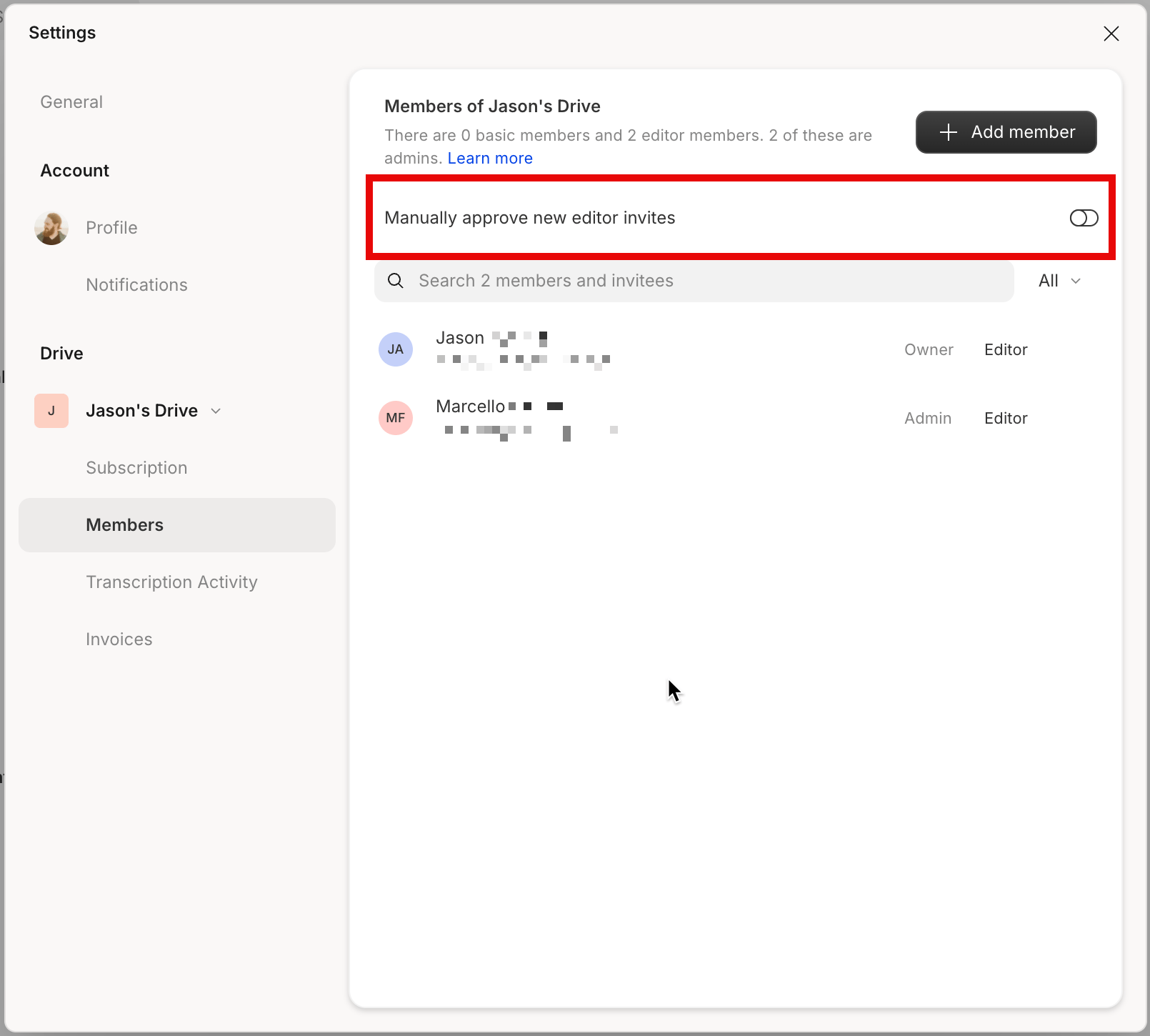
By default, any Editor member can invite others to join the Drive. If you’re a Drive owner or admin, you can require manual approval for new Editor invitations. To enable this setting:- Go to Settings > Members.
- Toggle on Manually approve new editor invites.
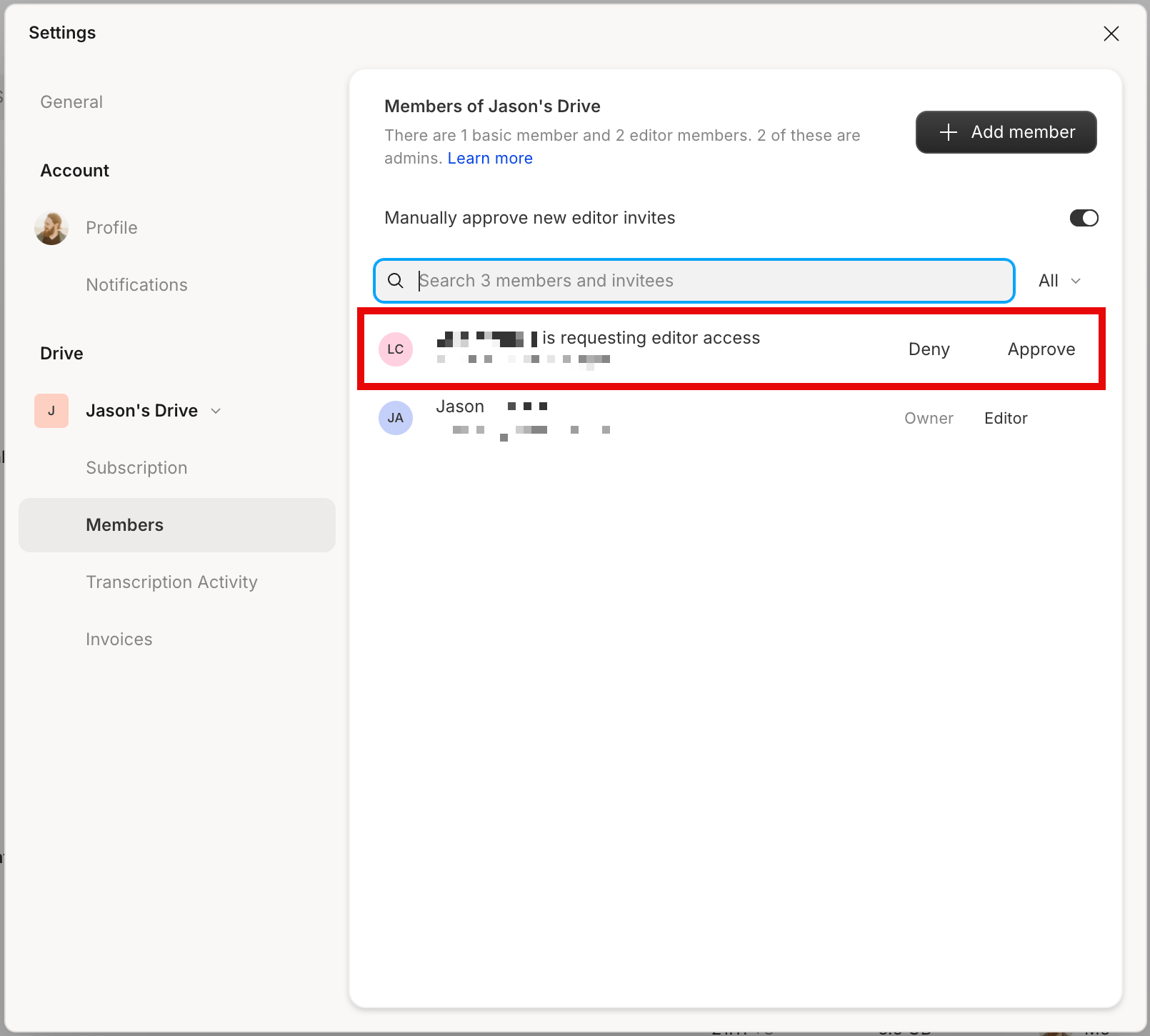
What happens if an editor invitation is pending approval?When manual approval is turned on, editor invites are not sent immediately. They will appear with a pending status in the Members tab until a Drive owner approves them.
View your team members
You can view your current team members at web.descript.com/members, or in the app under the Members tab in your settings.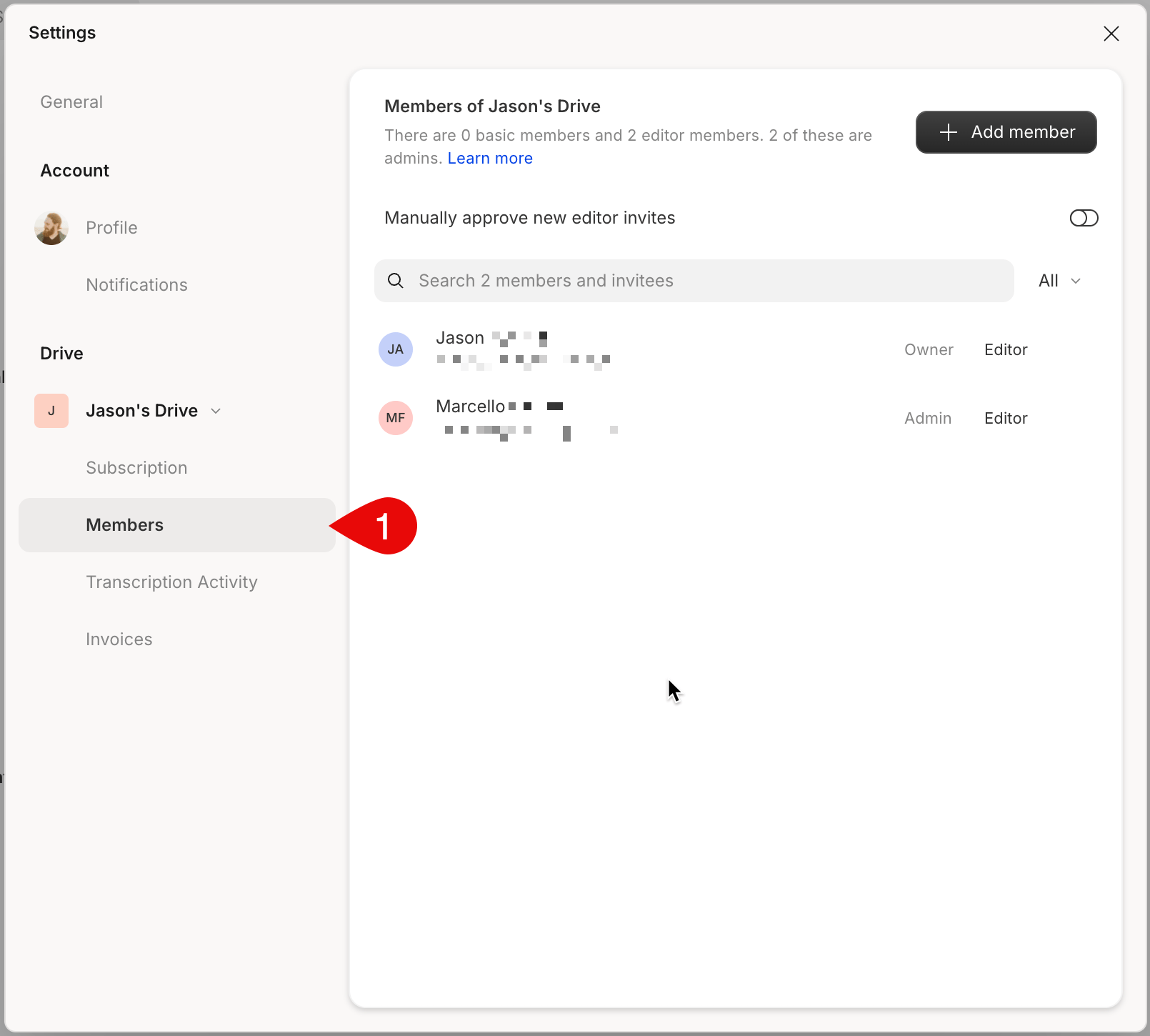
Change a team member’s role
You can change a Drive member’s role from the Members tab of your Drive settings.- Open the Members tab from your Drive selector in the top-left corner.
- Click the … button next to the person’s name.
- Select Change membership type.
- Choose Viewer, or Editor and click Change to confirm.
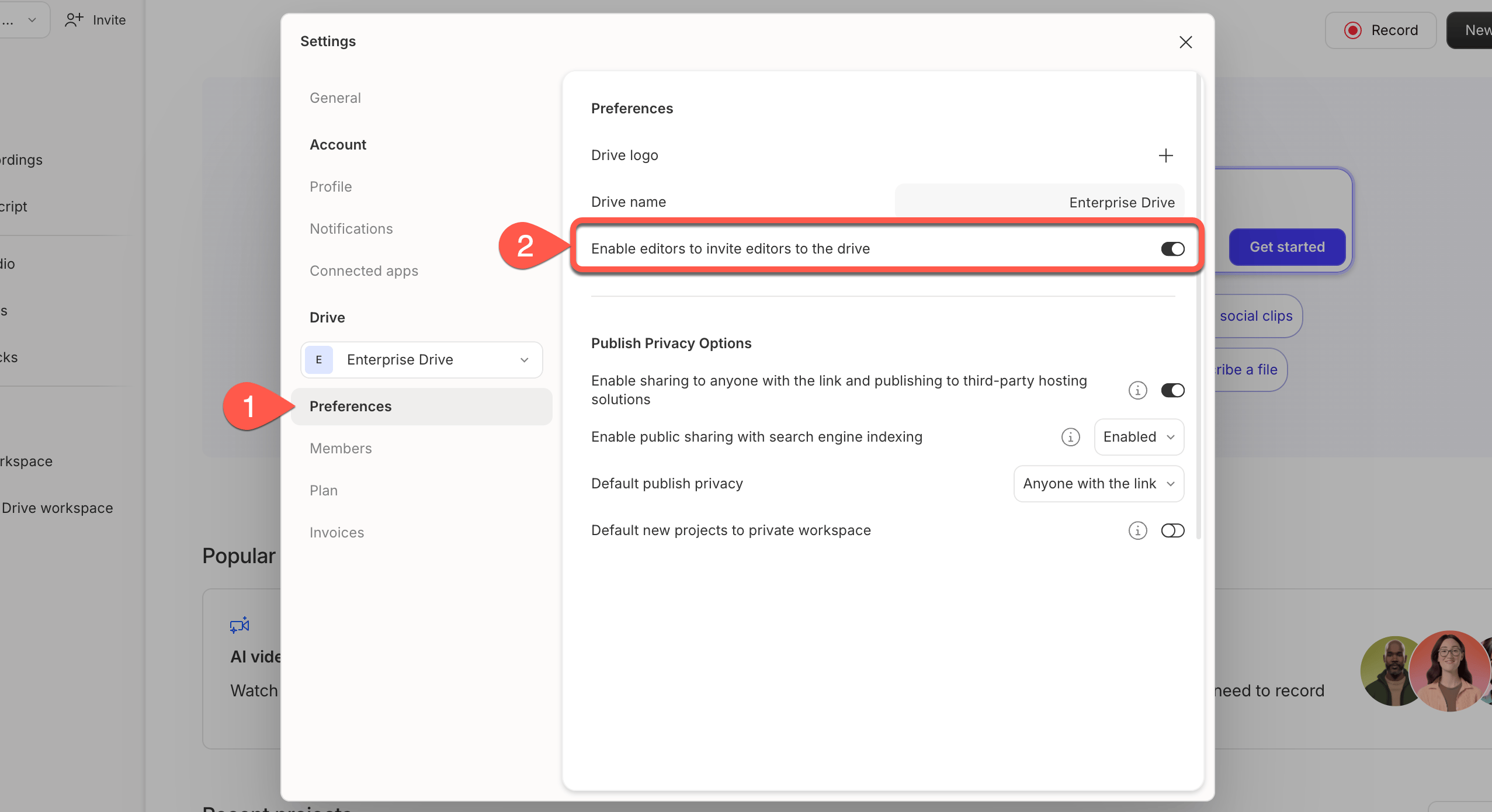
Restrict Editor invitations (Enterprise only)
Drive owners and admins can control whether Editor members are allowed to invite new Editors. This toggle is available under Settings > Preferences.