> ## Documentation Index
> Fetch the complete documentation index at: https://help.descript.com/llms.txt
> Use this file to discover all available pages before exploring further.
# Save Your Work to the Cloud
> Descript automatically saves and syncs your work to the cloud as you edit.
## Check if Descript is saving and syncing your project
There's no Save button in Descript. Your edits are written to the cloud the moment you make them.
**Descript doesn't support offline editing**
You'll need an internet connection for your changes to sync and your project to back up. [Learn more about Descript's system requirements.](/getting-started/descript-system-requirements)
## How to tell if your project is syncing
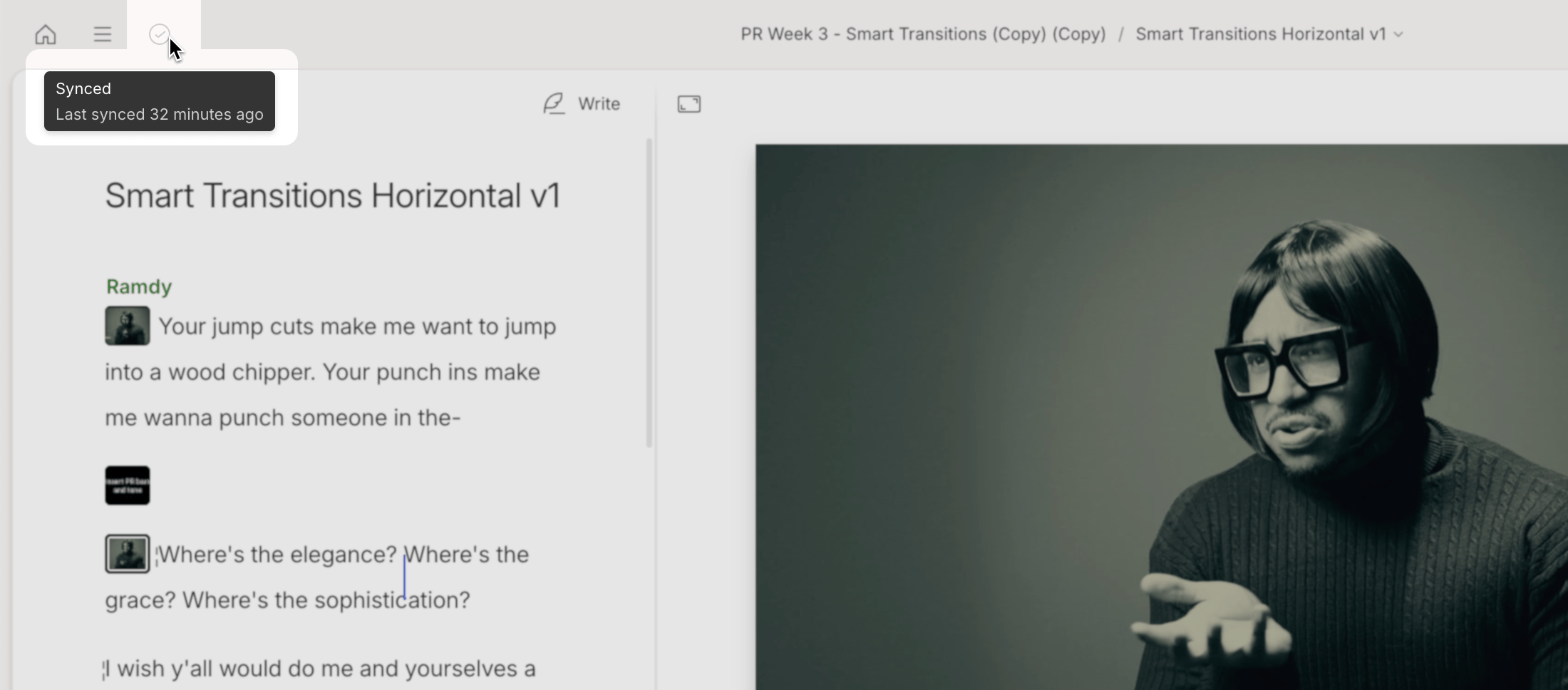
While actively syncing, Descript will display a spinning progress indicator in the top-left corner of the app window\.. This means Descript is uploading any recent edits or newly added media to the cloud. You can keep editing while syncing is in progress.
Hover your cursor over the sync icon to see the current sync status.