> ## Documentation Index
> Fetch the complete documentation index at: https://help.descript.com/llms.txt
> Use this file to discover all available pages before exploring further.
# Project File Management
> Import files and organize media in your Descript project.
You can add videos or photos to your project by opening the **Project** panel on the right and then clicking **Upload.** Then select the file from your Finder (macOS) or File Explorer (Windows). You can select multiple files to add at the same time if needed.
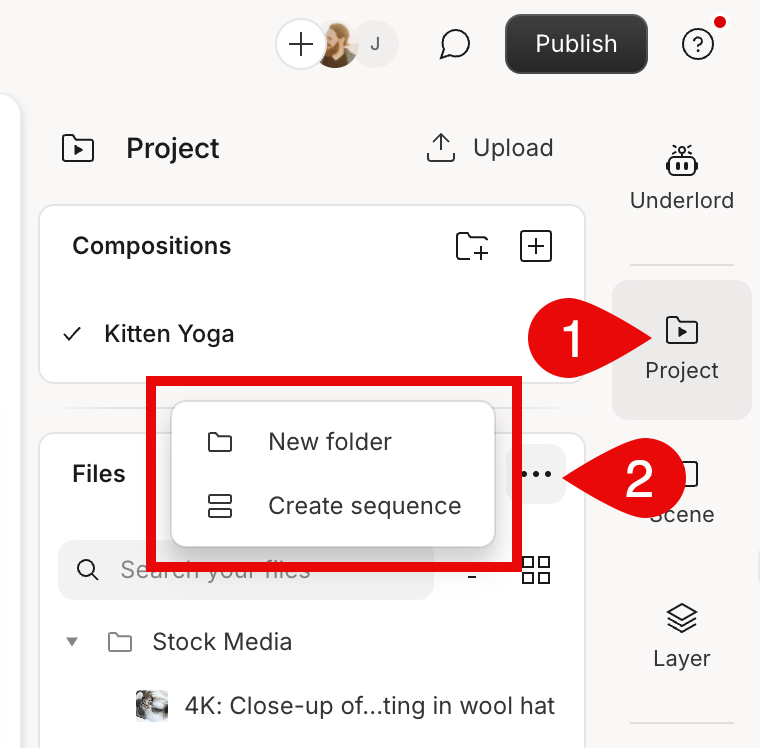
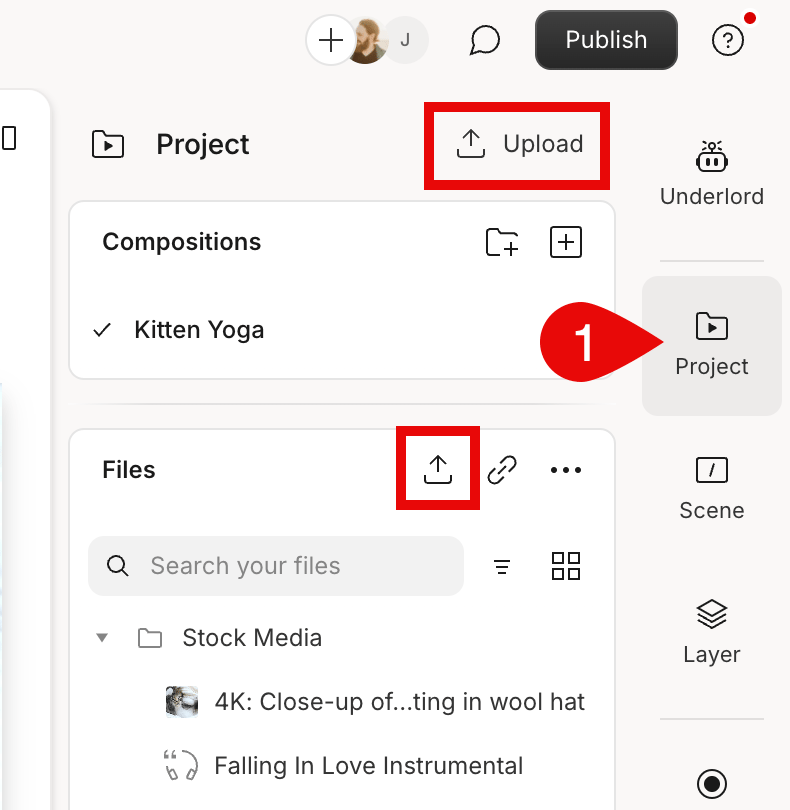 You can create a new [sequence](/script-editing/multi-track-sequences-overview) or folder by clicking the `...` ellipsis button in the Files section.
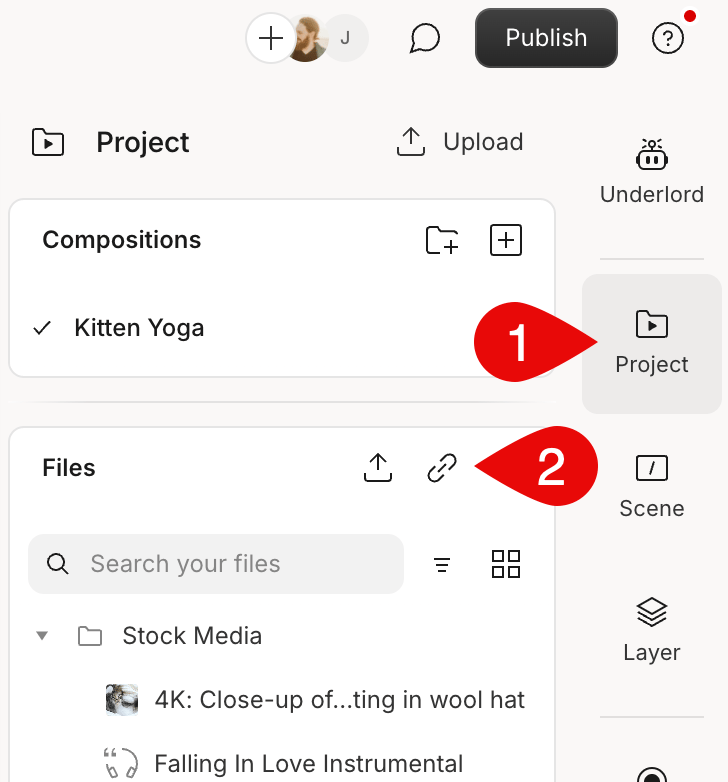
 You can also drag and drop files directly onto the various areas in Descript. This will add the files to the project and directly to the active composition. You can also [import a file with a link](https://help.descript.com/hc/en-us/articles/27191488459405) by clicking the link icon in the Files section of the Project panel. \\
 ## How Descript creates optimized assets from your project files
When you add a file to a project or [record directly in Descript](/record/editor-recorder-overview), the app saves two file versions:
* A copy of the imported file; or, if you're recording in Descript, a new file. This version will be used when you export your composition.
* An [optimized version](/app-troubleshooting/proxy-files) that is smaller, making them easier to share, improving playback and editing performance, and taking up less space on your hard drive.
Both file versions are stored locally. The files are also uploaded to the cloud, so you never need to worry about misplacing the files referenced in a project.
Optimized files use the following settings:
| | |
| --------- | ------------------------------------------------------- |
| **Video** | |
| Codec | H.265 (HVEC) |
| **Audio** | |
| Codec | AAC |
| Bitrate | Maximum of 256k for mono audio, 320k for stereo audio\* |
\**if your source audio bitrate is lower than that, the imported file will keep its original bitrate*
For users with higher-performing computers, creating optimized video files for playback may be unnecessary and potentially cause performance overhead. You can disable Optimize video files for playback from the [App settings](/account-and-app-settings/app-settings) or [Project settings](/working-in-projects/project-settings).
## How Descript handles files with different sample rates
If your project contains audio files with different sample rates (e.g. 44.1k, 48k), Descript treats them as follows:
* For [timeline exports](/export-and-share/timeline-exports), Descript converts all the files to the highest sample rate in the project.
* All files will be at a 44.1k sample rate during playback in the app.
## How Descript creates optimized assets from your project files
When you add a file to a project or [record directly in Descript](/record/editor-recorder-overview), the app saves two file versions:
* A copy of the imported file; or, if you're recording in Descript, a new file. This version will be used when you export your composition.
* An [optimized version](/app-troubleshooting/proxy-files) that is smaller, making them easier to share, improving playback and editing performance, and taking up less space on your hard drive.
Both file versions are stored locally. The files are also uploaded to the cloud, so you never need to worry about misplacing the files referenced in a project.
Optimized files use the following settings:
| | |
| --------- | ------------------------------------------------------- |
| **Video** | |
| Codec | H.265 (HVEC) |
| **Audio** | |
| Codec | AAC |
| Bitrate | Maximum of 256k for mono audio, 320k for stereo audio\* |
\**if your source audio bitrate is lower than that, the imported file will keep its original bitrate*
For users with higher-performing computers, creating optimized video files for playback may be unnecessary and potentially cause performance overhead. You can disable Optimize video files for playback from the [App settings](/account-and-app-settings/app-settings) or [Project settings](/working-in-projects/project-settings).
## How Descript handles files with different sample rates
If your project contains audio files with different sample rates (e.g. 44.1k, 48k), Descript treats them as follows:
* For [timeline exports](/export-and-share/timeline-exports), Descript converts all the files to the highest sample rate in the project.
* All files will be at a 44.1k sample rate during playback in the app.