> ## Documentation Index
> Fetch the complete documentation index at: https://help.descript.com/llms.txt
> Use this file to discover all available pages before exploring further.
# Change Project Ownership
> Transfer ownership of your Descript project.
Changing a project’s owner makes sure the right person controls its access and content going forward—useful when someone leaves a team or hands off work to a client.
## Who can change project ownership
* **Project owners**can change the ownership of projects they own to that of other Descript users. This includes projects on their main drive in both their private and drive workspaces, as well as any projects they've created on other drives that they are a member of.
* **Drive owners** can also change the ownership of projects on their Drive workspace through the [Project Access](/working-in-projects/access) menu.
* Note: Drive owners cannot access or change the ownership for projects in other members' **private workspaces** unless they've explicitly been added as project members beforehand by the project owner.
* **Drive admins** can also change the ownership of projects on their Drive workspace through the [Project Access](/working-in-projects/access) menu.
* Note: Drive admins cannot access or change the ownership for projects in other members' **private workspaces** unless they've explicitly been added as project members beforehand by the project owner.
Learn more about drive member roles in our [Drive membership roles](/team-management/invite) article.
## How to Transfer Ownership of a Project to Another User
1. From the [Drive View](/descript-tour/drive-view), click ** ** on the far right of the project title.
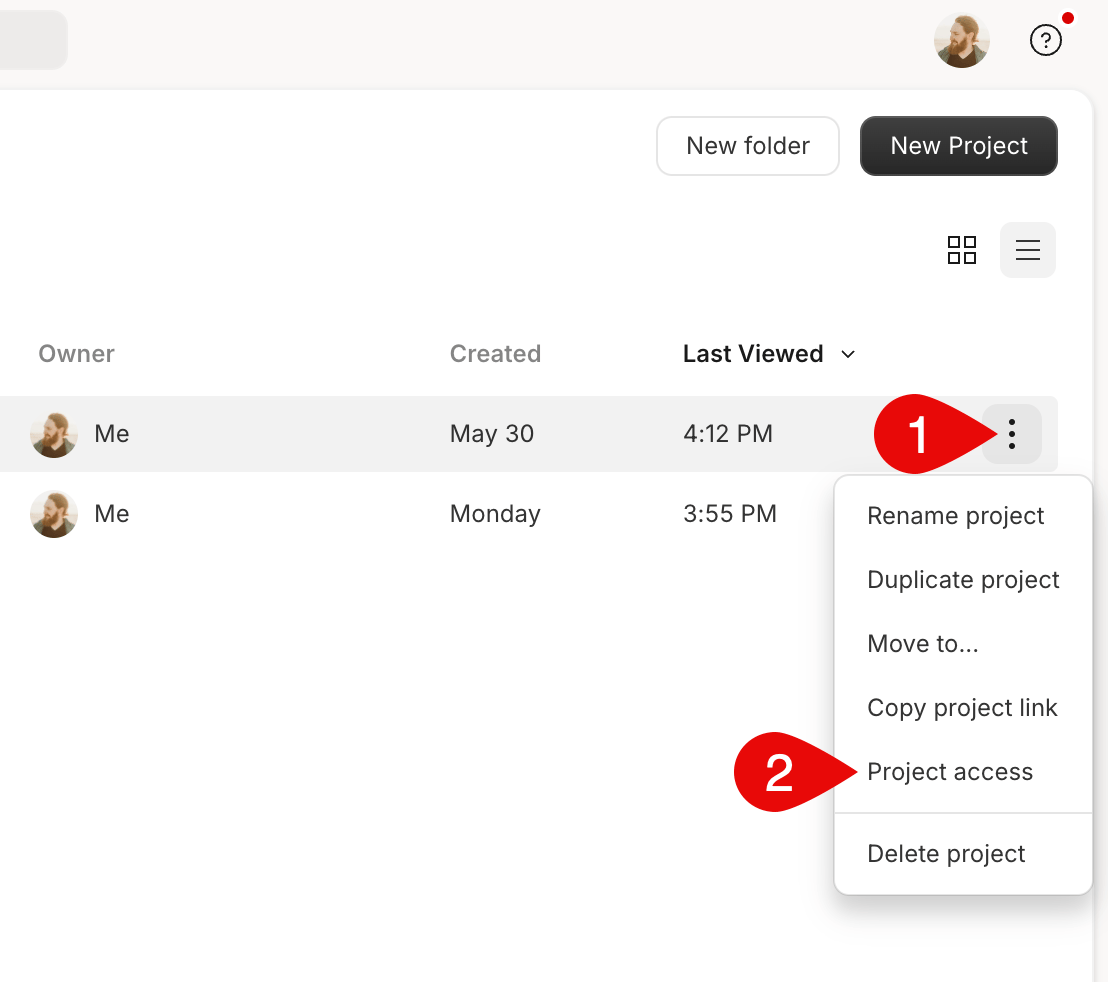 2. Select **Project Access**from the dropdown menu.
3. Type the new owner's email into the text box and select **invite to project**.
4. You'll see the user added to the list of people who have project access. Click the permissions drop down box to the right of their name, then select **Make owner** from the list of options.
5. Select **Transfer ownership** in the confirmation window to finish transferring the project.
You can also transfer ownership following the same steps from within a project using the [Project access](/working-in-projects/access) panel.
## Transferring Project Ownership After Removing the Original Owner From a Drive
If the original owner of a project has been removed from a Drive before transferring ownership, only Drive owners and [admins](/team-management/drive-admins) (Enterprise-exclusive role) can assign a new owner. This action can only be completed for projects in a Drive that you own.
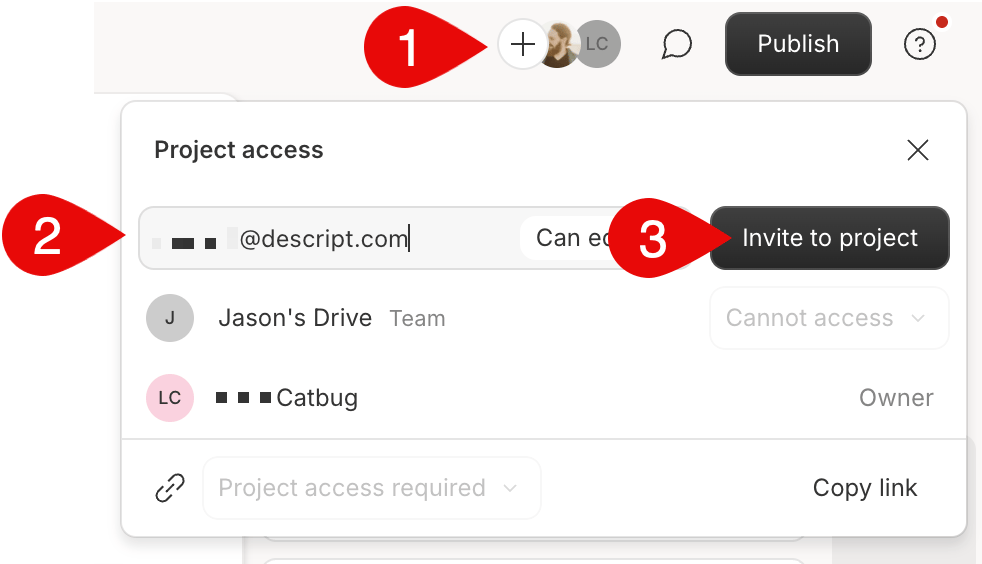
1. **Open the project settings:** Click the **+ icon** at the top of the project interface to manage access.
2. **Invite a new project owner:** Enter the email address of the new owner in the "Project access" field. Select the appropriate access level (e.g., "Can edit") and click **Invite to project.** You will need to do this step regardless of if you already have access to the project.\\
2. Select **Project Access**from the dropdown menu.
3. Type the new owner's email into the text box and select **invite to project**.
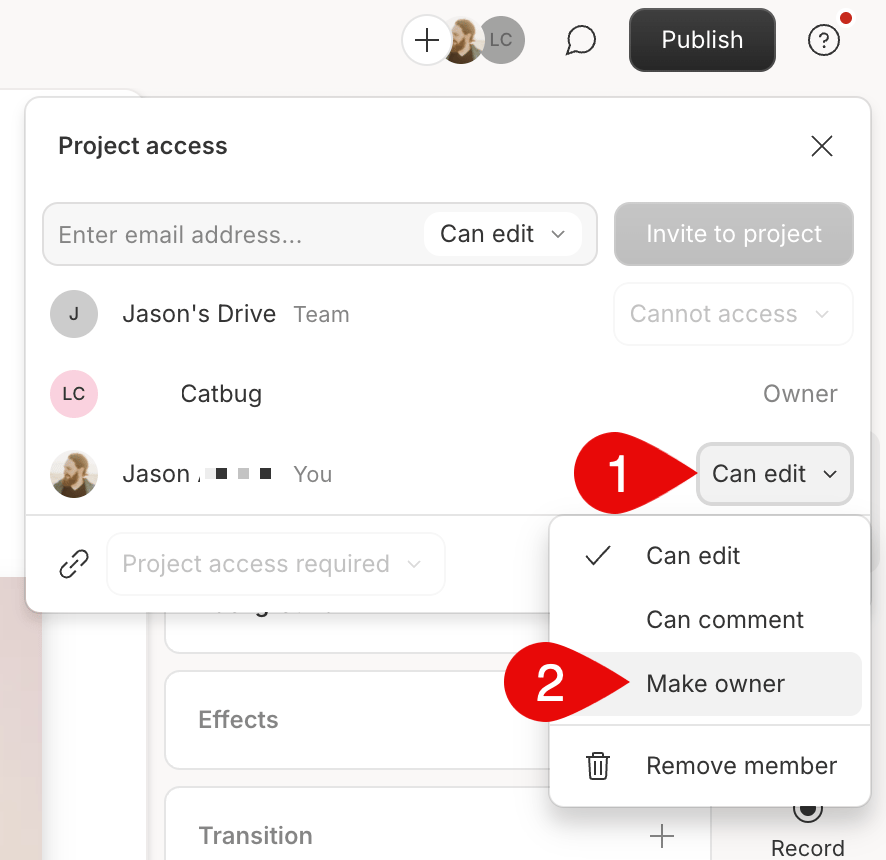
4. You'll see the user added to the list of people who have project access. Click the permissions drop down box to the right of their name, then select **Make owner** from the list of options.
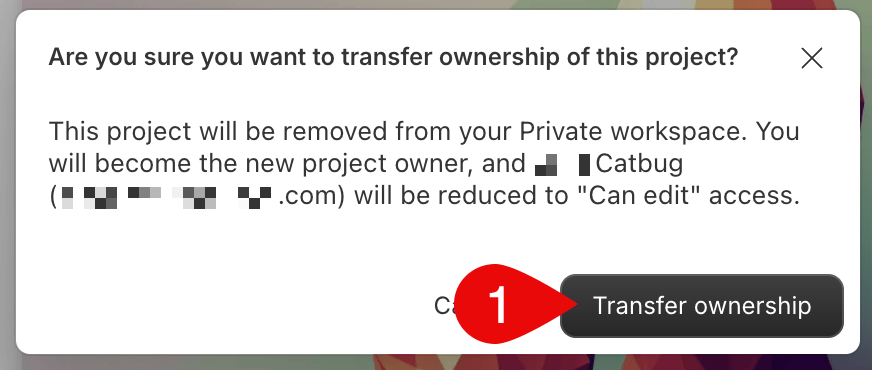
5. Select **Transfer ownership** in the confirmation window to finish transferring the project.
You can also transfer ownership following the same steps from within a project using the [Project access](/working-in-projects/access) panel.
## Transferring Project Ownership After Removing the Original Owner From a Drive
If the original owner of a project has been removed from a Drive before transferring ownership, only Drive owners and [admins](/team-management/drive-admins) (Enterprise-exclusive role) can assign a new owner. This action can only be completed for projects in a Drive that you own.
1. **Open the project settings:** Click the **+ icon** at the top of the project interface to manage access.
2. **Invite a new project owner:** Enter the email address of the new owner in the "Project access" field. Select the appropriate access level (e.g., "Can edit") and click **Invite to project.** You will need to do this step regardless of if you already have access to the project.\\
 3. **Change the new owner's permissions:** Locate the added member in the list. Click the dropdown menu next to their name and select **Make owner.**\
**
3. **Change the new owner's permissions:** Locate the added member in the list. Click the dropdown menu next to their name and select **Make owner.**\
** **
4. **Confirm the ownership transfer:** A confirmation dialog will appear, stating the project will be removed from your workspace and transferred to the new owner. Click **Transfer ownership** to confirm.\\
**
4. **Confirm the ownership transfer:** A confirmation dialog will appear, stating the project will be removed from your workspace and transferred to the new owner. Click **Transfer ownership** to confirm.\\
 5. **Remove the old owner (if necessary):** In the "Project access" list, locate the old owner. Use the dropdown next to their name and click **Remove member** to complete the process.\\
