> ## Documentation Index
> Fetch the complete documentation index at: https://help.descript.com/llms.txt
> Use this file to discover all available pages before exploring further.
# Projects and Compositions Overview
> See how compositions, sequences, and files fit together in a project.
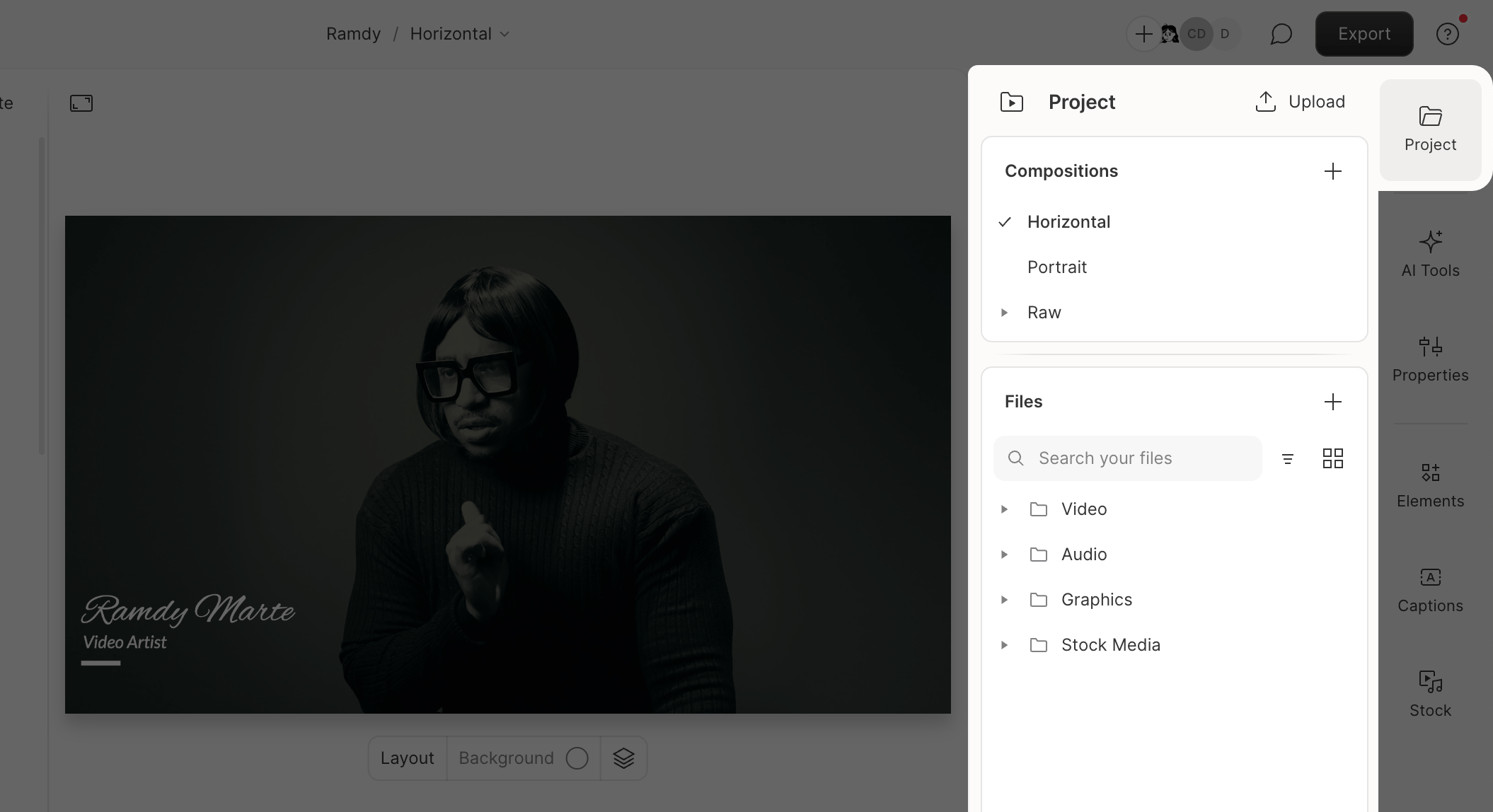
In Descript, a project is the top-level container for everything you make. Your compositions, the media files behind them, and any sequences all live inside a single project.
## What’s inside a project
Each project includes three types of assets:
* **Compositions** — where you write, edit, and assemble content. Editing in a composition is non-destructive, so your source files aren’t permanently changed.
* **Project files** — the audio and video you import into Descript or record directly in the app, used across your compositions.
* **Sequences** — containers for working with multiple media tracks (e.g., multi‑speaker recordings). [Learn more about sequences](/script-editing/multi-track-sequences-overview).
## Projects vs. compositions
Think of a project as a **binder** and compositions as the **pages inside**. Creating a new composition is like adding a new page.
* \*\*Projects:\*\*Use separate projects for large or distinct productions. Keep projects as small as possible for better performance. For example, create a new project for each podcast episode or each lesson in a course.
* **Compositions:** Create multiple compositions within a project for alternate versions of the same material. For example, you might keep one composition for raw audio, another for your final edit, and others for social clips.
## Access projects and compositions
1. From [the Drive view](/descript-tour/drive-view), click a project to open it in the [editor](/descript-tour/the-editor-interface).
2. Open [the Project panel](/descript-tour/project-panel) in the right sidebar to view your compositions, project files, and sequences.
 ## Create and manage compositions
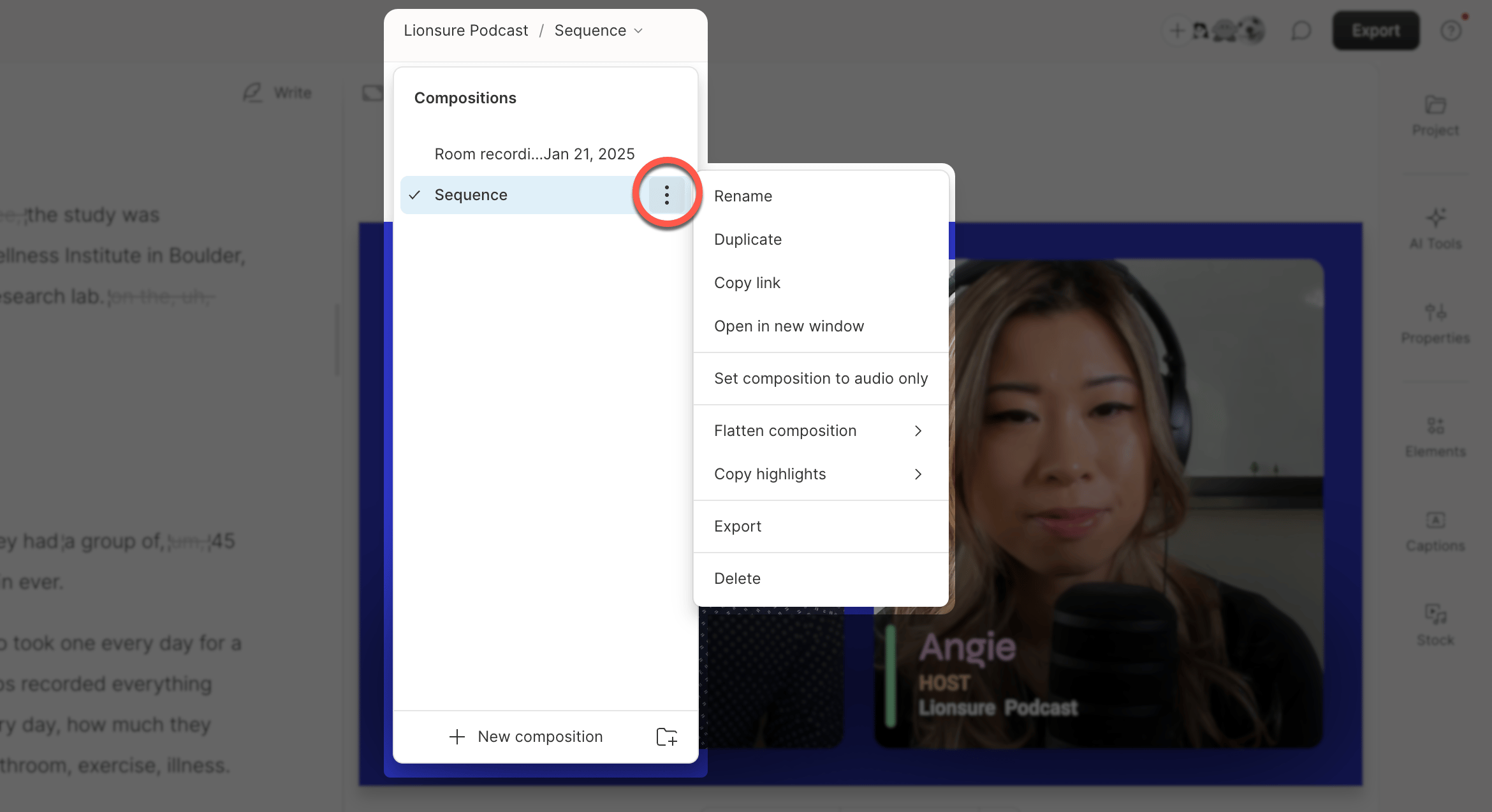
Click the **ellipsis (…)** next to a composition name to rename, duplicate, copy link, open in a new window, set to audio only, flatten, copy highlights, or delete. Compositions can be accessed from either the Project panel in the sidebar or the drawer at the top of the Descript editor.
## Create and manage compositions
Click the **ellipsis (…)** next to a composition name to rename, duplicate, copy link, open in a new window, set to audio only, flatten, copy highlights, or delete. Compositions can be accessed from either the Project panel in the sidebar or the drawer at the top of the Descript editor.