> ## Documentation Index
> Fetch the complete documentation index at: https://help.descript.com/llms.txt
> Use this file to discover all available pages before exploring further.
# Move Projects
> Move projects between workspaces , folders , or drives to keep things organized or adjust who has access.
Move a project to reorganize your [drive](/descript-tour/drive-view) or hand it off to a different team. Access follows the [workspace](/team-management/workspaces) a project lives in, so moving it can change who can open it.
## Who can move projects
[Drive owners and editors](/team-management/invite) can move projects within and between workspaces on a drive. Folders can't be moved between workspaces or across drives.
**Moving a project changes who has access to it**
When you move a project to a different workspace, access updates to match that workspace's members. Moving a project to your [personal private workspace](/team-management/workspaces) removes access for other drive members.
## Move a project from the drive view
1. Right-click the project name or click the **⋯** menu next to the project.
2. Select **Move to…**
3. Choose a destination workspace, drive, or folder and click **Move**.
## Move a project from the project editor
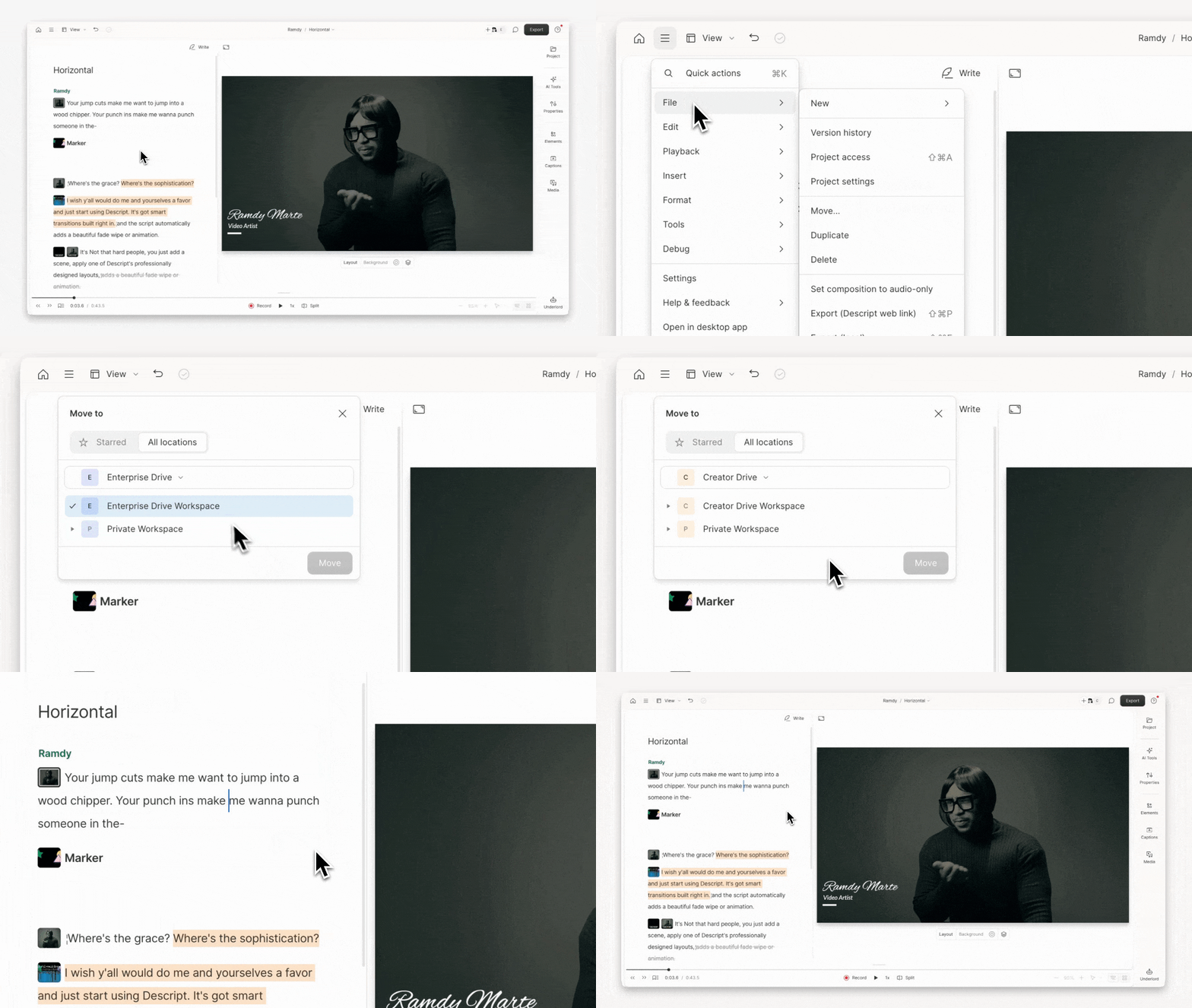
1. With a project open, click the menu icon in the top-left corner.
2. Select **File > Move…**
3. Choose the destination workspace, drive, or folder, then click **Move**.
 ## Move multiple projects at once
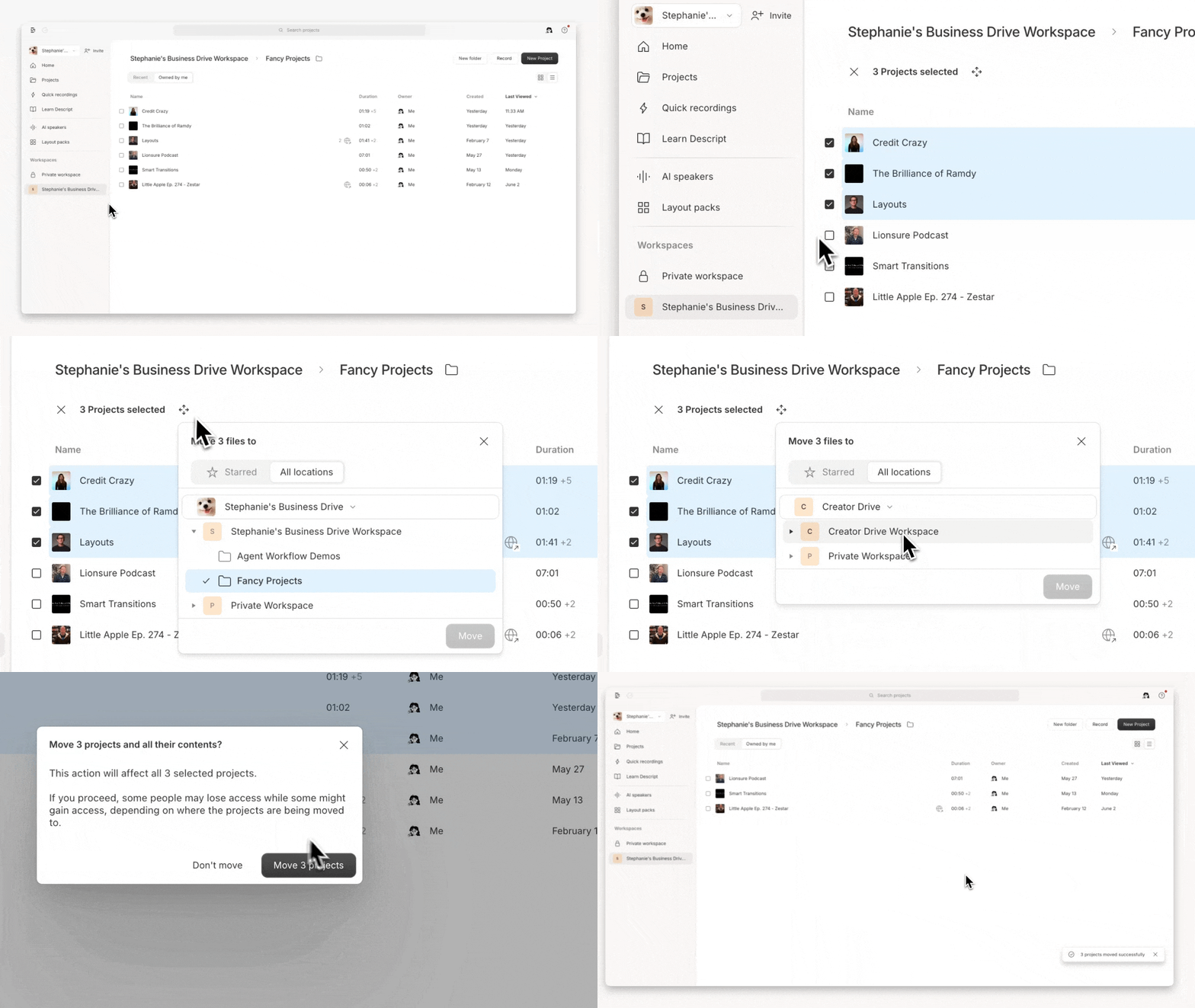
1. Open a workspace from the left sidebar.
2. Select checkboxes beside each project to move. Use `Shift` + click to select a range.
3. Click the move icon or the **⋯** menu in the toolbar that appears and choose **Move to…**
4. Choose the destination workspace, drive, or folder, then click **Move**.
## Move multiple projects at once
1. Open a workspace from the left sidebar.
2. Select checkboxes beside each project to move. Use `Shift` + click to select a range.
3. Click the move icon or the **⋯** menu in the toolbar that appears and choose **Move to…**
4. Choose the destination workspace, drive, or folder, then click **Move**.