> ## Documentation Index
> Fetch the complete documentation index at: https://help.descript.com/llms.txt
> Use this file to discover all available pages before exploring further.
# Duplicate a Project, Composition, Selection, or Layer
> Duplicate an entire project, a composition, a section of script, or a layer.
Duplicating makes a copy you can change without touching the original. It's handy to spin up variations, reuse an intro across episodes, or test an edit before you commit.
## Duplicate a project
Duplicating a project makes a full copy of the entire project, including all compositions, files, and sequences. A new project will be created in your Drive with the same name, followed by “(Copy).” You can rename it at any time.
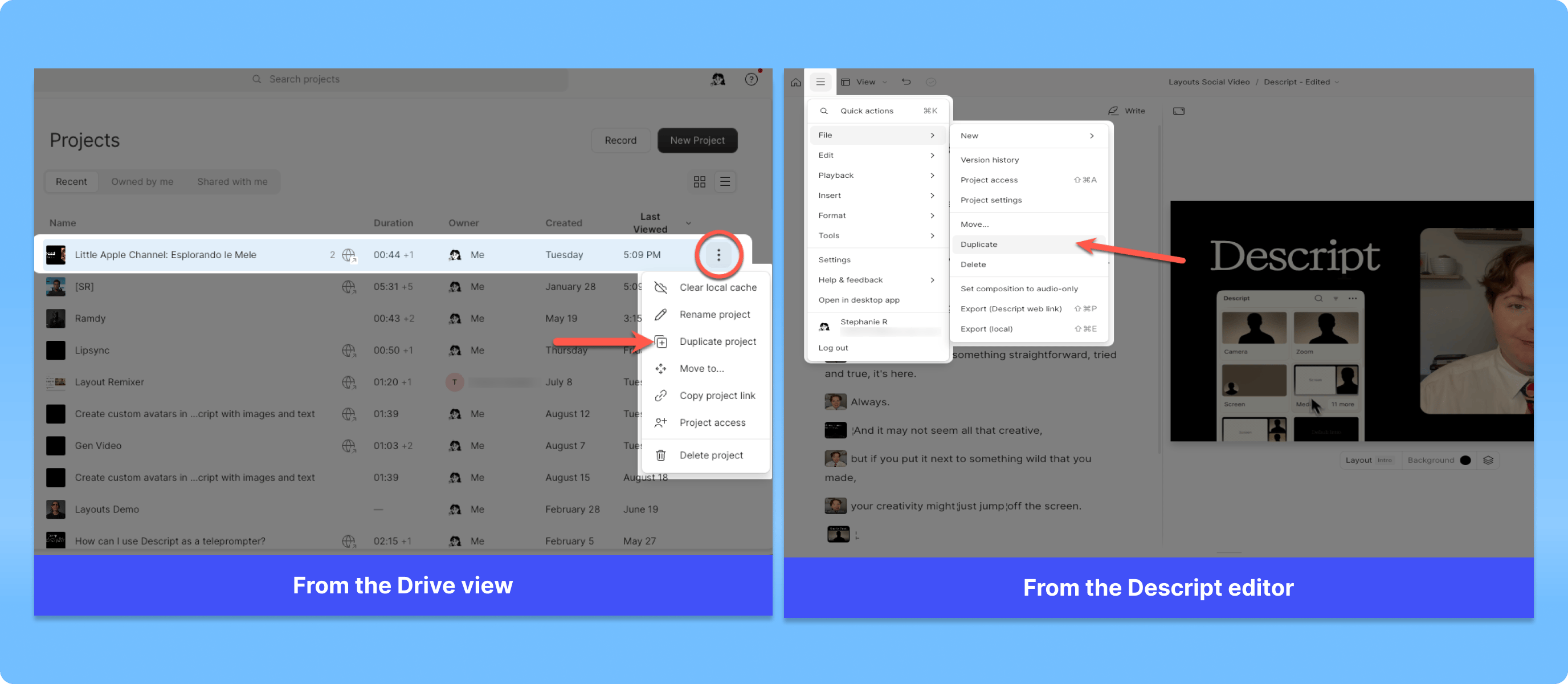
Duplicate a project from either the Drive view or within the Descript editor:
* From the [Drive view](/descript-tour/drive-view), click the **ellipsis (…)** next to the project name and select **Duplicate project** from the available menu options.
* From within the editor, open the menu in the top-left corner and select **File > Duplicate**.
 ## Duplicate an entire composition
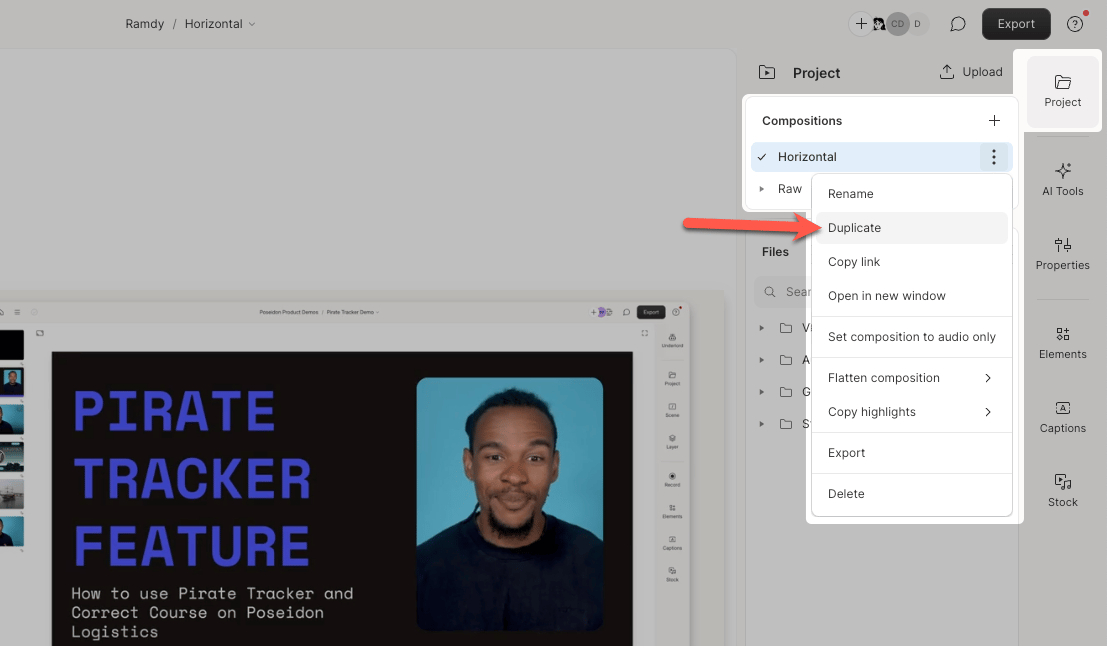
To copy a composition in the same project:
1. Open [the Project panel](/descript-tour/project-panel) and locate the Compositions section.
2. Click the **ellipsis (…)** next to the composition name.
3. Select **Duplicate**.
## Duplicate an entire composition
To copy a composition in the same project:
1. Open [the Project panel](/descript-tour/project-panel) and locate the Compositions section.
2. Click the **ellipsis (…)** next to the composition name.
3. Select **Duplicate**.
 ## Copy a composition into another project
To copy a composition into another project:
1. Open the source project and view the composition you want to copy.
2. Open the destination project in a second Descript window or tab, or create a new project.
3. Select all or part of the script text from the source, right-click, and choose **Copy**.
4. In the destination project, right-click in the script and choose **Paste**.
## Duplicate a selection to another composition
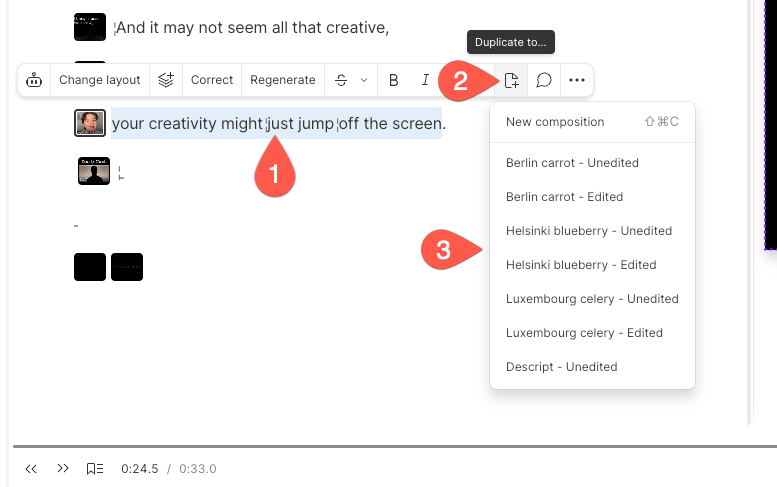
To copy a section of a composition to another composition:
1. Highlight the text you want to copy in the script. Any linked media will also be copied.
2. Click the **Duplicate to…** icon (page with a plus sign) in the hover menu.
3. Choose the composition where you want the selection added. You’ll see a confirmation message when it’s copied.
## Copy a composition into another project
To copy a composition into another project:
1. Open the source project and view the composition you want to copy.
2. Open the destination project in a second Descript window or tab, or create a new project.
3. Select all or part of the script text from the source, right-click, and choose **Copy**.
4. In the destination project, right-click in the script and choose **Paste**.
## Duplicate a selection to another composition
To copy a section of a composition to another composition:
1. Highlight the text you want to copy in the script. Any linked media will also be copied.
2. Click the **Duplicate to…** icon (page with a plus sign) in the hover menu.
3. Choose the composition where you want the selection added. You’ll see a confirmation message when it’s copied.
 ## Duplicate layers in the scene editor
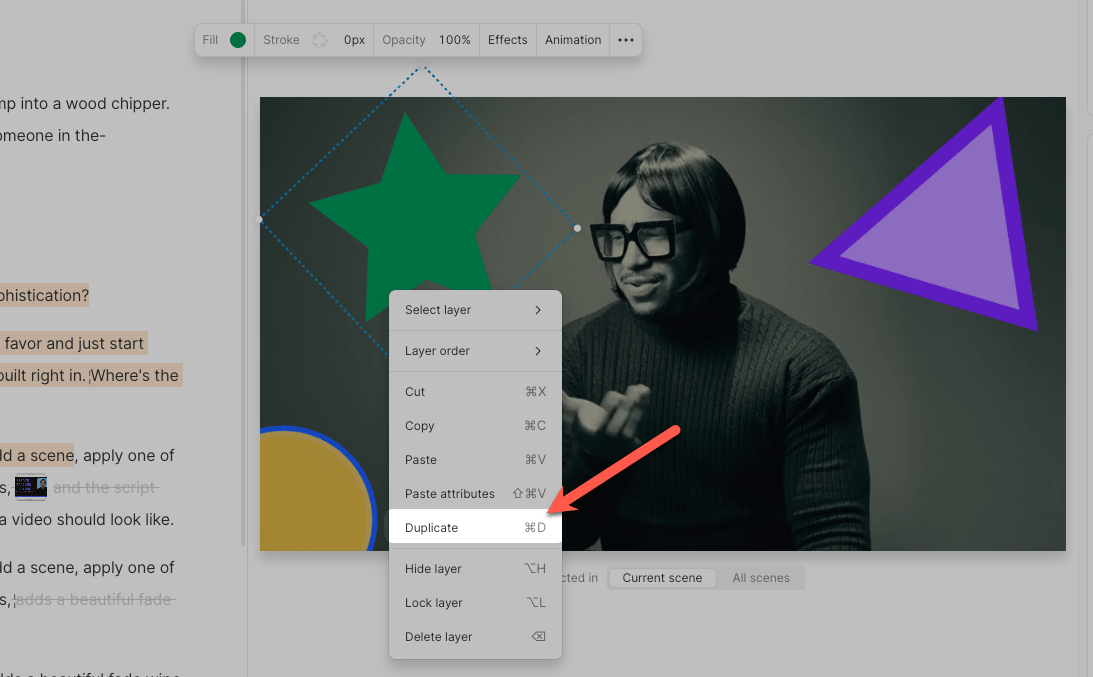
To duplicate a visual or audio layer:
1. Right-click the layer in the **scene editor**
2. Select **Duplicate** from the available options in the dropdown menu
## Duplicate layers in the scene editor
To duplicate a visual or audio layer:
1. Right-click the layer in the **scene editor**
2. Select **Duplicate** from the available options in the dropdown menu