> ## Documentation Index
> Fetch the complete documentation index at: https://help.descript.com/llms.txt
> Use this file to discover all available pages before exploring further.
# Audio-only Compositions
> Switch a composition between video and audio-only.
An audio-only composition drops Descript's visual tools: no [scenes](/getting-started/scenes) and no [scene editor](/visuals/scene-editor-overview), since those are only for video. You work from the Script editor, side panels, and the [Timeline](/timeline/timeline-overview) instead.
## Changing the composition type
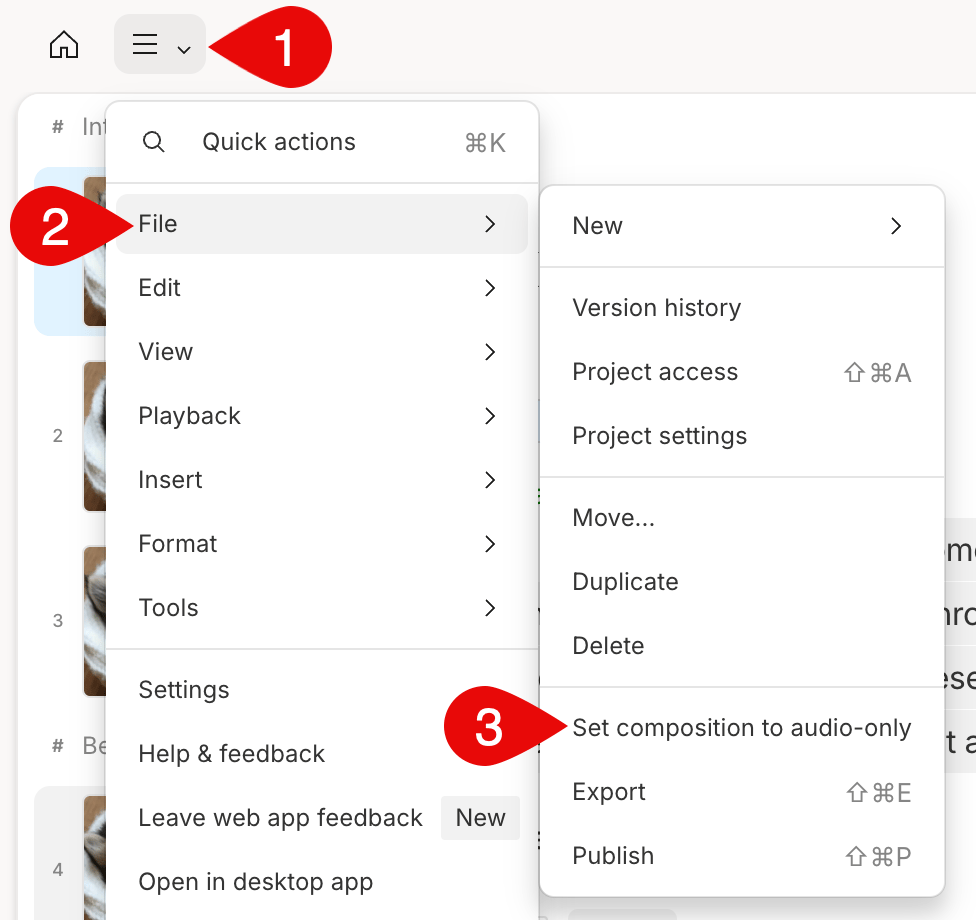
If you import an audio file into the script of a blank composition, it will automatically set your composition to audio-only. You can toggle the composition between video or audio-only by opening the menu in the top left and selecting **File > Set composition to video or audio-only**.
 **Adding visuals**
If you add a video to your script, Descript ask you if you would like to **switch to a video composition**.
### Set audio-only as the default setting
You can set your default project type from your [App settings](/account-and-app-settings/app-settings).
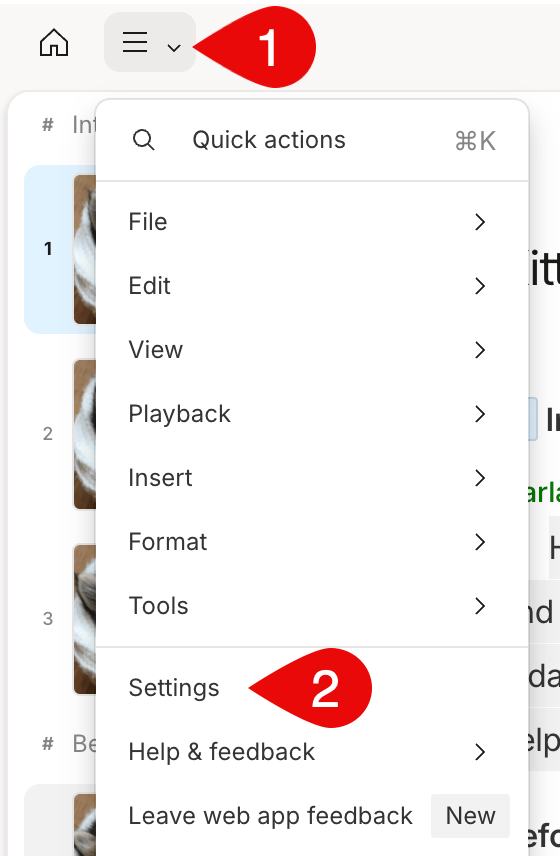
1. Click the menu in the top left corner.
2. Select **Settings** to open your App settings.\\
**Adding visuals**
If you add a video to your script, Descript ask you if you would like to **switch to a video composition**.
### Set audio-only as the default setting
You can set your default project type from your [App settings](/account-and-app-settings/app-settings).
1. Click the menu in the top left corner.
2. Select **Settings** to open your App settings.\\
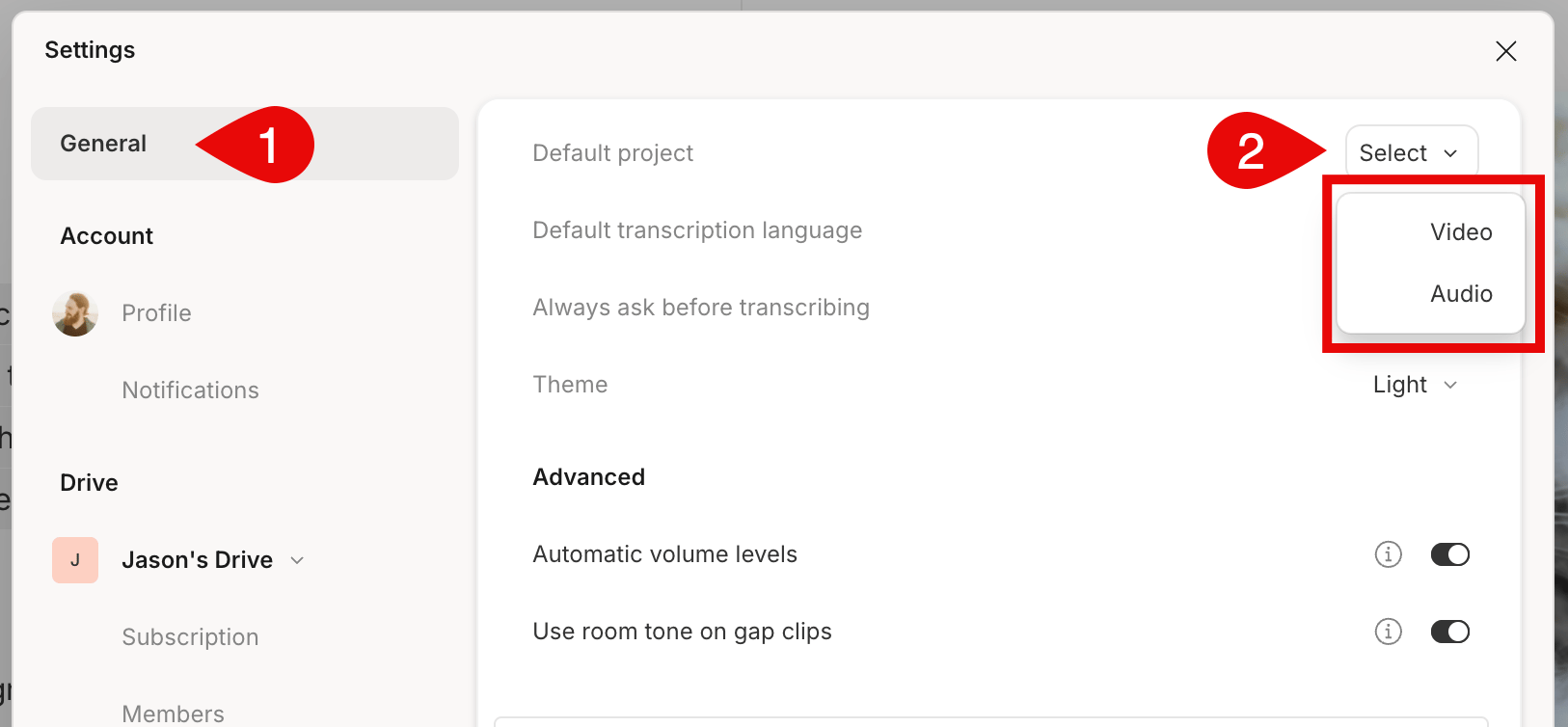
 3. Click the dropdown next to **Default project** and choose **Audio**.\\
 ## Considerations when switching from video and audio-only
If you have a composition where you have created video content, there are a few things to remember before switching your composition to audio-only.
* If you do not need to edit the content further, you can always [export your video composition as an audio file](/export-and-share/audio).
* Video layers will still be visible in your timeline when switching to audio-only.
* You cannot export a video file while working in an audio-only composition; you will need to switch the composition back to a video to export a video file.
## Considerations when switching from video and audio-only
If you have a composition where you have created video content, there are a few things to remember before switching your composition to audio-only.
* If you do not need to edit the content further, you can always [export your video composition as an audio file](/export-and-share/audio).
* Video layers will still be visible in your timeline when switching to audio-only.
* You cannot export a video file while working in an audio-only composition; you will need to switch the composition back to a video to export a video file.