> ## Documentation Index
> Fetch the complete documentation index at: https://help.descript.com/llms.txt
> Use this file to discover all available pages before exploring further.
# Project Access and Collaborators
> Invite editors or commenters to a single project without adding them to your Drive
Need to add someone to a specific project without giving them access to the rest of your drive? Invite them as a project collaborator, and they’ll get scoped access to specific projects.
Descript has three layers of access: [drives](/descript-tour/drive-view), [workspaces](/team-management/workspaces), and individual projects. This article covers the project layer — inviting collaborators to specific projects. Adding someone as a project collaborator doesn't add them to your drive or give them access to any workspace.
For more info about drive-level members, see [Drive membership roles: how to invite and manage team members](/team-management/invite).
## Project collaborator permissions
There are two project-level collaborator types to consider:
* **Project commenters** can view and comment on the project in the editor but cannot make edits.
* **Project editors** have limited editing permissions and can export a shared project in your Drive. They cannot upload media or use AI features.
| Feature / Action | Project Editor | Project Commenter |
| ---------------------------------------------------------------------------- | -------------- | ----------------- |
| View and comment | ✅ | ✅ |
| Make edits | ✅ | ❌ |
| Export project | ✅ | ❌ |
| Use AI tools (AI Actions, AI Speech, AI Avatars) | ❌ | ❌ |
| Recording | ❌ | ❌ |
| [Translation proofread](/repurpose/translate-captions#translation-proofread) | ❌ | ❌ |
**Legacy and Sunset project editors**
Any feature that consumes [AI credits or Media Minutes](/billing-payments-plans/track-and-understand-your-media-minutes-and-ai-credits) is available only to Drive-level Editors, not project-level collaborators.
On [Legacy and Sunset plans](/billing-payments-plans/legacy-sunset), project editors can upload files, but can’t initiate transcription. They’re also unable to upload certain media formats (such as *Apple ProRes* or *QuickTime RLE*). Full feature access requires **Drive-level membership**.
## Invite a project collaborator
Invite a project collaborator from the [drive view](/descript-tour/drive-view) or the [project editor](/descript-tour/the-editor-interface):
* From the drive view, click the options icon (three vertical dots) to the right of a project row and select **Project access** from the list of options.
* From the editor, click the **+** **Project access** icon (a circular button with a plus icon) in the top-right corner.
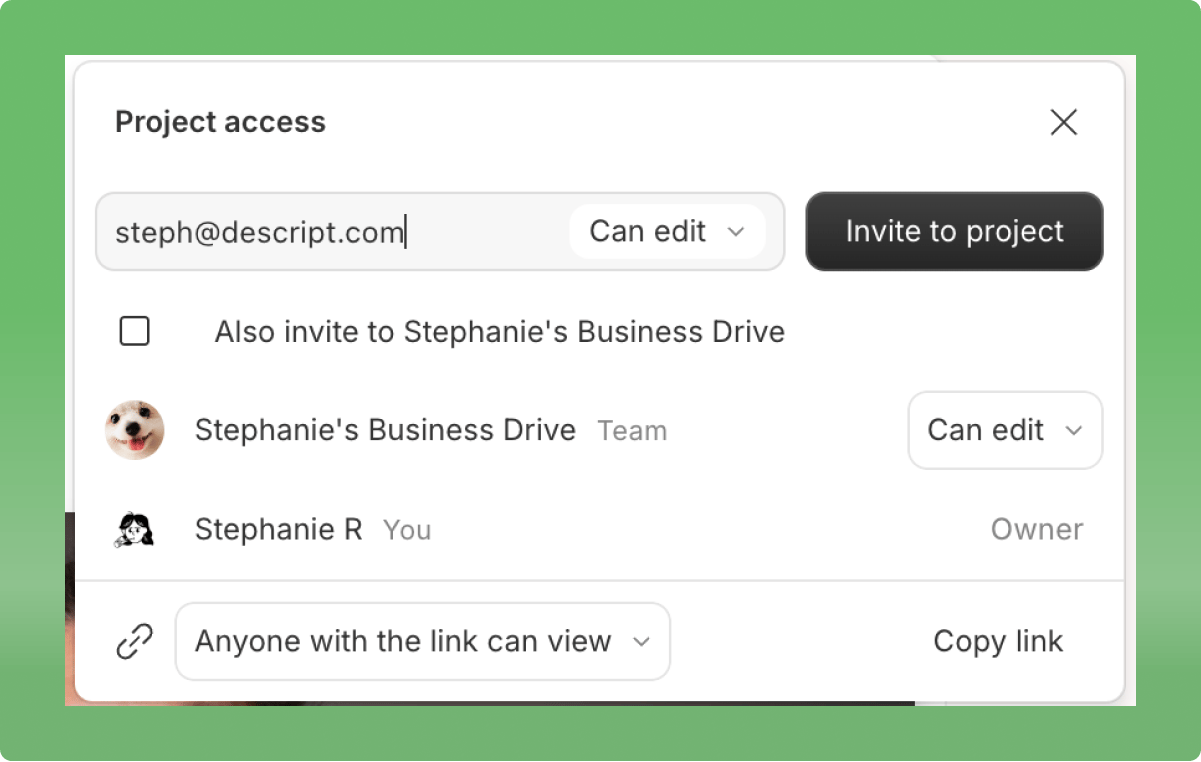
 With the project access panel open, enter your collaborator’s email, choose their project permissions (**can edit** or **can comment**), then click **invite to project**.
**Project collaborators are unpaid — drive members need a paid seat**
Adding collaborators to a specific project is different from adding members to your drive. If you check the box for **“Also invite to drive”**, you’re adding that person to your drive — not just the project. This will trigger a charge for an additional Editor seat and count toward your plan’s seat limits.
To avoid charges, leave the box unchecked to share access only to the project. [Learn more about how billing works in Descript](/billing-payments-plans/overview).
With the project access panel open, enter your collaborator’s email, choose their project permissions (**can edit** or **can comment**), then click **invite to project**.
**Project collaborators are unpaid — drive members need a paid seat**
Adding collaborators to a specific project is different from adding members to your drive. If you check the box for **“Also invite to drive”**, you’re adding that person to your drive — not just the project. This will trigger a charge for an additional Editor seat and count toward your plan’s seat limits.
To avoid charges, leave the box unchecked to share access only to the project. [Learn more about how billing works in Descript](/billing-payments-plans/overview).
 ### Change or remove a collaborator's access
To change the access level for a collaborator:
1. Open the project access panel.
2. Select the permissions dropdown next to the person’s name.
3. Choose **Can edit**, **Can comment**, **Make owner** ([learn how to transfer project ownership](/working-in-projects/ownership)), or **Remove member**.
**Double-check your link settings**
Even if you’ve removed a collaborator, they may still have access to your project if the link is set to **Can view** or **Can comment**. Be sure to update the link sharing settings if you want to fully restrict access.
#### Adjust project permissions for Drive members
You can set the level of project access you want all [Drive members](https://help.descript.com/hc/en-us/articles/10163662152589) to have for individual projects. From the project access panel, set the project-wide access level at the bottom of the panel.
### Change or remove a collaborator's access
To change the access level for a collaborator:
1. Open the project access panel.
2. Select the permissions dropdown next to the person’s name.
3. Choose **Can edit**, **Can comment**, **Make owner** ([learn how to transfer project ownership](/working-in-projects/ownership)), or **Remove member**.
**Double-check your link settings**
Even if you’ve removed a collaborator, they may still have access to your project if the link is set to **Can view** or **Can comment**. Be sure to update the link sharing settings if you want to fully restrict access.
#### Adjust project permissions for Drive members
You can set the level of project access you want all [Drive members](https://help.descript.com/hc/en-us/articles/10163662152589) to have for individual projects. From the project access panel, set the project-wide access level at the bottom of the panel.
