> ## Documentation Index
> Fetch the complete documentation index at: https://help.descript.com/llms.txt
> Use this file to discover all available pages before exploring further.
# Waveforms
> Add an animated audio visualizer for audiograms or podcast clips.
Waveforms are layers that animate in response to audio in your composition. Use them to create audio visualizers for social media audiograms, podcast previews, or any video where you want to show audio activity.
## Add a waveform to your composition
1. In the **Scene Editor**, open the **Elements** panel on the right.
2. Select **Waveform**.
3. Choose a style: **Lines**, **Circle**, **Ring**, or **Wave**.
The waveform will appear in your scene and animate based on all speech audio in your script track.
## Assign a waveform to a specific speaker
You can assign a waveform to a specific speaker so it only animates when that speaker is talking.
Waveforms use speaker labels to determine when to animate. Make sure your speaker labels are accurate for best results. [Learn about detecting and labeling speakers in your script.](/script-editing/speaker-detection)
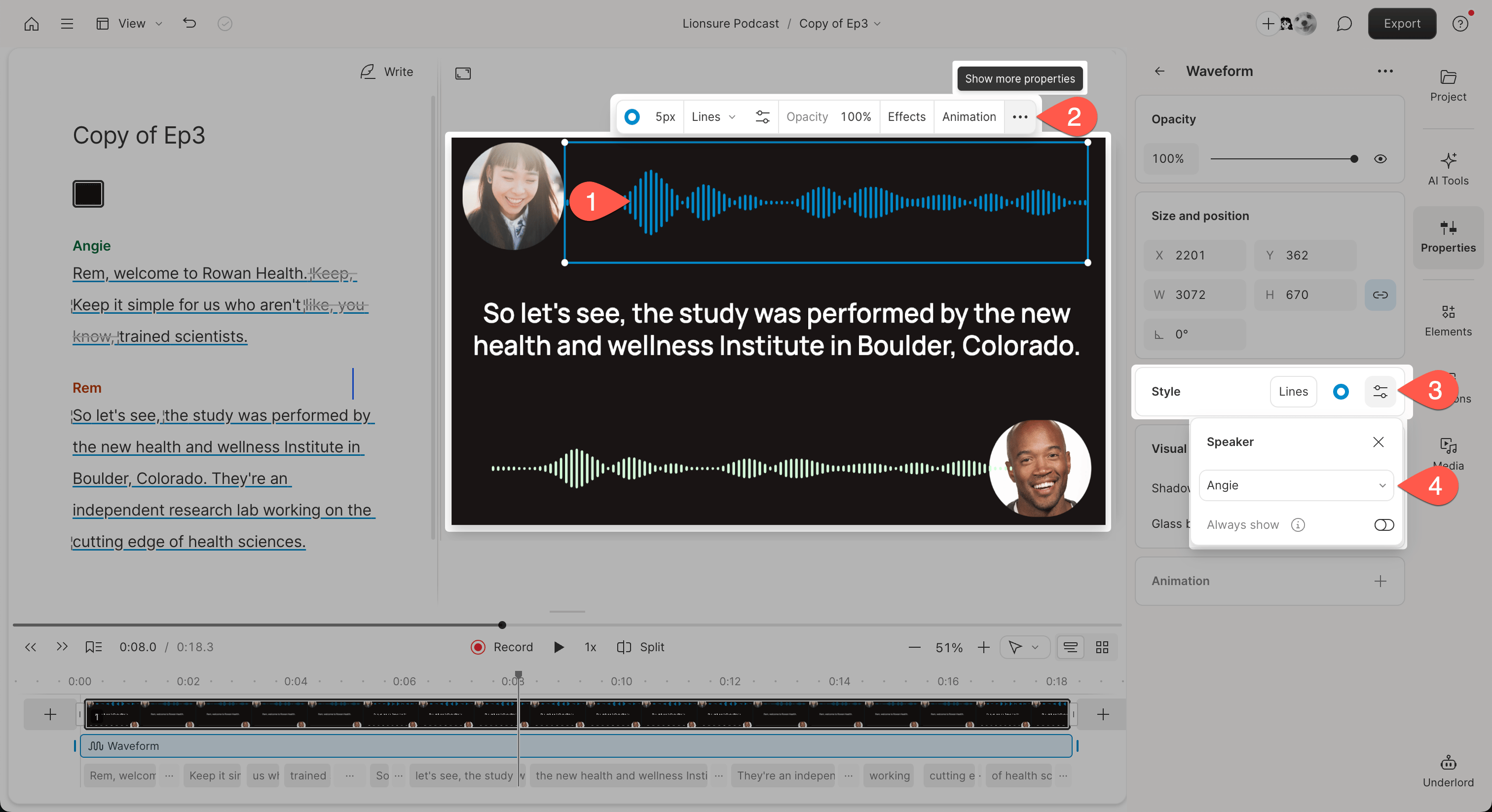
1. Select the waveform in the **Scene Editor**.
2. In the hover menu, click the **Show more options** button at the far right
3. Find the **Style** section in the **Properties Pane**l. Select the options menu.
4. Choose a speaker from the dropdown.
 **Tip: Assign speakers before adding scenes**
Speaker assignments respect scene boundaries — if you add scenes after assigning speakers, you may need to reassign waveforms in each scene. [Learn more about scenes.](/getting-started/scenes)
## Customize waveform appearance
Select a waveform and adjust these settings in the **Properties** panel:
| Setting | Description |
| --------------------------------- | ----------------------------------------------------------------------------------------- |
| **Style** | Choose between **Lines**, **Circle**, **Ring**, or **Wave**. |
| **Speaker** | Assign the waveform to a specific speaker, or leave blank to respond to all script audio. |
| **Fill** *(Circle and Ring only)* | Set the waveform color. |
| **Size** | Adjust the thickness of the waveform. |
| **Fidelity** | Control the sparseness of the waveform. |
| **Magnitude** | Control how much the waveform reacts to audio volume. |
| **Mirror** *(Line and Wave only)* | When enabled, centers the waveform and adds a mirrored reflection below. |
**Tip: Assign speakers before adding scenes**
Speaker assignments respect scene boundaries — if you add scenes after assigning speakers, you may need to reassign waveforms in each scene. [Learn more about scenes.](/getting-started/scenes)
## Customize waveform appearance
Select a waveform and adjust these settings in the **Properties** panel:
| Setting | Description |
| --------------------------------- | ----------------------------------------------------------------------------------------- |
| **Style** | Choose between **Lines**, **Circle**, **Ring**, or **Wave**. |
| **Speaker** | Assign the waveform to a specific speaker, or leave blank to respond to all script audio. |
| **Fill** *(Circle and Ring only)* | Set the waveform color. |
| **Size** | Adjust the thickness of the waveform. |
| **Fidelity** | Control the sparseness of the waveform. |
| **Magnitude** | Control how much the waveform reacts to audio volume. |
| **Mirror** *(Line and Wave only)* | When enabled, centers the waveform and adds a mirrored reflection below. |