> ## Documentation Index
> Fetch the complete documentation index at: https://help.descript.com/llms.txt
> Use this file to discover all available pages before exploring further.
# Visual Roles
> Visual roles tell Descript what kind of content a file or layer represents.
When you apply or switch a [layout](/templates-and-presets/overview), Descript needs to know which clip is the talking head and which is B-roll. Visual roles are that label, so a Talking Head placeholder pulls in a Talking Head layer instead of just any video.
Visual roles are assigned automatically upon upload, and in most cases, you shouldn't need to adjust them. However, if content is landing in the wrong place or disappearing when you apply a layout, incorrect visual roles are usually the cause.
**Before getting started**
This article is most relevant if you're building or editing custom layout packs. If you're using gallery layout packs without modifications, Descript manages visual roles automatically. Not sure what a layout pack is? [Start here →](/templates-and-presets/overview)
## Available visual roles
| Role | Use for |
| ---------------- | ------------------------------------------------------------------------------ |
| Talking Head | Speaker camera feeds. AI avatars are treated as Talking Head. |
| Screen Recording | Screen shares and screen recordings. |
| Graphics | Branded overlays, logos, and lower thirds. |
| B-Roll / Other | Background video, B-roll footage, and any media that doesn't fit another role. |
## Change a file's visual role
Change a file's visual role from the project files menu or from the layer properties panel.
1. In the [scene editor](/visuals/scene-editor-overview), select the layer to update.
2. The **Properties** panel will open in the right-hand sidebar.
3. Find the **Visual role** setting and choose a role from the dropdown.
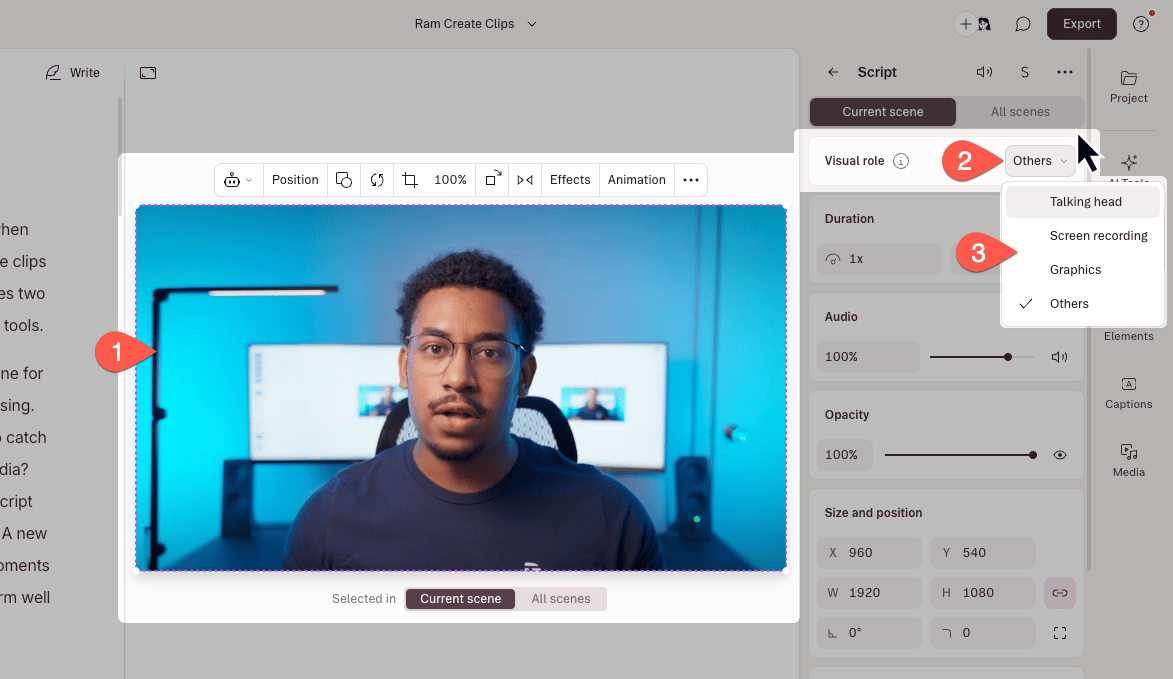 Visual roles can also be adjusted via the [Project File Actions](/add-and-manage-media/project-file-actions) menu.
## Tips and limitations
* Descript treats [avatars](/generative-media/overview) as Talking Head by default — you don't need to set this manually.
* Visual roles apply to media layers. Text layers and other non-media layers don't have a visual role.
* Changing a file's visual role from the [project file actions menu](/add-and-manage-media/project-file-actions) updates the role at the file level. This affects how the file is treated whenever it's added to a scene.
* Locking bypasses matching entirely and preserves the layer as-is whenever a layout is applied. [Learn about locking layers](/templates-and-presets/overview).
Visual roles can also be adjusted via the [Project File Actions](/add-and-manage-media/project-file-actions) menu.
## Tips and limitations
* Descript treats [avatars](/generative-media/overview) as Talking Head by default — you don't need to set this manually.
* Visual roles apply to media layers. Text layers and other non-media layers don't have a visual role.
* Changing a file's visual role from the [project file actions menu](/add-and-manage-media/project-file-actions) updates the role at the file level. This affects how the file is treated whenever it's added to a scene.
* Locking bypasses matching entirely and preserves the layer as-is whenever a layout is applied. [Learn about locking layers](/templates-and-presets/overview).