> ## Documentation Index
> Fetch the complete documentation index at: https://help.descript.com/llms.txt
> Use this file to discover all available pages before exploring further.
# Add and Customize Text Layers
> Use text layers in Descript to add visual elements like titles, speaker names, and timers.
A text layer is on-screen text you add and style yourself, separate from your captions. Give each one its own font, color, background, and layout to match your look.
**Need synced captions instead?**
If you're trying to display your script as timed subtitles or captions, use a **captions layer** instead of a text layer. Captions are automatically generated from your script and update as you make edits. [Learn how to add captions](/visuals/captions).
## Create text layers
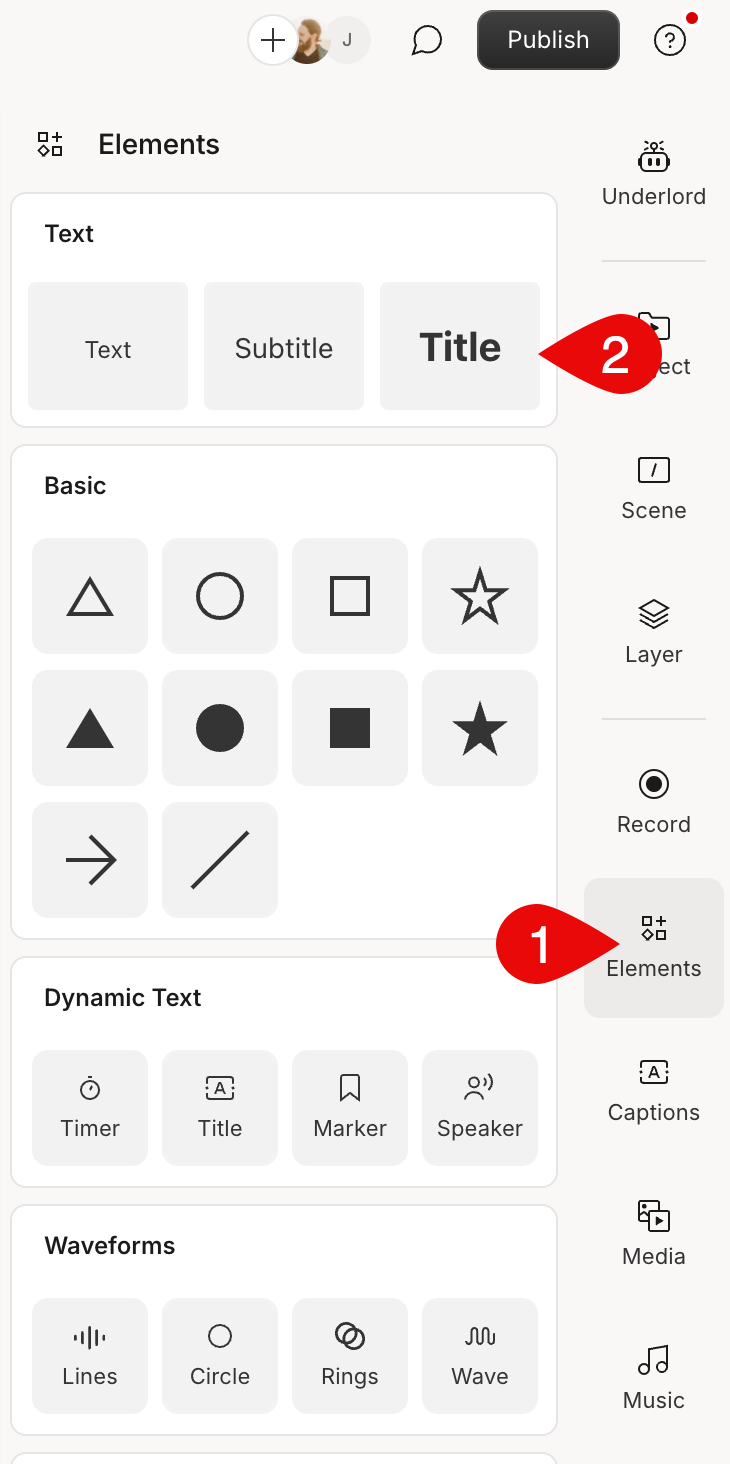
From the **Elements** panel in the right-hand sidebar, choose one of the three fully customizable text options:
* **Text** – for body text
* **Subtitle** – for secondary titles
* **Title** – for primary titles
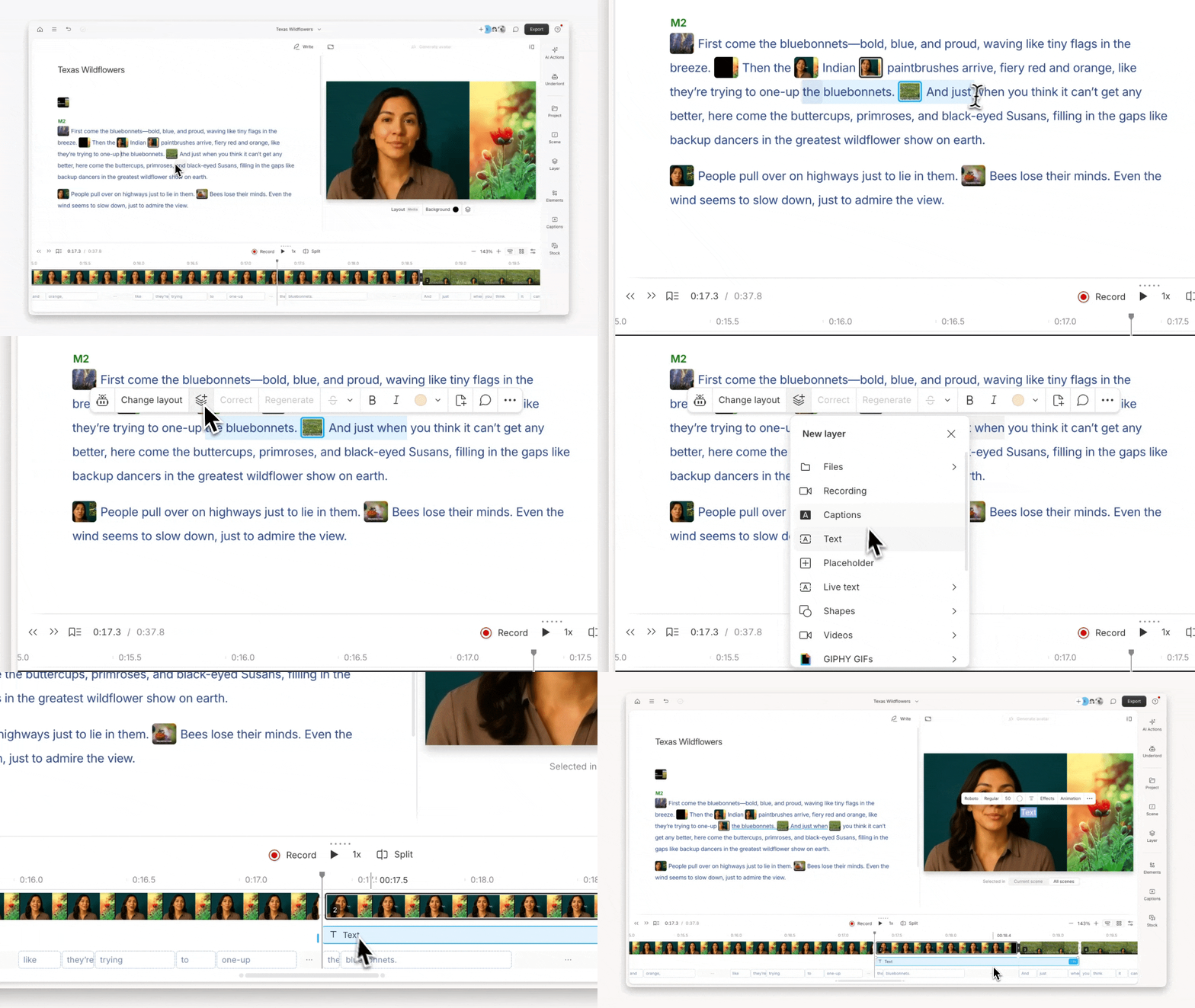
 You can also highlight part of your script and use the [selection toolbar](/descript-tour/selection-toolbar) to add a text layer. Descript adds a new scene and places a text layer that matches your selection.
 ## Customize fonts, color, and layout
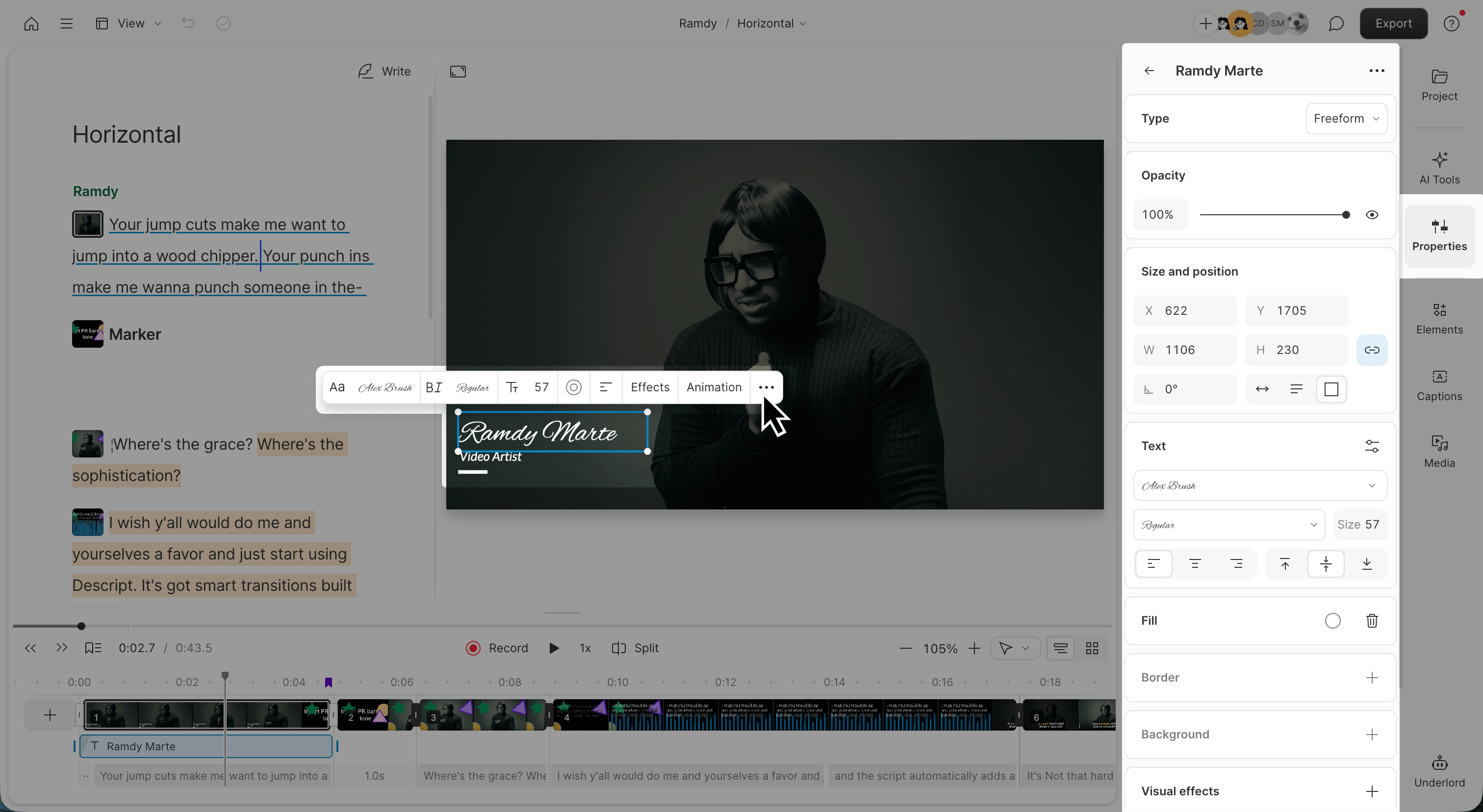
Select a text layer in the scene editor. Use the toolbar or [Properties panel](/descript-tour/properties-panel) to adjust font, size, alignment, colors, borders, background, and position.
## Customize fonts, color, and layout
Select a text layer in the scene editor. Use the toolbar or [Properties panel](/descript-tour/properties-panel) to adjust font, size, alignment, colors, borders, background, and position.
 ## Set text layer type
The Type setting controls what content a text layer displays. By default, text layers are set to Freeform, which lets you type whatever you want. Other options will display dynamic information that updates automatically.
## Set text layer type
The Type setting controls what content a text layer displays. By default, text layers are set to Freeform, which lets you type whatever you want. Other options will display dynamic information that updates automatically.
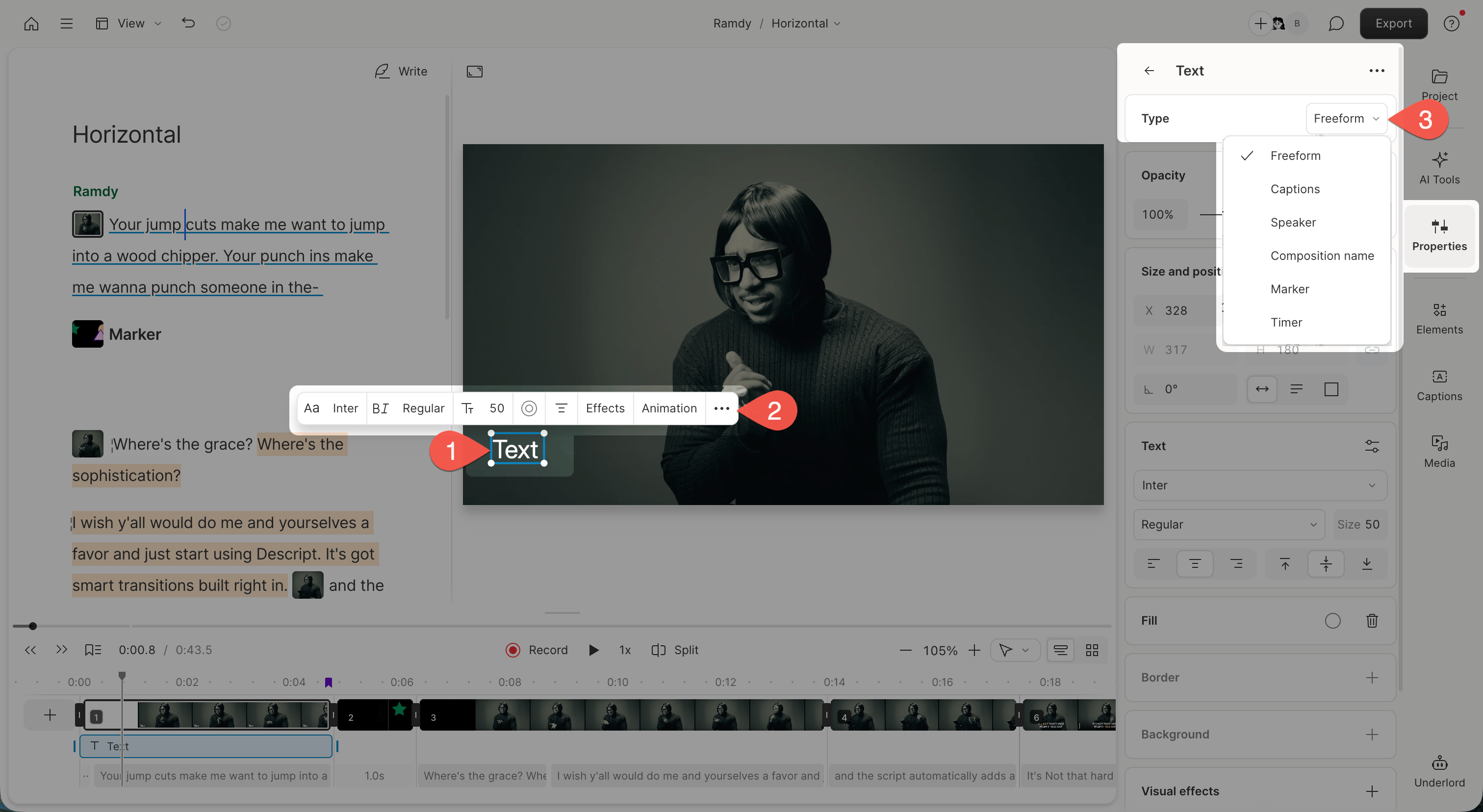 **To change a text layer type:**
1. Select the text layer
2. In the hover menu, click the ellipsis button at the far right. The Properties panel will open in the right-hand sidebar.
3. Choose a type:
* **Freeform:** Type your own text manually
* **Captions:** Displays synced captions from your script
* **Speaker:** Displays the active speaker's name
* **Composition name:** Displays the composition name
* **Marker:** Displays the current or most recent marker
* **Timer:** Counts up or down from the beginning, end, or last marker
## Add a background to text
Enhance readability or emphasize key messages by adding a background to your text layer. Options include:
* **Bounding box:** Resize the text area manually in the scene editor. Toggle between fixed and auto sizing under **Size and position**.
* **Border radius:** Soften the corners of the background.
* **Background color:** Pick a color for contrast or brand alignment.
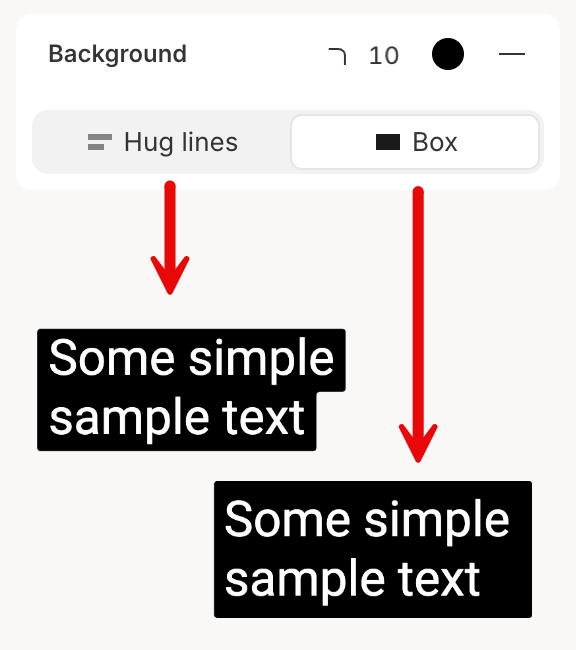
* **Hug lines:** Wrap the background tightly around each line of text.
* **Box:** Display the full text inside a fixed-width background box.
**To change a text layer type:**
1. Select the text layer
2. In the hover menu, click the ellipsis button at the far right. The Properties panel will open in the right-hand sidebar.
3. Choose a type:
* **Freeform:** Type your own text manually
* **Captions:** Displays synced captions from your script
* **Speaker:** Displays the active speaker's name
* **Composition name:** Displays the composition name
* **Marker:** Displays the current or most recent marker
* **Timer:** Counts up or down from the beginning, end, or last marker
## Add a background to text
Enhance readability or emphasize key messages by adding a background to your text layer. Options include:
* **Bounding box:** Resize the text area manually in the scene editor. Toggle between fixed and auto sizing under **Size and position**.
* **Border radius:** Soften the corners of the background.
* **Background color:** Pick a color for contrast or brand alignment.
* **Hug lines:** Wrap the background tightly around each line of text.
* **Box:** Display the full text inside a fixed-width background box.
 ## Add emojis to text
* [Create a text layer](#create-text-layers), then paste an emoji (like 🎉, 👍, or 💡) into the text box
**Tip:** Emojis follow the same style settings as text. Resize, color, and align them using the Properties panel.
## Add emojis to text
* [Create a text layer](#create-text-layers), then paste an emoji (like 🎉, 👍, or 💡) into the text box
**Tip:** Emojis follow the same style settings as text. Resize, color, and align them using the Properties panel.