> ## Documentation Index
> Fetch the complete documentation index at: https://help.descript.com/llms.txt
> Use this file to discover all available pages before exploring further.
# Control How Layers Behave Across Scenes in Descript
> Extend a layer past its scene boundary or repeat it across scenes.
By default, a visual layer lives only in the scene where you added it, from that scene's start to its boundary. Manually extend the layer past its original scene boundary to repeat it across scenes, or to stretch it across multiple scenes.
**Need help adding a new layer to your scene?**
Start with our [Add a layer](/visuals/add-layer) guide. You can also check out the [Scenes overview](/getting-started/scenes) to understand how layers and scenes work together, or visit our [Layer and clip overview](/visuals/working-with-layers-and-clips-overview) to learn more about layers in Descript.
## How layers work in scenes
When you add a visual layer to a scene, Descript automatically attaches it to the current scene:
* The layer appears only within that scene
* Any changes (position, scale, effects) only apply within that scene
Layers stop at the scene boundary and won’t continue into the next scene unless you [extend them manually](/visuals/scenes-layers).
**Creating a new scene after adding layers?**
If you add a layer and then split the scene afterward, the layer will remain visible across both scenes.
## Snap a layer to a scene boundary
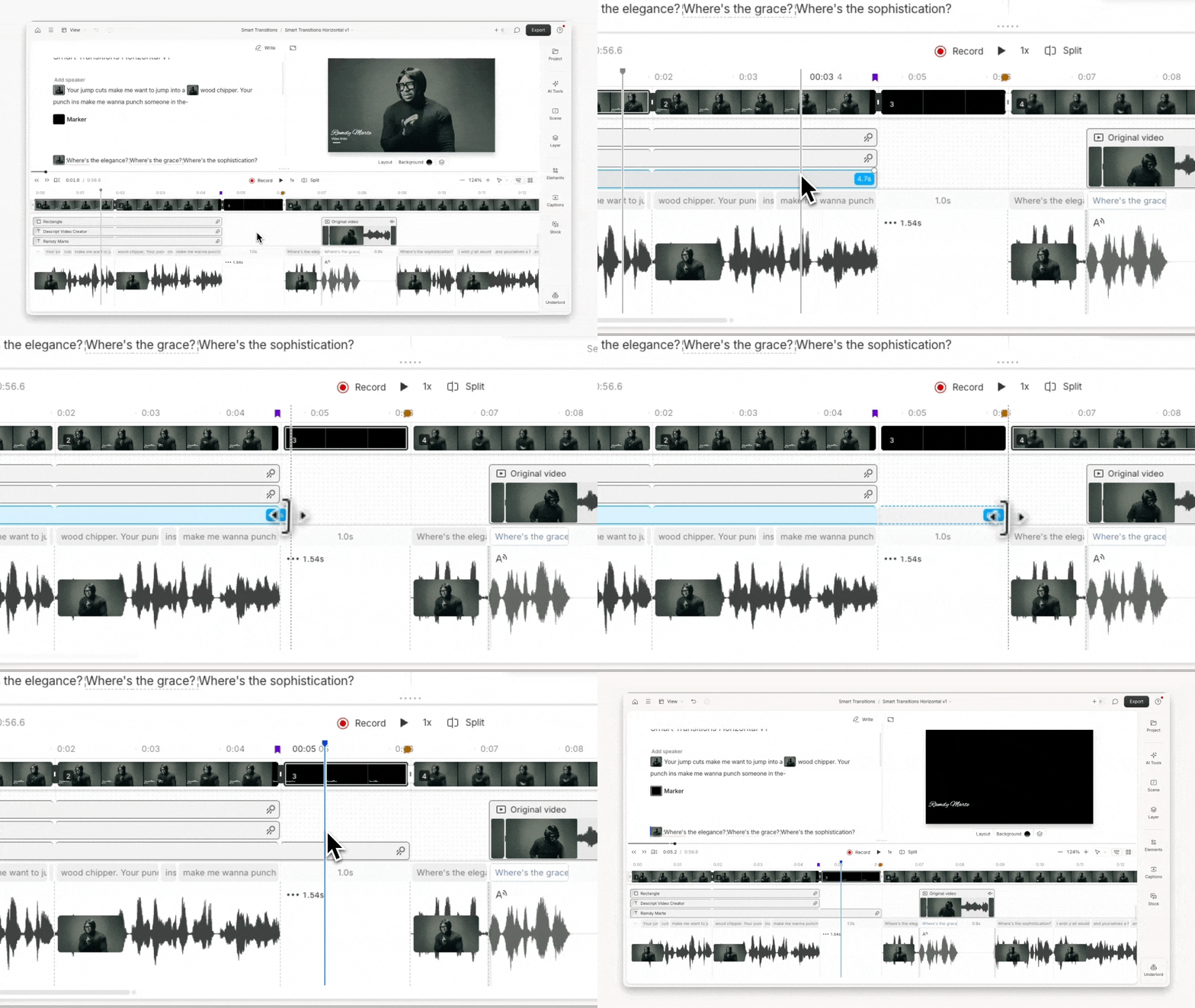
To attach a layer to an entire scene:
1. Select the [layer](/visuals/working-with-layers-and-clips-overview) in the timeline.
2. Drag the edge of the layer to the scene’s left boundary until a dashed vertical line appears, then release to snap it.
 ## How to extend a layer across scenes
Extending a layer across scenes is helpful when:
* You want a visual element to persist across multiple scenes (e.g. a logo)
* You’re applying a consistent layout or background
* You’re styling captions that stretch across scenes
You can extend layers in two ways:
### Option 1: Use the Apply to all scenes toggle
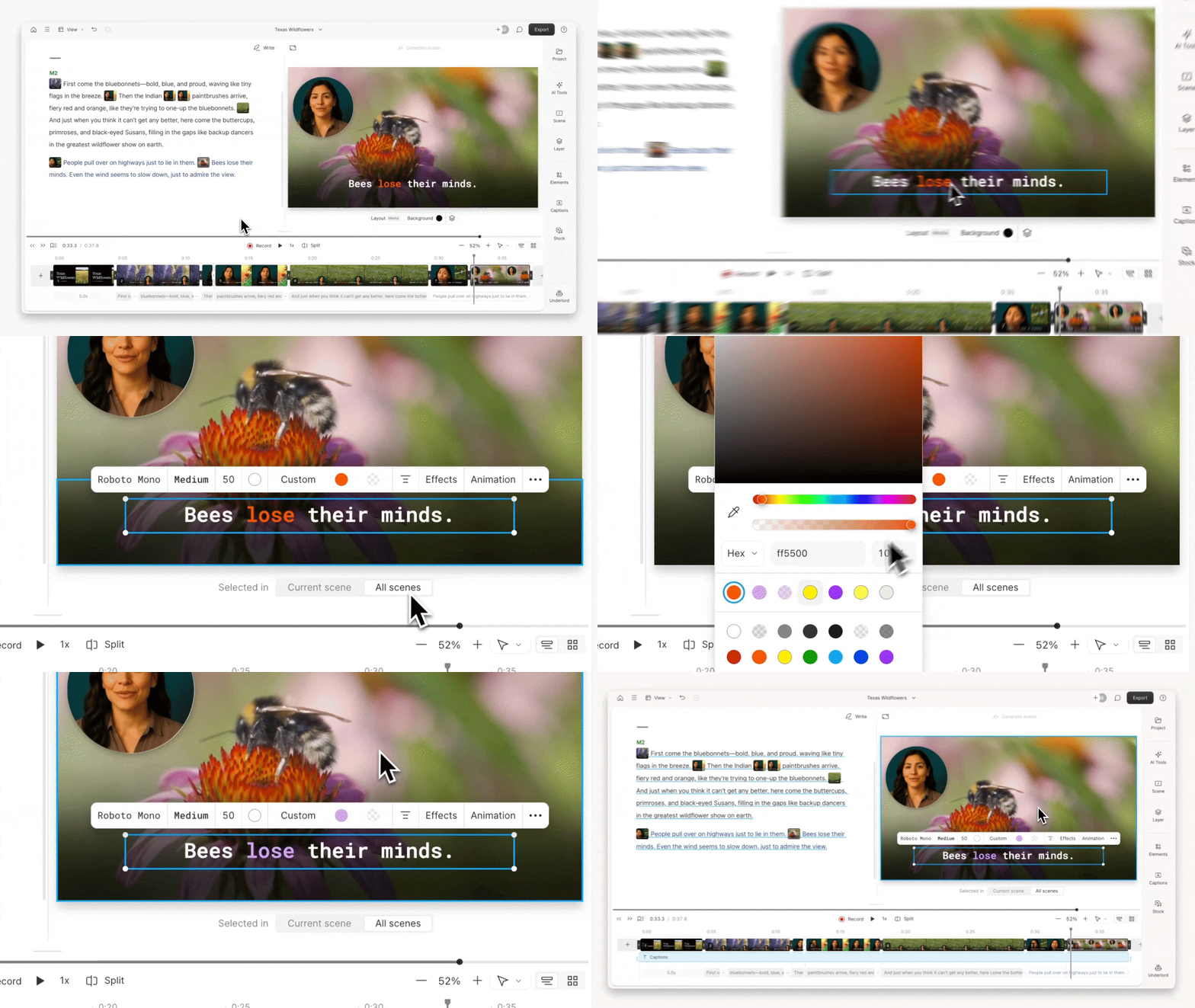
Apply your changes to every scene where the layer appears:
1. Select the layer in the timeline or [scene editor.](/visuals/scene-editor-overview)
2. Use the scene editor toolbar or the [Properties panel](/descript-tour/properties-panel) to click **Apply to all scenes**.
3. Make your change — such as position, scale, or effect. It will apply the change to that layer in all scenes in the composition.
## How to extend a layer across scenes
Extending a layer across scenes is helpful when:
* You want a visual element to persist across multiple scenes (e.g. a logo)
* You’re applying a consistent layout or background
* You’re styling captions that stretch across scenes
You can extend layers in two ways:
### Option 1: Use the Apply to all scenes toggle
Apply your changes to every scene where the layer appears:
1. Select the layer in the timeline or [scene editor.](/visuals/scene-editor-overview)
2. Use the scene editor toolbar or the [Properties panel](/descript-tour/properties-panel) to click **Apply to all scenes**.
3. Make your change — such as position, scale, or effect. It will apply the change to that layer in all scenes in the composition.
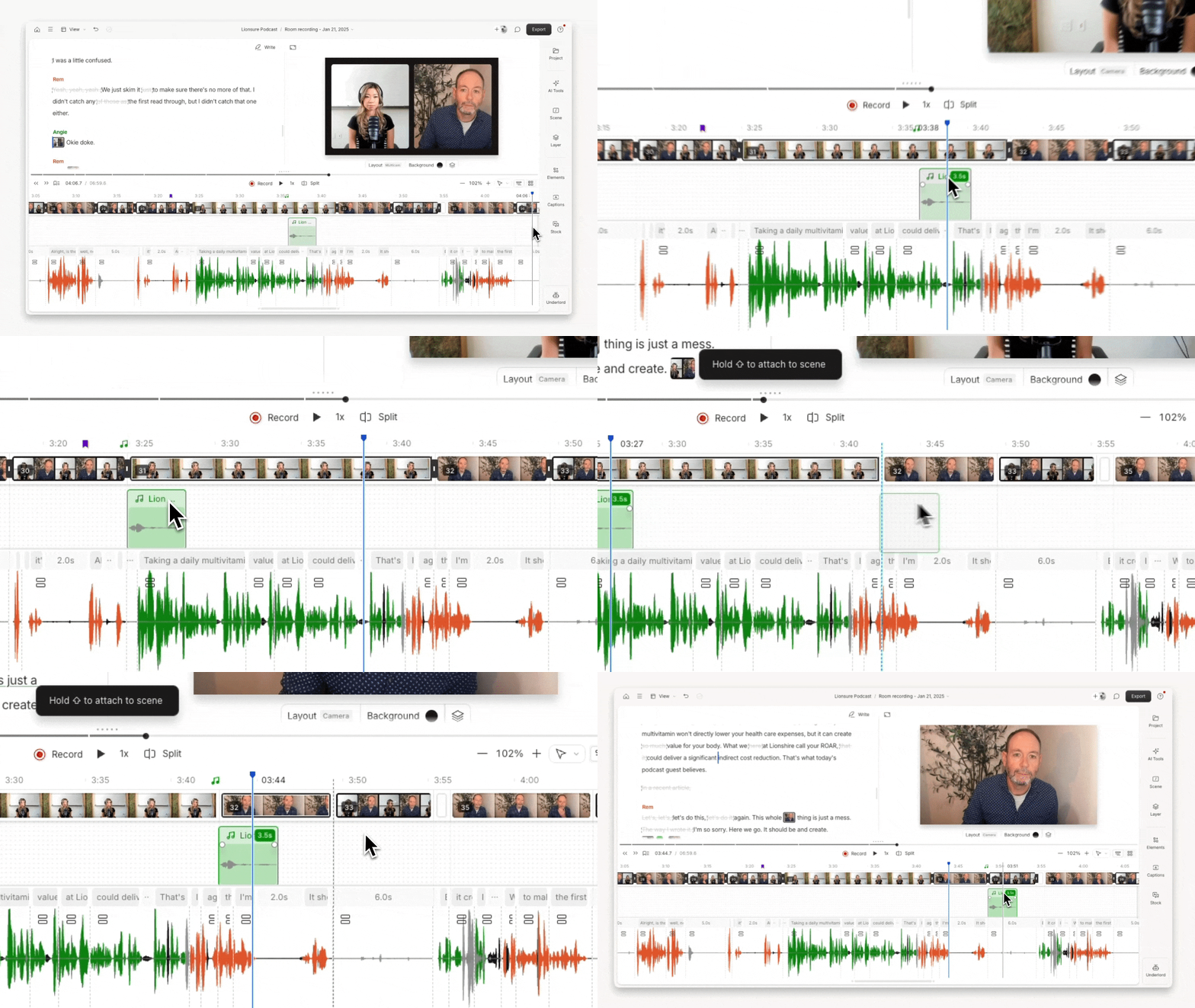
 ### Option 2: Drag the layer across scenes
1. Open the timeline and select the layer you want to extend.
2. Drag the edge of the layer across one or more scenes. Release to set the new duration.
### Option 2: Drag the layer across scenes
1. Open the timeline and select the layer you want to extend.
2. Drag the edge of the layer across one or more scenes. Release to set the new duration.