> ## Documentation Index
> Fetch the complete documentation index at: https://help.descript.com/llms.txt
> Use this file to discover all available pages before exploring further.
# Scene Editor Overview
> The Scene Editor is your main workspace for arranging and editing visuals in Descript.
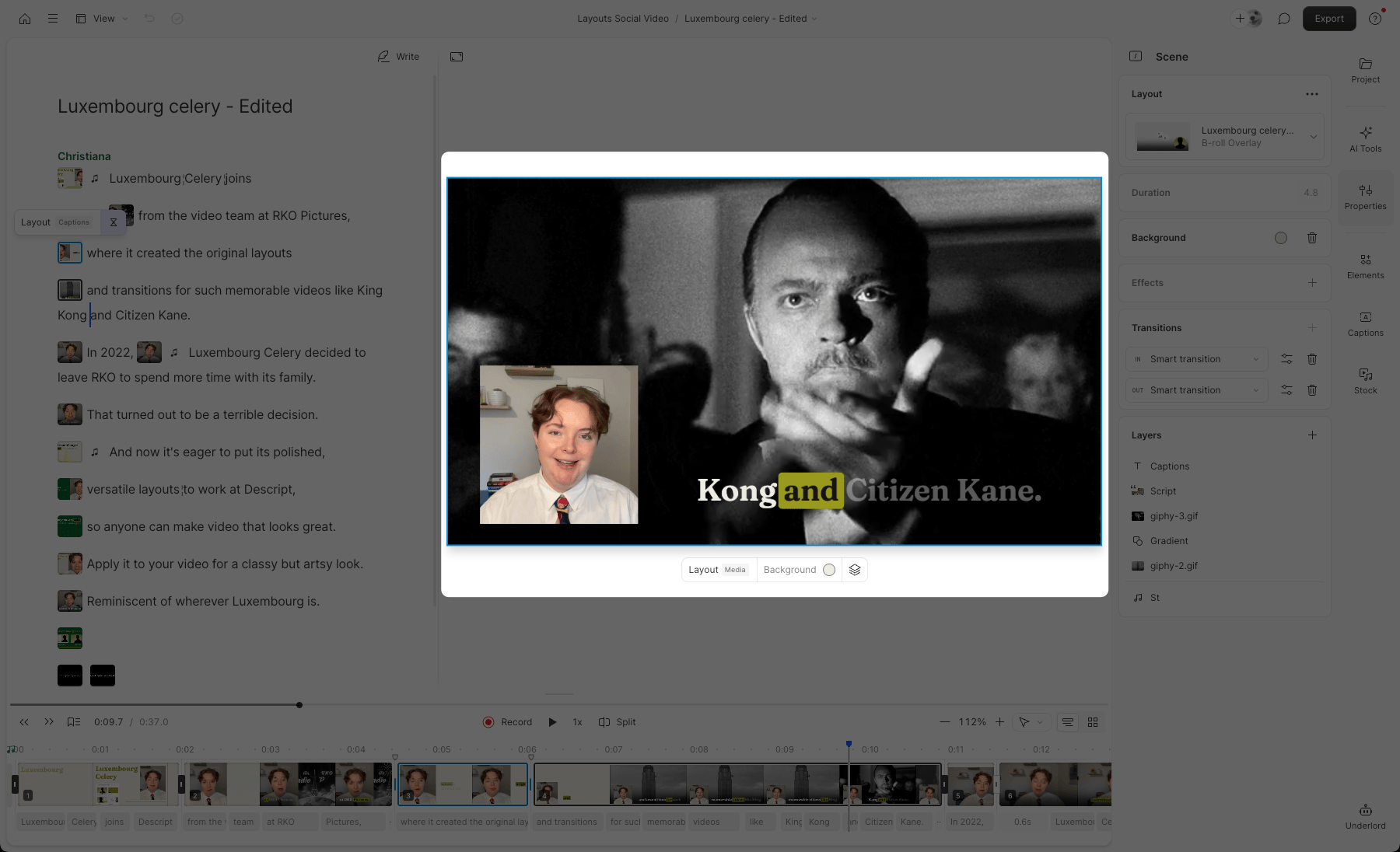
Everything visual in your video is arranged in the Scene Editor: videos, images, text, captions, shapes, and layouts. Select any element to move, resize, or restyle it.
 **Scene Editor availability**
The Scene Editor is only available in video compositions. It won’t appear in audio-only projects.
## Toolbars
### Layer toolbar
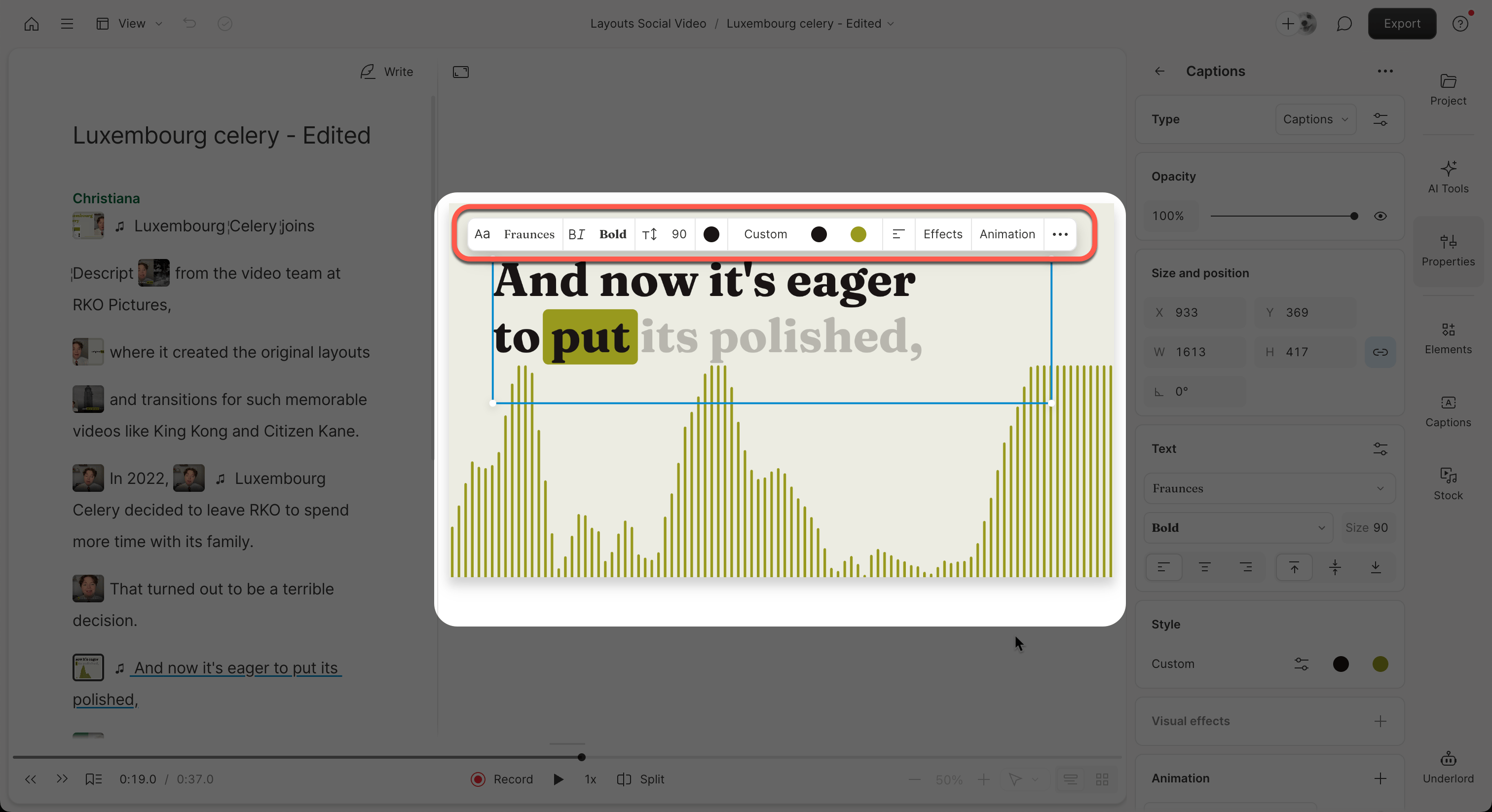
The layer toolbar is available when a layer is actively selected in the scene. Use it to adjust size, position, rotation, cropping, and corner rounding, or to replace the media.
**Scene Editor availability**
The Scene Editor is only available in video compositions. It won’t appear in audio-only projects.
## Toolbars
### Layer toolbar
The layer toolbar is available when a layer is actively selected in the scene. Use it to adjust size, position, rotation, cropping, and corner rounding, or to replace the media.
 ### Scene toolbar
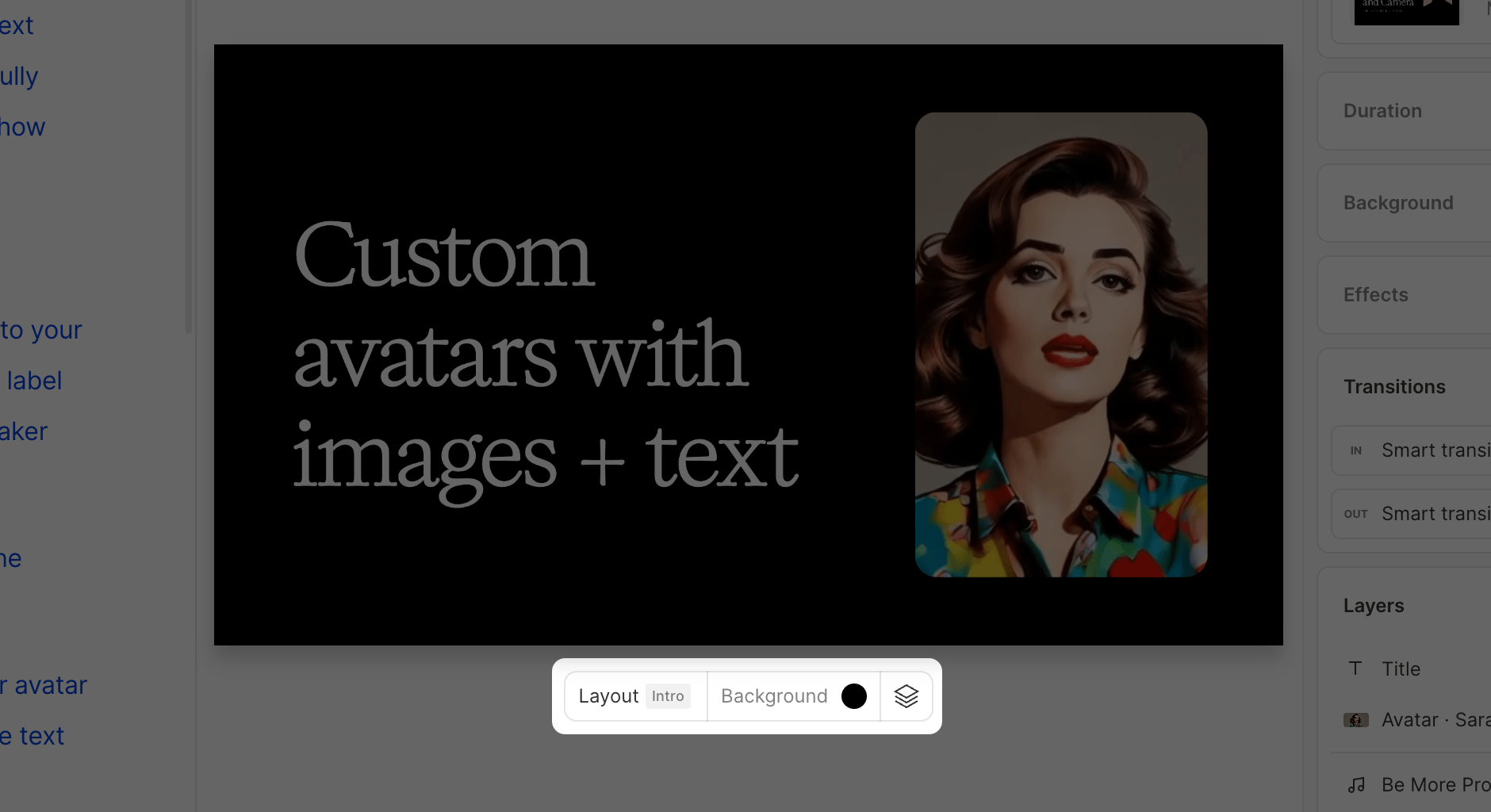
The scene toolbar appears when no layer is selected. Use it to control scene-level settings and access additional tools.
### Scene toolbar
The scene toolbar appears when no layer is selected. Use it to control scene-level settings and access additional tools.
 ## Selecting visuals
### Single select
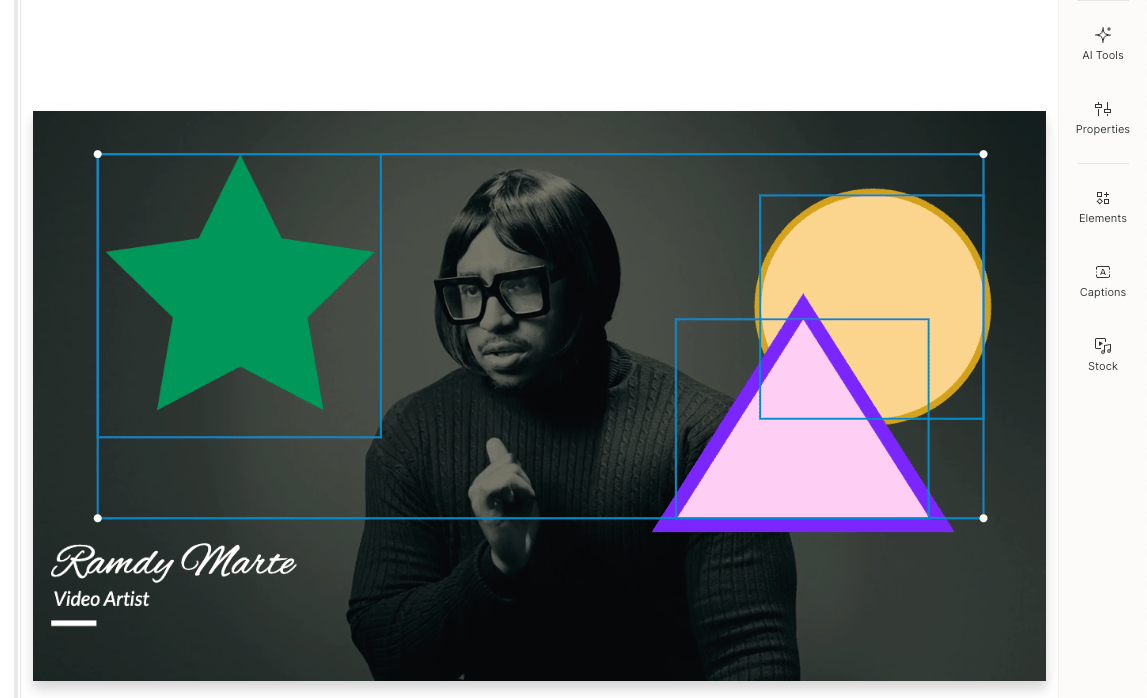
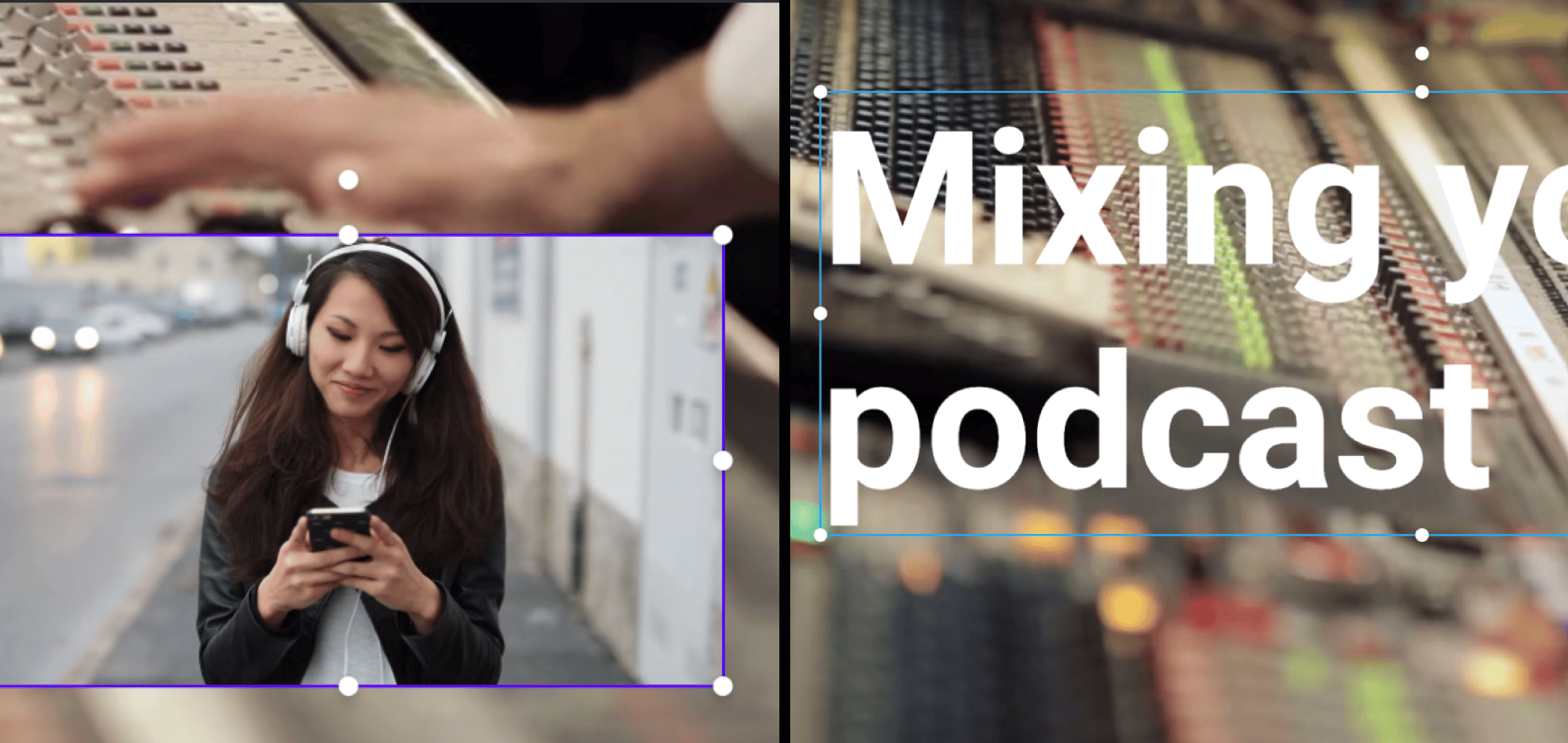
Click any element to select it. Script track visuals highlight with a purple border; all other visuals use a blue border.
## Selecting visuals
### Single select
Click any element to select it. Script track visuals highlight with a purple border; all other visuals use a blue border.
 ### Multi-select
Hold **Shift** and click multiple elements, or drag a box around them to select several at once. With multiple items selected, you can move, resize, delete, or apply alignment and other shared changes together. [Learn more about Multi-select](/visuals/multi-select).
### Multi-select
Hold **Shift** and click multiple elements, or drag a box around them to select several at once. With multiple items selected, you can move, resize, delete, or apply alignment and other shared changes together. [Learn more about Multi-select](/visuals/multi-select).