> ## Documentation Index
> Fetch the complete documentation index at: https://help.descript.com/llms.txt
> Use this file to discover all available pages before exploring further.
# Save a Frame from Your Video
> Save any frame from your video as a PNG in your project files.
Grab any single frame as a PNG to reuse elsewhere: a [custom thumbnail](/export-and-share/set-and-customize-thumbnails), a reference image for AI tools like [Last Frame](/generative-media/last-frame), or a still to export.
 ## How to save the current frame
To capture a frame as an image:
1. Navigate to the frame you want to save.
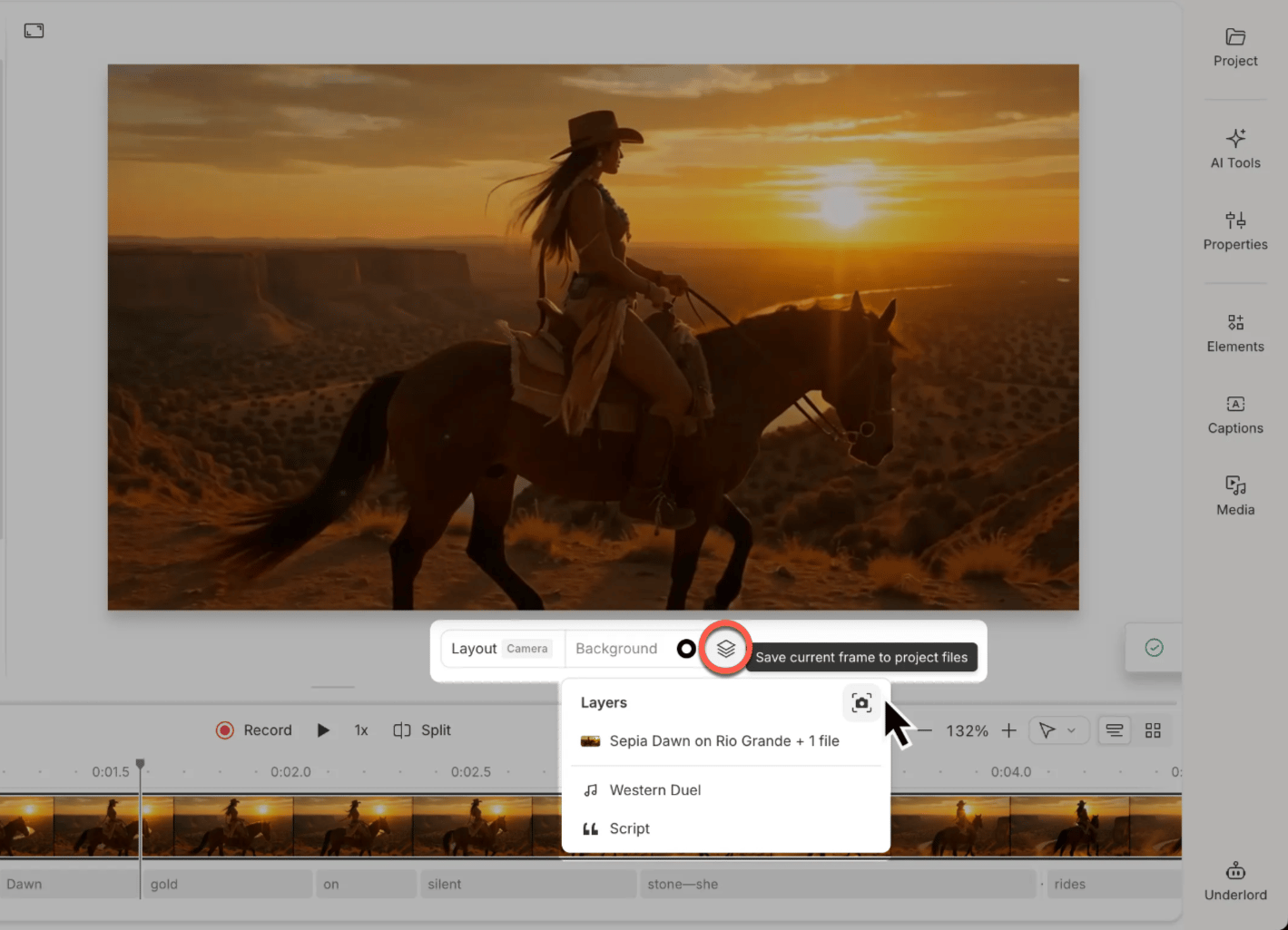
2. Click the **Layers** button in the scene toolbar.
3. Select **Save current frame to project files**.
## Where to find your saved images
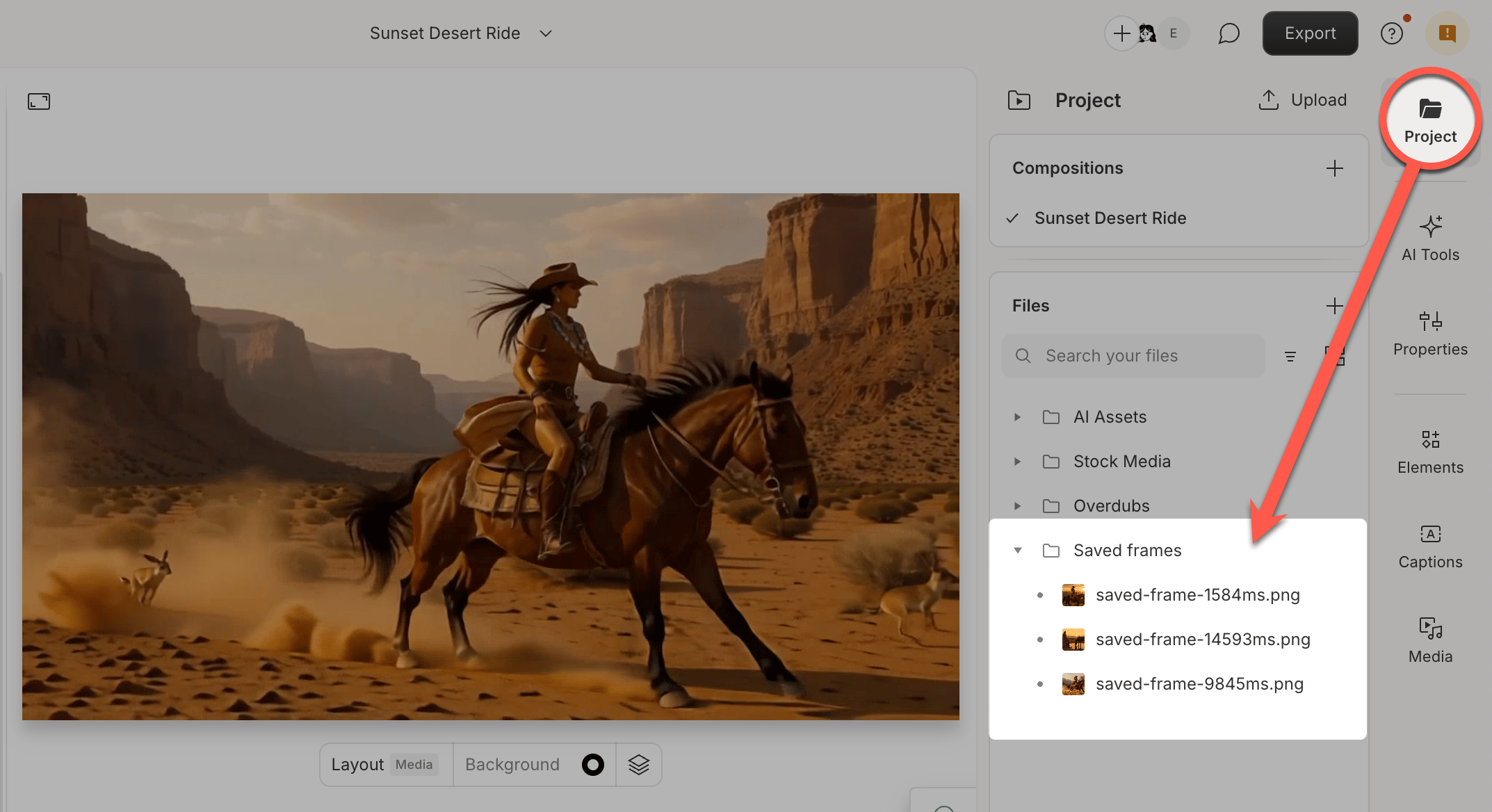
Your saved frame will appear in your project files as a PNG image. You can find it in the **Files** panel on the left sidebar, or by clicking **Project > Show project files** from the top menu.
From there, you can drag the image into your composition, download it to your device, or use it with other Descript tools like [AI video generation](/generative-media/last-frame).
## How to save the current frame
To capture a frame as an image:
1. Navigate to the frame you want to save.
2. Click the **Layers** button in the scene toolbar.
3. Select **Save current frame to project files**.
## Where to find your saved images
Your saved frame will appear in your project files as a PNG image. You can find it in the **Files** panel on the left sidebar, or by clicking **Project > Show project files** from the top menu.
From there, you can drag the image into your composition, download it to your device, or use it with other Descript tools like [AI video generation](/generative-media/last-frame).