> ## Documentation Index
> Fetch the complete documentation index at: https://help.descript.com/llms.txt
> Use this file to discover all available pages before exploring further.
# Apply Color, Gradients, and Stroke to Elements
> Fill elements with solid colors or gradients and add a border.
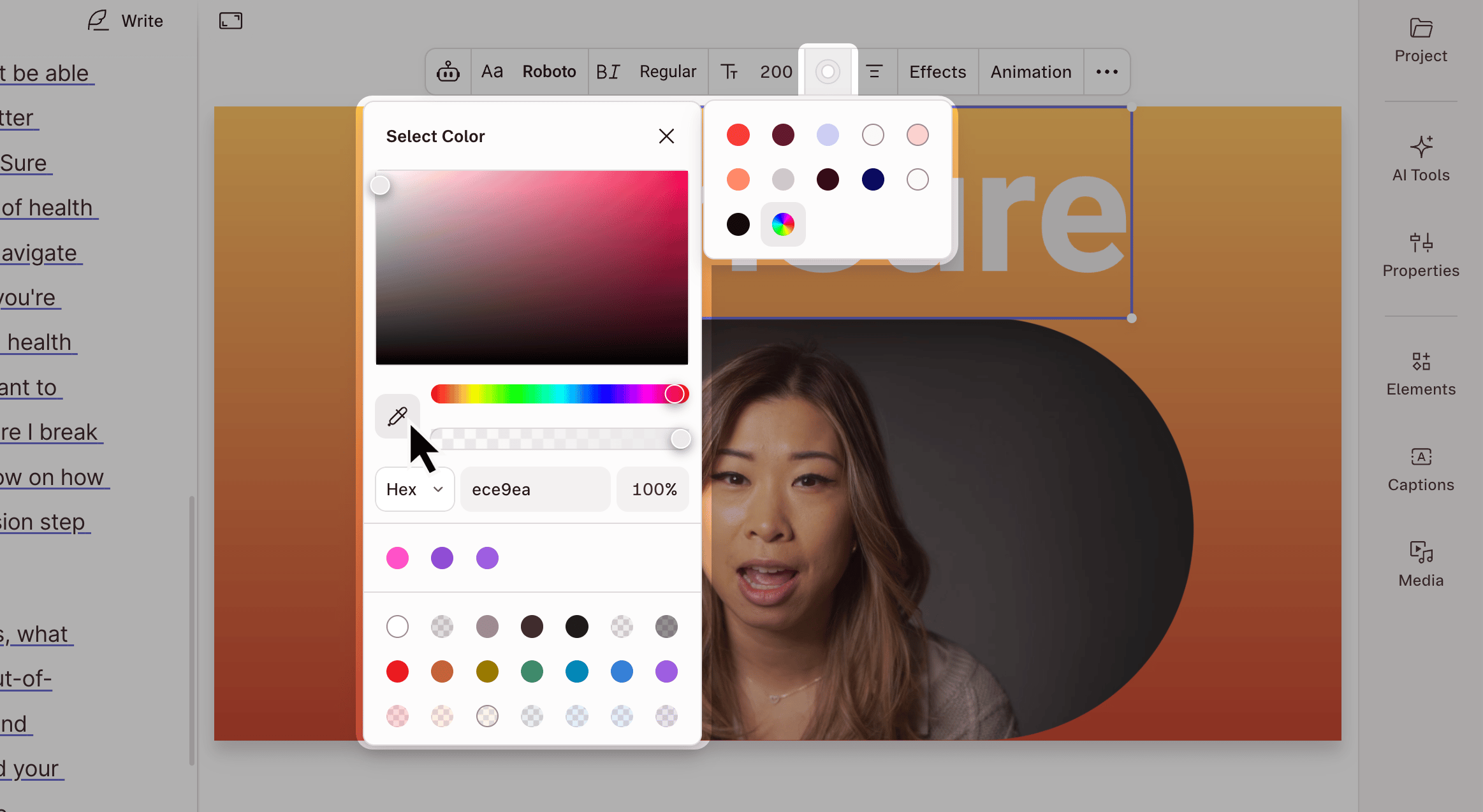
Change the color of elements in your scene with the fill and stroke tools. Apply a solid color, build a gradient, or sample a color from anywhere on screen with the eyedropper.
Fill and Stroke are both available in the [Properties panel](/descript-tour/properties-panel) and the hover toolbar. Text elements use Border instead of Stroke.
## Open the Fill or Stroke picker
Two entry points open the same picker, depending on what you're coloring:
* **For most elements,** select the element in the [Scene Editor](/visuals/scene-editor-overview) or [Properties panel](/descript-tour/properties-panel), then select **Fill** or **Stroke** in the hover toolbar. For text elements, **Border** replaces Stroke.
* **Scene backgrounds can only be adjusted via the** [**Properties panel**](/descript-tour/properties-panel)**.** Open the panel in the right-hand sidebar, then select the fill in the **Background** section. Background colors cannot be edited via the hover toolbar.
## Apply a solid color
In the **Solid** tab, pick a color from the swatches or select the rainbow swatch to choose a custom color.
 ## Apply a gradient
Select the **Gradient** tab, then pick a preset gradient or choose a gradient style. If you already have a solid color selected and switch to the Gradient tab, Descript starts you off with a gradient based on that color.
* **Linear horizontal** — colors flow from left to right
* **Linear diagonal** — colors flow corner to corner
* **Radial centered** — colors radiate from the middle
* **Radial corner** — colors radiate from a corner
**Where gradients aren't supported**
Gradients aren't available for captions, waveforms, strokes, or text borders.
## Customize a gradient
For finer control over color values and the position of each transition, select **Advanced controls** in the **Gradient** tab. From there:
* Drag any stop along the gradient slider to change where its color appears
* Edit a stop's hex value or position percentage to fine-tune
* Select **+** next to **Stops** to add more — there's no limit
* Select the trash icon next to a stop to remove it
**Saving gradients isn't supported yet**
Custom gradients can't be saved for reuse. You'll need to recreate them on each element where you want to use them.
## Apply a stroke or border
Stroke and Border use the same color and eyedropper options as Fill (Stroke for most elements, Border for text). To set how thick the outline is, enter a value in the numeric field next to **Stroke** or **Border** in the hover toolbar. Gradients aren't currently available for Stroke or Border.
## Apply a gradient
Select the **Gradient** tab, then pick a preset gradient or choose a gradient style. If you already have a solid color selected and switch to the Gradient tab, Descript starts you off with a gradient based on that color.
* **Linear horizontal** — colors flow from left to right
* **Linear diagonal** — colors flow corner to corner
* **Radial centered** — colors radiate from the middle
* **Radial corner** — colors radiate from a corner
**Where gradients aren't supported**
Gradients aren't available for captions, waveforms, strokes, or text borders.
## Customize a gradient
For finer control over color values and the position of each transition, select **Advanced controls** in the **Gradient** tab. From there:
* Drag any stop along the gradient slider to change where its color appears
* Edit a stop's hex value or position percentage to fine-tune
* Select **+** next to **Stops** to add more — there's no limit
* Select the trash icon next to a stop to remove it
**Saving gradients isn't supported yet**
Custom gradients can't be saved for reuse. You'll need to recreate them on each element where you want to use them.
## Apply a stroke or border
Stroke and Border use the same color and eyedropper options as Fill (Stroke for most elements, Border for text). To set how thick the outline is, enter a value in the numeric field next to **Stroke** or **Border** in the hover toolbar. Gradients aren't currently available for Stroke or Border.
 ## Sample a color with the eyedropper
The eyedropper grabs any color visible on screen and applies it to your element. It works for solid fills, individual gradient stops, strokes, and the [Chroma Key](https://help.descript.com/hc/en-us/articles/10327650435085) effect.
Select the eyedropper icon in the swatch grid, hover over the color you want to sample, then click to apply it.
## Sample a color with the eyedropper
The eyedropper grabs any color visible on screen and applies it to your element. It works for solid fills, individual gradient stops, strokes, and the [Chroma Key](https://help.descript.com/hc/en-us/articles/10327650435085) effect.
Select the eyedropper icon in the swatch grid, hover over the color you want to sample, then click to apply it.