> ## Documentation Index
> Fetch the complete documentation index at: https://help.descript.com/llms.txt
> Use this file to discover all available pages before exploring further.
# Adjust Clip Speed, Duration, or Looping
> Set clip speed, duration, and looping in the Properties panel.
Loop background music, freeze a video frame, speed up or slow down a clip, or set a custom duration in your composition.
## Adjust clip speed
Clip speed controls how fast or slow a clip plays in your timeline. **Note:** Changing clip speed is different from [adjusting your composition’s playback speed](/descript-tour/playback-and-navigation)—clip speed affects your final export.
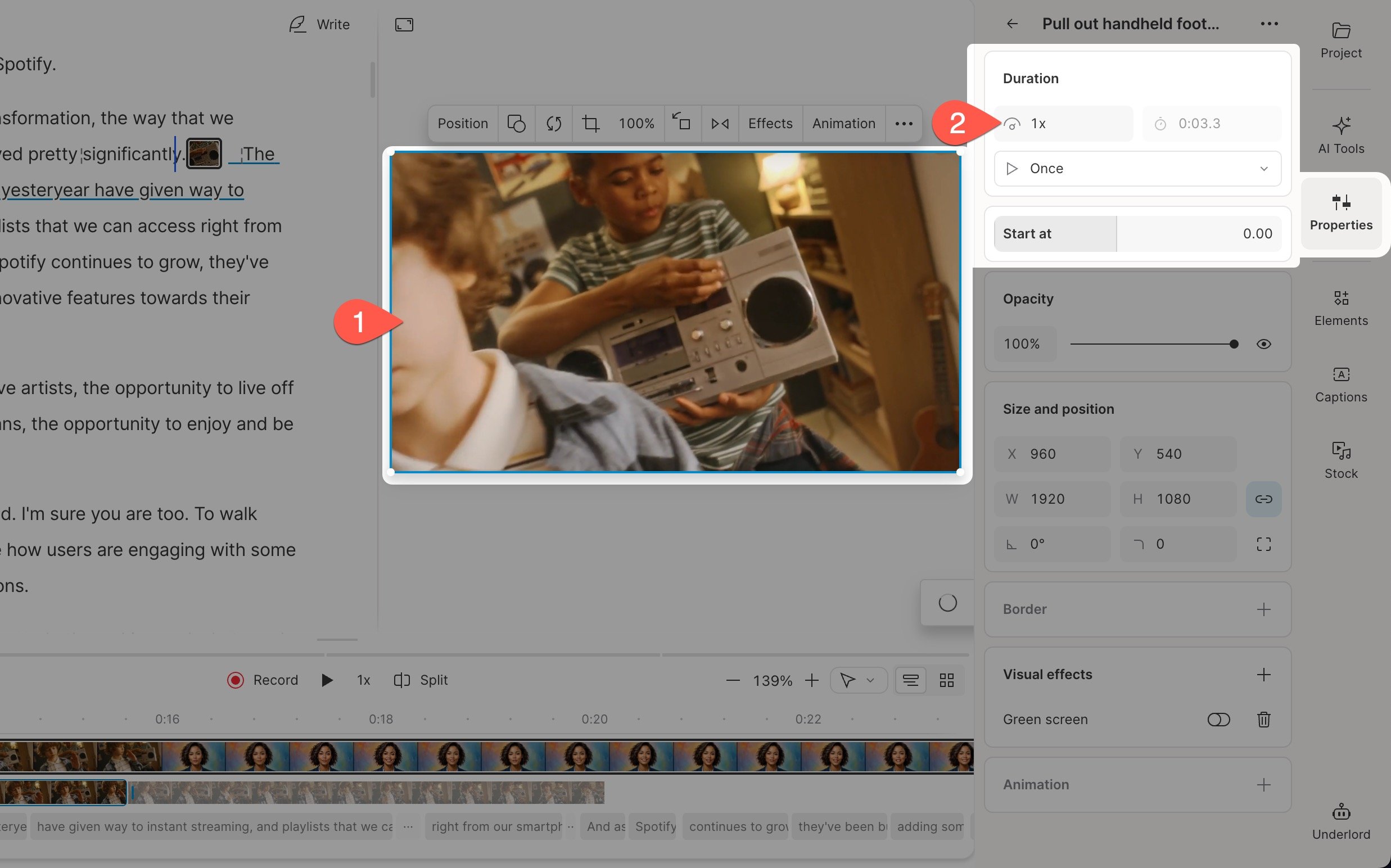
When you change the clip speed, Descript automatically updates the duration: speeding up a clip shortens it, while slowing it down makes it longer.
### To change clip speed:
1. Select the clip you want to adjust.
2. In the **Duration** section of the Properties panel, drag the speed control or type in a new value.
 ## Change clip duration
Clip duration is the total length of a clip on the timeline. Duration can change when you:
* [Adjust the clip speed](#adjust-clip-speed)
* [Trim the clip](https://help.descript.com/hc/en-us/articles/10249345076365)
### To set a specific duration:
Enter a target length in the [Properties panel](/descript-tour/properties-panel). The right edge of the clip will trim automatically to match.
## Loop or freeze a clip
Looping repeats a video or audio clip automatically to fill space in your scene. Freezing holds the final frame of a clip. These options are only available for layers that are **not** part of the script.
* In [audio-only compositions](/working-in-projects/audio), looped layers extend to the end of the composition.
* In video compositions, looped layers usually end at the end of the scene unless extended manually.
### To loop or freeze a clip:
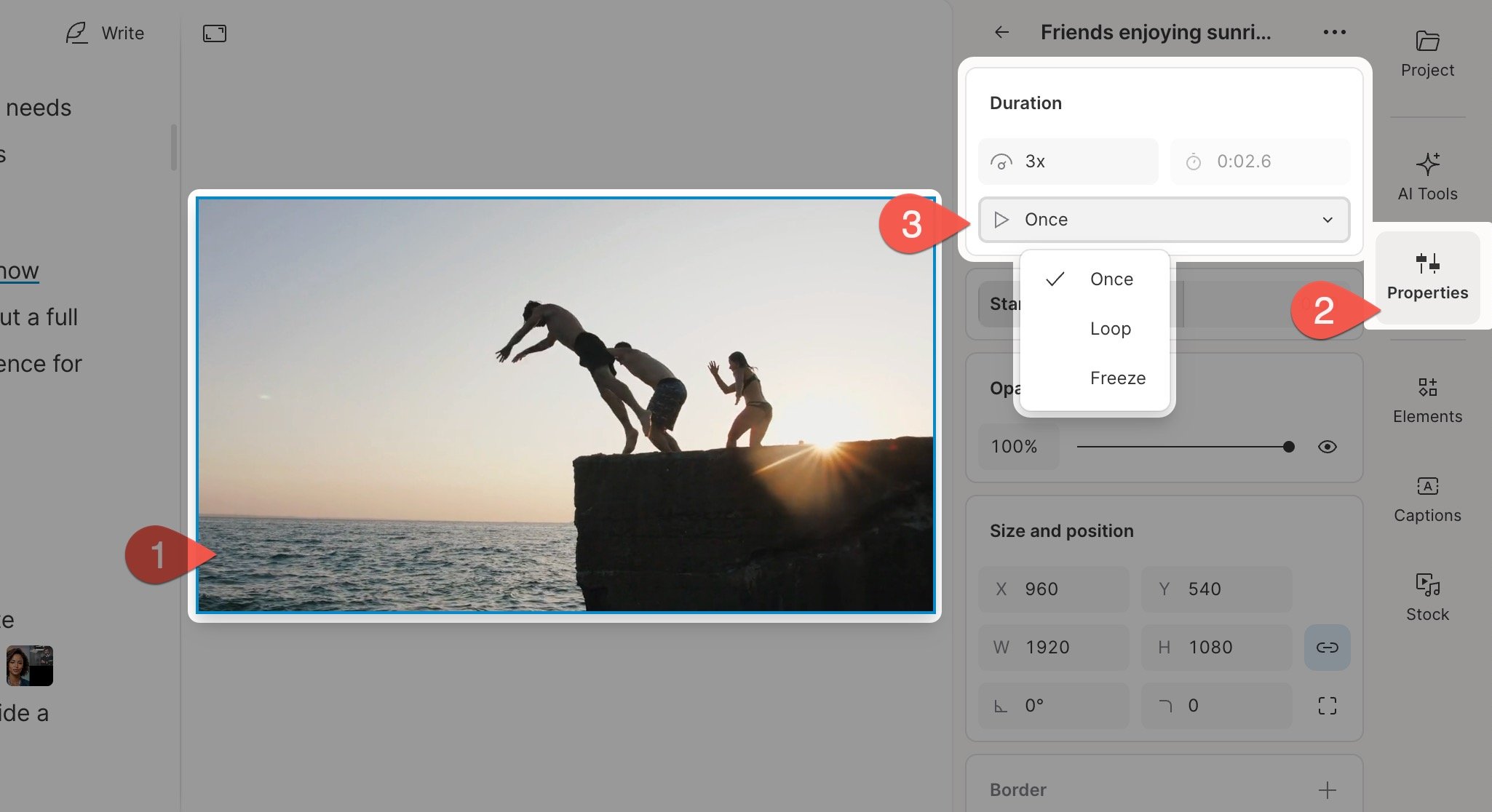
1. Select a video or audio layer (not the script track).
2. Open the **Properties panel** from the right-hand sidebar.
3. Under **Duration**, choose one of the following:
* **Once** – Play the clip one time
* **Loop** – Repeat the clip continuously
* **Freeze** – Hold the final frame of the clip
## Change clip duration
Clip duration is the total length of a clip on the timeline. Duration can change when you:
* [Adjust the clip speed](#adjust-clip-speed)
* [Trim the clip](https://help.descript.com/hc/en-us/articles/10249345076365)
### To set a specific duration:
Enter a target length in the [Properties panel](/descript-tour/properties-panel). The right edge of the clip will trim automatically to match.
## Loop or freeze a clip
Looping repeats a video or audio clip automatically to fill space in your scene. Freezing holds the final frame of a clip. These options are only available for layers that are **not** part of the script.
* In [audio-only compositions](/working-in-projects/audio), looped layers extend to the end of the composition.
* In video compositions, looped layers usually end at the end of the scene unless extended manually.
### To loop or freeze a clip:
1. Select a video or audio layer (not the script track).
2. Open the **Properties panel** from the right-hand sidebar.
3. Under **Duration**, choose one of the following:
* **Once** – Play the clip one time
* **Loop** – Repeat the clip continuously
* **Freeze** – Hold the final frame of the clip
 **Layer transitions and looped media**
You can't apply [transitions](https://help.descript.com/hc/en-us/articles/10255990548877) to individual layers with looping enabled. If you need a transition, [apply it at the scene level instead](https://help.descript.com/hc/en-us/articles/10255974053773).
## Constrain a looped clip to a scene
You can limit how far a looped clip extends by attaching it to the scene.
1. Select the layer.
2. Drag the left edge of the layer toward the scene’s left edge until a red dotted line appears, then release to attach it.
For more, see [Attaching layers to scenes](/visuals/attach-layer).
**How scenes affect loop duration**
* Most looped layers stop at the end of a scene—unless attached or extended manually.
* Some media types, like music from our [stock libraries](/descript-tour/media-panel), can loop across an entire composition.
* In [audio-only compositions](/working-in-projects/audio), looped layers extend to the end of the composition, since there are no scenes.
**Layer transitions and looped media**
You can't apply [transitions](https://help.descript.com/hc/en-us/articles/10255990548877) to individual layers with looping enabled. If you need a transition, [apply it at the scene level instead](https://help.descript.com/hc/en-us/articles/10255974053773).
## Constrain a looped clip to a scene
You can limit how far a looped clip extends by attaching it to the scene.
1. Select the layer.
2. Drag the left edge of the layer toward the scene’s left edge until a red dotted line appears, then release to attach it.
For more, see [Attaching layers to scenes](/visuals/attach-layer).
**How scenes affect loop duration**
* Most looped layers stop at the end of a scene—unless attached or extended manually.
* Some media types, like music from our [stock libraries](/descript-tour/media-panel), can loop across an entire composition.
* In [audio-only compositions](/working-in-projects/audio), looped layers extend to the end of the composition, since there are no scenes.