> ## Documentation Index
> Fetch the complete documentation index at: https://help.descript.com/llms.txt
> Use this file to discover all available pages before exploring further.
# Automatic Multicam
> Automatic Multicam analyzes your footage, switches between camera angles, and adds cutaways automatically.
Cutting a multi-camera recording by hand means scrubbing through every angle to decide who's on screen and when. Automatic Multicam makes that pass for you: its AI detects who's speaking and cuts to the right camera across the whole recording.
## How to Use Automatic Multicam
**Before you run Automatic Multicam**, check the track order in the [sequence editor](/script-editing/sequence-editor). Descript determines camera positioning based on sequence track order, not how layers are arranged in the Scene editor.
For horizontal layouts, track 1 appears on the left and track 2 on the right. For multi-panel layouts, positioning follows a left-to-right, top-to-bottom order — so in a 4-panel layout, track 1 is top left, track 2 is top right, track 3 is bottom left, and track 4 is bottom right.
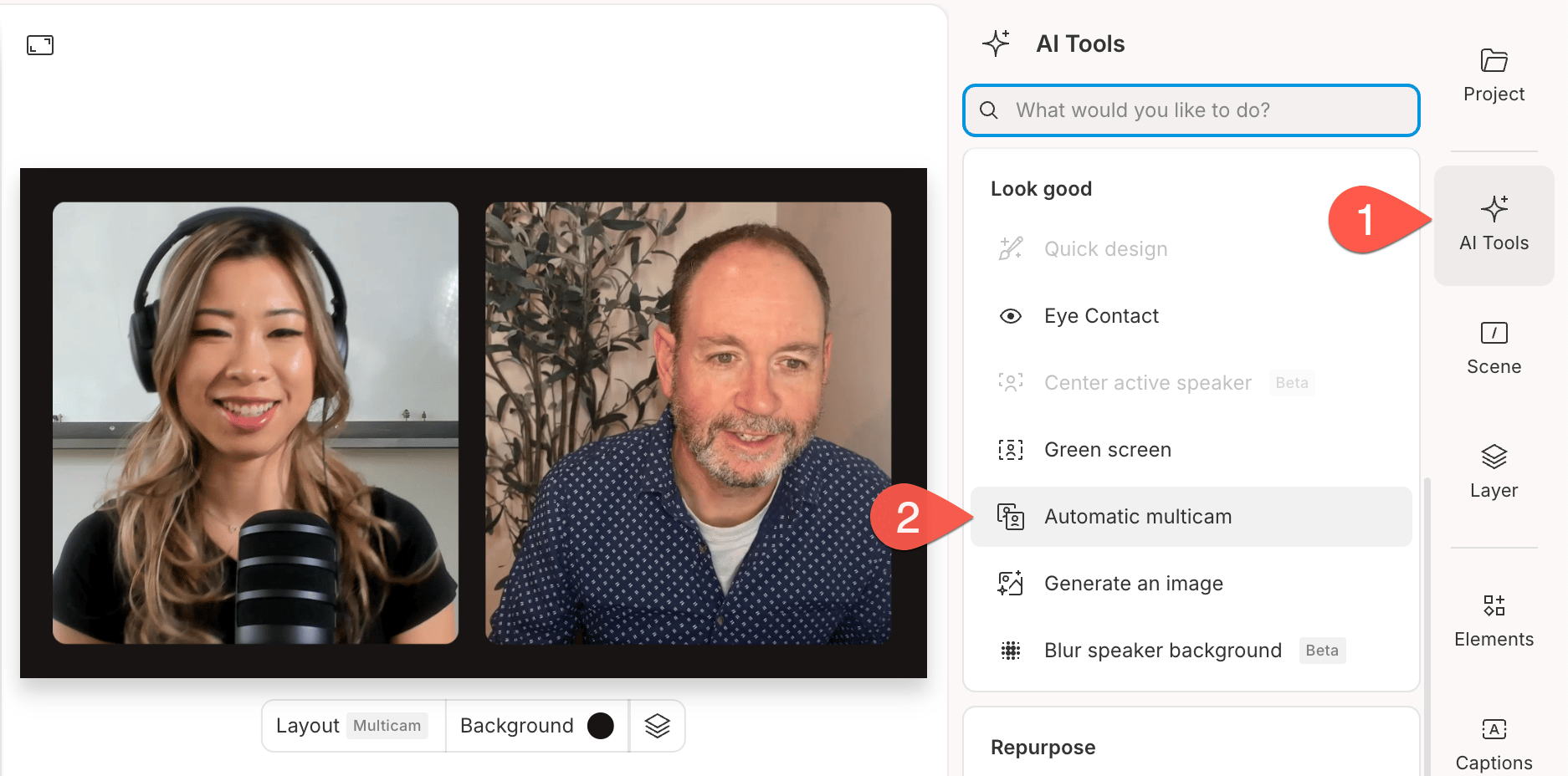
1. **Open AI Tools**
* Go to the right sidebar of your project and click **AI Tools**.
* Select **Automatic Multicam** under the **Look good** section.
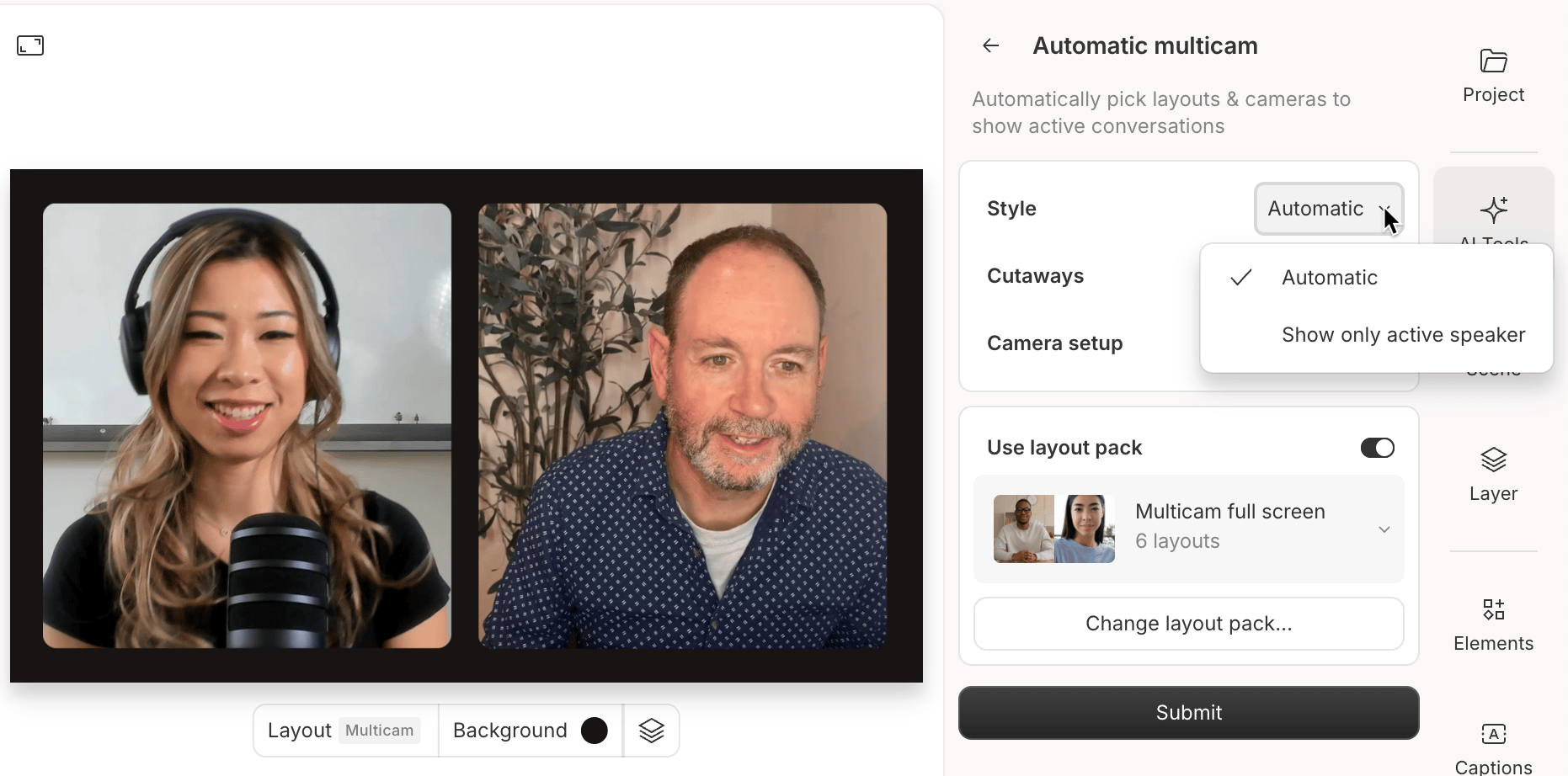
 2. **Choose your style**
* **Automatic**: Shows multiple speakers during dialogue and inserts cutaways during monologues. This style only works with multi-track sequences. [Learn more about sequences.](/script-editing/multi-track-sequences-overview)
* **Show only active speaker**: Focuses only on the current speaker. No cutaways or multi-speaker shots.
2. **Choose your style**
* **Automatic**: Shows multiple speakers during dialogue and inserts cutaways during monologues. This style only works with multi-track sequences. [Learn more about sequences.](/script-editing/multi-track-sequences-overview)
* **Show only active speaker**: Focuses only on the current speaker. No cutaways or multi-speaker shots.
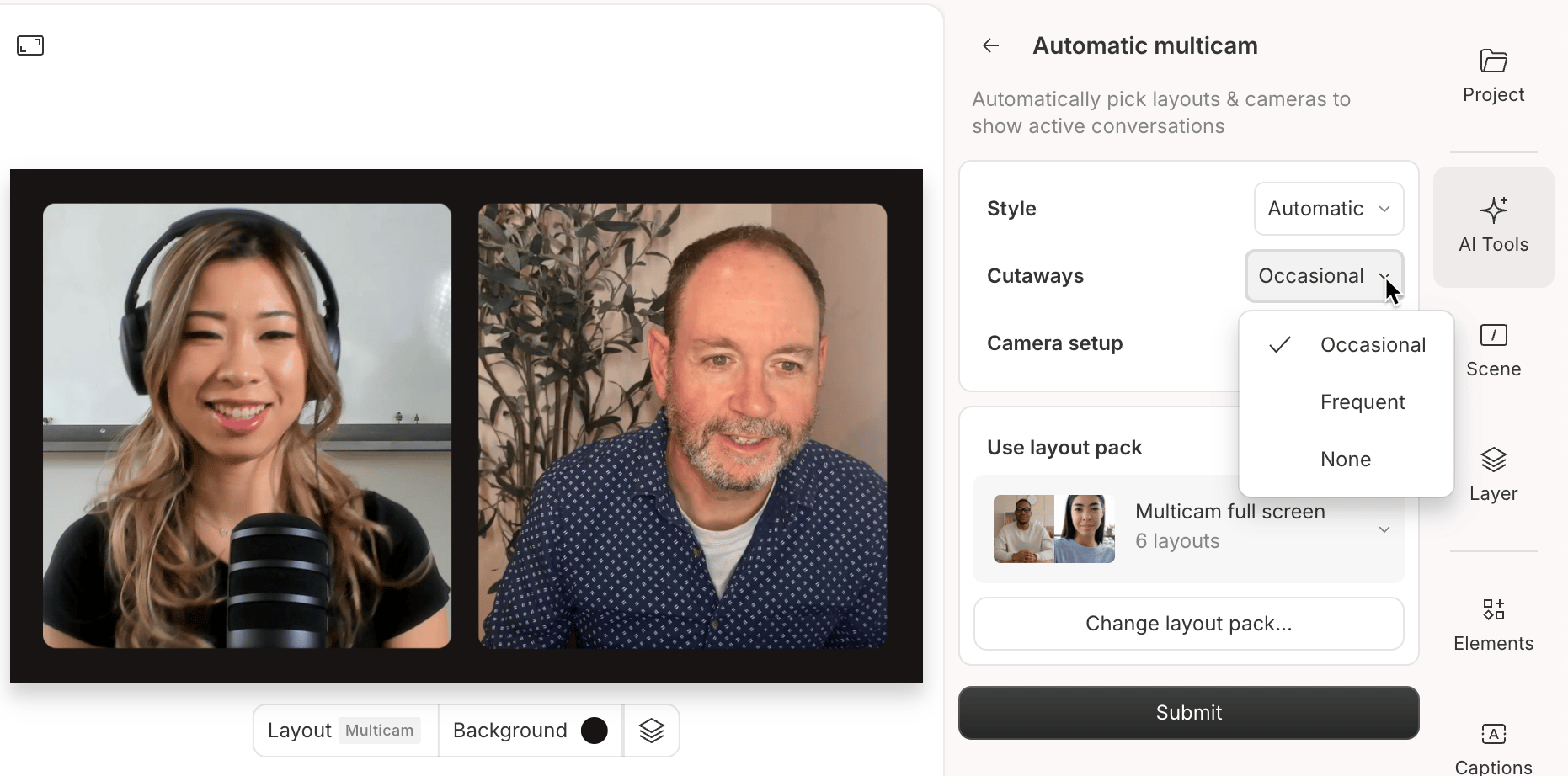
 3. **Set your cutaway frequency**
* **Occasional**: Adds a cutaway every 30 seconds during longer monologues.
* **Frequent**: Adds a cutaway every 10 seconds.
* **None**: No cutaways inserted.
3. **Set your cutaway frequency**
* **Occasional**: Adds a cutaway every 30 seconds during longer monologues.
* **Frequent**: Adds a cutaway every 10 seconds.
* **None**: No cutaways inserted.
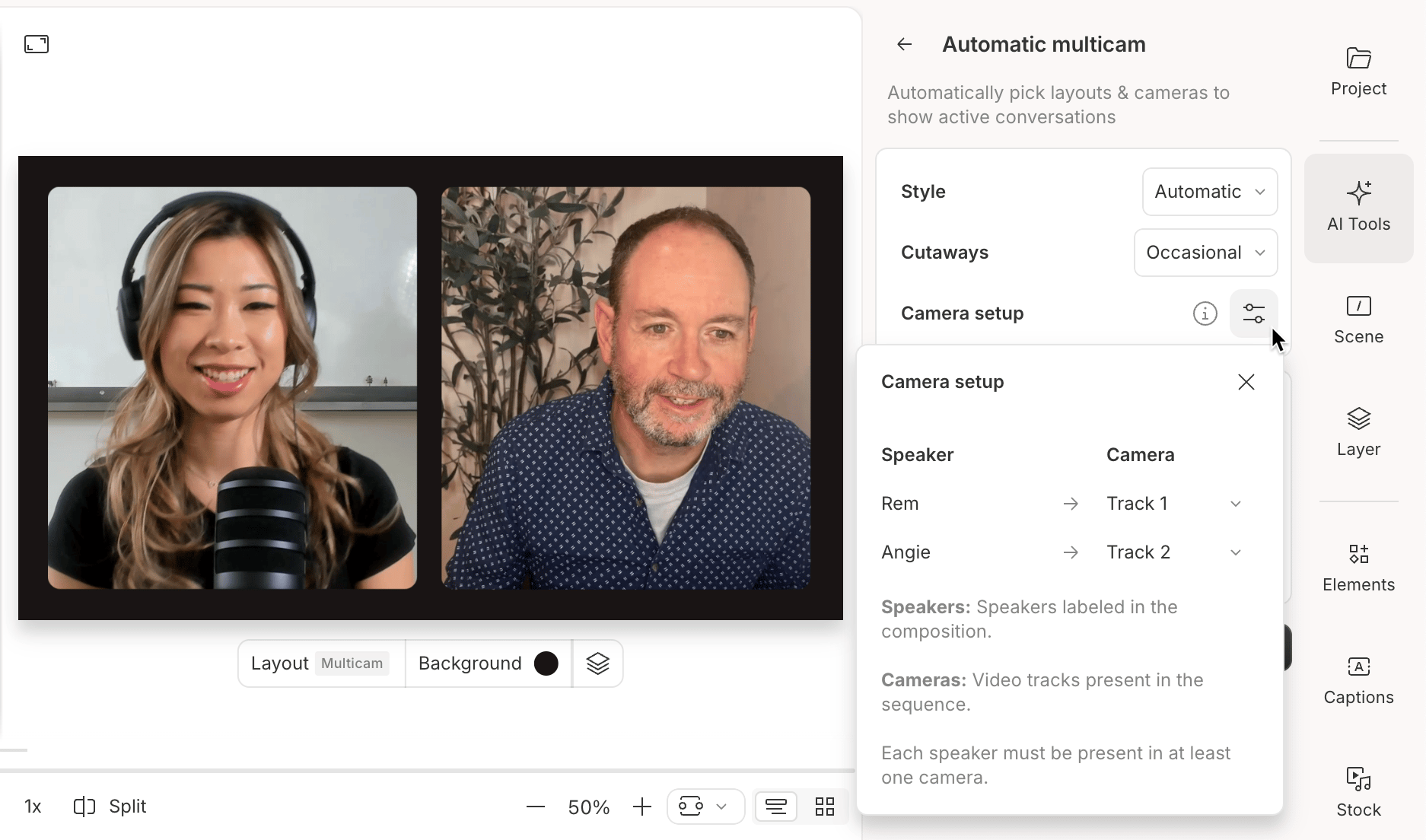
 4. **Configure your camera setup**
* Click the **Camera setup** icon to assign each audio track to the correct camera. This ensures the camera switches match the speaker.
4. **Configure your camera setup**
* Click the **Camera setup** icon to assign each audio track to the correct camera. This ensures the camera switches match the speaker.
 5. **Apply a layout pack (optional)**
* Let Descript automatically choose polished, dynamic layouts for each scene by applying a **layout pack**. [Learn more about layout packs](/templates-and-presets/overview).
5. **Apply a layout pack (optional)**
* Let Descript automatically choose polished, dynamic layouts for each scene by applying a **layout pack**. [Learn more about layout packs](/templates-and-presets/overview).
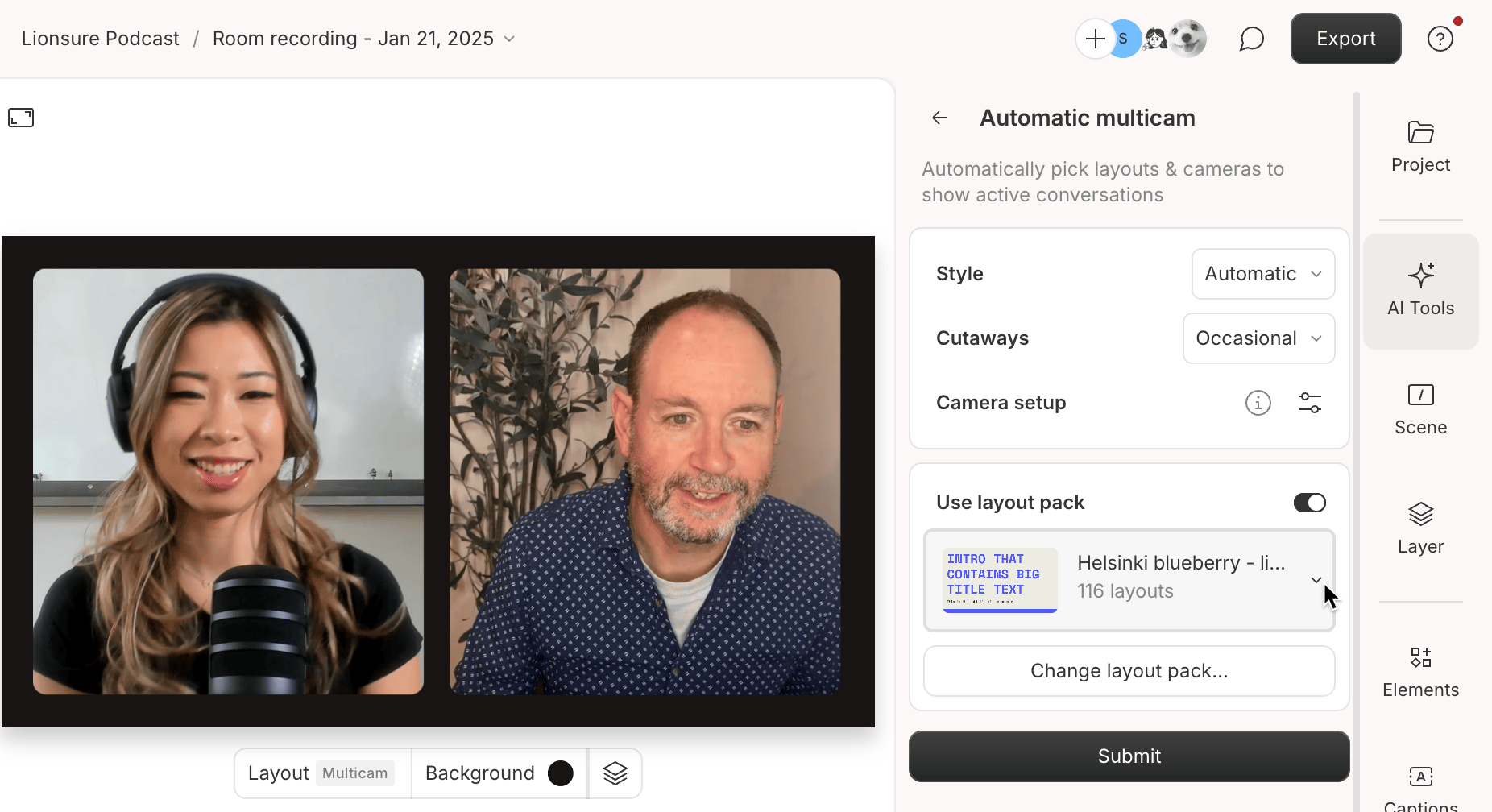 **Submit your settings**
* Click **Submit** to apply your settings.
* If your composition has existing scenes, you’ll see a warning: *"Existing scenes will be overwritten."* Descript will create new scenes for each camera change.
* Processing time depends on the length of your project. If you stop the action midway, Descript won’t undo the changes—it simply stops applying new ones.
## Seeing blank scenes when you apply Automatic Multicam?
This can happen when using Automatic Multicam in a composition where multiple sequences are placed one after another in the script. If the speaker cameras are configured to reference video from two video tracks that don’t overlap, Automatic Multicam may choose a track without video at certain points in your composition. This can cause other layers to disappear and create blank scenes.
Here are two ways to resolve this:
### Option 1: Manually adjust layer visibility
Use the Properties panel to manually adjust which video layers are shown for blank scenes. Learn more here: [Layer visibility and order](https://help.descript.com/hc/en-us/articles/...).
### Option 2: Use separate compositions for each sequence
1. Create a separate [composition](/working-in-projects/overview) for each sequence.
2. Apply Automatic Multicam to each individual composition.
3. Copy `Cmd/Ctrl + C` and paste `Cmd/Ctrl + V` each processed composition into a final blended composition.
**Submit your settings**
* Click **Submit** to apply your settings.
* If your composition has existing scenes, you’ll see a warning: *"Existing scenes will be overwritten."* Descript will create new scenes for each camera change.
* Processing time depends on the length of your project. If you stop the action midway, Descript won’t undo the changes—it simply stops applying new ones.
## Seeing blank scenes when you apply Automatic Multicam?
This can happen when using Automatic Multicam in a composition where multiple sequences are placed one after another in the script. If the speaker cameras are configured to reference video from two video tracks that don’t overlap, Automatic Multicam may choose a track without video at certain points in your composition. This can cause other layers to disappear and create blank scenes.
Here are two ways to resolve this:
### Option 1: Manually adjust layer visibility
Use the Properties panel to manually adjust which video layers are shown for blank scenes. Learn more here: [Layer visibility and order](https://help.descript.com/hc/en-us/articles/...).
### Option 2: Use separate compositions for each sequence
1. Create a separate [composition](/working-in-projects/overview) for each sequence.
2. Apply Automatic Multicam to each individual composition.
3. Copy `Cmd/Ctrl + C` and paste `Cmd/Ctrl + V` each processed composition into a final blended composition.