> ## Documentation Index
> Fetch the complete documentation index at: https://help.descript.com/llms.txt
> Use this file to discover all available pages before exploring further.
# Add Layers to Your Composition
> Add video, images, text, and shapes as layers in your composition.
Anything visual you add becomes its own layer that you arrange in the [scene editor](/visuals/scene-editor-overview) and time in the [timeline](/timeline/timeline-overview).
For information about the different types of layers you can add to your composition, see our [Layer and clip overview](/visuals/working-with-layers-and-clips-overview).
**Not seeing a transcript for your media?**
That’s expected — **layers don’t generate transcripts** because they aren’t part of the script track. Layers are visual or audio elements that accompany your script, so they’re not transcribed.
If you want your content transcribed, add your media to the **script track** (or a sequence) instead of adding it as a layer. [Learn how the script track works](/getting-started/edit-like-a-doc).
## What happens when you add a layer
By default, new layers are added to the current scene and appear in both:
* **[Scene editor](/visuals/scene-editor-overview):** where you position and resize them visually
* **[Timeline](/timeline/timeline-overview):** where you control their timing and duration
## Ways to add a layer
* **Drag and drop:** Drag media (like video or images) from your Project files directly into the script panel, the scene editor, or the timeline.
* **Add Layer button:** Make a selection in the script, then click the **+ Add Layer** button in the hover toolbar and choose a layer type.
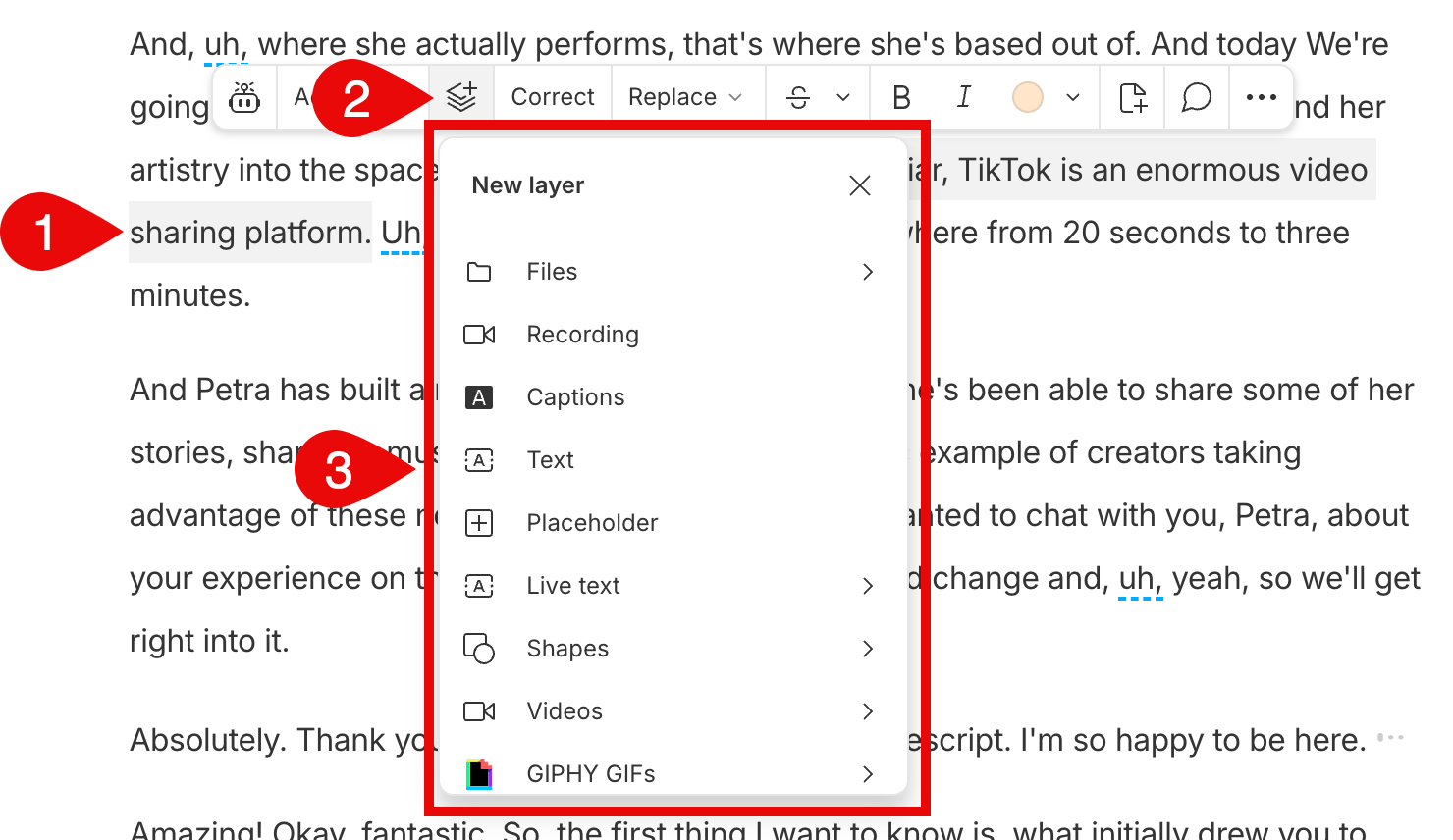 * **Use the Range tool:** Activate [the Range tool](/timeline/timeline-tools), select a portion of your script track, then drag and drop media into the selected range. Descript will automatically create scene boundaries at the start and end of the selection and insert the new layer into the new scene.
**Working with wordless media?**
If you're starting from a blank project without a script track, you won't be able to drag and drop media directly into the scene editor to add it as a layer.
Add media to your project files first, then select the file and use the **Add Layer** button. Your script track will be automatically populated with [a gap clip](/timeline/using-gap-clips), and your layer will be added to the scene.
* **Use the Range tool:** Activate [the Range tool](/timeline/timeline-tools), select a portion of your script track, then drag and drop media into the selected range. Descript will automatically create scene boundaries at the start and end of the selection and insert the new layer into the new scene.
**Working with wordless media?**
If you're starting from a blank project without a script track, you won't be able to drag and drop media directly into the scene editor to add it as a layer.
Add media to your project files first, then select the file and use the **Add Layer** button. Your script track will be automatically populated with [a gap clip](/timeline/using-gap-clips), and your layer will be added to the scene.