> ## Documentation Index
> Fetch the complete documentation index at: https://help.descript.com/llms.txt
> Use this file to discover all available pages before exploring further.
# Using Gap Clips
> Gap clips are silent, flexible placeholders you can insert into your project to add space and fine-tune timing.
Drop a gap clip in wherever you need empty time: a breath between words, a slower stretch of pacing, or room for B-roll that has no script behind it.
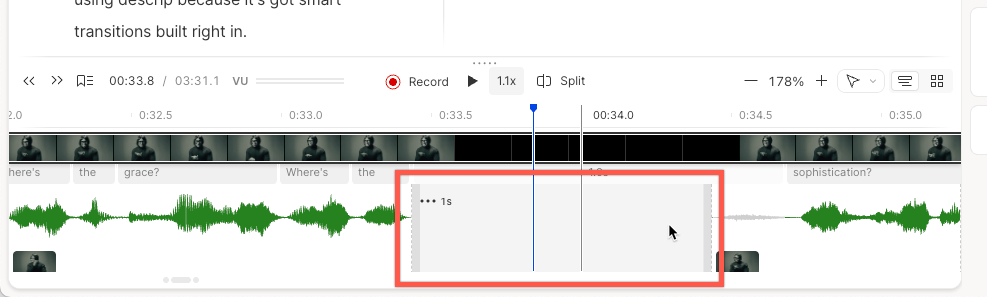 **Gap clips have room tone on by default**
[Room tone](/effects-animations-transitions/room-tone) is an AI-generated background noise profile added to gap clips to help them blend seamlessly with your existing recordings. To silence a gap clip, [disable room tone on the clip itself](/effects-animations-transitions/room-tone)—or update the default setting in your [App settings](/account-and-app-settings/app-settings) or [Project settings](/working-in-projects/project-settings).
## Add a gap clip
### From the timeline
1. Make sure the script track is visible. Expand the timeline by dragging the top border of the panel, or select [Show timeline](/timeline/timeline-overview) from the View menu. If you're using an [AI Speaker](/ai-speech/ai-speakers-overview) voice, [convert the AI voice clip to audio](/ai-speech/covert-to-audio) before adding a gap clip.
2. Right-click on the script track and select **Add gap clip**. Remember to disable room tone if you want the clip to be fully silent. [Learn more about disabling Room Tone.](/effects-animations-transitions/room-tone)
### Replace a section with a gap clip
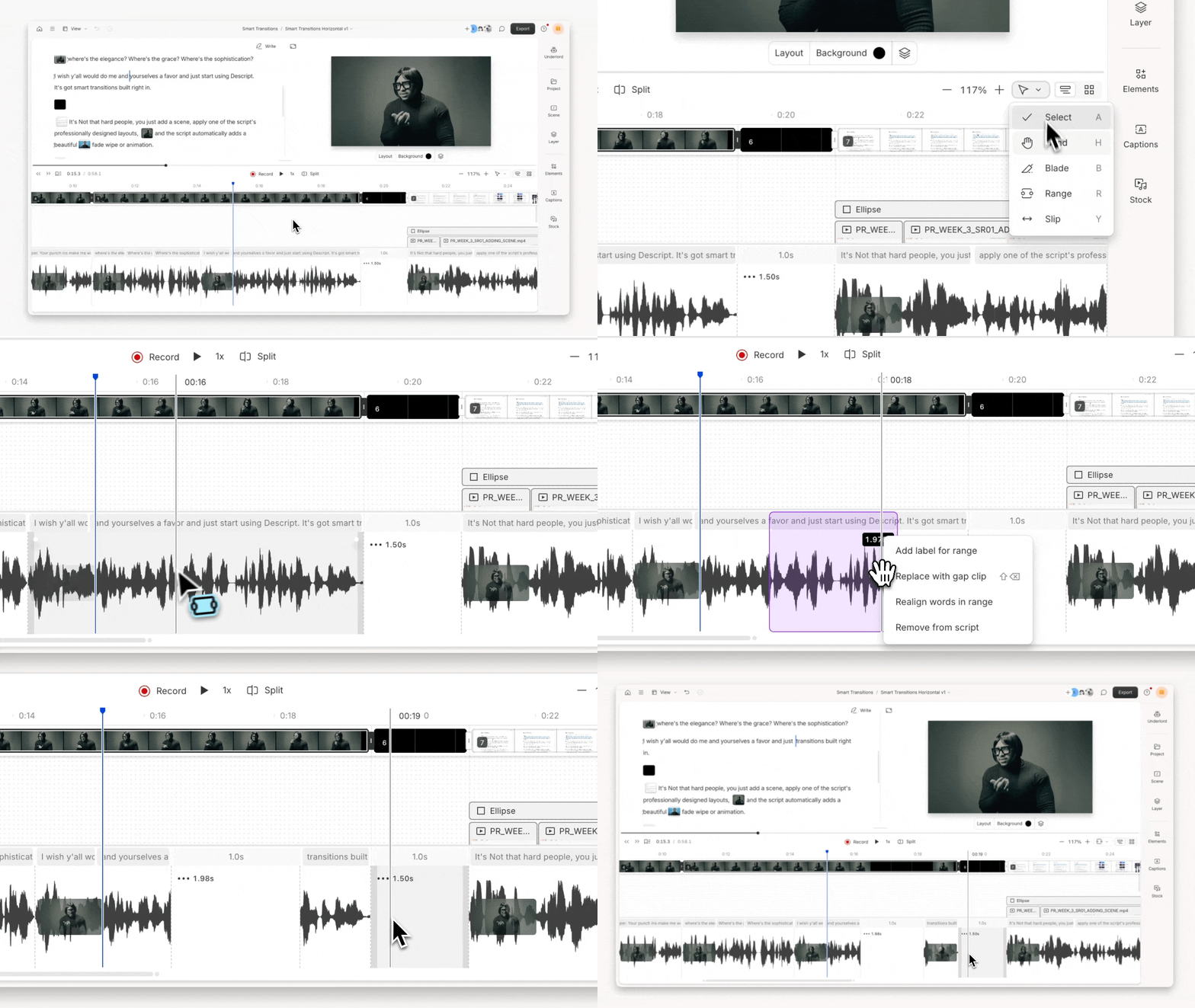
Select a range with the **Range tool** to replace the selection with a gap clip. To access it, you'll need to have the advanced timeline tools toggled on. [Learn more about advanced timeline tools.](/timeline/timeline-tools)
1. With the **Range** **tool** activated, click and drag a selection in the script track.
2. Right-click the selected range and choose **Replace with gap clip**, or press `Shift + Delete` (macOS) / `Shift + Backspace` (Windows).
**Gap clips have room tone on by default**
[Room tone](/effects-animations-transitions/room-tone) is an AI-generated background noise profile added to gap clips to help them blend seamlessly with your existing recordings. To silence a gap clip, [disable room tone on the clip itself](/effects-animations-transitions/room-tone)—or update the default setting in your [App settings](/account-and-app-settings/app-settings) or [Project settings](/working-in-projects/project-settings).
## Add a gap clip
### From the timeline
1. Make sure the script track is visible. Expand the timeline by dragging the top border of the panel, or select [Show timeline](/timeline/timeline-overview) from the View menu. If you're using an [AI Speaker](/ai-speech/ai-speakers-overview) voice, [convert the AI voice clip to audio](/ai-speech/covert-to-audio) before adding a gap clip.
2. Right-click on the script track and select **Add gap clip**. Remember to disable room tone if you want the clip to be fully silent. [Learn more about disabling Room Tone.](/effects-animations-transitions/room-tone)
### Replace a section with a gap clip
Select a range with the **Range tool** to replace the selection with a gap clip. To access it, you'll need to have the advanced timeline tools toggled on. [Learn more about advanced timeline tools.](/timeline/timeline-tools)
1. With the **Range** **tool** activated, click and drag a selection in the script track.
2. Right-click the selected range and choose **Replace with gap clip**, or press `Shift + Delete` (macOS) / `Shift + Backspace` (Windows).