> ## Documentation Index
> Fetch the complete documentation index at: https://help.descript.com/llms.txt
> Use this file to discover all available pages before exploring further.
# Timeline Overview
> Fine-tune your composition's timing, visuals, and audio sync in Descript's timeline.
Most editing in Descript happens in the script, but the timeline is where you finesse the details: when a visual appears, how audio lines up, how the whole thing is layered and paced.
**Keep learning with videos**
Explore more educational videos and workflows in Learn [Learn Descript](https://web.descript.com/learn-descript?utm_source=hcarticles).
## This article covers:
* [How to reveal and expand the timeline](#reveal-and-expand-the-timeline)
* [Timeline views](#understand-timeline-views)
* [Zoom, view, and timeline tools](/timeline/timeline-overview)
* [What's in the timeline](#whats-in-the-timeline)
**Missing the scene rail?**
We’ve updated Descript’s layout to make editing more visual and intuitive. What was previously known as the **Scene Rail** is now part of [**Storyboard View**](/timeline/timeline-overview).
## Reveal and expand the timeline
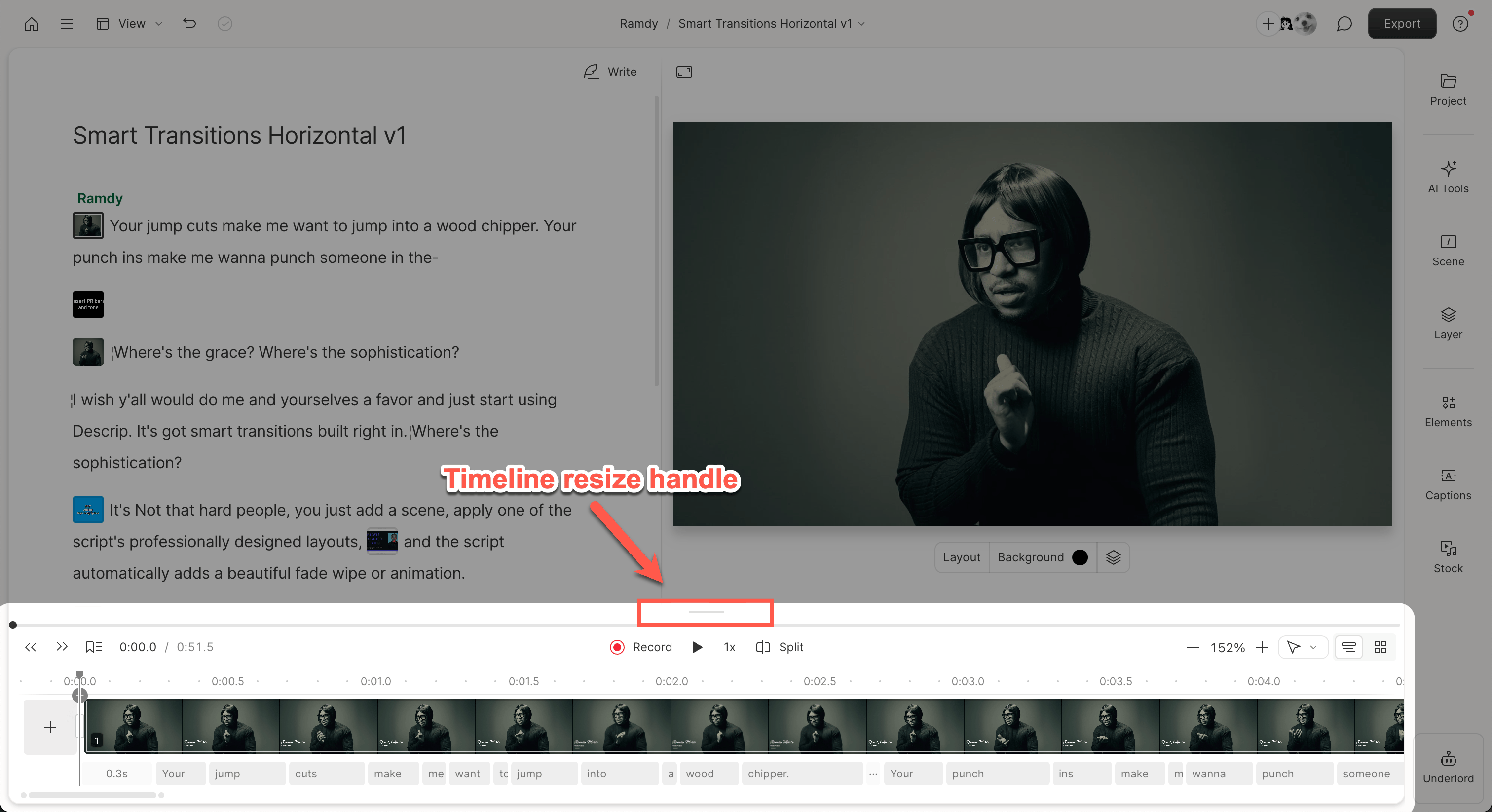
When you open a project, the timeline is **fully collapsed**—no wordbar, visuals, or layer previews are visible.
To reveal the timeline, **click the resize handle** above the transport. This opens the **expanded timeline view**.
 Or use the shortcut:\
`Control` + `Option` + `T` (Mac)\
`Ctrl` + `Alt` + `T` (Windows)
## Understand timeline views
### Fully collapsed
The timeline is hidden by default when you open a project.
### Expanded timeline
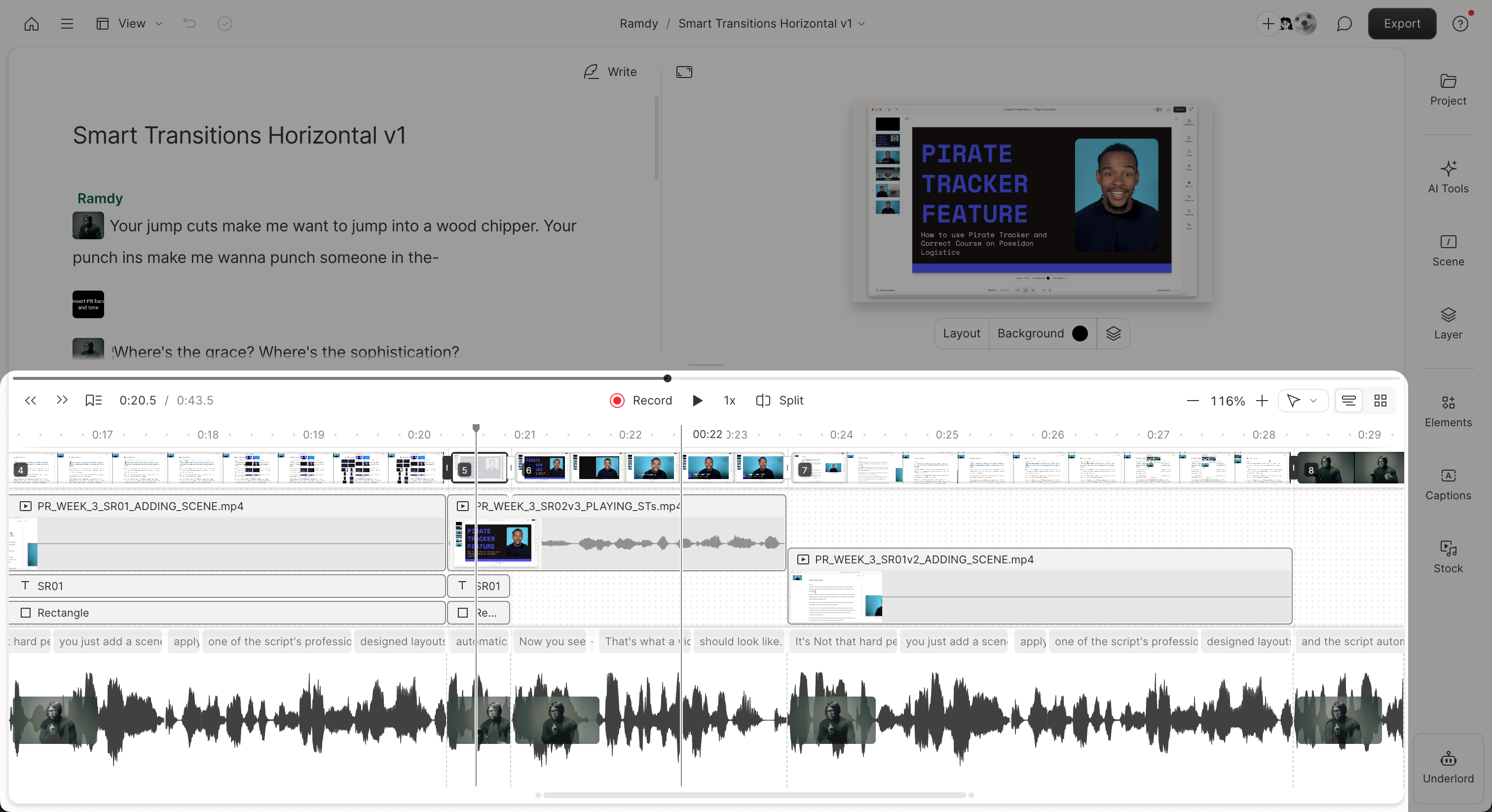
Clicking the handle or dragging the resize handle upward expands the timeline fully. This reveals all media and visual layers, allowing you to edit your script, add visuals, and fine-tune timing.
Or use the shortcut:\
`Control` + `Option` + `T` (Mac)\
`Ctrl` + `Alt` + `T` (Windows)
## Understand timeline views
### Fully collapsed
The timeline is hidden by default when you open a project.
### Expanded timeline
Clicking the handle or dragging the resize handle upward expands the timeline fully. This reveals all media and visual layers, allowing you to edit your script, add visuals, and fine-tune timing.
 ## Navigating the timeline
Use the controls in the top-right corner of the timeline to change your view.
## Navigating the timeline
Use the controls in the top-right corner of the timeline to change your view.
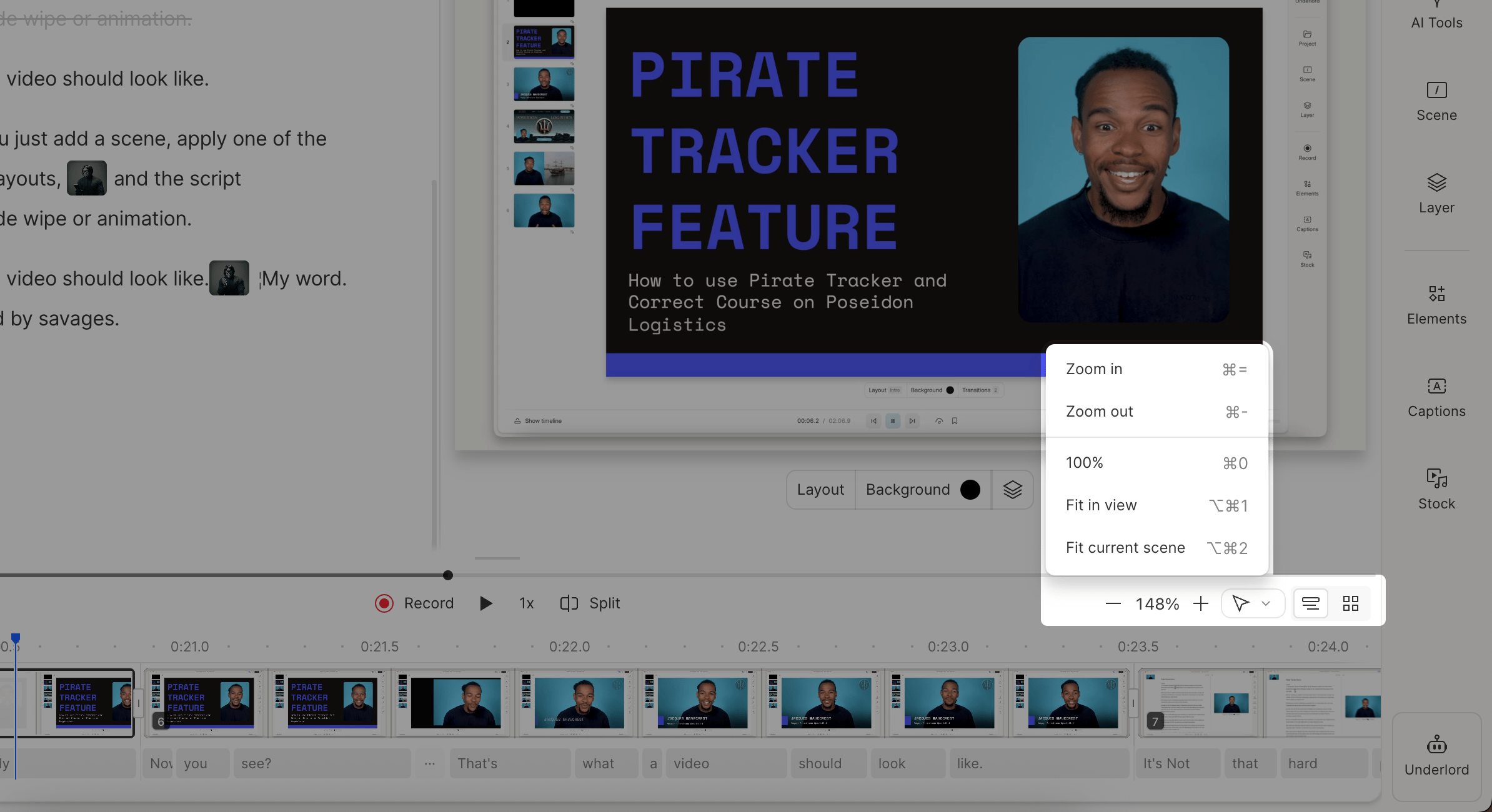 * **Zoom & Fit:**
* `Fit scene` – focuses on the active scene
* `Fit composition` – zooms out to show your entire project
* **Timeline tools:** Blade, Slip, Hand, and Range tools. [Learn more about timeline tools →](/timeline/timeline-tools)
* **Storyboard view:** A visual grid of all your scenes
* **Timeline view:** Horizontal script-and-layer layout
## What's in the timeline
* **Zoom & Fit:**
* `Fit scene` – focuses on the active scene
* `Fit composition` – zooms out to show your entire project
* **Timeline tools:** Blade, Slip, Hand, and Range tools. [Learn more about timeline tools →](/timeline/timeline-tools)
* **Storyboard view:** A visual grid of all your scenes
* **Timeline view:** Horizontal script-and-layer layout
## What's in the timeline
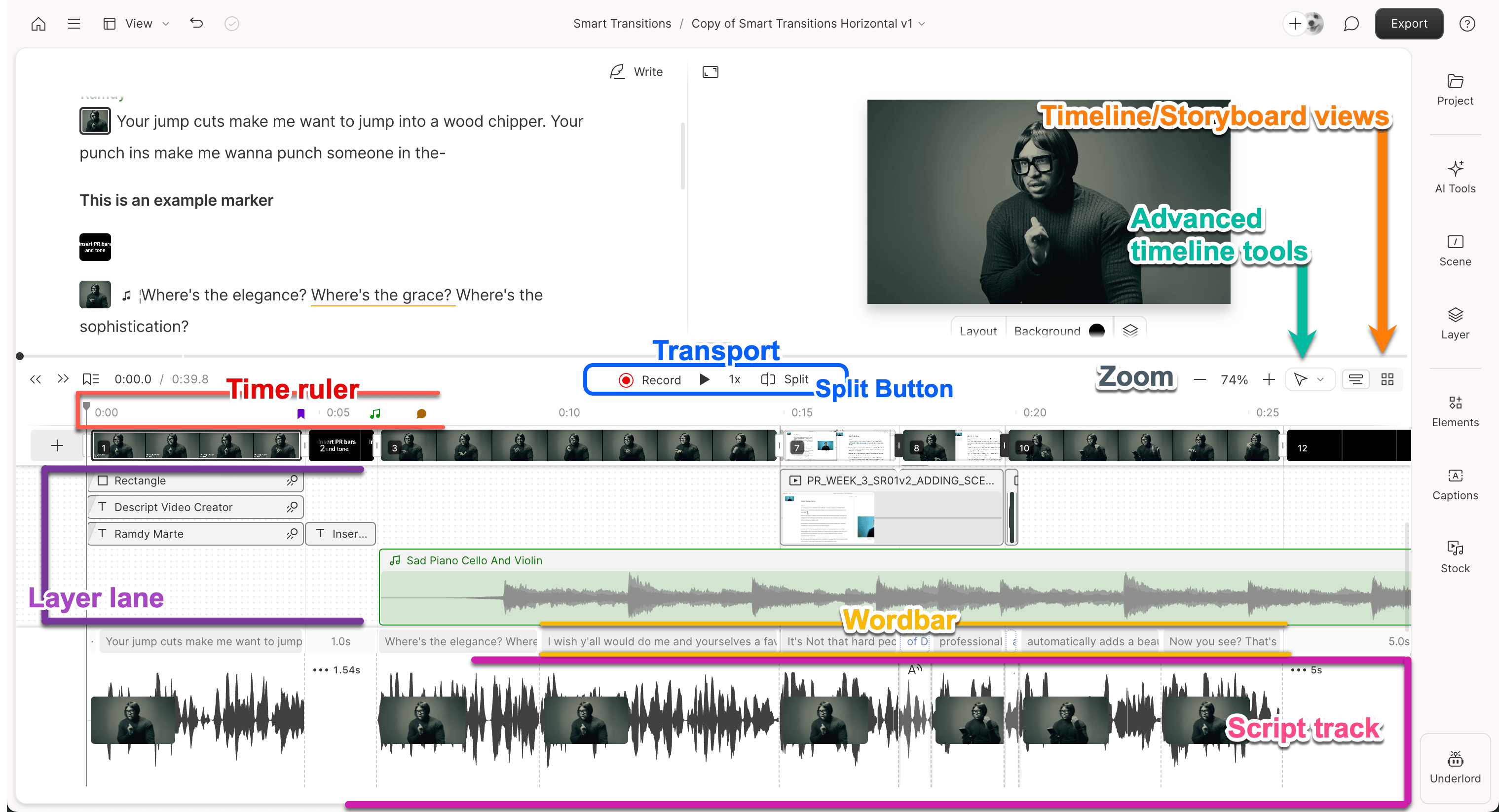 * **Transport:** Playback controls for your composition
* [**Split Button**](/timeline/split-button): Split scenes, clips, or layers for easier editing and organization.
* **Time ruler:** Displays timecode, markers, comments, and audio levels
* **Layer lane:** Additional visual layers (b-roll, effects, etc.)
* **[Wordbar](/script-editing/the-wordbar):** Shows alignment between script and audio
* **Script track:** Where your script-based content lives
* **Transport:** Playback controls for your composition
* [**Split Button**](/timeline/split-button): Split scenes, clips, or layers for easier editing and organization.
* **Time ruler:** Displays timecode, markers, comments, and audio levels
* **Layer lane:** Additional visual layers (b-roll, effects, etc.)
* **[Wordbar](/script-editing/the-wordbar):** Shows alignment between script and audio
* **Script track:** Where your script-based content lives