> ## Documentation Index
> Fetch the complete documentation index at: https://help.descript.com/llms.txt
> Use this file to discover all available pages before exploring further.
# The Split Button: How to Split Scenes and Layers Directly in the Timeline
> Split a whole scene or a single layer at the playhead in the timeline.
Use the Split button to divide your timeline into scenes, to trim existing layers, or to isolate sections of audio or video for fine-tuned editing.
## Where to find the Split button
The Split button appears at the top center of the timeline, to the right of the Record button. It's visible in both collapsed and expanded timeline views.
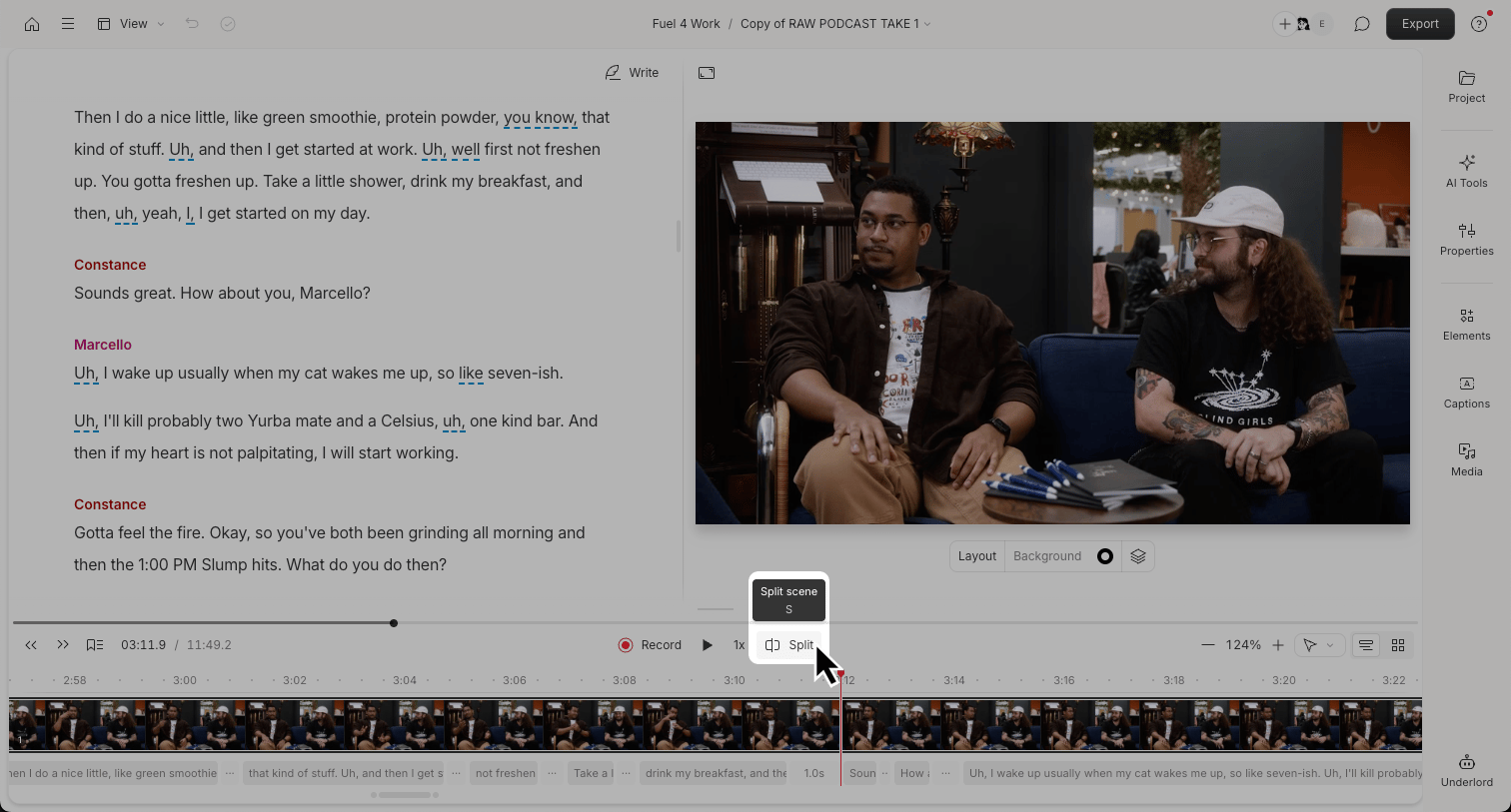 ## How Split works
The behavior of the Split button depends on your current selection in the timeline:
## How Split works
The behavior of the Split button depends on your current selection in the timeline:
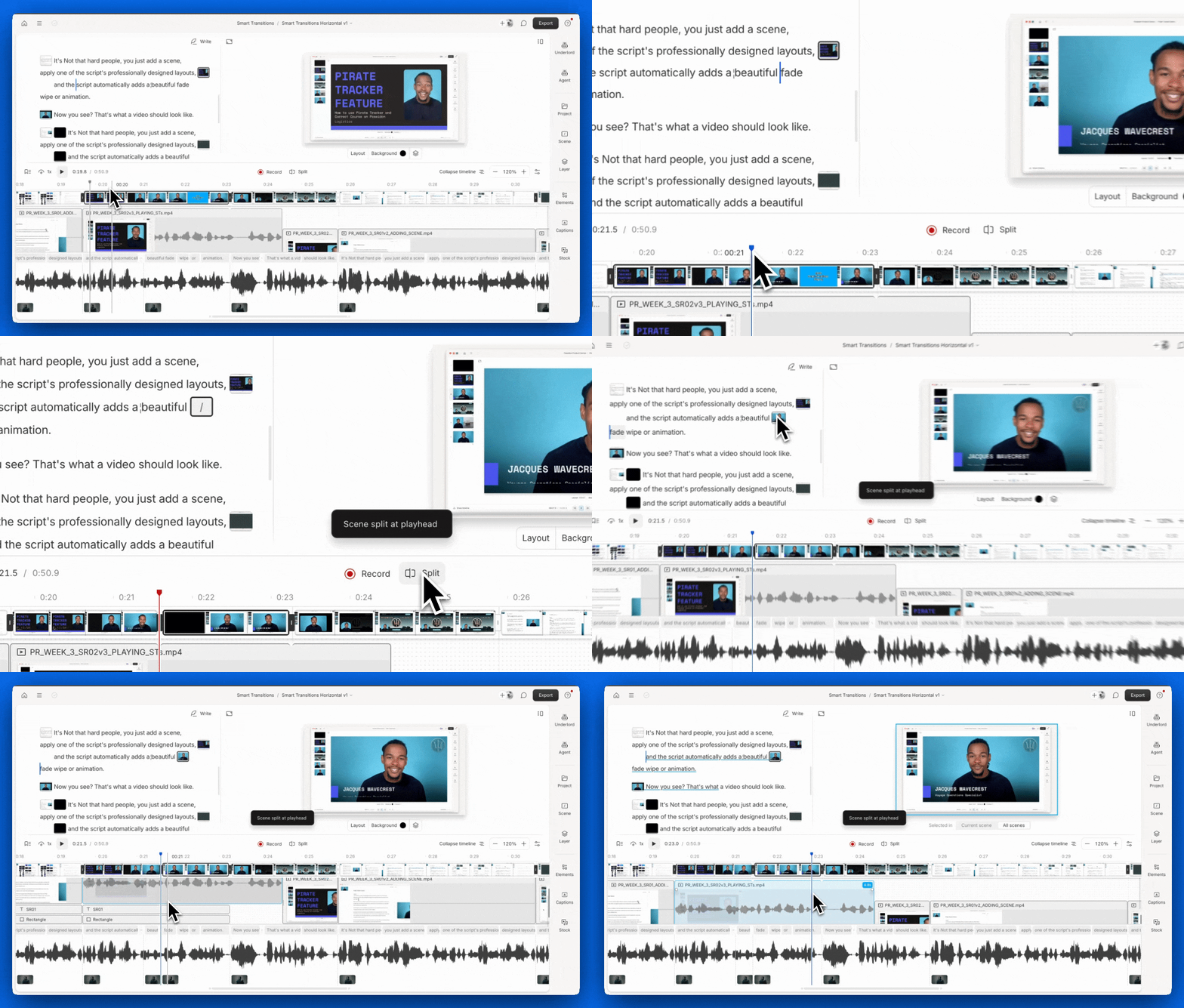 * **If there's no specific layer selected:** Splits the current scene at the playhead. This affects all layers and creates a new scene.
* **If a specific layer is selected:** Splits only that layer within its current scene. Hold `Shift` or use `Shift + S` to split a media layer into separate clips.
### Why split a media layer?
Splitting a layer into clips lets you fine-tune adjustments to just one clip within the layer — like cutting out silence, applying effects to a specific section, or adjusting volume at one moment without changing the entire layer.
* **If there's no specific layer selected:** Splits the current scene at the playhead. This affects all layers and creates a new scene.
* **If a specific layer is selected:** Splits only that layer within its current scene. Hold `Shift` or use `Shift + S` to split a media layer into separate clips.
### Why split a media layer?
Splitting a layer into clips lets you fine-tune adjustments to just one clip within the layer — like cutting out silence, applying effects to a specific section, or adjusting volume at one moment without changing the entire layer.