> ## Documentation Index
> Fetch the complete documentation index at: https://help.descript.com/llms.txt
> Use this file to discover all available pages before exploring further.
# Freeze Frames
> Capture a still from any video and hold the shot as long as you need.
A freeze frame is a single still image from your video that you can use to highlight something important. You can create a freeze frame from any video in your [composition](/working-in-projects/overview) or any video track in a [multitrack sequence](/script-editing/multi-track-sequences-overview).
## Adding a freeze frame to a video track
1. Find the video and spot where you want to add a freeze frame. If the video is a non-script layer, you may need to select the video in your [scene editor](/visuals/scene-editor-overview).
2. Right-click on the video layer in the [Timeline](/timeline/timeline-overview).
3. Select **Add freeze frame** from the menu options.\\
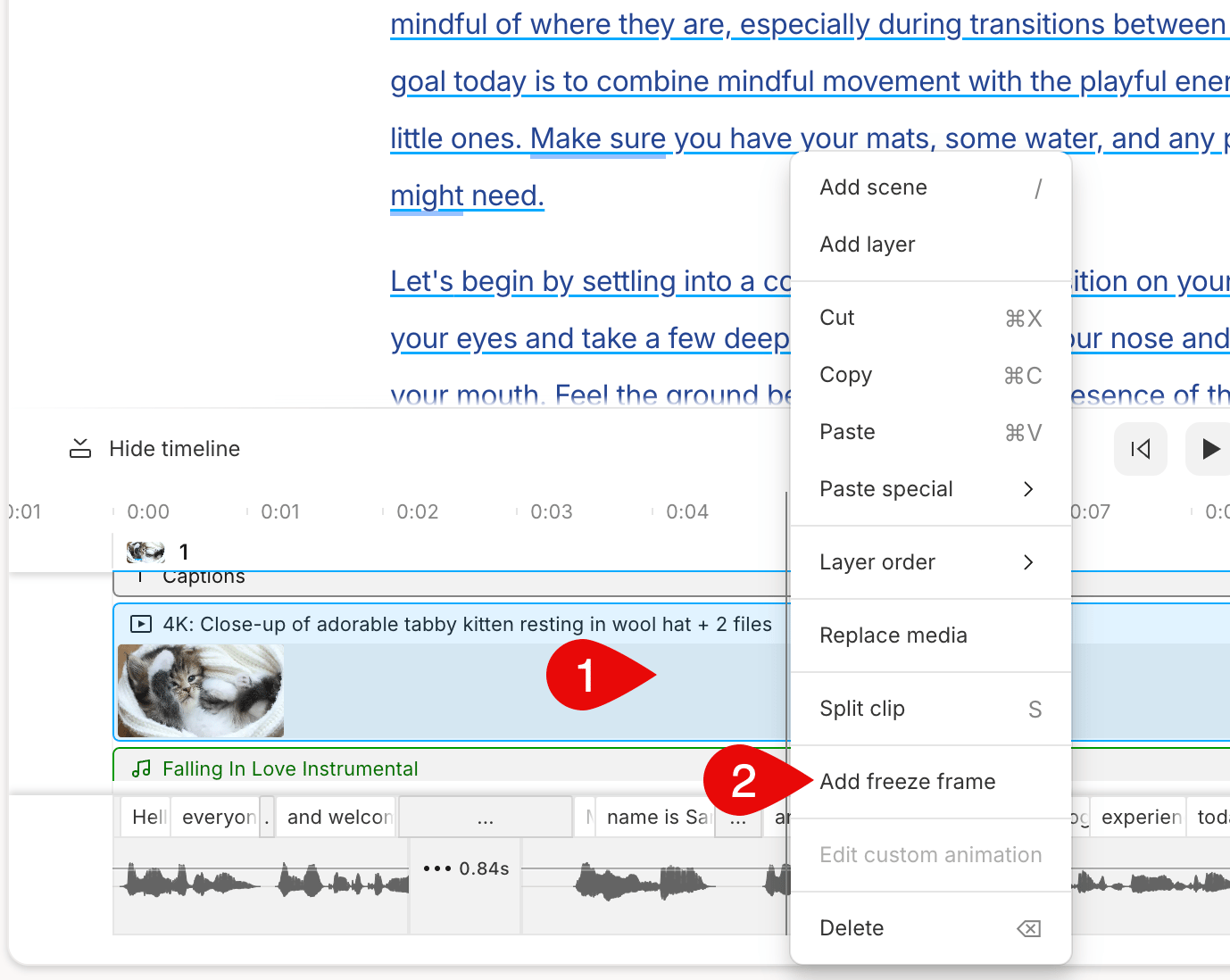 4. You might want to adjust how long the freeze frame shows in your video. You can do this in a couple of ways:
* While you have the freeze frame clip selected, change the playback duration from the Properties panel
* Use the [Select tool](/timeline/timeline-tools) to click and drag the edge of the freeze frame clip in the Timeline. [Click here to learn more about trimming clips](/visuals/working-with-layers-and-clips-overview#how-to-work-with-clips-and-layers).
If you want to add a freeze frame to a sequence, open the [sequence editor](/script-editing/sequence-editor) and add the freeze frame to the desired track and location by right-clicking the track and selecting **Add freeze frame** from the menu options.
4. You might want to adjust how long the freeze frame shows in your video. You can do this in a couple of ways:
* While you have the freeze frame clip selected, change the playback duration from the Properties panel
* Use the [Select tool](/timeline/timeline-tools) to click and drag the edge of the freeze frame clip in the Timeline. [Click here to learn more about trimming clips](/visuals/working-with-layers-and-clips-overview#how-to-work-with-clips-and-layers).
If you want to add a freeze frame to a sequence, open the [sequence editor](/script-editing/sequence-editor) and add the freeze frame to the desired track and location by right-clicking the track and selecting **Add freeze frame** from the menu options.