> ## Documentation Index
> Fetch the complete documentation index at: https://help.descript.com/llms.txt
> Use this file to discover all available pages before exploring further.
# Use Templates to Speed up Your Underlord Workflow
> Run a ready-made Underlord template from the gallery to quickly edit your content.
Templates are pre-built Underlord workflows that combine multiple prompts into a single action. Instead of building prompt chains from scratch, you can choose from ready-made templates in the gallery — each designed for common use cases — to save time and start editing right away.
For a dedicated guide to creating and saving your own custom templates, see [Create and save your own templates.](/templates-and-presets/custom-templates)
## Before getting started
**Templates vs. Layouts**\
In earlier versions of Descript, templates referred to what we now call layouts. Layouts control the visual design of your video, while templates are now pre-built AI workflows you can run with Underlord. [Learn more about layouts](/templates-and-presets/overview)
**Usage note**
On current plans, this feature uses **AI Credits**. Learn more about [tracking your Media Minutes and AI Credits](/billing-payments-plans/track-and-understand-your-media-minutes-and-ai-credits).
Legacy and Sunset plans track usage differently. See our [Understanding your Legacy and Sunset plan](/billing-payments-plans/legacy-sunset) guide for details.
## Where to find templates
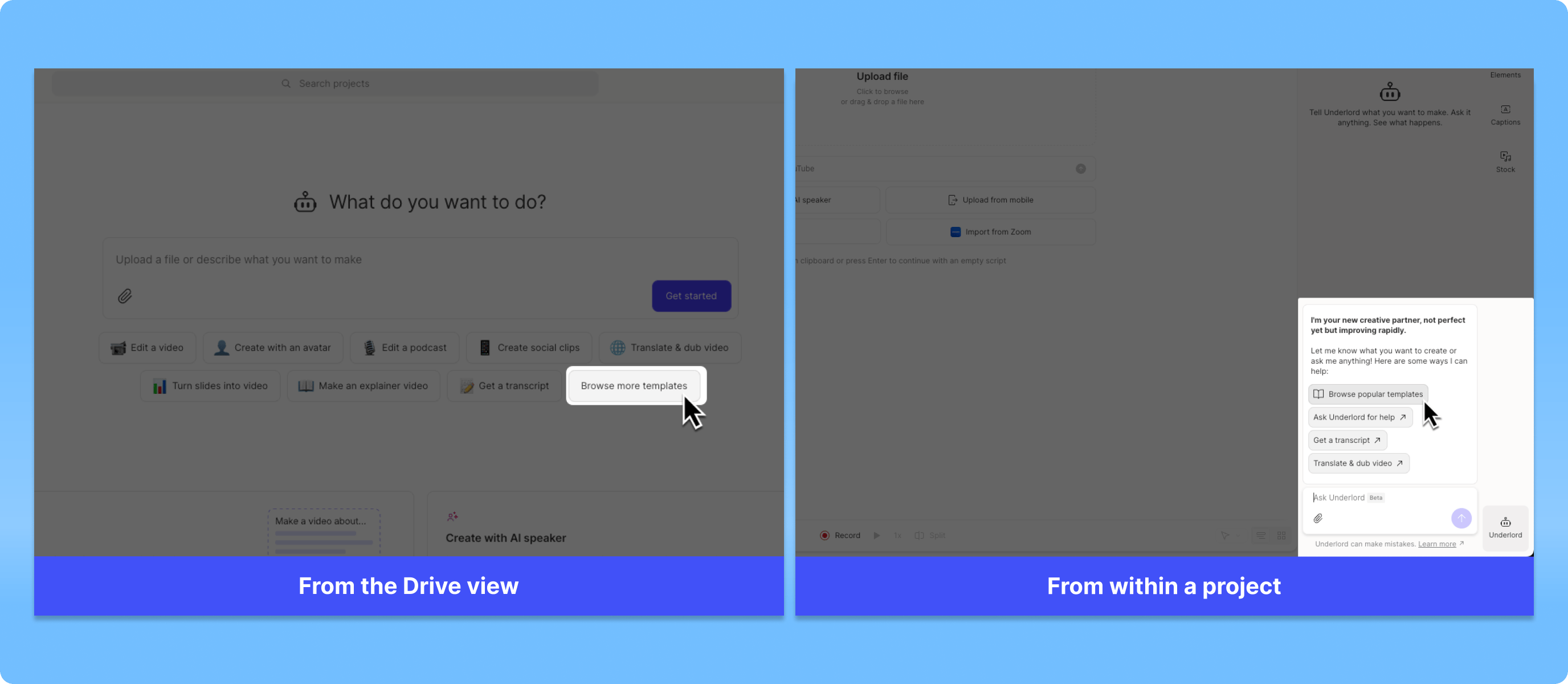
Access the template gallery from the **Home** tab in your [Drive view,](/descript-tour/drive-view) or from the [Underlord](/getting-started/underlord-beta-your-ai-co-editor-in-descript) chat. Click **Browse more templates** to view the full gallery.
 ##
## How to use a template
Click on any tile in the gallery to view the prompt details and get a preview of a project created from the prompt.
1. Find a template that fits your project and click **Use template**.
2. Descript automatically opens a new project and begins running the prompt — Underlord applies the template to start your edit.
3. Answer a few additional questions to customize your video to your exact specifications.
## Style direction
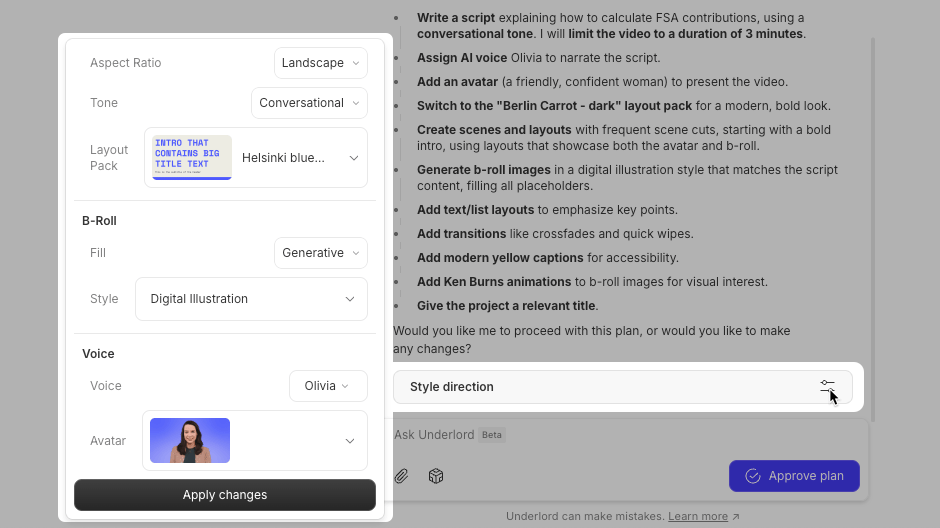
Some templates offer additional customization through the style direction button. When available, click the options menu to adjust aspect ratio, tone, layout pack, b-roll style, AI speaker, and avatar.
##
## How to use a template
Click on any tile in the gallery to view the prompt details and get a preview of a project created from the prompt.
1. Find a template that fits your project and click **Use template**.
2. Descript automatically opens a new project and begins running the prompt — Underlord applies the template to start your edit.
3. Answer a few additional questions to customize your video to your exact specifications.
## Style direction
Some templates offer additional customization through the style direction button. When available, click the options menu to adjust aspect ratio, tone, layout pack, b-roll style, AI speaker, and avatar.