> ## Documentation Index
> Fetch the complete documentation index at: https://help.descript.com/llms.txt
> Use this file to discover all available pages before exploring further.
# How Layouts Interact with Scenes and the Script
> How Descript places your content when you apply a layout to a scene.
Descript reads context, layer names, and smart-fill behavior to decide where each element goes. It prioritizes your camera footage, images, videos, and text, then fits them into the new layout’s design—removing decorative elements from the previous layout, like background gradients, logos, or graphics.
If Descript removes any layers during this process, you’ll see a notification and can restore them.
**New to layouts?**
Start with these Help Center guides:
* [What are layouts and layout packs?](/templates-and-presets/overview)
* [Apply a layout to a scene](/getting-started/scenes)
## How Descript matches your content to a new layout
**Camera and media layers are interchangeable**
Descript treats talking-head footage and other media layers, such as images or video clips, as interchangeable when matching them to a new layout:
* If your scene includes camera footage and the new layout contains only media placeholders, Descript places your camera footage into those media slots.
* If your scene includes images or video clips and the new layout contains talking-head placeholders, Descript places your media into those slots.
This flexibility lets you switch layouts without losing your content, even when placeholder types don’t match exactly.
**Matching layers by name**
If you rename layers in your scene, Descript looks for layers with matching names in the new layout. When it finds a match, Descript keeps your content and applies the new layout’s styling and position. Descript ignores hidden layers during this process.
**When multiple layers compete for one spot**
If several layers qualify for the same placeholder, Descript selects the layer highest in the canvas layer stack.
**Smart fill layers**
Some layouts use Smart Fill to automatically generate contextual text like titles
or section headings when applied.
[Learn more about Smart Fill.](/templates-and-presets/layouts-behavior)
## What happens to layers that don’t fit
If a layer from your original scene doesn’t match any placeholder in the new
layout, Descript removes it and shows a notification listing the removed layers.
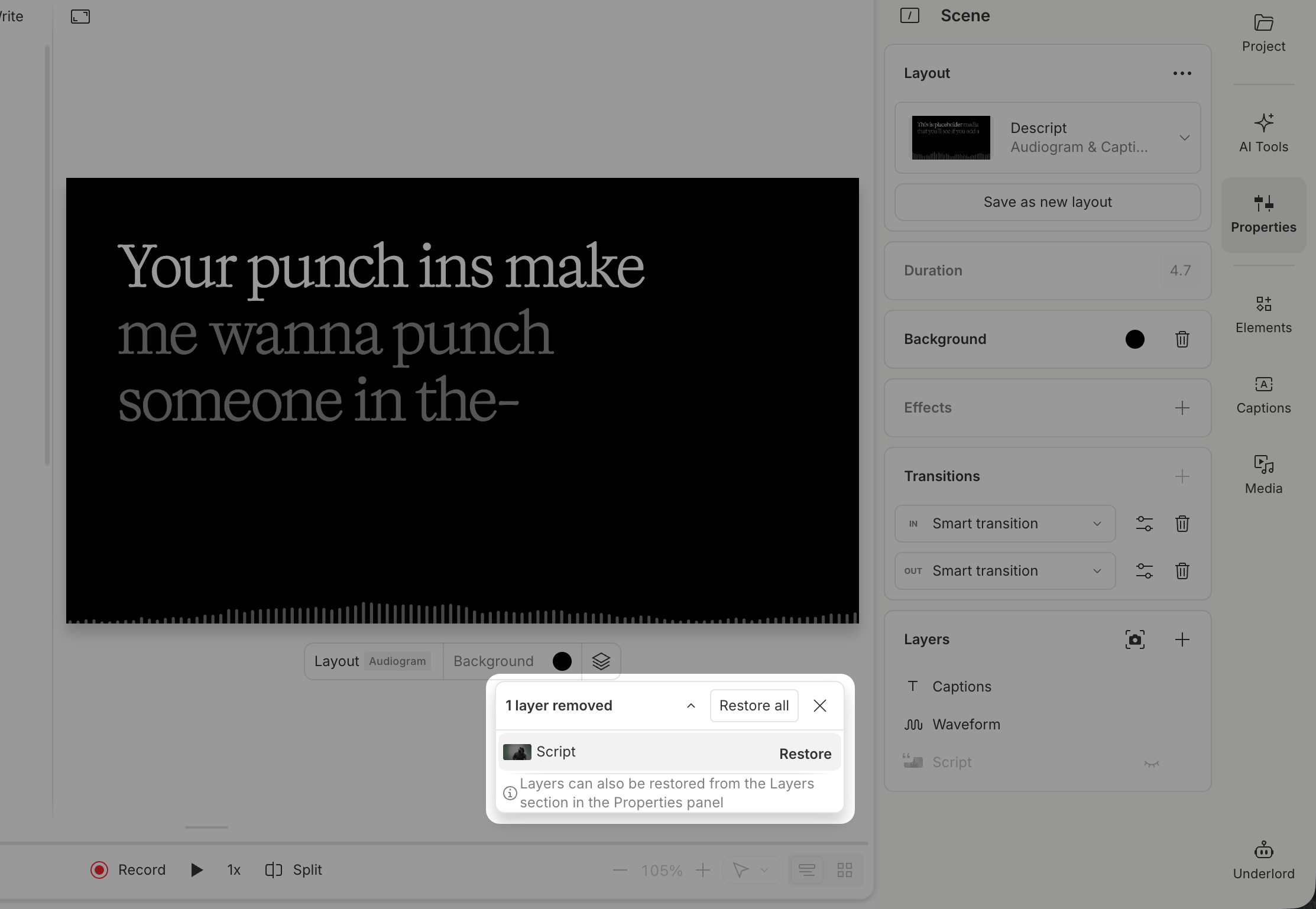 From this notification, you can:
* **Restore individual layers** by selecting them one at a time
* **Restore all layers** using the **Restore All**
button
* **Dismiss the notification** if you don’t need those layers
When you restore layers, Descript keeps their original order and places them
where you can see them on the canvas.
## Apply a layout to an empty scene
When you apply a layout to a scene without script content, Descript adds all
content included in the layout. This approach works well for reusable elements
like intros, sponsored segments, ads, or outro scenes.
## Smart Fill and text layer types
Smart Fill uses AI to automatically generate editable content for
[text layers](/visuals/text-layers) when a layout is
applied. It analyzes your script content, scene context, and the layout's design
to create contextual text like titles, intros, or section headings.
Smart Fill does not affect text layers set to dynamic types (Speaker,
Timer, Marker, Composition name). For example: a text layer set to **Speaker** will
continue showing the active speaker name; a text layer set to **Timer** will
continue displaying the countdown/countup
[Learn more about text layer types](/visuals/text-layers#set-text-layer-type).
Smart Fill is enabled by default in gallery layout packs. When you create
your own layout packs, you can enable or disable Smart Fill for each layout.
[Learn how to create and save custom layouts](/templates-and-presets/layouts-save)
## Multicam layouts and complex scenes
Multicam layouts work best when both the layout and the scene include sequences
with the same number of media tracks.
From this notification, you can:
* **Restore individual layers** by selecting them one at a time
* **Restore all layers** using the **Restore All**
button
* **Dismiss the notification** if you don’t need those layers
When you restore layers, Descript keeps their original order and places them
where you can see them on the canvas.
## Apply a layout to an empty scene
When you apply a layout to a scene without script content, Descript adds all
content included in the layout. This approach works well for reusable elements
like intros, sponsored segments, ads, or outro scenes.
## Smart Fill and text layer types
Smart Fill uses AI to automatically generate editable content for
[text layers](/visuals/text-layers) when a layout is
applied. It analyzes your script content, scene context, and the layout's design
to create contextual text like titles, intros, or section headings.
Smart Fill does not affect text layers set to dynamic types (Speaker,
Timer, Marker, Composition name). For example: a text layer set to **Speaker** will
continue showing the active speaker name; a text layer set to **Timer** will
continue displaying the countdown/countup
[Learn more about text layer types](/visuals/text-layers#set-text-layer-type).
Smart Fill is enabled by default in gallery layout packs. When you create
your own layout packs, you can enable or disable Smart Fill for each layout.
[Learn how to create and save custom layouts](/templates-and-presets/layouts-save)
## Multicam layouts and complex scenes
Multicam layouts work best when both the layout and the scene include sequences
with the same number of media tracks.
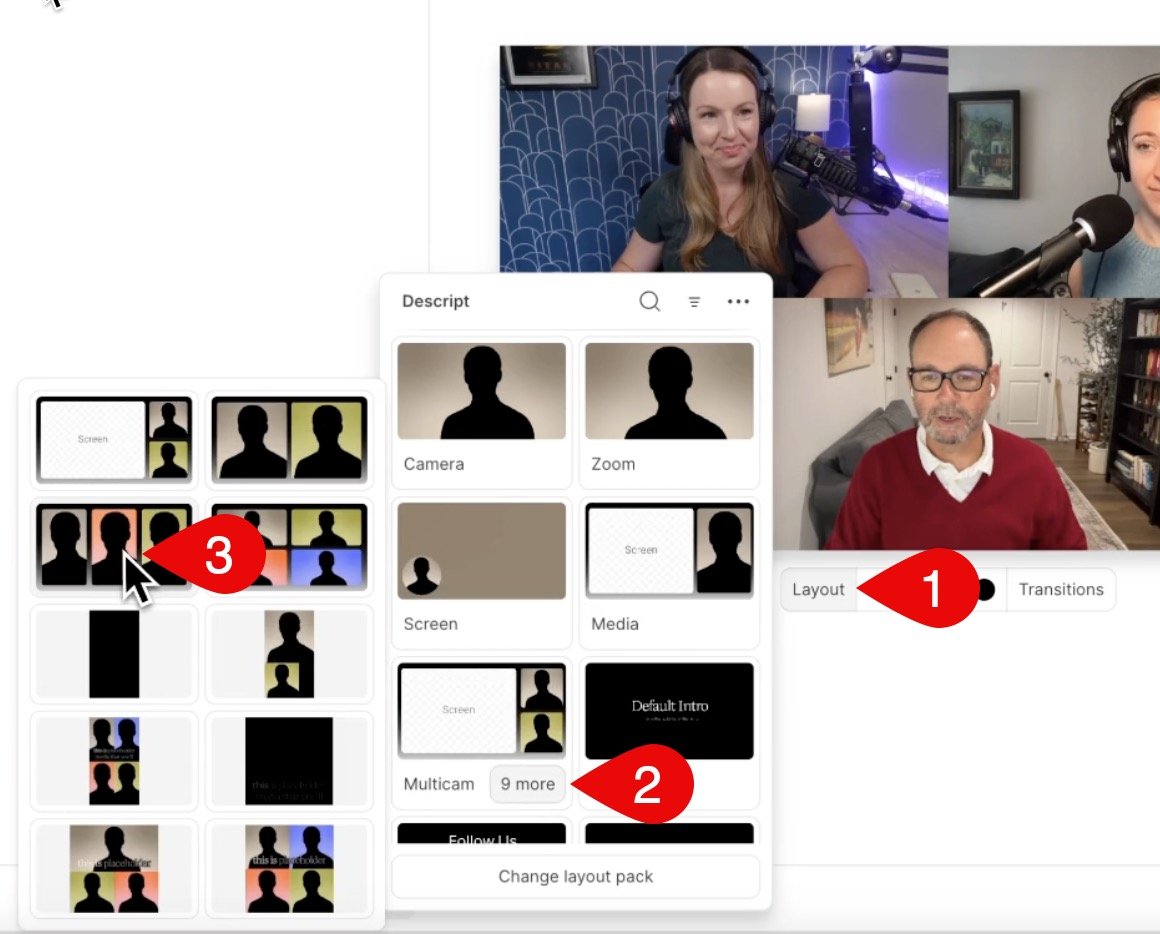 **If the layout has more tracks than your scene**
Descript inserts placeholder layers for the extra tracks. You can delete these
placeholders or adjust the layout to fit your scene.
**If you change the layout**
* If you haven’t edited a layer, Descript replaces it with the new layout’s
version.
* If you edit a layer, Descript preserves your changes and updates only untouched
layers.
**If the layout has more tracks than your scene**
Descript inserts placeholder layers for the extra tracks. You can delete these
placeholders or adjust the layout to fit your scene.
**If you change the layout**
* If you haven’t edited a layer, Descript replaces it with the new layout’s
version.
* If you edit a layer, Descript preserves your changes and updates only untouched
layers.