> ## Documentation Index
> Fetch the complete documentation index at: https://help.descript.com/llms.txt
> Use this file to discover all available pages before exploring further.
# Aspect Ratio Consideration for Custom Layout Packs
> A single layout pack project can hold multiple layouts to accommodate different aspect ratios.
If you want your layout pack to contain scenes with different aspect ratios — for example, a [scene](/getting-started/scenes) with a square layout for social media clips — you'll need to create additional [compositions](/working-in-projects/overview) with different [aspect ratios](/working-in-projects/aspect-ratio) in the same layout pack project.
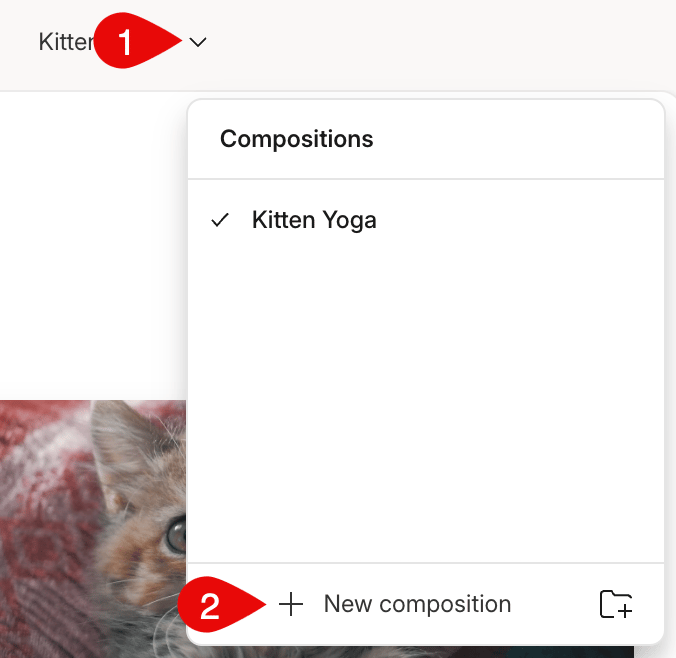
To create additional composition:
1. Click the down arrow icon next to your composition's name.
2. Select **New composition** at the bottom.\\
 To adjust the composition's aspect ratio:
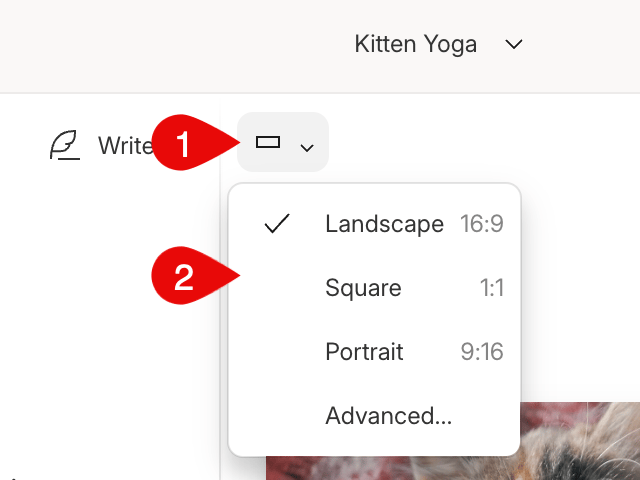
1. Select the rectangle in the top left of the [scene editor](/visuals/scene-editor-overview).
2. Choose one of the aspect ratio option from the list.\\
To adjust the composition's aspect ratio:
1. Select the rectangle in the top left of the [scene editor](/visuals/scene-editor-overview).
2. Choose one of the aspect ratio option from the list.\\