> ## Documentation Index
> Fetch the complete documentation index at: https://help.descript.com/llms.txt
> Use this file to discover all available pages before exploring further.
# Apply a Layout to a Scene
> Use layouts to quickly design scenes throughout your composition.
A layout handles the visual design of a scene for you: how speakers are framed, where screen shares or B-roll sit, when text appears. Apply one per scene, and mix layouts across your composition to vary the look while keeping it cohesive.
**New to scenes or layout packs?**
Layouts are applied at the scene level, so it helps to understand how scenes work in Descript. You’ll also get the most out of this guide if you're familiar with layout packs. These guides can help get you up to speed:
* [Learn how scenes work](/getting-started/scenes)
* [What are layouts and layout packs?](/templates-and-presets/overview)
## Apply a layout
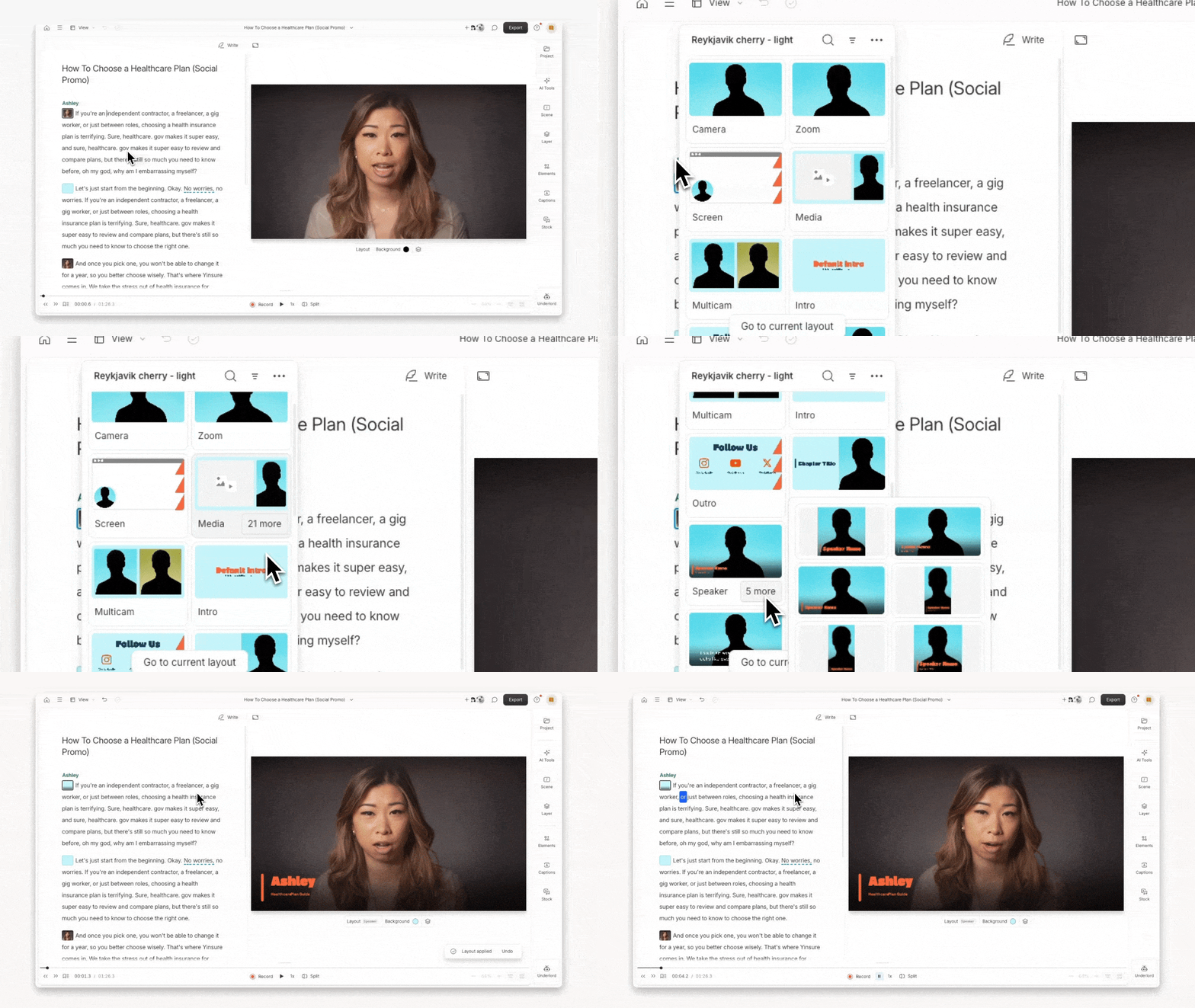
1. Click on a **scene thumbnail** in the Script.
2. Select **Choose layout** from the hover menu.
3. Browse and apply a layout. Layouts are grouped by type. Click the **\[#] more** button to view additional layouts in each group.
4. Click a layout tile to apply it to the scene. Descript will update the scene to match the selected layout.
 **Explore beyond the default**
The Descript layout pack is just one of many layout packs available. Browse the gallery to discover layout packs with bold styles, unique visual formats, and new ways to showcase your content.
Want something that feels more... you? Remix select layout packs from the gallery to choose your own colors and fonts. [Learn how.](/templates-and-presets/layouts-remix)
### Other ways to apply layouts
* **From the scene panel:** Open [the scene panel](/visuals/properties) in the sidebar and click the **Choose layout** tile. Select a layout pack and then a layout from the list to apply it to the scene.
* **From the timeline or storyboard views:**
* Right-click a scene thumbnail in the Timeline and select **Change layout**.
* Select **Choose layout** from the menu, then pick a layout from the options.
## Change the layout pack
1. Click a **scene thumbnail** in the Script, then choose **Layout** from the hover menu.
2. At the bottom of the layout picker, click the **Change layout pack** button.
3. The scene panel will open in the sidebar. Use the search bar to find a pack, or use the tabs at the top to browse:
* **Gallery:** curated layout packs from Descript
* **Drive:** layout packs saved to your Drive
* **Private:** layout packs only visible to you
4. Select a new pack to update the options in your layout picker.
Changing layout packs won’t automatically update any existing layouts you’ve applied. It simply swaps out the options available in the picker.
**Replace placeholder layers with media**
Some layouts include empty media or screen recording placeholders. These are designed to hold your own visuals—like b-roll, screen recordings, or supporting media. [Learn how to replace placeholder layers with media](/visuals/placeholder-layers)
### Smart filled text layers
Some layouts use smart fill to automatically populate text layers based on the script content. [Learn more about how smart fill works in layouts](/templates-and-presets/layouts-behavior)
## Visual roles and locked layers
When you apply a layout, Descript uses [visual roles](/visuals/visual-roles) to match your content to the right placeholders. Each media file has a role — like Talking Head, Screen Recording, Graphics, or Others — that tells the layout where to place it. For example, a layout with a Talking Head placeholder will pull in layers assigned the Talking Head role.
Visual roles are assigned automatically when you import media. If content is landing in the wrong spot when you apply a layout, the file's visual role may need to be updated. [Learn how to change a file's visual role.](/visuals/visual-roles)
### Lock a layer to prevent layout changes
If you want a layer to stay exactly where it is when you apply or switch layouts, [lock the layer](/visuals/lock-layers). Locking bypasses visual role matching entirely — the locked layer keeps its position, size, and properties regardless of the layout applied to the scene.
**Explore beyond the default**
The Descript layout pack is just one of many layout packs available. Browse the gallery to discover layout packs with bold styles, unique visual formats, and new ways to showcase your content.
Want something that feels more... you? Remix select layout packs from the gallery to choose your own colors and fonts. [Learn how.](/templates-and-presets/layouts-remix)
### Other ways to apply layouts
* **From the scene panel:** Open [the scene panel](/visuals/properties) in the sidebar and click the **Choose layout** tile. Select a layout pack and then a layout from the list to apply it to the scene.
* **From the timeline or storyboard views:**
* Right-click a scene thumbnail in the Timeline and select **Change layout**.
* Select **Choose layout** from the menu, then pick a layout from the options.
## Change the layout pack
1. Click a **scene thumbnail** in the Script, then choose **Layout** from the hover menu.
2. At the bottom of the layout picker, click the **Change layout pack** button.
3. The scene panel will open in the sidebar. Use the search bar to find a pack, or use the tabs at the top to browse:
* **Gallery:** curated layout packs from Descript
* **Drive:** layout packs saved to your Drive
* **Private:** layout packs only visible to you
4. Select a new pack to update the options in your layout picker.
Changing layout packs won’t automatically update any existing layouts you’ve applied. It simply swaps out the options available in the picker.
**Replace placeholder layers with media**
Some layouts include empty media or screen recording placeholders. These are designed to hold your own visuals—like b-roll, screen recordings, or supporting media. [Learn how to replace placeholder layers with media](/visuals/placeholder-layers)
### Smart filled text layers
Some layouts use smart fill to automatically populate text layers based on the script content. [Learn more about how smart fill works in layouts](/templates-and-presets/layouts-behavior)
## Visual roles and locked layers
When you apply a layout, Descript uses [visual roles](/visuals/visual-roles) to match your content to the right placeholders. Each media file has a role — like Talking Head, Screen Recording, Graphics, or Others — that tells the layout where to place it. For example, a layout with a Talking Head placeholder will pull in layers assigned the Talking Head role.
Visual roles are assigned automatically when you import media. If content is landing in the wrong spot when you apply a layout, the file's visual role may need to be updated. [Learn how to change a file's visual role.](/visuals/visual-roles)
### Lock a layer to prevent layout changes
If you want a layer to stay exactly where it is when you apply or switch layouts, [lock the layer](/visuals/lock-layers). Locking bypasses visual role matching entirely — the locked layer keeps its position, size, and properties regardless of the layout applied to the scene.