> ## Documentation Index
> Fetch the complete documentation index at: https://help.descript.com/llms.txt
> Use this file to discover all available pages before exploring further.
# Remove Team Members from a Drive
> The Drive owner and Drive admins can remove members from a Drive using the Members tab in account settings.
Removing someone from a Drive takes away their access to its projects.
**Looking for role-based permissions?**
If you’re trying to understand what a team member can or can’t do before removing them, [check out our Drive membership roles guide](/working-in-projects/access).
## Steps to remove a member
**Before removing a Drive member**
Project owners retain access to the projects they created unless ownership is transferred. [Learn how to transfer ownership](/working-in-projects/ownership).
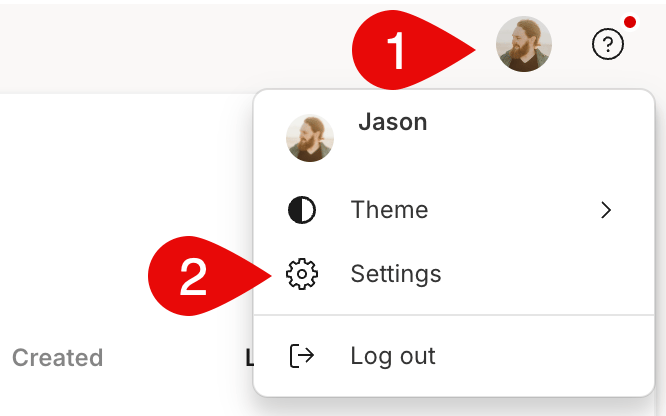
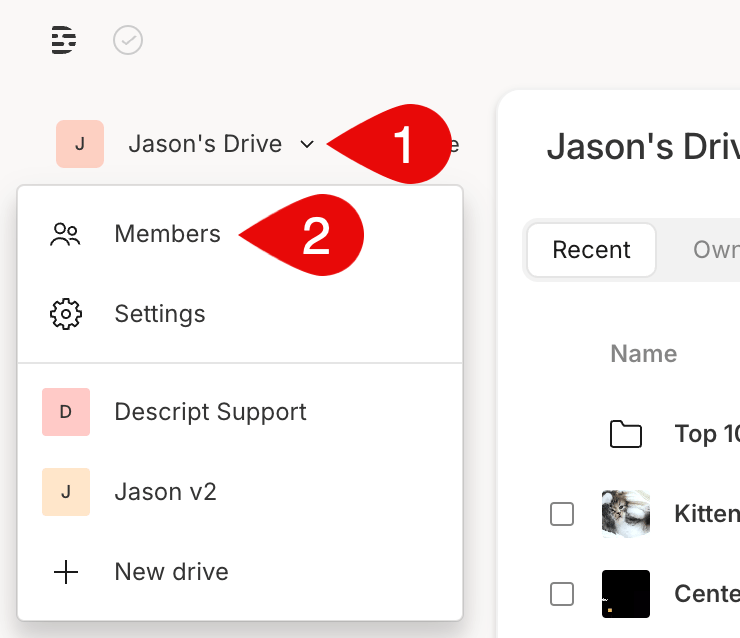
1. Go to [web.descript.com/members](https://web.descript.com/members) or open the app. You can access the **Members** tab in two ways:
* Click your **profile** in the top right corner, select **Settings**, then choose **Members** from the left-hand menu.\\
 * Click your **Drive name** in the top left corner and choose **Members** from the dropdown.\\
 2. Click the **…** menu next to the member’s name and select **Remove member**. Confirm the removal when prompted.
## Replace a Drive member
1. Remove the member you want to replace. If they were an Editor, this will free up a paid seat.
2. [Invite the new member](/team-management/invite) to your Drive. If they’re added as an Editor, they’ll use the newly available seat.
## Billing after removing a Drive member
Removing an [Editor](https://help.descript.com/hc/en-us/articles/10163662152589) frees up a paid seat on your Drive. You’ll still be billed for that seat until you manually reduce your seat count. [Learn how to remove unused seats](/billing-payments-plans/cancel).
## What happens to project access after removal
Removed members immediately lose access to any Drive projects they didn’t create or weren’t explicitly shared on. Newly added members will automatically gain access to projects shared with the entire Drive.
2. Click the **…** menu next to the member’s name and select **Remove member**. Confirm the removal when prompted.
## Replace a Drive member
1. Remove the member you want to replace. If they were an Editor, this will free up a paid seat.
2. [Invite the new member](/team-management/invite) to your Drive. If they’re added as an Editor, they’ll use the newly available seat.
## Billing after removing a Drive member
Removing an [Editor](https://help.descript.com/hc/en-us/articles/10163662152589) frees up a paid seat on your Drive. You’ll still be billed for that seat until you manually reduce your seat count. [Learn how to remove unused seats](/billing-payments-plans/cancel).
## What happens to project access after removal
Removed members immediately lose access to any Drive projects they didn’t create or weren’t explicitly shared on. Newly added members will automatically gain access to projects shared with the entire Drive.