> ## Documentation Index
> Fetch the complete documentation index at: https://help.descript.com/llms.txt
> Use this file to discover all available pages before exploring further.
# Drive Membership Roles: How to Invite and Manage Team Members
> Invite Drive members and set Editor or Viewer permissions in Descript.
Invite others to your Drive to collaborate with your team in one shared workspace.
This guide walks through:
* [The different types of Drive membership roles](#drive-membership-roles-and-permissions) (Editor and Viewer); what each role can and can’t do
* [How billing and seat assignments work for Editors](#billing-considerations)
* [Inviting new members](/team-management/invite)
* [Managing and changing Drive member roles](#change-a-team-member’s-role)
* [Restricting Editor invites (Enterprise)](#restrict-editor-invitations-enterprise-only) (Enterprise Admins only)
## Drive membership roles and permissions
There are two types of Drive members in Descript:
* **Editor (paid seat)** – Full access to the General drive workspace. Editors can create, edit, move, and delete projects and folders. They use Media Minutes when they record or import media, and AI Credits when they apply AI-powered effects or tools.
* **Viewer (free seat)** – Can view and comment on projects in the Drive. Viewers can’t edit content or use features that consume Media Minutes or AI Credits.
| Feature / Action | Editor | Viewer |
| ------------------------------------------------ | --------- | ------------------- |
| **Cost to add to Drive** | Paid seat | Free |
| **View and comment in projects** | ✅ | ✅ |
| **Invite other Drive members** | ✅ | Only Viewer members |
| **Create projects and compositions** | ✅ | ❌ |
| **Edit projects and compositions** | ✅ | ❌ |
| **Move projects** | ✅ | ❌ |
| **Duplicate projects** | ✅ | ❌ |
| **Delete projects** | ✅ | ❌ |
| **Export compositions** | ✅ | ❌ |
| **Add collaborators to a project** | ✅ | ❌ |
| **Transfer project ownership** | ✅ | ❌ |
| **Use AI-powered features (AI Credits)** | ✅ | ❌ |
| **Record or import media (Media Minutes)** | ✅ | ❌ |
| **Create quick recordings with Screen Recorder** | ✅ | ❌ |
## Drive owner permissions
The Drive owner is the person who created the Drive. They automatically have full Editor permissions and additional administrative privileges.
Drive owners can:
* Change a Drive member's role
* [Manage the Drive's subscription and billing](/billing-payments-plans/manage).
* [Change the default export privacy settings](/export-and-share/share-page).
* There can only be one drive owner per Drive.
**Need to transfer Drive ownership?**
While ownership can’t be changed directly in the app, it’s possible to transfer a Drive to another user with help from our support team. Learn more about [Preparing for Drive Ownership Transfer](/account-and-app-settings/drive-transfer).
## Billing considerations
When you add an Editor to your subscription mid-cycle, the cost is prorated and co-termed with your existing subscription term. Descript will charge for the additional Editor based on the time remaining in your current annual or monthly billing cycle. On your next invoice, you’ll be charged for the full cost of that Editor seat for the upcoming term.
**Does the Editor you added have their own Descript plan?**
If you add an editor to your drive and they already have their own Descript plan, it will not be automatically merged or canceled. If that specific user no longer needs a personal Descript plan, they will need to cancel the plan tied to their personal Descript drive.
**Example: Monthly vs. Annual seat charges**
**On a monthly subscription**\
If you add an Editor halfway through your billing cycle, you’ll be charged about 50% of the seat cost immediately. On your next invoice, you’ll be charged 100% for that seat going forward.
**On an annual subscription**\
If you add an Editor three months into your term, you’ll be charged about 75% of the seat cost right away (to cover the remaining 9 months). On your renewal date, you’ll be charged for the full annual seat.
You can compare plans and seat pricing on our [pricing page.](https://www.descript.com/pricing)
## Invite others to your Drive
Before inviting someone to your Drive, make sure you’re [signed in](/account-and-app-settings/password-reset) and [working from the correct Drive](/account-and-app-settings/switch-drives) (if you’re part of more than one).
1. Press `Command/Control + , (comma)` to open your settings, then go to the **Members** tab.
2. Enter your collaborator’s email in the **Invite by email** field.
3. Select their role:**Viewer** or **Editor**.
4. Click **Send invite**. The invitee will receive an email and will need to [accept the invitation](/team-management/accept-invite) before accessing your Drive.
On Enterprise plans, after adding someone to the drive, add them to a workspace to control which projects they can access. [Learn how to add members to a workspace](/team-management/workspaces).
## Manually approve editor invitations
By default, any Editor member can invite others to join the Drive. If you’re a Drive owner or admin, you can require manual approval for new Editor invitations.
To enable this setting:
1. Go to **Settings > Members**.
2. Toggle on **Manually approve new editor invites**.
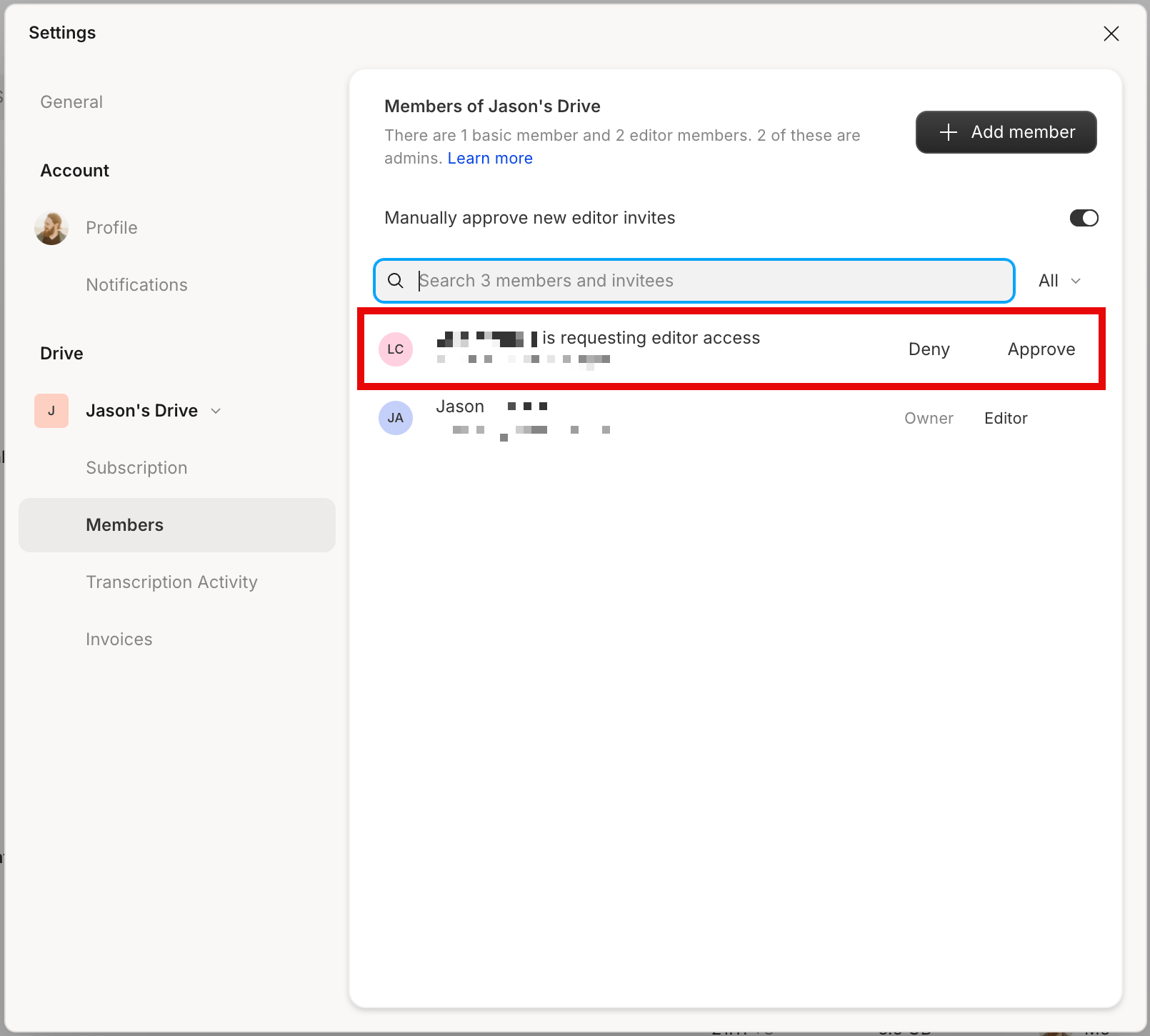
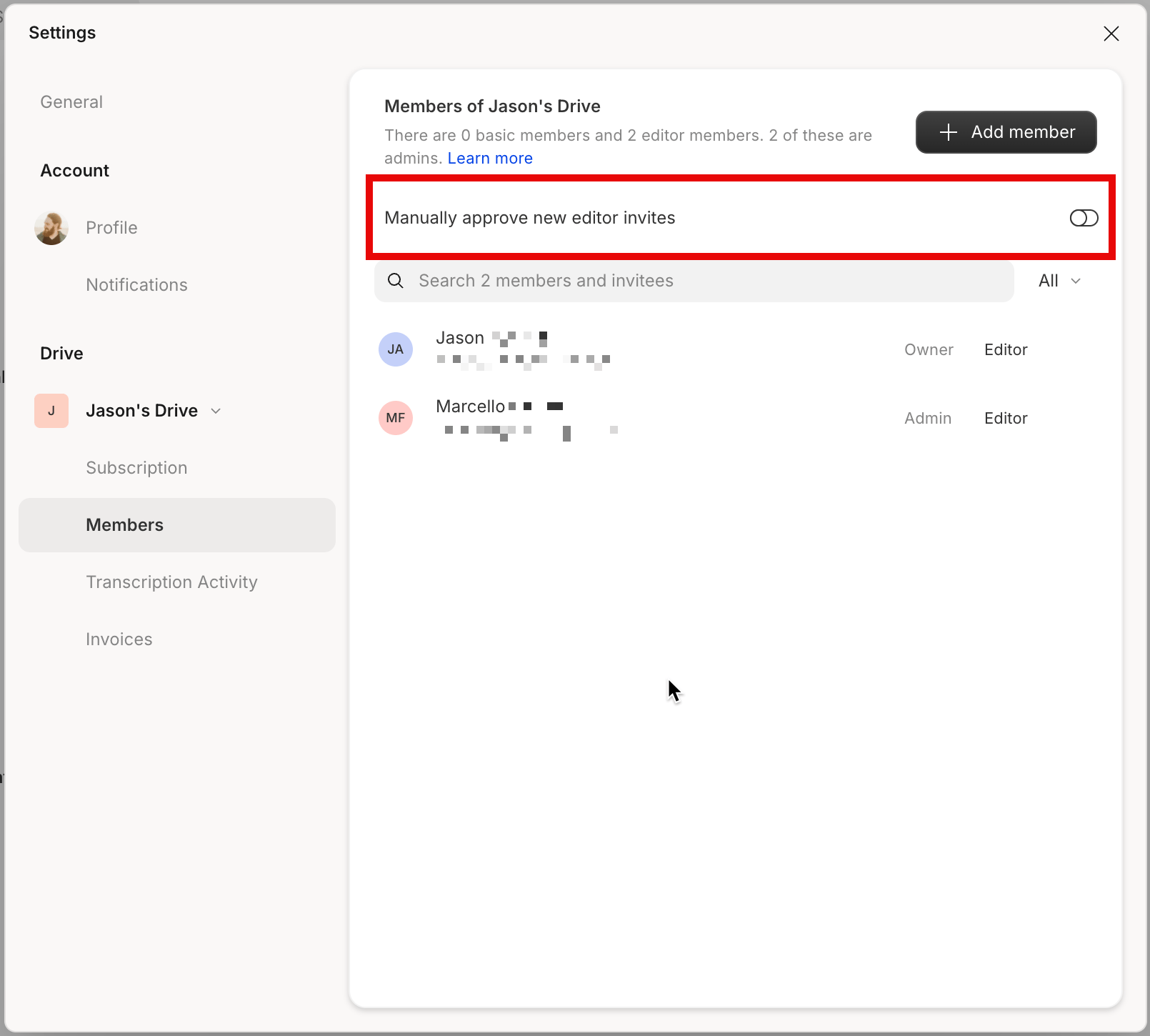 Once enabled, Drive owners will receive an email notification, and both Drive owners and Admins will see pending invitations in the Members tab. From there, they can approve or deny each request.
**What happens if an editor invitation is pending approval?**
When manual approval is turned on, editor invites are not sent immediately. They will appear with a pending status in the Members tab until a Drive owner approves them.
Once enabled, Drive owners will receive an email notification, and both Drive owners and Admins will see pending invitations in the Members tab. From there, they can approve or deny each request.
**What happens if an editor invitation is pending approval?**
When manual approval is turned on, editor invites are not sent immediately. They will appear with a pending status in the Members tab until a Drive owner approves them.
 ## View your team members
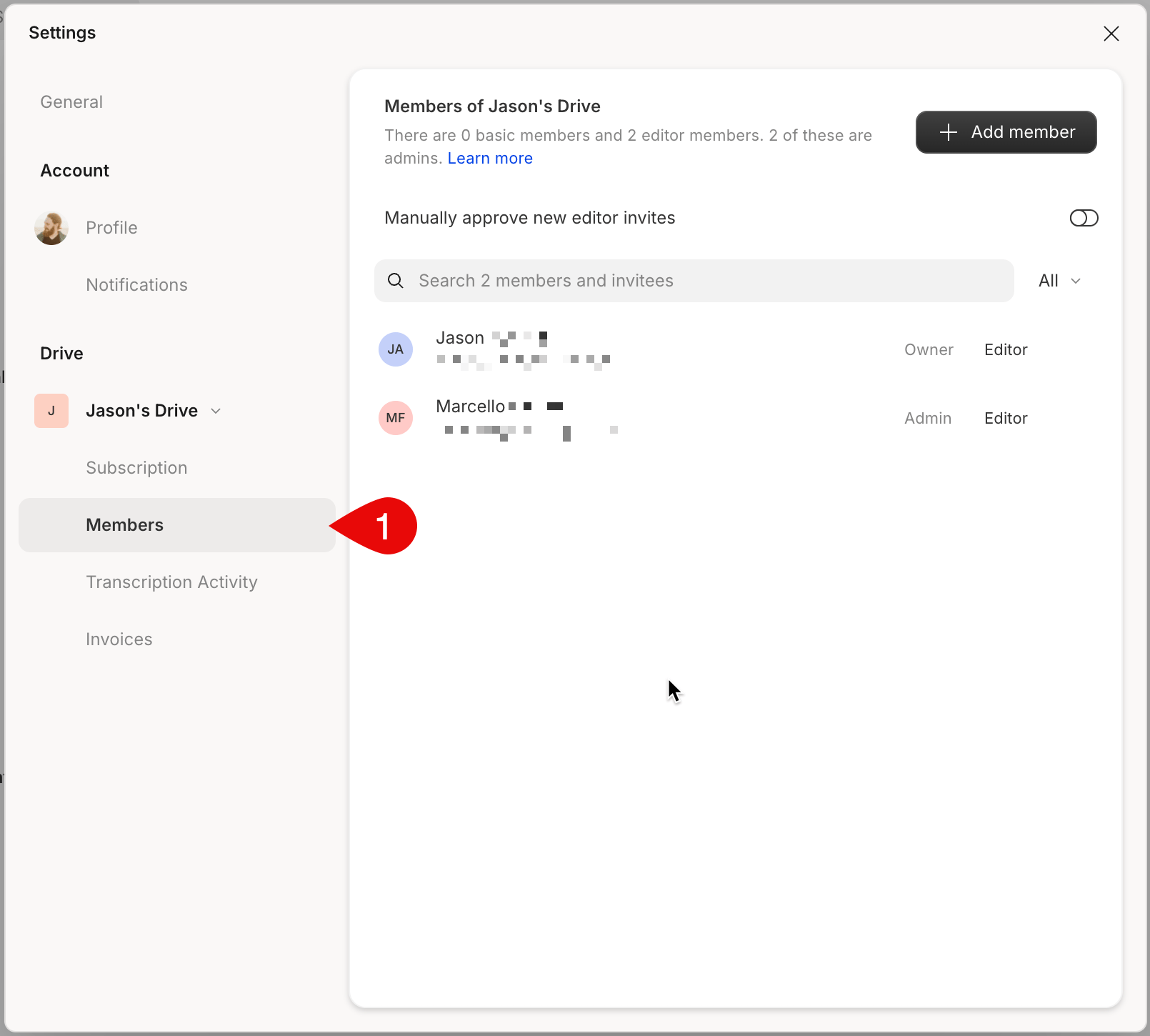
You can view your current team members at [web.descript.com/members](https://web.descript.com/members), or in the app under the **Members** tab in your settings.
## View your team members
You can view your current team members at [web.descript.com/members](https://web.descript.com/members), or in the app under the **Members** tab in your settings.
 ## Change a team member’s role
You can change a Drive member’s role from the **Members** tab of your Drive settings.
1. Open the **Members** tab from your Drive selector in the top-left corner.
2. Click the **…** button next to the person’s name.
3. Select **Change membership type**.
4. Choose **Viewer**, or **Editor** and click **Change** to confirm.
**Billing note**
* Upgrading a Viewer member to Editor adds a paid seat unless one is already available.
* Downgrading an Editor to a Viewer releases that seat for reassignment.
If you no longer want someone to be part of your Drive, you can remove them entirely. [Learn more about removing a team member from your Drive.](/team-management/remove)
## Restrict Editor invitations (Enterprise only)
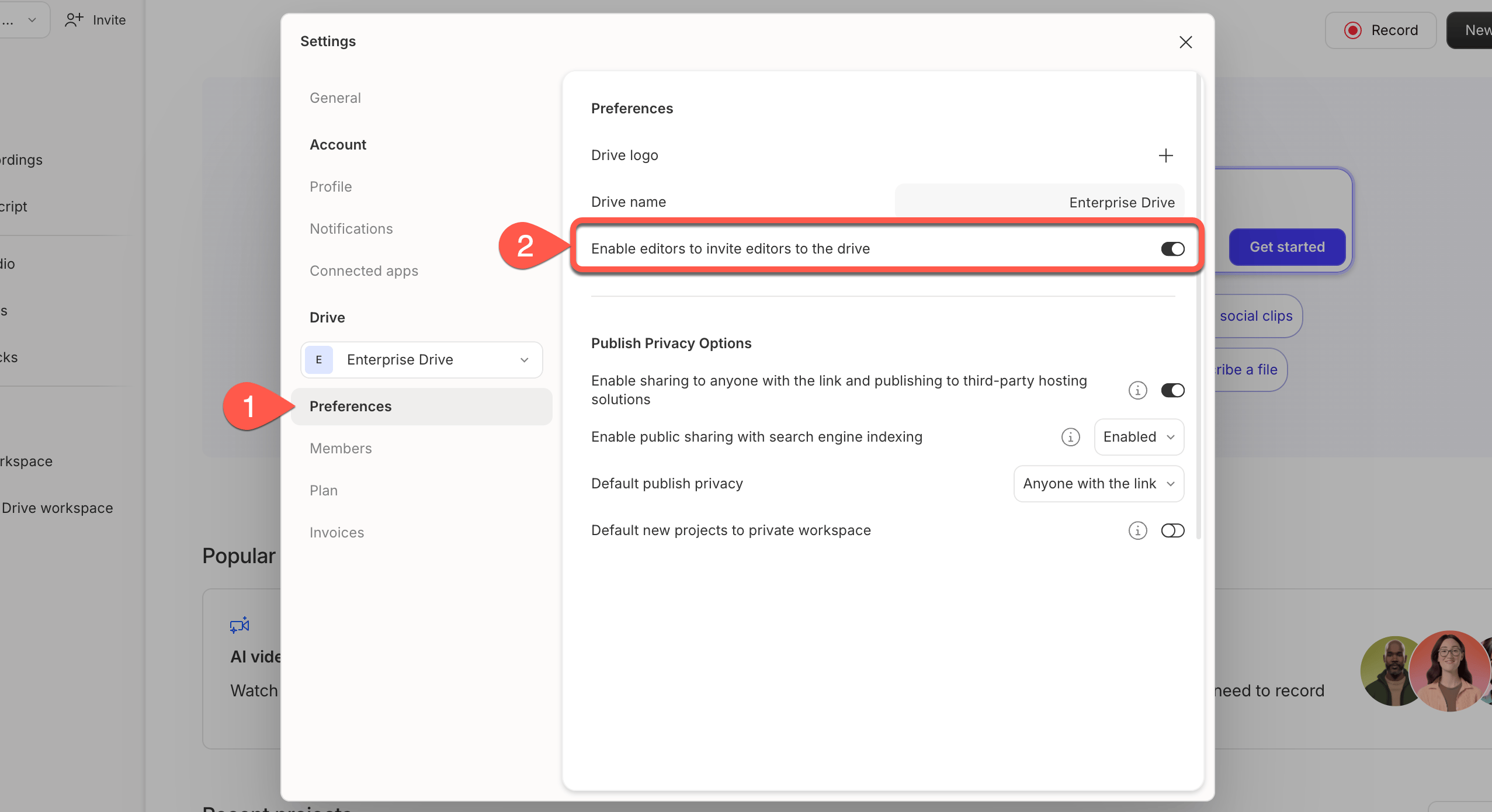
Drive owners and admins can control whether Editor members are allowed to invite new Editors. This toggle is available under **Settings > Preferences**.
## Change a team member’s role
You can change a Drive member’s role from the **Members** tab of your Drive settings.
1. Open the **Members** tab from your Drive selector in the top-left corner.
2. Click the **…** button next to the person’s name.
3. Select **Change membership type**.
4. Choose **Viewer**, or **Editor** and click **Change** to confirm.
**Billing note**
* Upgrading a Viewer member to Editor adds a paid seat unless one is already available.
* Downgrading an Editor to a Viewer releases that seat for reassignment.
If you no longer want someone to be part of your Drive, you can remove them entirely. [Learn more about removing a team member from your Drive.](/team-management/remove)
## Restrict Editor invitations (Enterprise only)
Drive owners and admins can control whether Editor members are allowed to invite new Editors. This toggle is available under **Settings > Preferences**.