> ## Documentation Index
> Fetch the complete documentation index at: https://help.descript.com/llms.txt
> Use this file to discover all available pages before exploring further.
# Takes
> Group SquadCast session recordings into Takes and rename them.
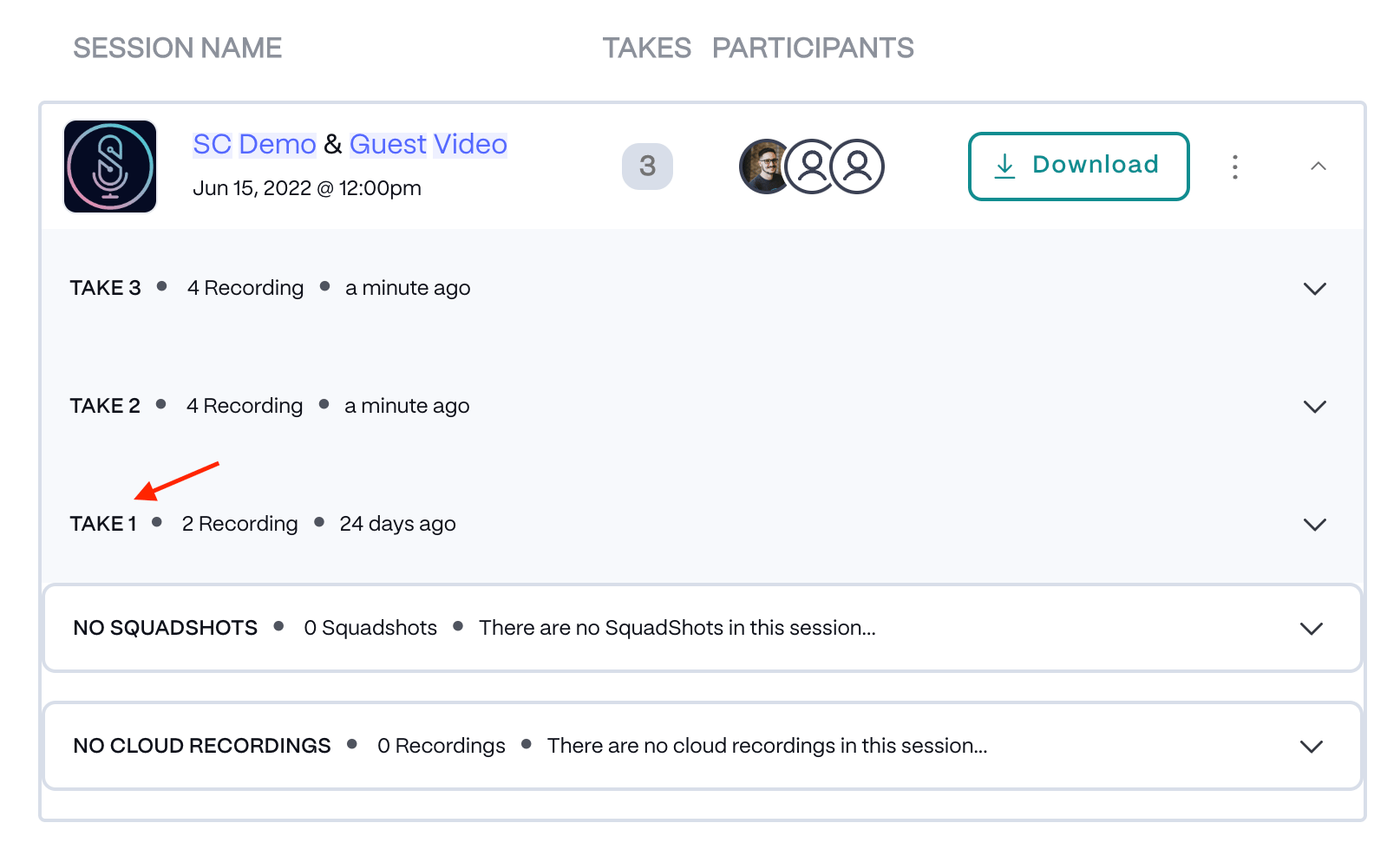
Session recordings are grouped into Takes. A Take is created when the record button is clicked. All participants in the session will then be grouped in a Take. You can view your Takesfrom the recent recordings panel on your dashboard, in search results, and in-session from the recordings panel.
[ ](/images/external/descript-23106146472973-1470c898fd.png)
Takes are named by default with Take 1, Take 2, etc. However, you can easily rename Takes (to something like “Intro”) to help your team stay organized with many recordings.
## How to rename a Take
**Rename Takes before leaving the session**
At this time, Takes can only be renamed within a recording session, so please make sure to rename your Takes as needed before leaving the session.
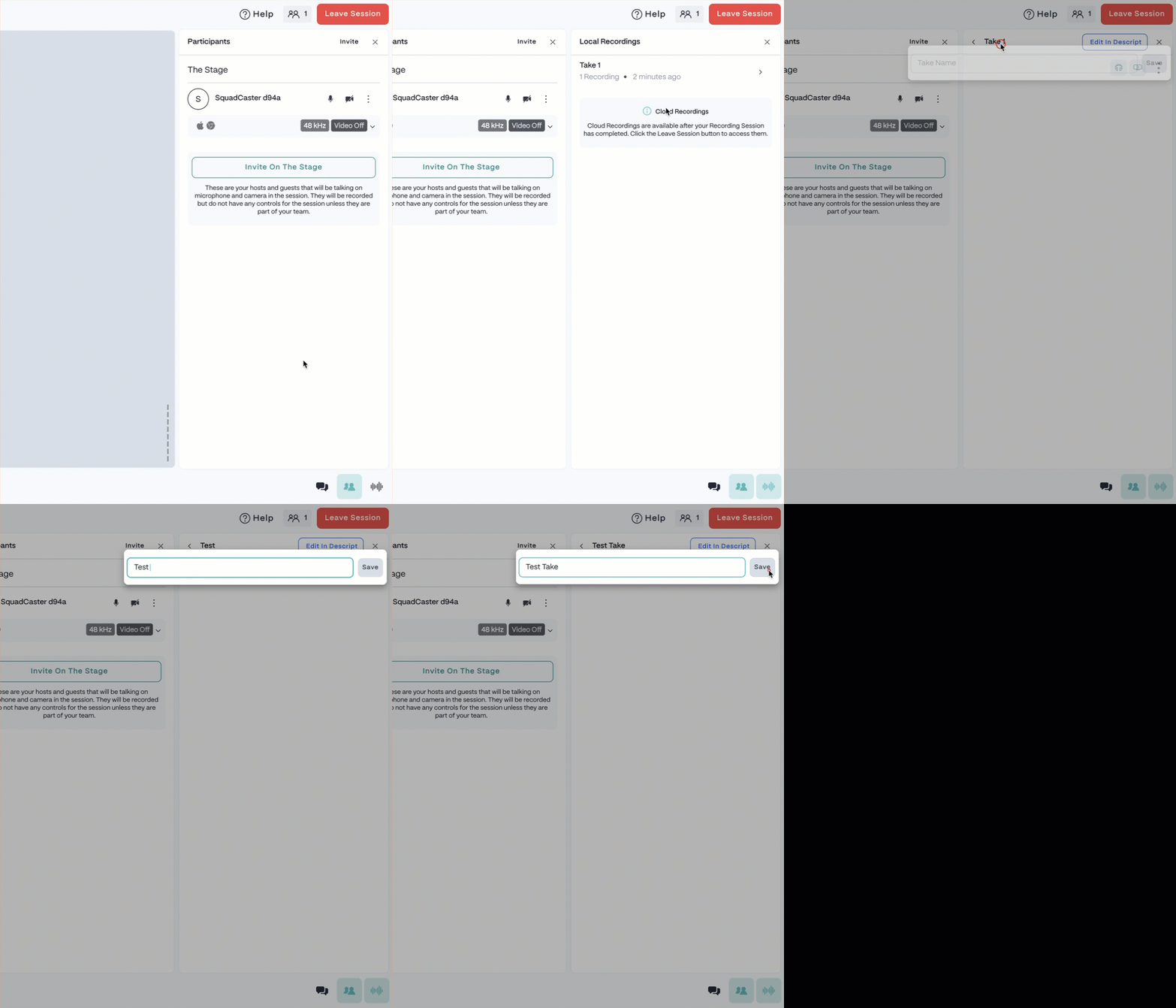
1. From within a session, click the **recordings** button in the lower right corner or press `Command + 8` (macOS) or `Control + 8` (Windows).
2. Click on the Take you want to rename.
3. Click on the name of the Take. This will open a text box to rename the take.
4. Edit the name of the Take and then click **Save**. \\
](/images/external/descript-23106146472973-1470c898fd.png)
Takes are named by default with Take 1, Take 2, etc. However, you can easily rename Takes (to something like “Intro”) to help your team stay organized with many recordings.
## How to rename a Take
**Rename Takes before leaving the session**
At this time, Takes can only be renamed within a recording session, so please make sure to rename your Takes as needed before leaving the session.
1. From within a session, click the **recordings** button in the lower right corner or press `Command + 8` (macOS) or `Control + 8` (Windows).
2. Click on the Take you want to rename.
3. Click on the name of the Take. This will open a text box to rename the take.
4. Edit the name of the Take and then click **Save**. \\