> ## Documentation Index
> Fetch the complete documentation index at: https://help.descript.com/llms.txt
> Use this file to discover all available pages before exploring further.
# Playback Audio and Video Recordings in SquadCast
> Play back your Squadcast recordings from the Dashboard or Studio.
You can playback recording files from the Dashboard and in the Studio in SquadCast.
## Dashboard
1. Find and select the recording session from which you want to playback files.
2. Click the Play Video or Play Audio button.
[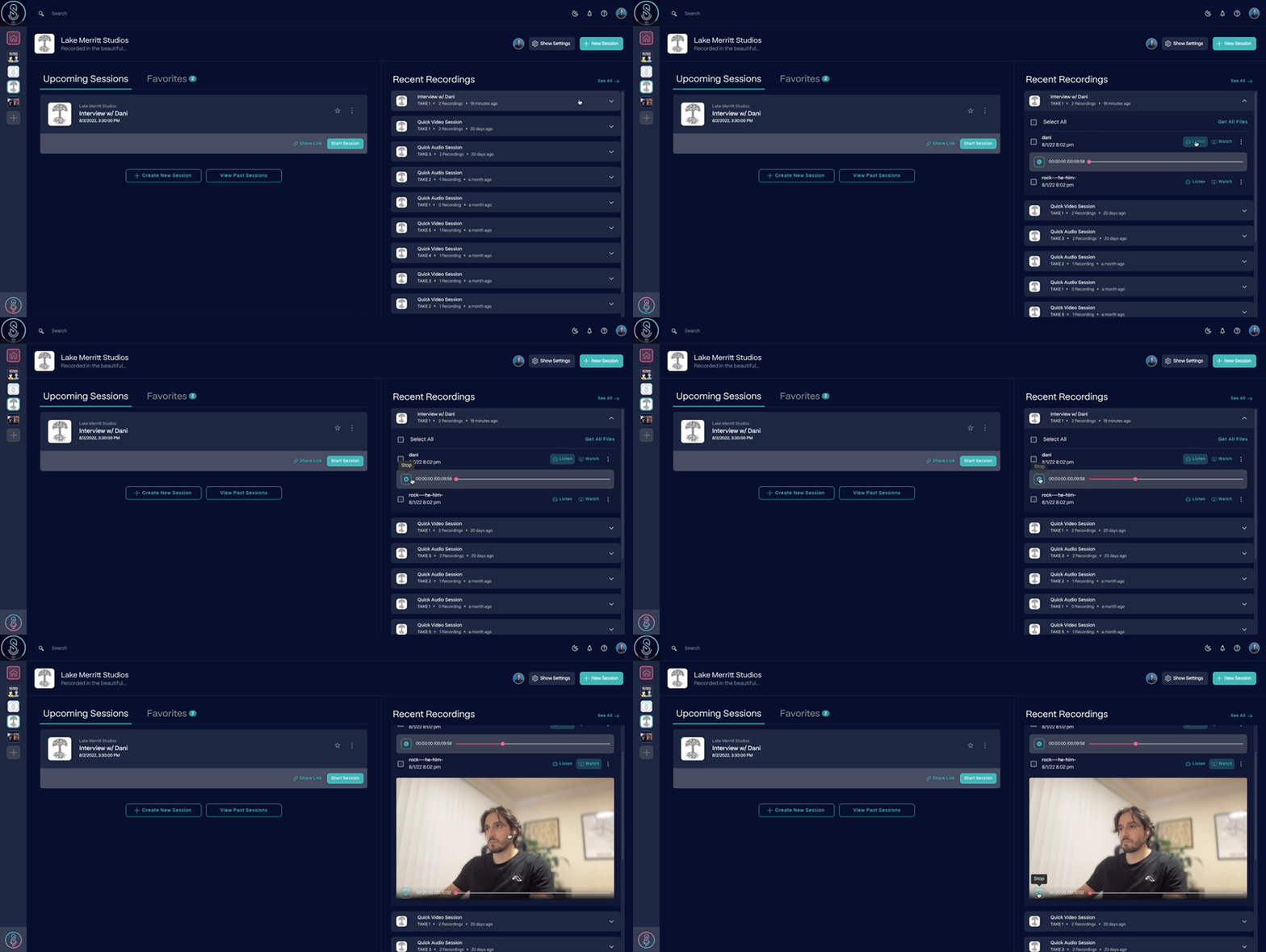 ](/images/external/descript-23106346511245-fba8d2972c.gif)
## Studio
1. Click the Recordings icon button in the lower right corner of your display.
2. Select the recording or take.
3. Click the Play Video or Play Audio button.
[
](/images/external/descript-23106346511245-fba8d2972c.gif)
## Studio
1. Click the Recordings icon button in the lower right corner of your display.
2. Select the recording or take.
3. Click the Play Video or Play Audio button.
[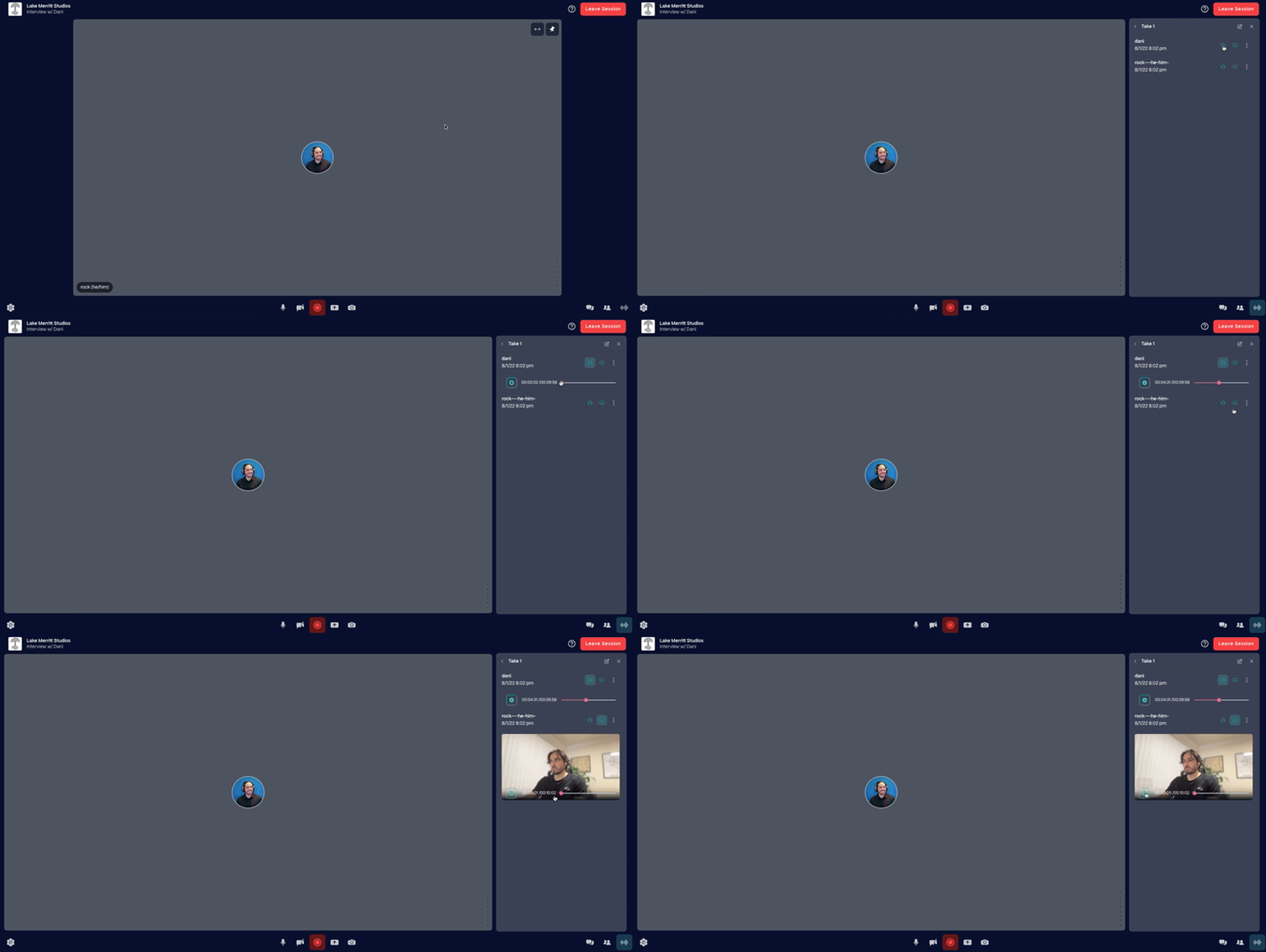 ](/images/external/descript-23106340465805-d47d6e4e60.gif)