> ## Documentation Index
> Fetch the complete documentation index at: https://help.descript.com/llms.txt
> Use this file to discover all available pages before exploring further.
# SquadCast Web Browser Permissions
> Allow microphone and camera access in your browser for SquadCast.
SquadCast records through your browser, so it needs permission to use your microphone and camera. You'll usually only grant it once, the first time you join a session.
## Grant browser permissions
1. Join a recording session as the [host](/squadcast/join-session) or a [guest](/squadcast/join-session).
2. Click **Get Started**.
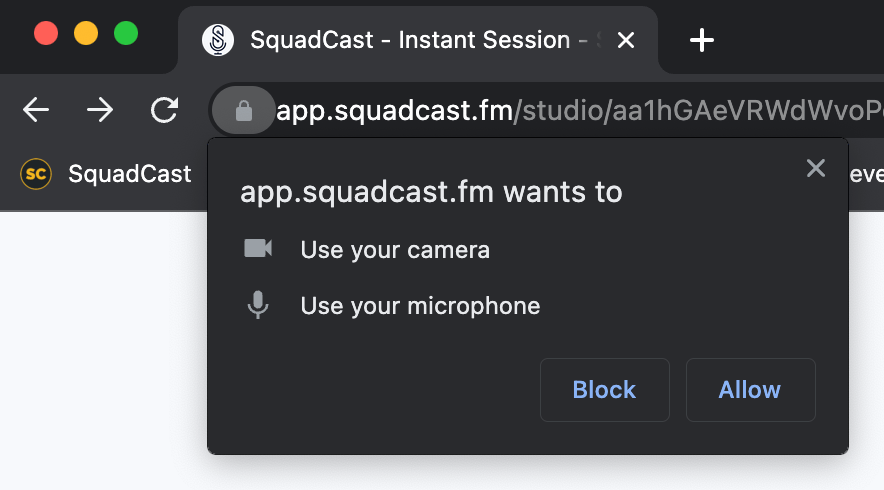
3. When prompted, click **Allow** to give SquadCast access to your microphone and camera.
 ## Reset microphone and camera permissions
1. Go to [https://app.squadcast.fm](https://app.squadcast.fm).
2. Click the lock or settings icon to the left of the URL in your browser’s address bar.
3. Adjust permissions by toggling on microphone and camera access, resetting permissions, or opening site settings. The steps may vary depending on your browser.
4. Refresh the page.
**Operating system permissions**
If you're still having issues, your browser may also need permission at the system level. [Learn how to allow OS-level permissions](/squadcast/operating-system-os-permissions) for microphone and camera access.
## Reset microphone and camera permissions
1. Go to [https://app.squadcast.fm](https://app.squadcast.fm).
2. Click the lock or settings icon to the left of the URL in your browser’s address bar.
3. Adjust permissions by toggling on microphone and camera access, resetting permissions, or opening site settings. The steps may vary depending on your browser.
4. Refresh the page.
**Operating system permissions**
If you're still having issues, your browser may also need permission at the system level. [Learn how to allow OS-level permissions](/squadcast/operating-system-os-permissions) for microphone and camera access.