> ## Documentation Index
> Fetch the complete documentation index at: https://help.descript.com/llms.txt
> Use this file to discover all available pages before exploring further.
# Operating System (OS) Permissions
> Grant microphone and camera access at the operating system level for Squadcast.
If you or your Guest goes to join a session, [you’ve granted browser permissions](/squadcast/permissions), and still no equipment is available [in the Green Room](/squadcast/green-room), you likely need to grant permissions in your Operating System settings.
## MacOS
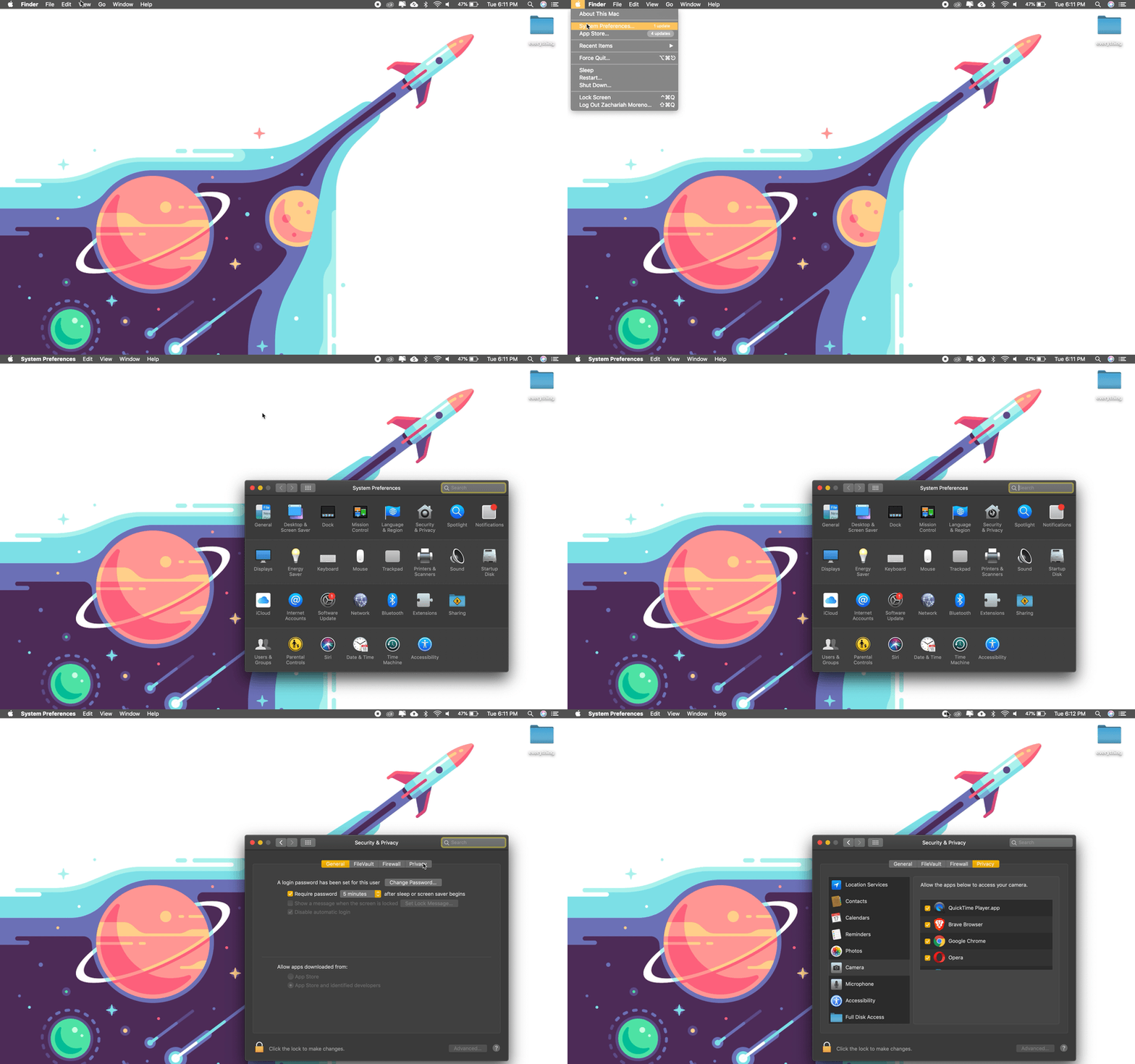
1. Click on the **Apple** menu in the top left corner.
2. Select **System Preferences**…
3. Select **Security & Privacy** in the top row.
4. Select the **Privacy** tab near the top.
[ ](/images/external/descript-23103606270093-50dcc6651e.gif)
### Microphone
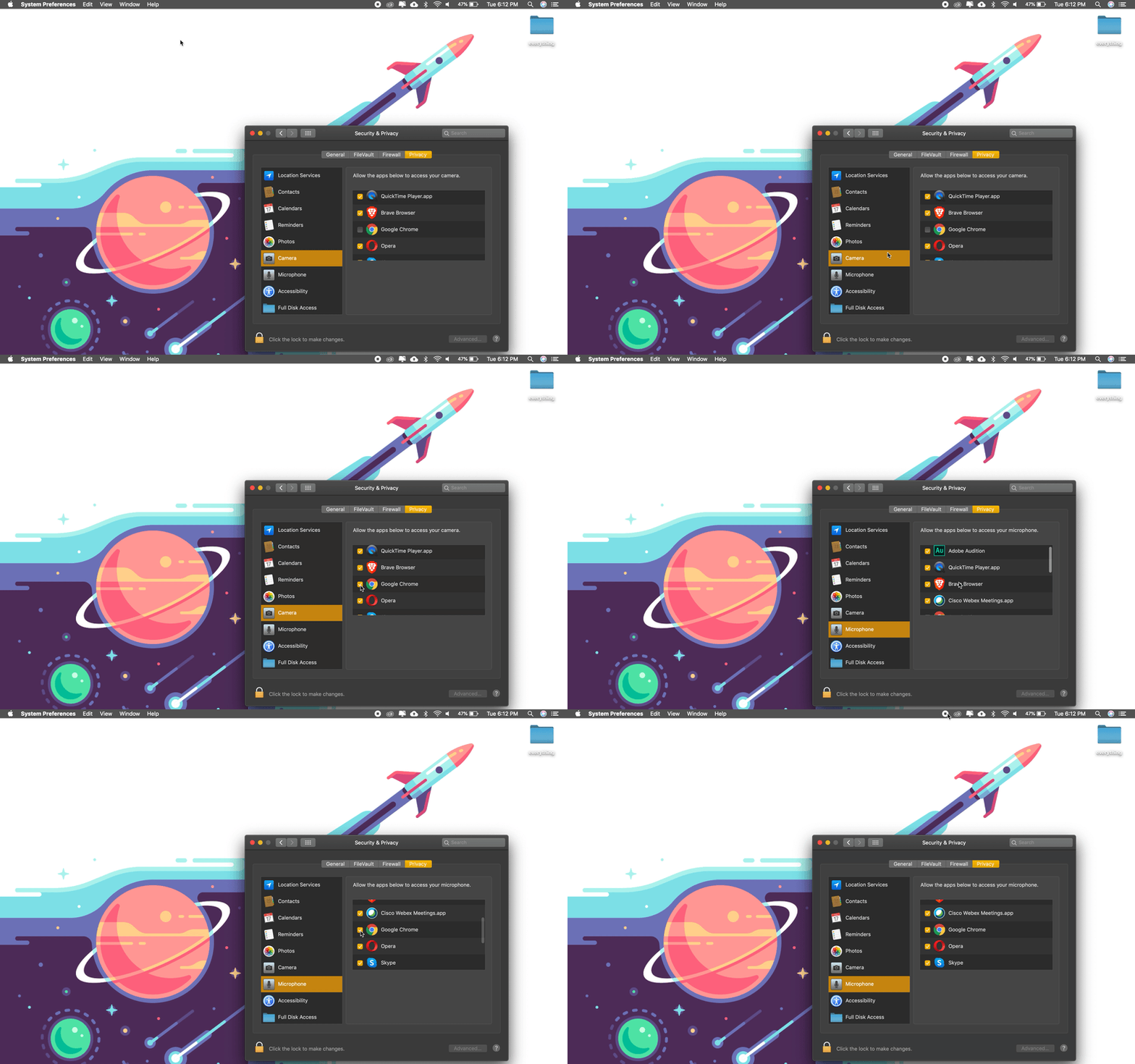
1. Select **Microphone** in the sidebar on the left.
2. Ensure **Google Chrome** is listed.
3. Ensure Google Chrome’s box **is checked.**
4. Refresh SquadCast & double-check Chrome’s permissions by clicking on the **grey lock icon** to the left of the URL.
[
](/images/external/descript-23103606270093-50dcc6651e.gif)
### Microphone
1. Select **Microphone** in the sidebar on the left.
2. Ensure **Google Chrome** is listed.
3. Ensure Google Chrome’s box **is checked.**
4. Refresh SquadCast & double-check Chrome’s permissions by clicking on the **grey lock icon** to the left of the URL.
[ ](/images/external/descript-23103575050125-baf43c8da4.gif)
### Camera
1. Select **Camera** in the sidebar on the left.
2. Ensure **Google Chrome** is listed.
3. Ensure Google Chrome’s box is **checked.**
4. Refresh SquadCast & double-check Chrome’s permissions by clicking on the **grey lock icon** to the left of the URL.
### Screen Sharing
1. Select **Screen & System Audio Recording** in the sidebar on the left.
2. Ensure **Google Chrome** is listed.
3. Ensure Google Chrome’s box is **checked.**
4. Refresh SquadCast & double-check Chrome’s permissions by clicking on the **grey lock icon** to the left of the URL.
## Windows
1. Click on the **Start menu** in the bottom left corner.
2. Select **Settings.**
3. Select **Privacy & security.**
### Microphone
1. Select **Microphone.**
2. Select **On** next to **Allow apps to** **access Your microphone.**
3. Select **On** next to **Google Chrome** under **Choose which apps can access your microphone.**
4. Refresh SquadCast & double-check Chrome’s permissions by clicking on the **grey lock icon** to the left of the URL.
### Camera
1. Select **Camera.**
2. Select **On** next to **Allow apps to access Your camera.**
3. Select On next to **Google Chrome** under **Choose which apps can access your camera.**
4. Refresh SquadCast & double-check Chrome’s permissions by clicking on the **grey lock icon** to the left of the URL.
](/images/external/descript-23103575050125-baf43c8da4.gif)
### Camera
1. Select **Camera** in the sidebar on the left.
2. Ensure **Google Chrome** is listed.
3. Ensure Google Chrome’s box is **checked.**
4. Refresh SquadCast & double-check Chrome’s permissions by clicking on the **grey lock icon** to the left of the URL.
### Screen Sharing
1. Select **Screen & System Audio Recording** in the sidebar on the left.
2. Ensure **Google Chrome** is listed.
3. Ensure Google Chrome’s box is **checked.**
4. Refresh SquadCast & double-check Chrome’s permissions by clicking on the **grey lock icon** to the left of the URL.
## Windows
1. Click on the **Start menu** in the bottom left corner.
2. Select **Settings.**
3. Select **Privacy & security.**
### Microphone
1. Select **Microphone.**
2. Select **On** next to **Allow apps to** **access Your microphone.**
3. Select **On** next to **Google Chrome** under **Choose which apps can access your microphone.**
4. Refresh SquadCast & double-check Chrome’s permissions by clicking on the **grey lock icon** to the left of the URL.
### Camera
1. Select **Camera.**
2. Select **On** next to **Allow apps to access Your camera.**
3. Select On next to **Google Chrome** under **Choose which apps can access your camera.**
4. Refresh SquadCast & double-check Chrome’s permissions by clicking on the **grey lock icon** to the left of the URL.