> ## Documentation Index
> Fetch the complete documentation index at: https://help.descript.com/llms.txt
> Use this file to discover all available pages before exploring further.
# Manage Your SquadCast Recordings
> Download, mix, transfer, master, and delete SquadCast recordings.
Once a session is recorded, you handle its files from the **Workflow Drawer**, a toolbar that appears at the bottom of the Dashboard when you select one or more recordings.
## Open the workflow drawer
All Workflow Drawer actions start the same way — by selecting your SquadCast recording(s):
1. Select the **Recordings** tab in the top-left corner of the Dashboard.
2. Expand the session and select the take you want to work with.
3. Check the box next to the file(s) you want.
4. The Workflow Drawer appears at the bottom of the page. Select the **up arrow** to expand it.
From here, choose your action: Mix Audio, Send to Dropbox, Edit in Descript, Master Audio with Dolby, Download, or Delete.
## Download recordings
Download files individually or download everything from a session at once.
### Individual file from the Dashboard
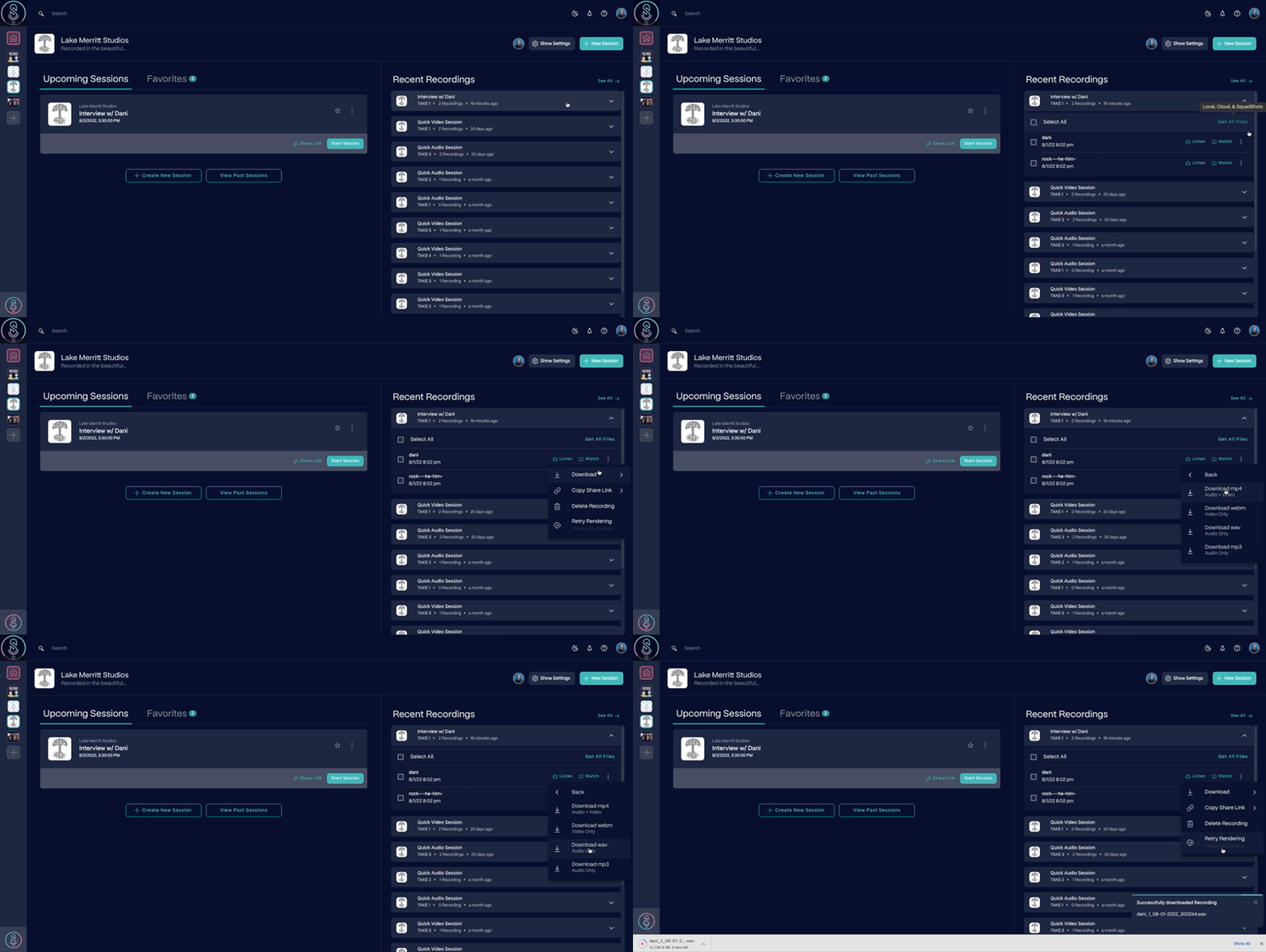
Select the **Ellipsis** button next to the file, then select **Download** and choose your preferred format.
[ ](/images/external/descript-45975735464077-9a934e77cc.gif)
### Individual file from the Studio
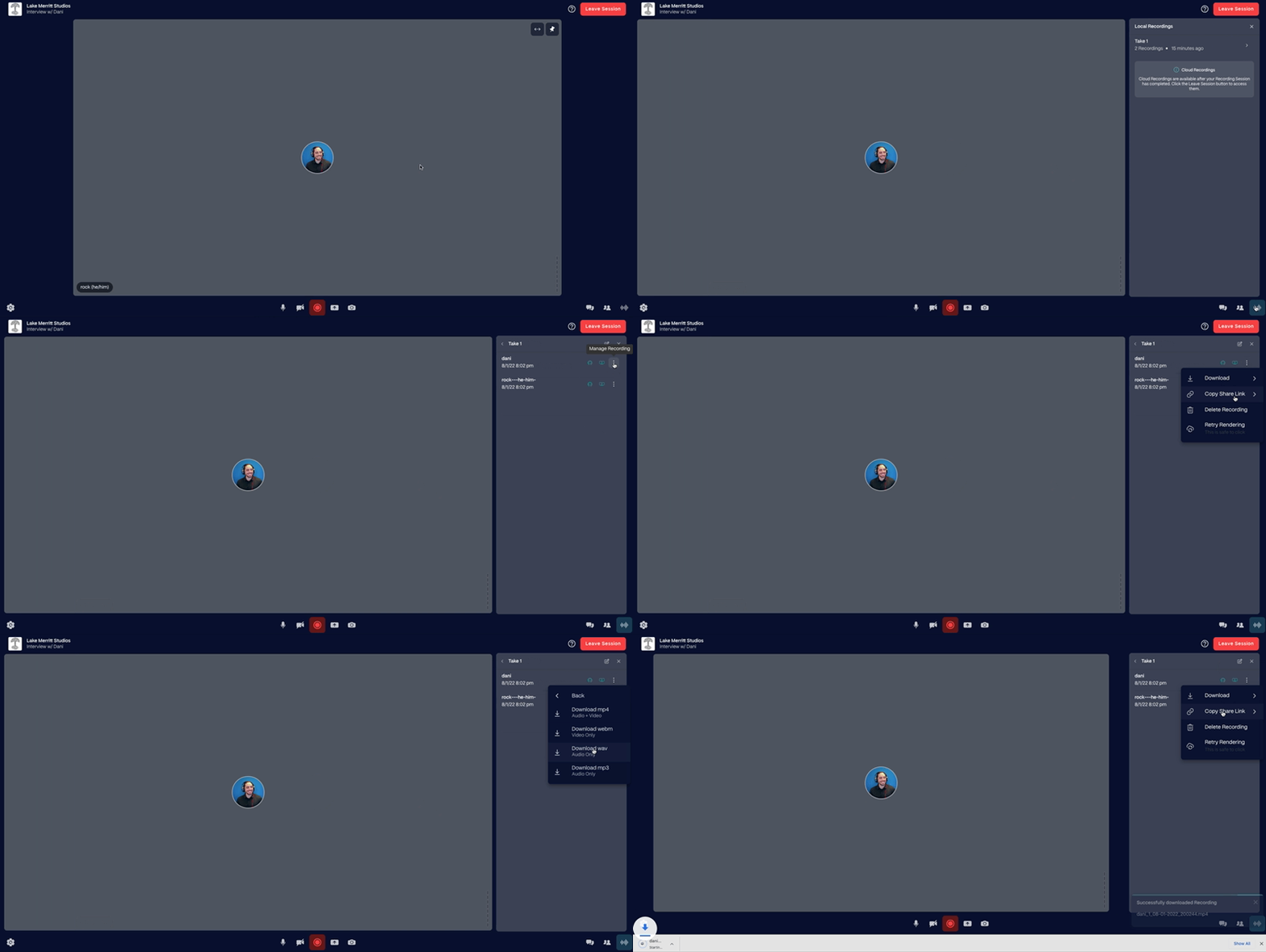
From within a session, select the **recordings** button in the lower-right corner (or press `Command + 8` on macOS / `Control + 8` on Windows). Select the **Ellipsis** button next to the file, then select **Download** and choose your format.
[
](/images/external/descript-45975735464077-9a934e77cc.gif)
### Individual file from the Studio
From within a session, select the **recordings** button in the lower-right corner (or press `Command + 8` on macOS / `Control + 8` on Windows). Select the **Ellipsis** button next to the file, then select **Download** and choose your format.
[ ](/images/external/descript-45975735467661-5908a5d686.gif)
### All files from a session
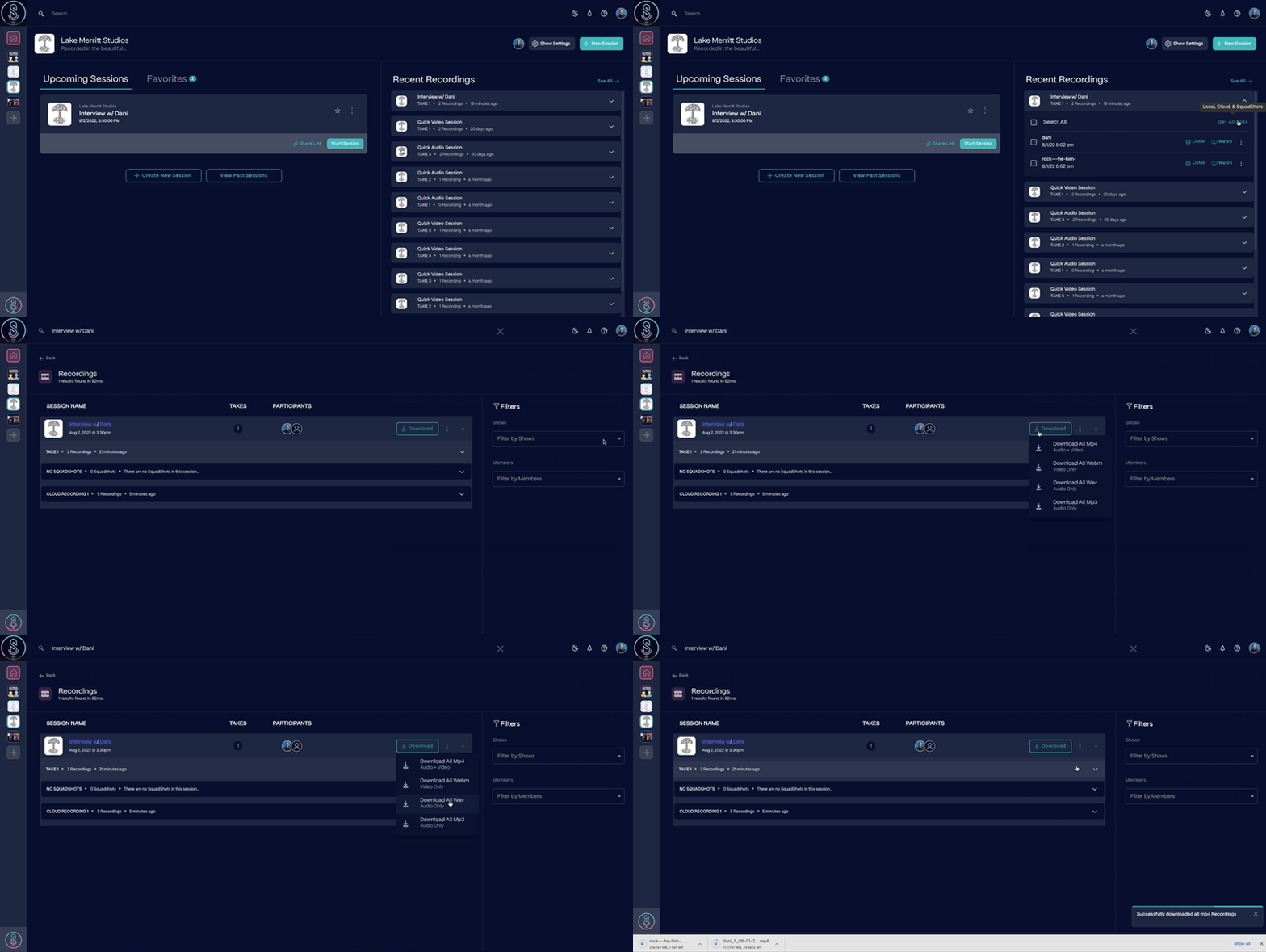
From the Recordings tab, select the **Download** button on the session row and choose your preferred format. All files from that session will download at once.
[
](/images/external/descript-45975735467661-5908a5d686.gif)
### All files from a session
From the Recordings tab, select the **Download** button on the session row and choose your preferred format. All files from that session will download at once.
[ ](/images/external/descript-45975735468813-c3e75ebb04.gif)
## Mix audio recordings
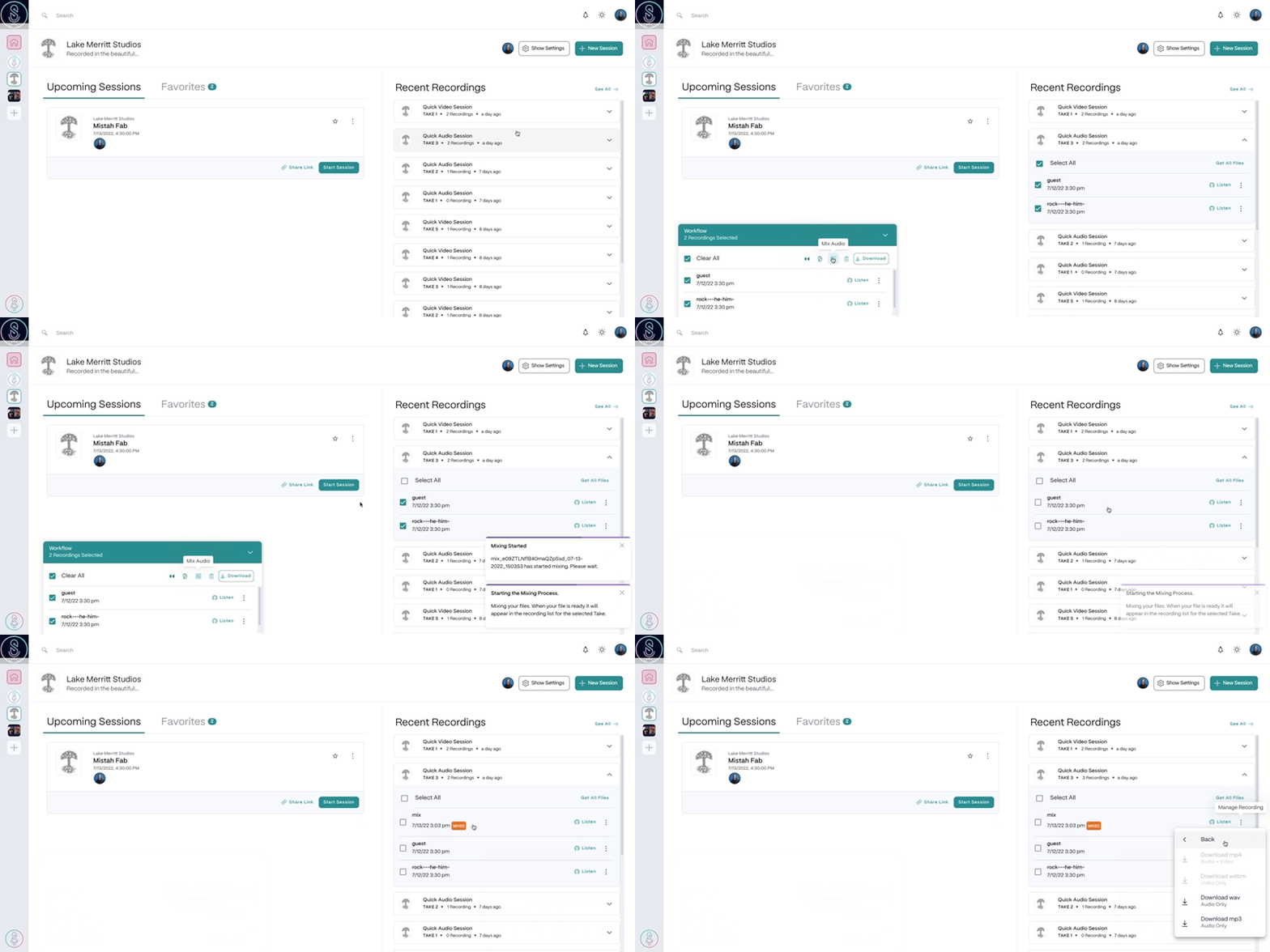
Mix separate audio tracks into a single combined file, then download it in WAV or MP3 format. Select your recordings, then in the Workflow Drawer select **Mix Audio**. Confirm in the popup to start processing — you'll be notified when it's complete. Mixed files appear in your recent recordings and are searchable.
[
](/images/external/descript-45975735468813-c3e75ebb04.gif)
## Mix audio recordings
Mix separate audio tracks into a single combined file, then download it in WAV or MP3 format. Select your recordings, then in the Workflow Drawer select **Mix Audio**. Confirm in the popup to start processing — you'll be notified when it's complete. Mixed files appear in your recent recordings and are searchable.
[ ](/images/external/descript-45975735472653-0a17e92102.gif)
**Audio only**
Mixing is currently available for audio files, not video.
## Transfer recordings to Dropbox
Send recordings directly from SquadCast to your Dropbox without downloading them to your computer first.
### Connect your Dropbox account (one-time setup)
1. Go to [Account Settings > Integrations](https://app.squadcast.fm/account/integrations).
2. Select **Connect to Dropbox** and follow the prompts to authenticate.
3. Once connected, you can disconnect anytime from **Dropbox Options** on the Integrations page.
### Transfer files
Select your recordings, then in the Workflow Drawer select the **Dropbox** icon and choose your format. The transfer starts automatically — files are saved to `/yourDropbox/SquadCast/SessionName/`.
**Files over 1.4GB will be compressed**
Recordings larger than 1.4GB are compressed into a zip file before transfer due to Dropbox size limitations. Transferring files larger than 1.4GB is not recommended to avoid failed transfers.
## Other actions
The Workflow Drawer also gives you access to:
* **Edit in Descript** — Import recordings directly into a Descript project. See [Import SquadCast recordings into Descript](/squadcast/import-to-descript).
* **Master Audio with Dolby** — Apply one-click audio mastering. See [Enhance SquadCast recordings with Dolby Mastering](/squadcast/dolby-mastering).
* **Delete** — Permanently remove selected files.
](/images/external/descript-45975735472653-0a17e92102.gif)
**Audio only**
Mixing is currently available for audio files, not video.
## Transfer recordings to Dropbox
Send recordings directly from SquadCast to your Dropbox without downloading them to your computer first.
### Connect your Dropbox account (one-time setup)
1. Go to [Account Settings > Integrations](https://app.squadcast.fm/account/integrations).
2. Select **Connect to Dropbox** and follow the prompts to authenticate.
3. Once connected, you can disconnect anytime from **Dropbox Options** on the Integrations page.
### Transfer files
Select your recordings, then in the Workflow Drawer select the **Dropbox** icon and choose your format. The transfer starts automatically — files are saved to `/yourDropbox/SquadCast/SessionName/`.
**Files over 1.4GB will be compressed**
Recordings larger than 1.4GB are compressed into a zip file before transfer due to Dropbox size limitations. Transferring files larger than 1.4GB is not recommended to avoid failed transfers.
## Other actions
The Workflow Drawer also gives you access to:
* **Edit in Descript** — Import recordings directly into a Descript project. See [Import SquadCast recordings into Descript](/squadcast/import-to-descript).
* **Master Audio with Dolby** — Apply one-click audio mastering. See [Enhance SquadCast recordings with Dolby Mastering](/squadcast/dolby-mastering).
* **Delete** — Permanently remove selected files.