> ## Documentation Index
> Fetch the complete documentation index at: https://help.descript.com/llms.txt
> Use this file to discover all available pages before exploring further.
# Joining a SquadCast Session (as a Host or Guest)
> Join a Squadcast session as a host or guest.
**Looking for an easier way to meet and record?**
**Descript Rooms** let you meet, record, and collaborate without special links or separate setup. It's the easiest way to record podcasts, interviews, and meetings—all inside Descript. [Learn more about Rooms](#).
## How to Join a SquadCast Recording Session
Whether you're hosting or joining as a guest, here’s how to get set up and ready to record with SquadCast.
## Joining as a Guest
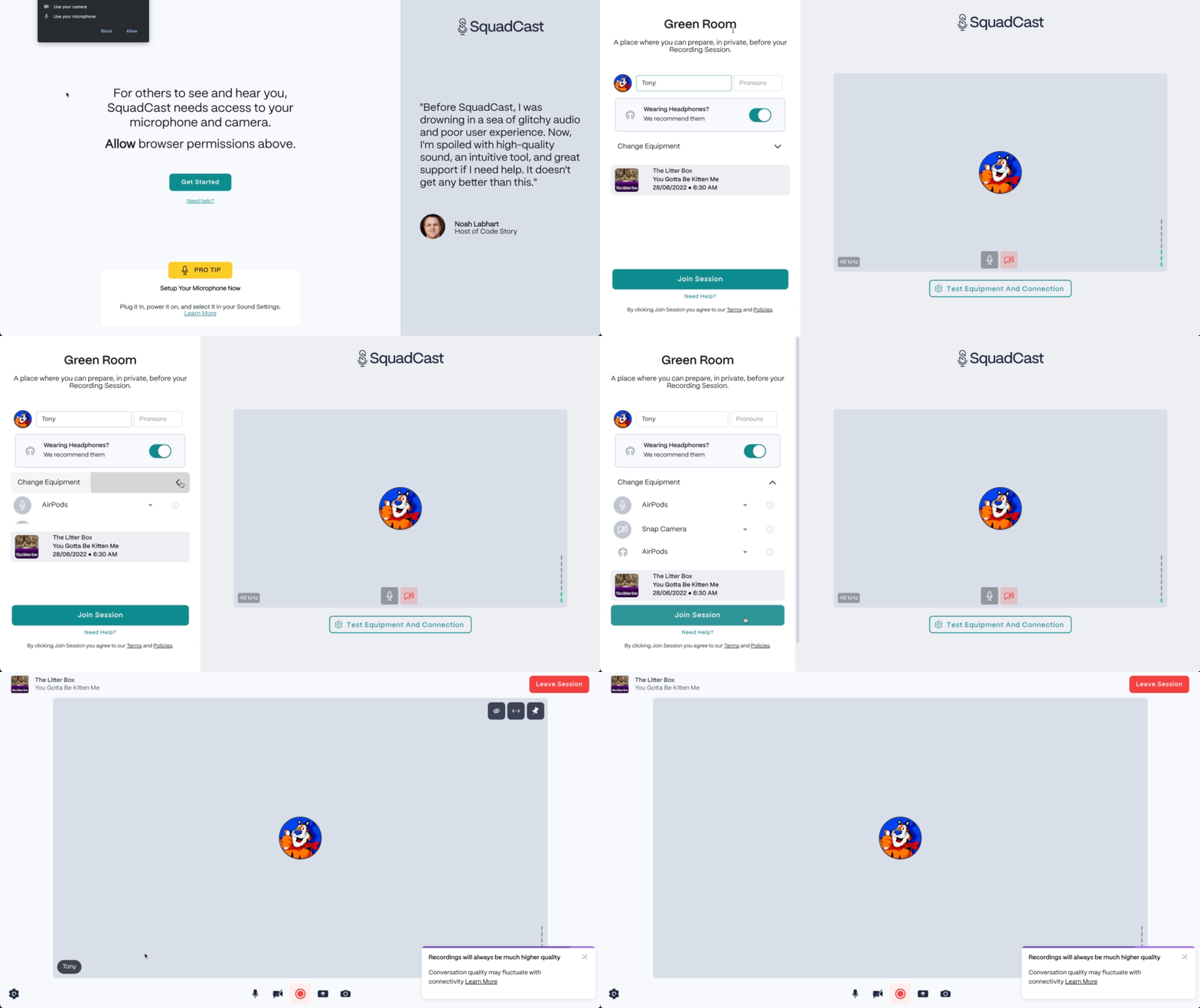
1. **Open your invite link:** Click the **Guest Invite Link** you received by email or calendar invite. No SquadCast account is needed.
2. **Allow microphone and camera access:** When prompted, click **Allow** to give SquadCast permission to access your microphone and camera.
3. **Enter the Green Room:** Click **Get Started** to access the [Green Room](/squadcast/green-room). In the Green Room, you can test your microphone and camera, adjust your settings, and (optionally) enter your name and pronouns.
4. **Review your setup:** Confirm that your microphone, camera, and speaker settings are correct before joining the session.
5. **Join the session:** Click the **Join Session** button to enter the live recording room.
## Hosting a Session
1. **Start the session:** Log in to your [SquadCast Dashboard](https://app.squadcast.fm/dashboard) and click the **Start Session** button next to your scheduled session.
2. **Allow microphone and camera access:** When prompted, click **Allow** to grant SquadCast access to your microphone and camera.
3. **Enter the Green Room:** Click **Get Started** to enter the [Green Room](/squadcast/green-room). In the Green Room, confirm your microphone and camera setup and adjust your recording settings if needed.
4. **Review recording settings:** Double-check that your selected recording format (Audio Only or Audio & Video) matches your project needs, and confirm that guest devices are ready.
5. **Join the session:** When everything looks good, click **Join Session** to enter the live SquadCast Studio and begin recording.
[ ](/images/external/descript-23106391759629-3b1af37deb.gif)
## Backup Recordings Information
SquadCast may record audio and video during your session for backup purposes. By joining a session, you confirm that you have obtained consent from all participants. You also agree to SquadCast’s [Terms & Conditions](https://squadcast.fm/terms-conditions/) and [Cookie Policy](https://squadcast.fm/privacy-policy#cookies).
](/images/external/descript-23106391759629-3b1af37deb.gif)
## Backup Recordings Information
SquadCast may record audio and video during your session for backup purposes. By joining a session, you confirm that you have obtained consent from all participants. You also agree to SquadCast’s [Terms & Conditions](https://squadcast.fm/terms-conditions/) and [Cookie Policy](https://squadcast.fm/privacy-policy#cookies).