> ## Documentation Index
> Fetch the complete documentation index at: https://help.descript.com/llms.txt
> Use this file to discover all available pages before exploring further.
# Set up Your Recording Equipment in the SquadCast Green Room
> Set up your microphone, camera, and speakers in the SquadCast Green Room before recording.
The Green Room is SquadCast's pre-recording check: confirm your camera and mic are working, pick your devices, and set your display name before you join the session.
**Looking for an easier way to meet and record?**
**Descript Rooms** let you meet, record, and collaborate without needing session links or extra setup. It’s the easiest way to host podcasts, interviews, and meetings. [Learn more about Rooms](/record/rooms-overview).
## Set up your equipment in the Green Room
When you join a SquadCast session, you’ll first land in the Green Room. Here you can adjust your display name and configure your input and output devices before entering the Studio.
**Firefox users:** Firefox doesn’t support selecting output devices directly within SquadCast. To change audio output, use your device’s system settings: [Mac](https://support.apple.com/guide/mac-help/welcome/mac) | [Windows](https://support.microsoft.com/en-us)
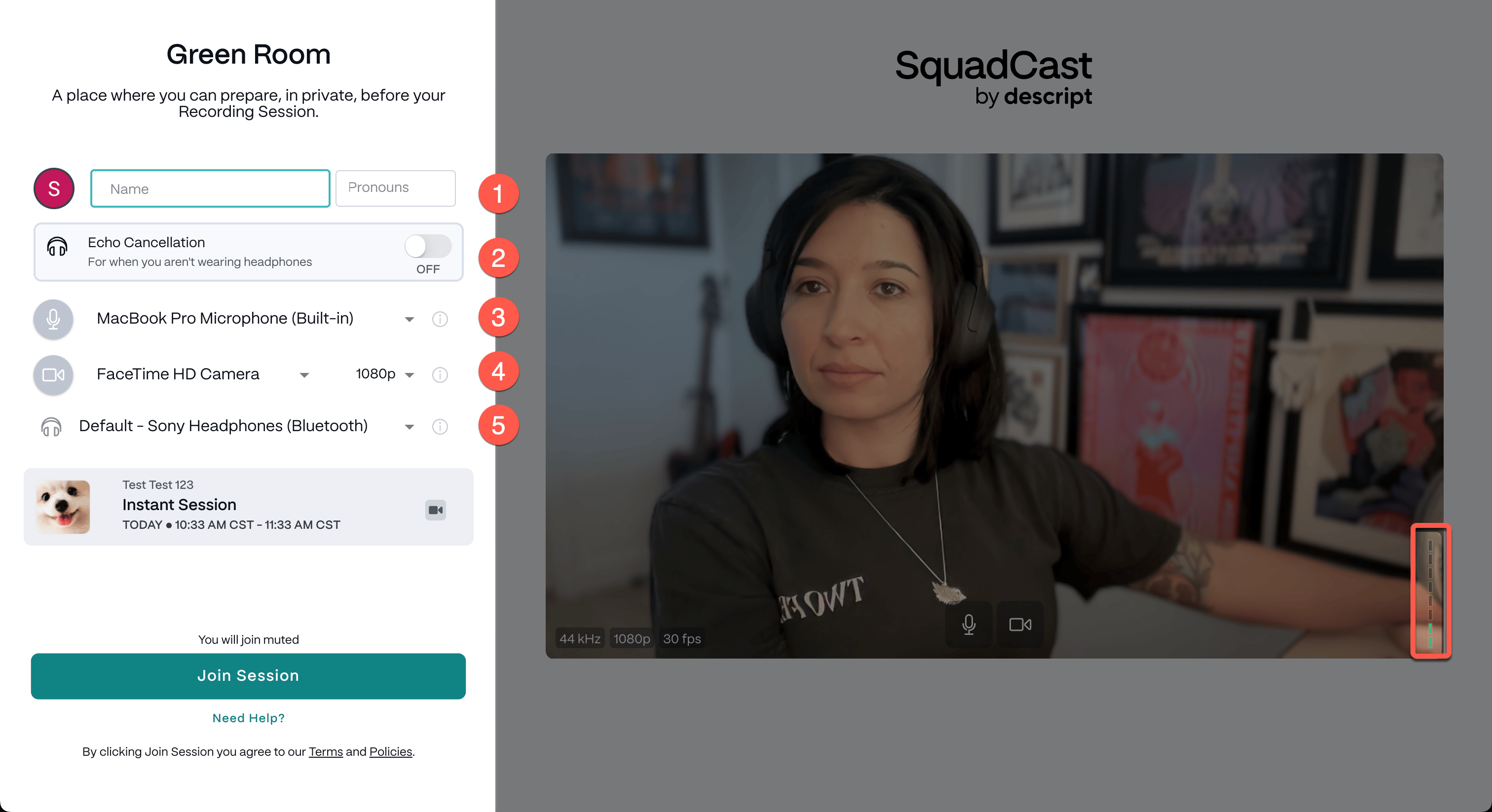 1. Enter your name and pronouns.
2. If you’re not wearing headphones, toggle on **Echo Cancellation**. We strongly recommend using headphones for the best audio quality. [Learn more about the choice between headphones, echo cancellation, and volume ducking](https://squadcast.fm/blog/the-choice-between-headphones-echo-cancellation-volume-ducking/).
3. Select your **microphone**. Use the VU meter in the bottom-right corner of the preview to confirm mic input.
4. Choose your **camera** and resolution.
5. Select your **speaker** or headphones for session audio.
**Recording from multiple mic inputs?**
Each computer can only accommodate one microphone input at a time. If multiple participants are recording from the same location, you have two options:
1. **Use separate computers in different rooms:** To record isolated tracks and avoid feedback, participants should join from separate computers in different locations or rooms.
2. **Share one computer and microphone:** Everyone can gather around a single computer and use one microphone. This will create one combined audio recording.
Remote participants can connect as usual from their own locations.
## Adjust settings after joining a SquadCast session
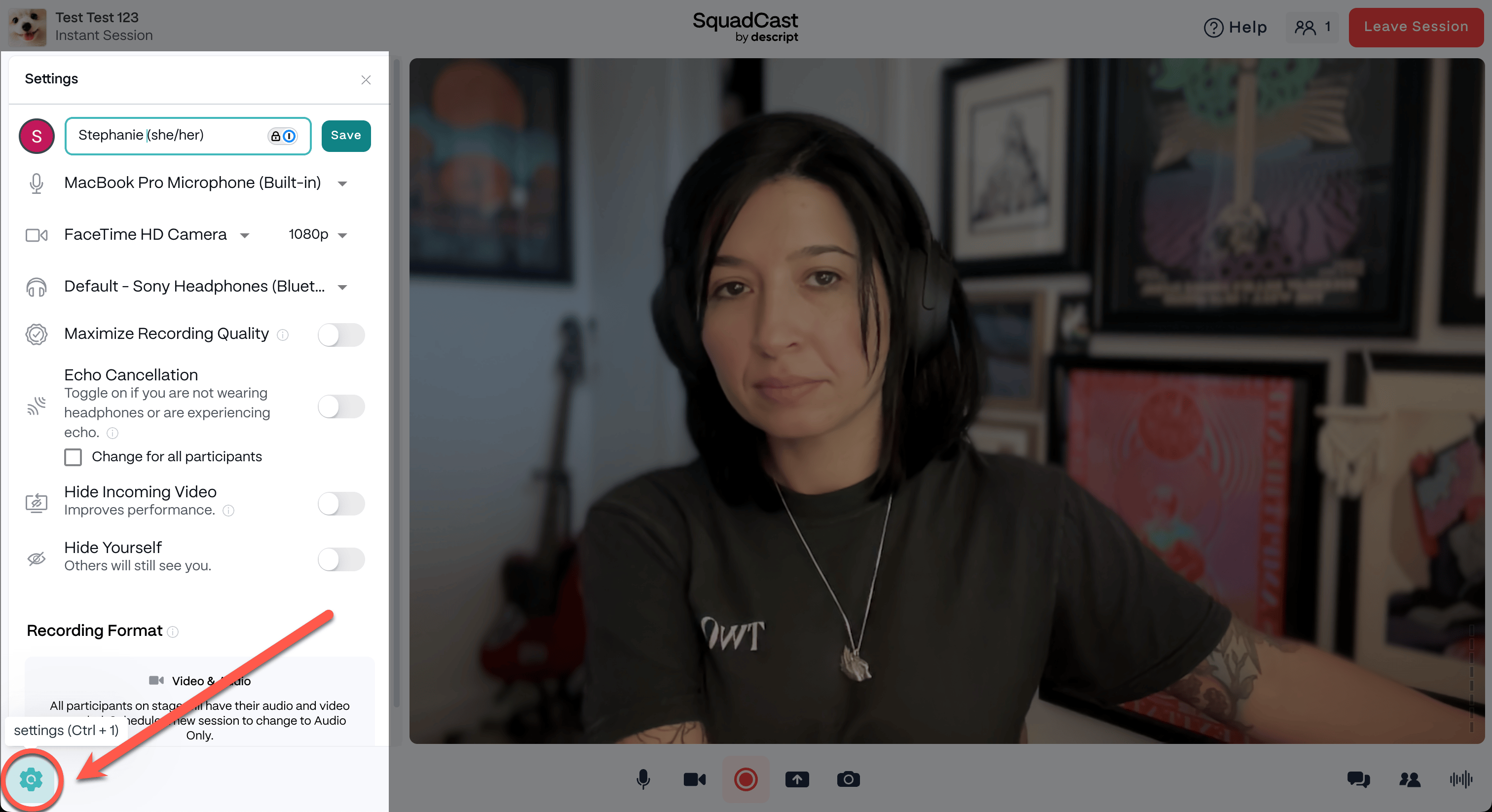
To change your equipment or name after entering the Studio, click the **Gear** icon (⚙️) in the lower-left corner.
1. Enter your name and pronouns.
2. If you’re not wearing headphones, toggle on **Echo Cancellation**. We strongly recommend using headphones for the best audio quality. [Learn more about the choice between headphones, echo cancellation, and volume ducking](https://squadcast.fm/blog/the-choice-between-headphones-echo-cancellation-volume-ducking/).
3. Select your **microphone**. Use the VU meter in the bottom-right corner of the preview to confirm mic input.
4. Choose your **camera** and resolution.
5. Select your **speaker** or headphones for session audio.
**Recording from multiple mic inputs?**
Each computer can only accommodate one microphone input at a time. If multiple participants are recording from the same location, you have two options:
1. **Use separate computers in different rooms:** To record isolated tracks and avoid feedback, participants should join from separate computers in different locations or rooms.
2. **Share one computer and microphone:** Everyone can gather around a single computer and use one microphone. This will create one combined audio recording.
Remote participants can connect as usual from their own locations.
## Adjust settings after joining a SquadCast session
To change your equipment or name after entering the Studio, click the **Gear** icon (⚙️) in the lower-left corner.
 ## Recommended setup for Mac and Windows
### Mac
| Microphone | Speakers | Camera |
| ------------------------------------------------------------------------------------------------------------------------------------------------------------------------------------------------------------------------------- | ------------------------------------------------------------------------------------------------------------------------------------------------------------------------------------------------ | ----------------------------------------------------------------------------------------------------------------------------------------- |
| 1. Open **System Preferences → Sound → Input**. 2. Select your microphone or audio interface. 3. Speak into your mic to verify input signal. 4. Adjust **Input Volume** to 75–85% if needed. 5. Refresh SquadCast if necessary. | 1. Open **System Preferences → Sound → Output**. 2. Select your headphones or output device. 3. Make sure output volume isn’t muted; we recommend 50% volume. 4. Refresh SquadCast if necessary. | macOS doesn’t include native camera configuration. Make sure your camera is connected and available to apps. Refresh SquadCast if needed. |
### Windows
| Microphone | Speakers | Camera |
| ------------------------------------------------------------------------------------------------------------------------------------------------------------------------------------------------------------------------------------------------------------------------------------------------------ | ------------------------------------------------------------------------------------------------------------------------------------- | ------------------------------------------------------------------------------------------------------------------------------------------------ |
| 1. Open **Settings → System → Sound**. 2. Select your mic under **Choose your input device**. 3. Speak into your mic to verify input response. 4. Click **Device properties** to adjust volume (75–85% recommended). 5. If issues persist, update your mic drivers. 6. Refresh SquadCast if necessary. | 1. In **Sound Settings**, choose your output device. 2. Ensure volume is around 50% and not muted. 3. Refresh SquadCast if necessary. | 1. Make sure no other apps are using the camera. 2. Check permissions under **Settings → Privacy → Camera**. 3. Update camera drivers if needed. |
## Recommended setup for Mac and Windows
### Mac
| Microphone | Speakers | Camera |
| ------------------------------------------------------------------------------------------------------------------------------------------------------------------------------------------------------------------------------- | ------------------------------------------------------------------------------------------------------------------------------------------------------------------------------------------------ | ----------------------------------------------------------------------------------------------------------------------------------------- |
| 1. Open **System Preferences → Sound → Input**. 2. Select your microphone or audio interface. 3. Speak into your mic to verify input signal. 4. Adjust **Input Volume** to 75–85% if needed. 5. Refresh SquadCast if necessary. | 1. Open **System Preferences → Sound → Output**. 2. Select your headphones or output device. 3. Make sure output volume isn’t muted; we recommend 50% volume. 4. Refresh SquadCast if necessary. | macOS doesn’t include native camera configuration. Make sure your camera is connected and available to apps. Refresh SquadCast if needed. |
### Windows
| Microphone | Speakers | Camera |
| ------------------------------------------------------------------------------------------------------------------------------------------------------------------------------------------------------------------------------------------------------------------------------------------------------ | ------------------------------------------------------------------------------------------------------------------------------------- | ------------------------------------------------------------------------------------------------------------------------------------------------ |
| 1. Open **Settings → System → Sound**. 2. Select your mic under **Choose your input device**. 3. Speak into your mic to verify input response. 4. Click **Device properties** to adjust volume (75–85% recommended). 5. If issues persist, update your mic drivers. 6. Refresh SquadCast if necessary. | 1. In **Sound Settings**, choose your output device. 2. Ensure volume is around 50% and not muted. 3. Refresh SquadCast if necessary. | 1. Make sure no other apps are using the camera. 2. Check permissions under **Settings → Privacy → Camera**. 3. Update camera drivers if needed. |