> ## Documentation Index
> Fetch the complete documentation index at: https://help.descript.com/llms.txt
> Use this file to discover all available pages before exploring further.
# Enhance SquadCast Recordings with Dolby Mastering
> Apply one-click Dolby Mastering to level volume and cut noise in SquadCast.
One click of Dolby Mastering runs your SquadCast recording through automatic leveling, noise reduction, EQ, and cleanup of speech artifacts, so it sounds polished without any hands-on post-production.
Dolby Mastering is available with Creator, Business, and Enterprise Descript plans.
## What Dolby Mastering does
Dolby Mastering processes your recordings to:
* Normalize loudness to -16 LUFS (industry standard) with Dolby Dialog Intelligence
* Optimize speech dynamics and tonality affected by microphone technique
* Reduce background noise and non-speech sounds
* Filter out low-frequency hums and thumps under 100Hz
* Soften harsh consonants (like "s," "ch," or "th") to improve clarity
## How to apply Dolby Mastering
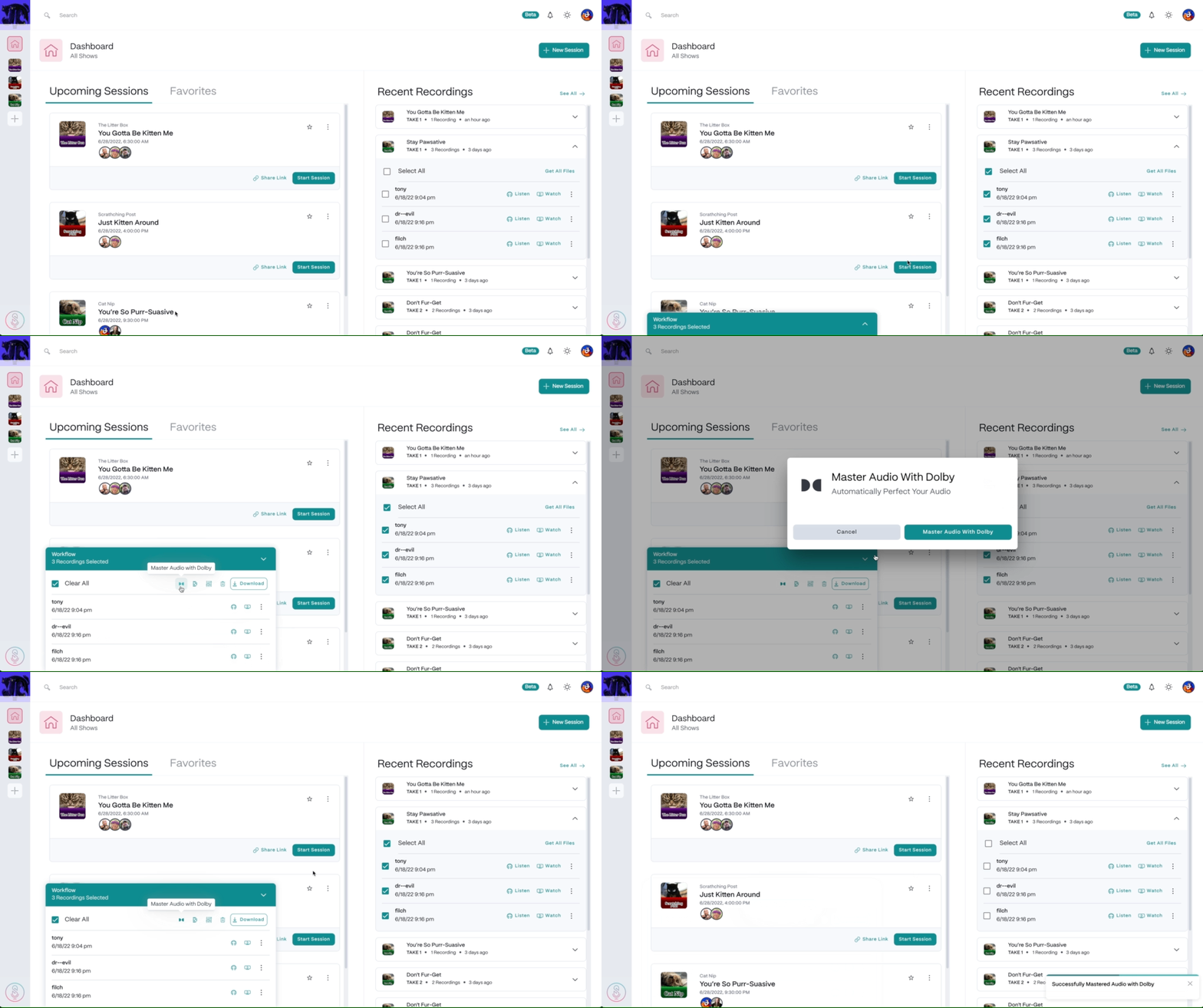
1. Go to the **Recordings** tab in the top-left corner of the Dashboard.
2. Expand the session and select the files you want to master.
3. Open the Workflow Drawer and select **Master Audio with Dolby**.
4. In the confirmation window, select **Master Audio with Dolby** again to start processing. A confirmation message will appear when it's complete.
5. Each selected file will generate a new Dolby Enhanced version.
 **Mastering takes time to process**
Wait for each batch to finish before starting another or importing files into Descript. If an import fails, download the Dolby Enhanced file and import it manually.
## Customize Dolby Mastering settings
You can fine-tune how Dolby processes your recordings in your Show settings.
**Default is recommended**
We recommend that most users keep their settings default. These controls are here for those familiar with audio processing techniques. Our Support is limited when it comes to troubleshooting enhanced or mixed files with custom settings.
To access Dolby Mastering settings:
1. Select the Show you want to edit on the left side of the Dashboard.
2. In the top right corner, select the **Show Settings** button.
3. Scroll down to the **Master Audio with Dolby** section. Expand each section to make changes.
4. When you're finished, select **Save Changes** in the top right corner.
### Loudness
Controls the perceived volume level of your recording for a consistent listener experience.
* **Target Level** — The highest loudness level. Range: -20 to -13.
* **Dialog Intelligence** — Uses the Dolby Dialog Intelligence Speech Gate to tune loudness based on speech detection.
* **Speech Threshold** — Sensitivity of the Dialog Intelligence Speech Gate. Range: 0 to 100.
### Dynamics
Levels out uneven speaker volumes caused by differences in how loudly people speak, their distance from the microphone, or microphone quality.
* **Range Control** — Strength of dynamic leveling. Options: Low, Medium, High, Max.
### Noise
Reduces unwanted background sounds — both constant noise (like an A/C fan) and intermittent noise (like a dog barking or keyboard clicks).
* **Noise Reduction** — Suppresses background noise. Options: Low, Medium, High, Max.
### Filter
Adjusts frequency balance to compensate for consumer-grade microphones or less-than-ideal recording environments.
* **Dynamic EQ** — Equalizes and compresses overall spectral balance.
* **High Pass** — Removes low-frequency thumps and hums below a cutoff frequency. Range: 50 to 120.
* **Hum Reduction** — Detects and removes static hums like mains hum or constant background tones.
### Speech
Enhances speech clarity by managing sibilance, plosives, and mouth clicks. If your content includes music, consider disabling this enhancement.
* **Isolation** — Removes non-speech sounds. Enabled by default; disable to preserve background context sounds.
* **Sibilance Reduction** — Softens harsh "s," "ch," and "th" sounds. Options: Low, Medium, High, Max.
* **Plosive Reduction** — Reduces hard "p," "b," and "t" sounds. Options: Low, Medium, High, Max.
* **Click Reduction** — Suppresses mouth clicks. Options: Low, Medium, High, Max.
### Music
* **Music Detection** — Automatically detects music in your recording and adjusts processing to preserve it.
**Mastering takes time to process**
Wait for each batch to finish before starting another or importing files into Descript. If an import fails, download the Dolby Enhanced file and import it manually.
## Customize Dolby Mastering settings
You can fine-tune how Dolby processes your recordings in your Show settings.
**Default is recommended**
We recommend that most users keep their settings default. These controls are here for those familiar with audio processing techniques. Our Support is limited when it comes to troubleshooting enhanced or mixed files with custom settings.
To access Dolby Mastering settings:
1. Select the Show you want to edit on the left side of the Dashboard.
2. In the top right corner, select the **Show Settings** button.
3. Scroll down to the **Master Audio with Dolby** section. Expand each section to make changes.
4. When you're finished, select **Save Changes** in the top right corner.
### Loudness
Controls the perceived volume level of your recording for a consistent listener experience.
* **Target Level** — The highest loudness level. Range: -20 to -13.
* **Dialog Intelligence** — Uses the Dolby Dialog Intelligence Speech Gate to tune loudness based on speech detection.
* **Speech Threshold** — Sensitivity of the Dialog Intelligence Speech Gate. Range: 0 to 100.
### Dynamics
Levels out uneven speaker volumes caused by differences in how loudly people speak, their distance from the microphone, or microphone quality.
* **Range Control** — Strength of dynamic leveling. Options: Low, Medium, High, Max.
### Noise
Reduces unwanted background sounds — both constant noise (like an A/C fan) and intermittent noise (like a dog barking or keyboard clicks).
* **Noise Reduction** — Suppresses background noise. Options: Low, Medium, High, Max.
### Filter
Adjusts frequency balance to compensate for consumer-grade microphones or less-than-ideal recording environments.
* **Dynamic EQ** — Equalizes and compresses overall spectral balance.
* **High Pass** — Removes low-frequency thumps and hums below a cutoff frequency. Range: 50 to 120.
* **Hum Reduction** — Detects and removes static hums like mains hum or constant background tones.
### Speech
Enhances speech clarity by managing sibilance, plosives, and mouth clicks. If your content includes music, consider disabling this enhancement.
* **Isolation** — Removes non-speech sounds. Enabled by default; disable to preserve background context sounds.
* **Sibilance Reduction** — Softens harsh "s," "ch," and "th" sounds. Options: Low, Medium, High, Max.
* **Plosive Reduction** — Reduces hard "p," "b," and "t" sounds. Options: Low, Medium, High, Max.
* **Click Reduction** — Suppresses mouth clicks. Options: Low, Medium, High, Max.
### Music
* **Music Detection** — Automatically detects music in your recording and adjusts processing to preserve it.