> ## Documentation Index
> Fetch the complete documentation index at: https://help.descript.com/llms.txt
> Use this file to discover all available pages before exploring further.
# Delete Audio and Video Recordings in SquadCast
> Delete SquadCast recording files individually or in bulk from the Dashboard or Studio.
When you no longer need a session's recordings, delete them from the Dashboard or Studio, or clear several at once from the Dashboard.
**Deleted recordings cannot be recovered**
Please note that deleting recordings is a permanent action that cannot be reversed. Deleted recordings will be removed from our servers and cannot be recovered.
## Delete recording files from the Dashboard
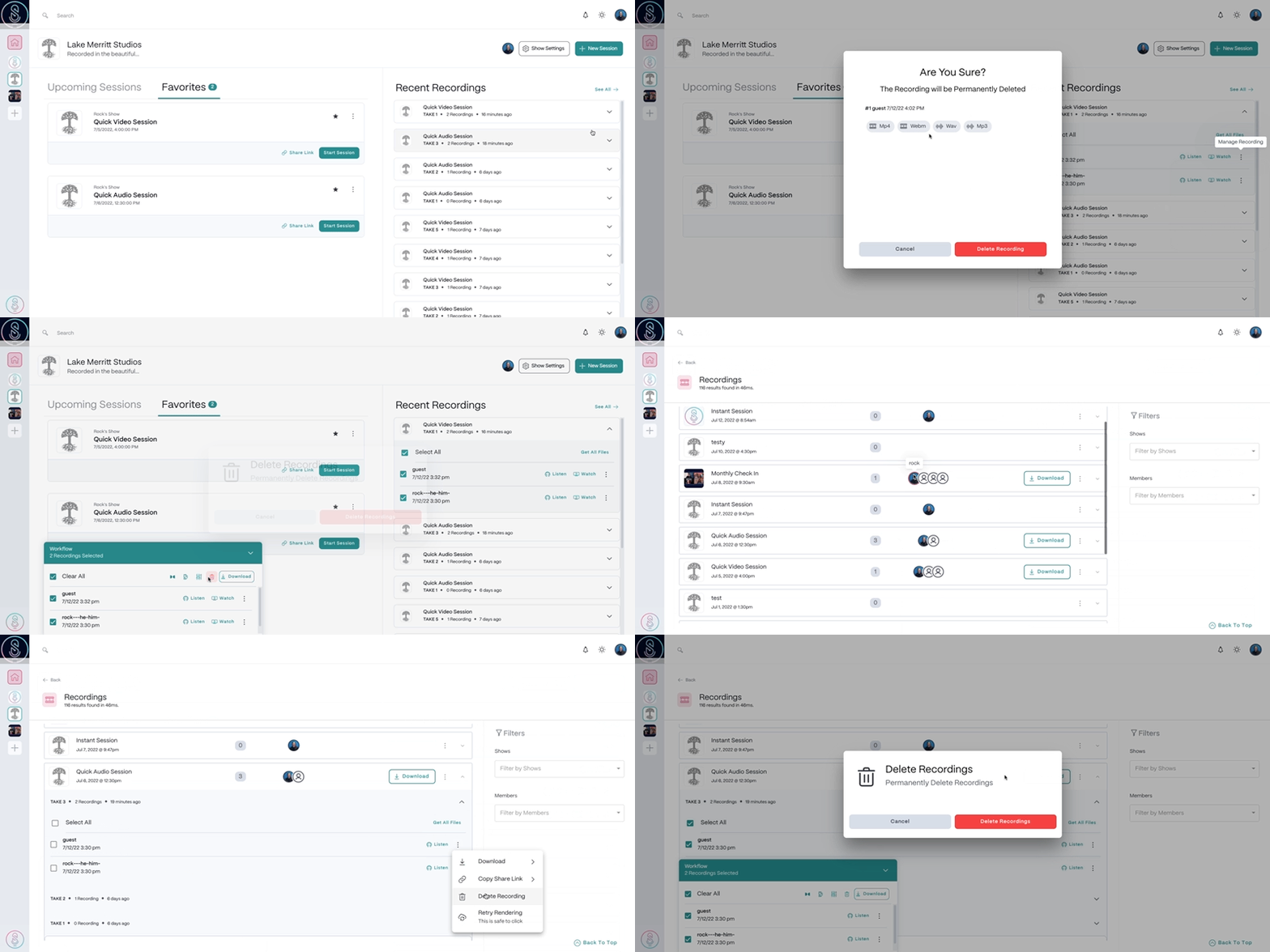
1. Select the **Recordings**tab in the top left corner of the SquadCast Dashboard.
2. Locate and select the session you would like to delete files from, then select the Take.
3. Select the  **Manage Recording**button next to the file, then select **Delete Recording**.
4. In the confirmation window that appears, select **Delete Recording**again to confirm deletion. The recording file will now be permanently deleted.
You also have the ability to delete groups of SquadCast recordings from your Workflow Drawer or the Recent Recordings. Just click the checkbox next to the recordings you want to delete, then select the Delete icon and confirm deletion by selecting **Delete Recording**.
[
**Manage Recording**button next to the file, then select **Delete Recording**.
4. In the confirmation window that appears, select **Delete Recording**again to confirm deletion. The recording file will now be permanently deleted.
You also have the ability to delete groups of SquadCast recordings from your Workflow Drawer or the Recent Recordings. Just click the checkbox next to the recordings you want to delete, then select the Delete icon and confirm deletion by selecting **Delete Recording**.
[ ](/images/external/descript-23106290726413-537519b153.gif)
## Delete recording files from the SquadCast Studio
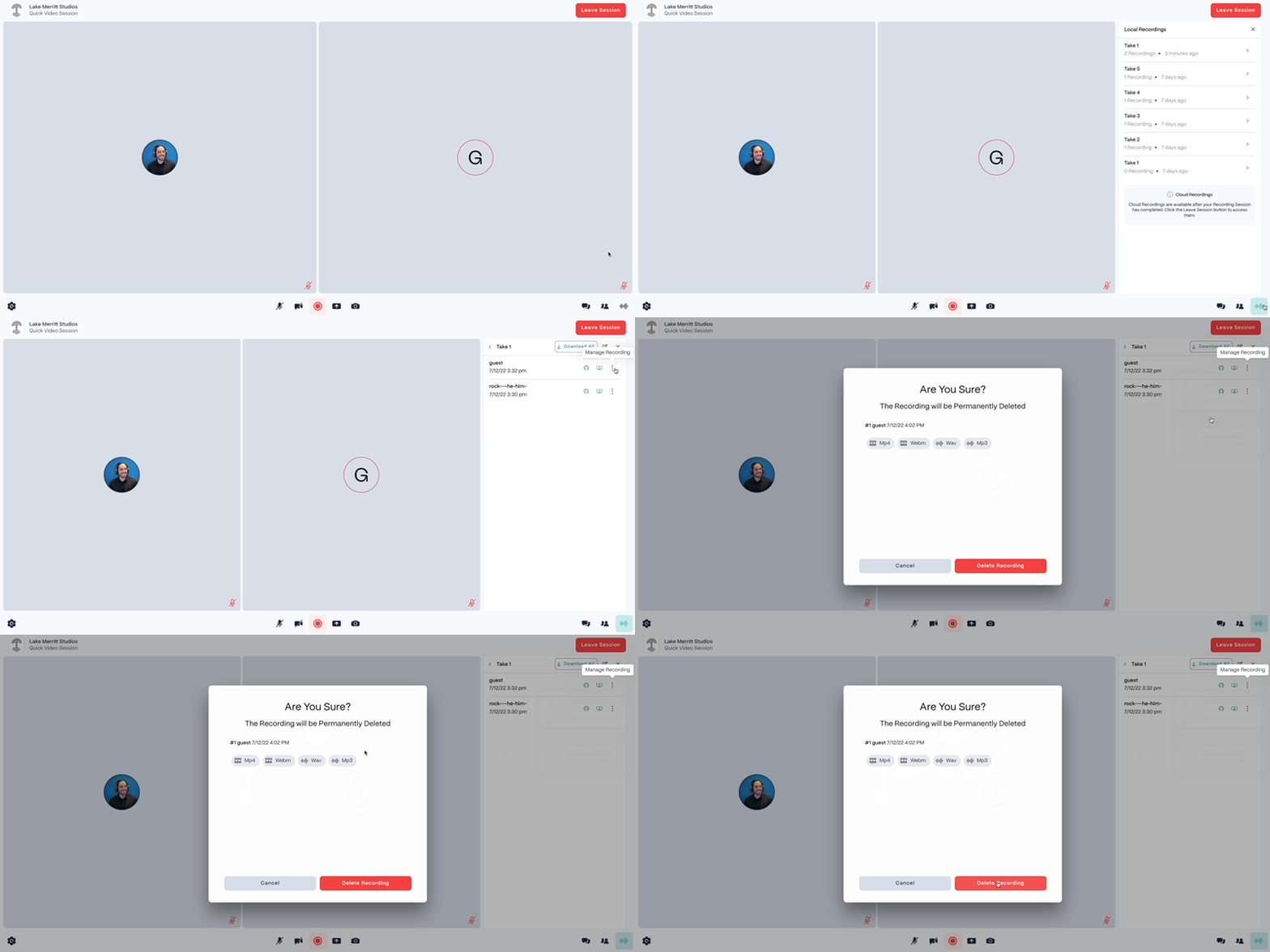
1. From within a session, click the **recordings** button in the lower right corner, or press `Command + 8` (macOS) or `Control + 8` (Windows).
2. Locate and select the Take you would like to delete files from.
3. Select the **Manage Recording**button next to the file, then select **Delete Recording**.
4. In the confirmation window that appears, select **Delete Recording**again to confirm deletion. The recording file will now be permanently deleted.
[
](/images/external/descript-23106290726413-537519b153.gif)
## Delete recording files from the SquadCast Studio
1. From within a session, click the **recordings** button in the lower right corner, or press `Command + 8` (macOS) or `Control + 8` (Windows).
2. Locate and select the Take you would like to delete files from.
3. Select the **Manage Recording**button next to the file, then select **Delete Recording**.
4. In the confirmation window that appears, select **Delete Recording**again to confirm deletion. The recording file will now be permanently deleted.
[ ](/images/external/descript-23106290727693-3e85bf57ec.gif)