> ## Documentation Index
> Fetch the complete documentation index at: https://help.descript.com/llms.txt
> Use this file to discover all available pages before exploring further.
# Connect Your SquadCast and Descript Accounts
> Link your SquadCast and Descript accounts to manage both under a single subscription.
Linking your SquadCast and Descript accounts brings them under one Descript subscription and login, so you handle billing, plans, and access in one place instead of two.
**Skip SquadCast — record right in Descript**
Now that **Rooms** is built directly into Descript, there’s no need to maintain both SquadCast and Descript accounts. Rooms (Descript’s built-in conferencing and recording tool) lets you meet, record, and collaborate all in one place. It’s simpler, faster, and fully integrated. [Learn how to use Rooms](/record/rooms-overview).
## Connect from Descript
Follow these steps if you already have a Descript account and want to add SquadCast for remote recording.
**Before linking**
Only the drive owner can link the accounts.
If you have multiple Descript drives, select the drive you want to link before starting. You'll still be able to import remote recordings to all your drives — the linked drive is just the one that manages your subscription.
1. [Go to your Plan settings](https://web.descript.com/view/settings/account?active=subscription) and select **Open SquadCast**. This will take you to a SquadCast webpage.
2. Sign up for a SquadCast account.
3. You'll now connect your new SquadCast account to Descript. If you own multiple drives, make sure to select the correct drive at the bottom of the web page before continuing.
4. Please review the offer and select **Redeem Offer**.
## Connect from SquadCast
If you're a SquadCast user who has never had a Descript plan, use the following steps to set up your Descript plan (which includes access to SquadCast).
1. [Log into your SquadCast account](https://app.squadcast.fm/auth).
2. On the next screen, select **View Pricing** to see Descript's available plans.\\
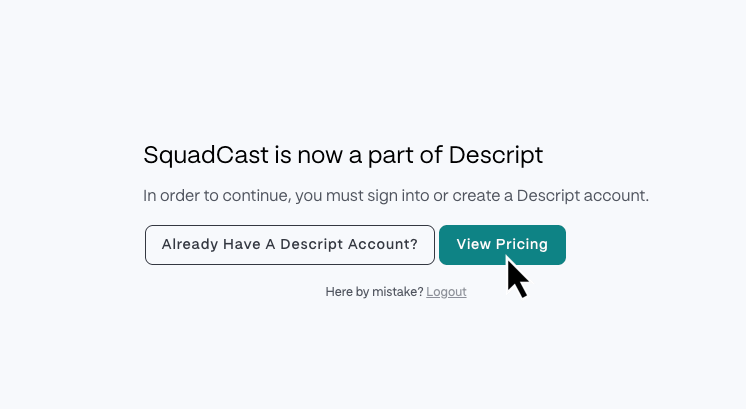 3. On the next screen, select a Descript plan.
4. Next, you'll create your Descript account. See [Create your Descript Account](/getting-started/create-account) for those specific steps.
5. After you've created your account, you'll enter your billing details.
After that, your SquadCast and Descript accounts will be linked. Moving forward, billing is handled by Descript, and you'll no longer be charged by SquadCast.
## After linking your accounts
**Subscription and billing**
After linking, Descript manages your subscription; you won't be billed separately for SquadCast. View or update your plan in your Descript account by visiting the [Subscription tab](https://web.descript.com/view/settings/account?active=subscription) or by opening the app and navigating to **Settings** > **Plan**. [Learn more about managing your Descript + SquadCast subscription.](/billing-payments-plans/manage)
See our guide on [how billing works in Descript](/billing-payments-plans/overview) for more details.
### Team members
Linking accounts doesn't automatically sync team members between SquadCast and Descript. If you manage a team in either tool and want your teammates to collaborate in both, you'll need to add them manually.
* **Descript users adding teammates to SquadCast:** Invite team members from your SquadCast organization settings.
* **SquadCast users adding teammates to Descript:** [Managing team roles and project access](/working-in-projects/access) and [Accepting a drive membership invitation](/team-management/accept-invite)
### Importing recordings
Once your accounts are linked, import SquadCast recordings into Descript without downloading them. [Learn more about importing SquadCast recordings into Descript.](https://help.descript.com/hc/en-us/articles/23106707602957)
3. On the next screen, select a Descript plan.
4. Next, you'll create your Descript account. See [Create your Descript Account](/getting-started/create-account) for those specific steps.
5. After you've created your account, you'll enter your billing details.
After that, your SquadCast and Descript accounts will be linked. Moving forward, billing is handled by Descript, and you'll no longer be charged by SquadCast.
## After linking your accounts
**Subscription and billing**
After linking, Descript manages your subscription; you won't be billed separately for SquadCast. View or update your plan in your Descript account by visiting the [Subscription tab](https://web.descript.com/view/settings/account?active=subscription) or by opening the app and navigating to **Settings** > **Plan**. [Learn more about managing your Descript + SquadCast subscription.](/billing-payments-plans/manage)
See our guide on [how billing works in Descript](/billing-payments-plans/overview) for more details.
### Team members
Linking accounts doesn't automatically sync team members between SquadCast and Descript. If you manage a team in either tool and want your teammates to collaborate in both, you'll need to add them manually.
* **Descript users adding teammates to SquadCast:** Invite team members from your SquadCast organization settings.
* **SquadCast users adding teammates to Descript:** [Managing team roles and project access](/working-in-projects/access) and [Accepting a drive membership invitation](/team-management/accept-invite)
### Importing recordings
Once your accounts are linked, import SquadCast recordings into Descript without downloading them. [Learn more about importing SquadCast recordings into Descript.](https://help.descript.com/hc/en-us/articles/23106707602957)