> ## Documentation Index
> Fetch the complete documentation index at: https://help.descript.com/llms.txt
> Use this file to discover all available pages before exploring further.
# SquadCast Guest Booking with Captivate
> Connect SquadCast with Captivate so guest bookings automatically create recording sessions.
With SquadCast connected to [Captivate](http://captivate.fm) guest booking, a guest booking a time slot automatically creates the SquadCast session you'll both join to record.
1. Before you start, you will need both a SquadCast and a Captivate account to complete this integration.
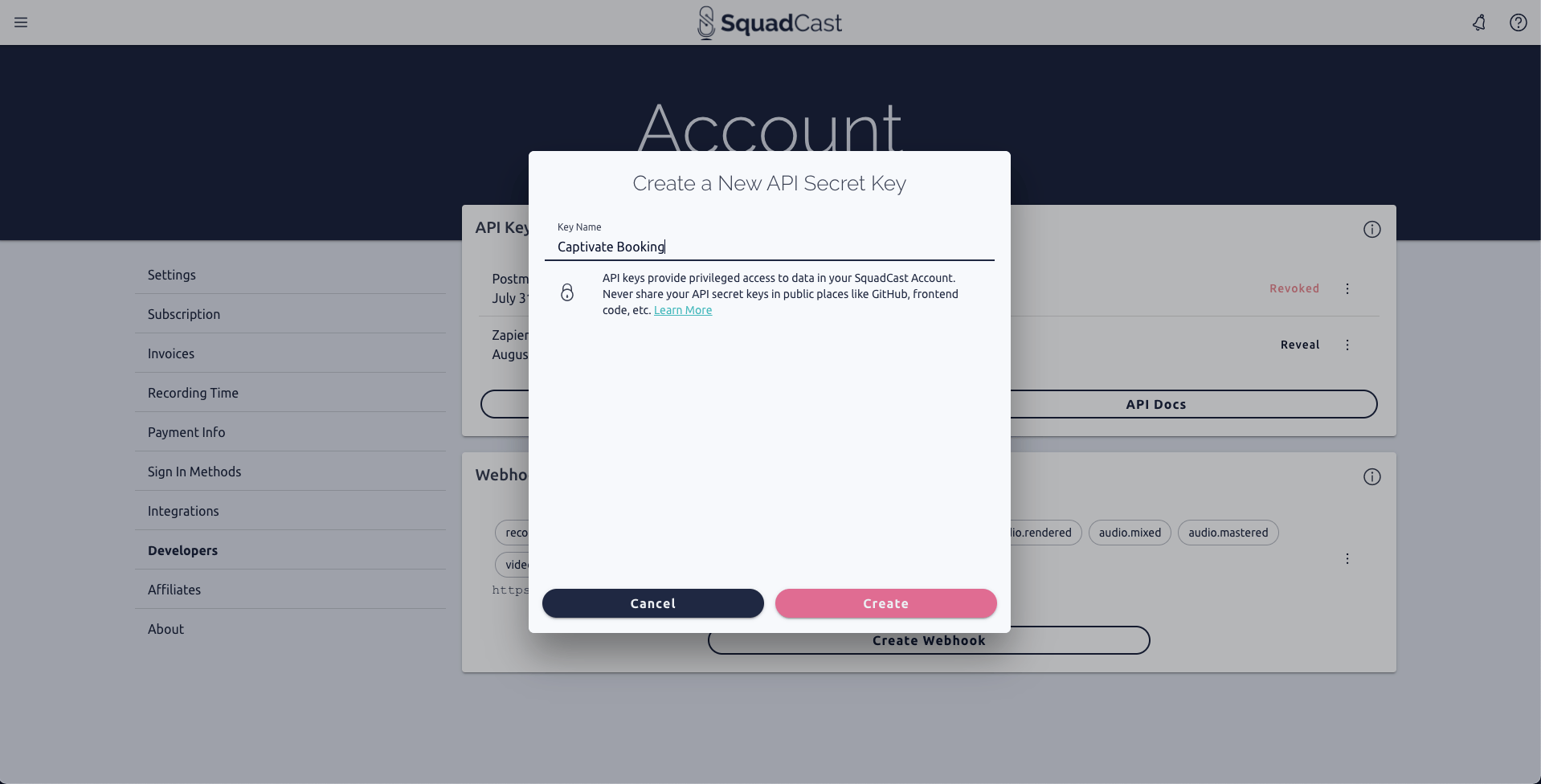
2. [Create a new API Secret Key](/squadcast/api-key) within your SquadCast [Account Settings](https://app.squadcast.fm/account/developers). We recommend the name "Captivate Booking."
[ ](/images/external/descript-23163657694861-2342c5e4f4.png)
3. Copy the new API Key to your clipboard.
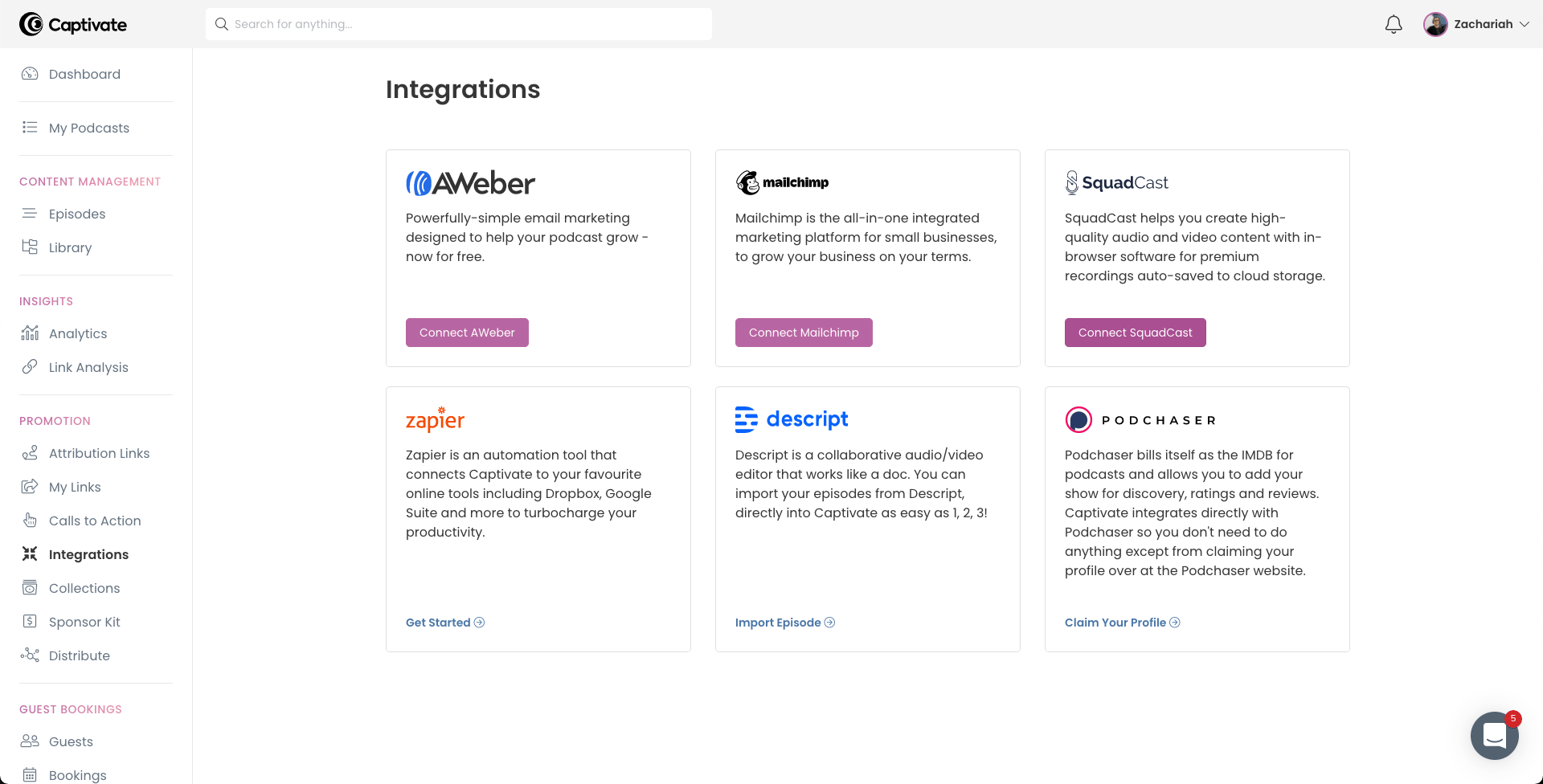
4. Navigate to your [Captivate Dashboard](https://my.captivate.fm/dashboard).
5. Select **Integrations** under the **Promotion** section within the sidebar on the left.
6. Click the **Connect SquadCast** button.
[
](/images/external/descript-23163657694861-2342c5e4f4.png)
3. Copy the new API Key to your clipboard.
4. Navigate to your [Captivate Dashboard](https://my.captivate.fm/dashboard).
5. Select **Integrations** under the **Promotion** section within the sidebar on the left.
6. Click the **Connect SquadCast** button.
[ ](/images/external/descript-23163649382541-88f5c764fa.png)
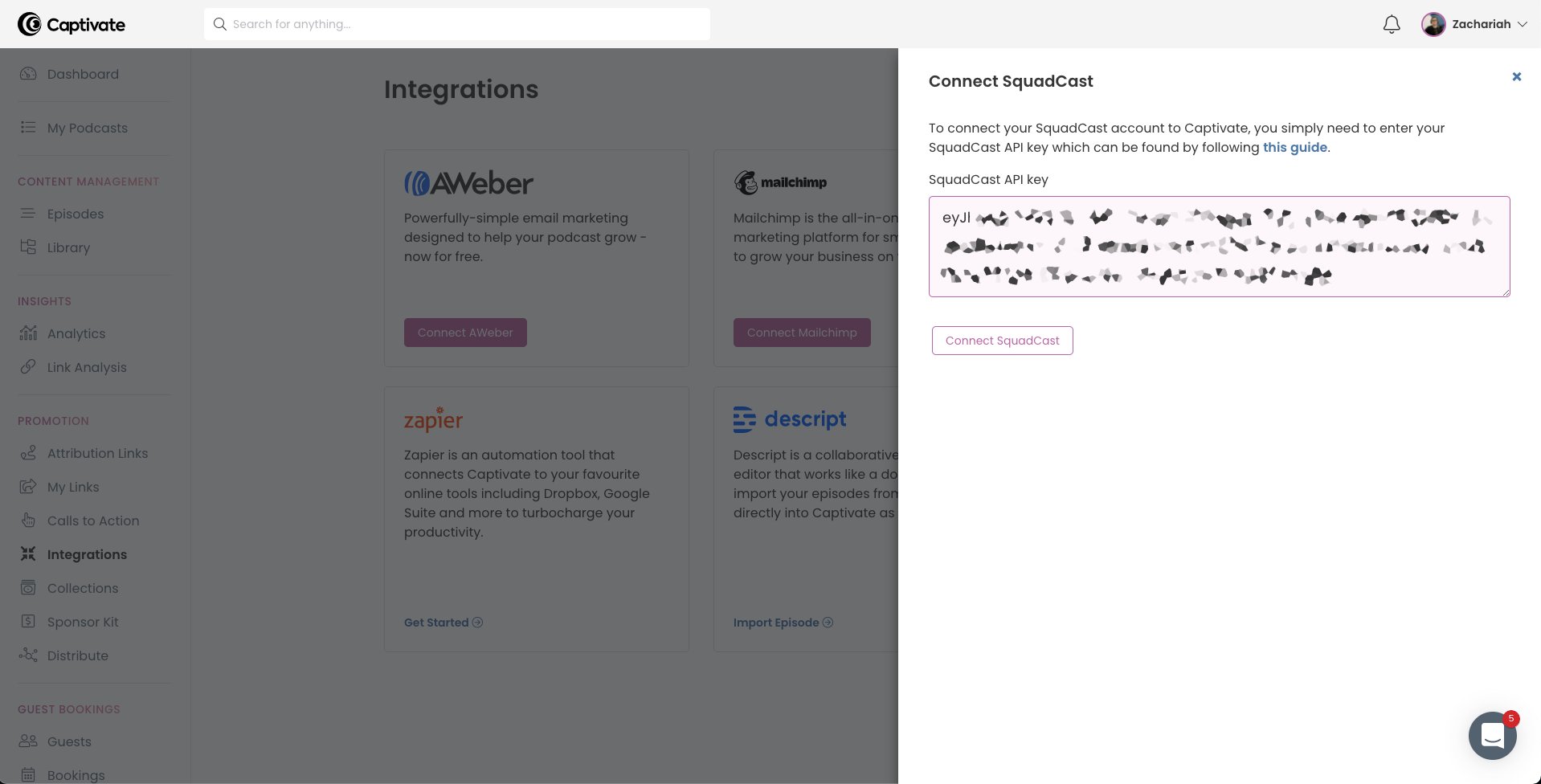
7. Paste the new API Key into the **SquadCast API Key** field.
8. Click the **Connect SquadCast** button to save it.
[
](/images/external/descript-23163649382541-88f5c764fa.png)
7. Paste the new API Key into the **SquadCast API Key** field.
8. Click the **Connect SquadCast** button to save it.
[ ](/images/external/descript-23163657696781-a31bcfcf9f.png)
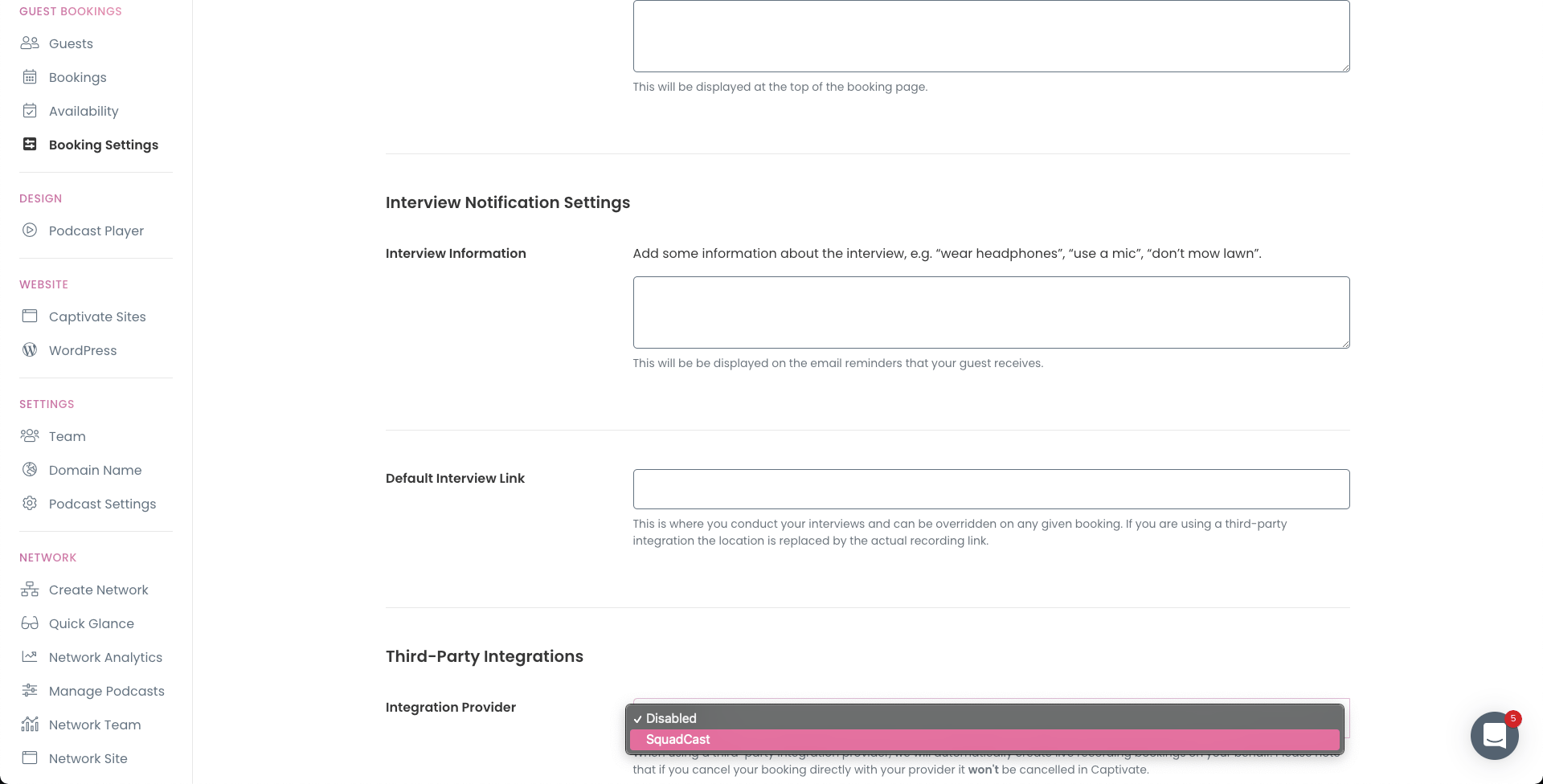
9. Select **Booking Settings** under the **Guest Bookings** section within the sidebar on the left.
10. Scroll down to the **Third-Party Integrations** section and click the **Integration Provider** dropdown menu.
11. Select **SquadCast** and click the **Save Changes** button to lock it in.
[
](/images/external/descript-23163657696781-a31bcfcf9f.png)
9. Select **Booking Settings** under the **Guest Bookings** section within the sidebar on the left.
10. Scroll down to the **Third-Party Integrations** section and click the **Integration Provider** dropdown menu.
11. Select **SquadCast** and click the **Save Changes** button to lock it in.
[ ](/images/external/descript-23163657702029-14c2ba6afa.png)
From now on, when a guest books with you through Captivate, a recording session on SquadCast will automatically be scheduled at that time. Host and guest invite links will be added to your booking for you to click, connect, and record together.
](/images/external/descript-23163657702029-14c2ba6afa.png)
From now on, when a guest books with you through Captivate, a recording session on SquadCast will automatically be scheduled at that time. Host and guest invite links will be added to your booking for you to click, connect, and record together.