> ## Documentation Index
> Fetch the complete documentation index at: https://help.descript.com/llms.txt
> Use this file to discover all available pages before exploring further.
# Create a New SquadCast API Secret Key
> Generate a SquadCast API secret key to connect trusted apps.
A SquadCast API key lets a trusted app connect to your account with privileged access to your data. Treat it like a password: keep it secret, and only share it with apps you trust.
**Only Organization Owners can access the Developer tab**
Only SquadCast **Organization Owners** can create or manage API keys. If you don’t see the Developers tab in your account settings, reach out to your SquadCast organization owner.
## How to create a new API key
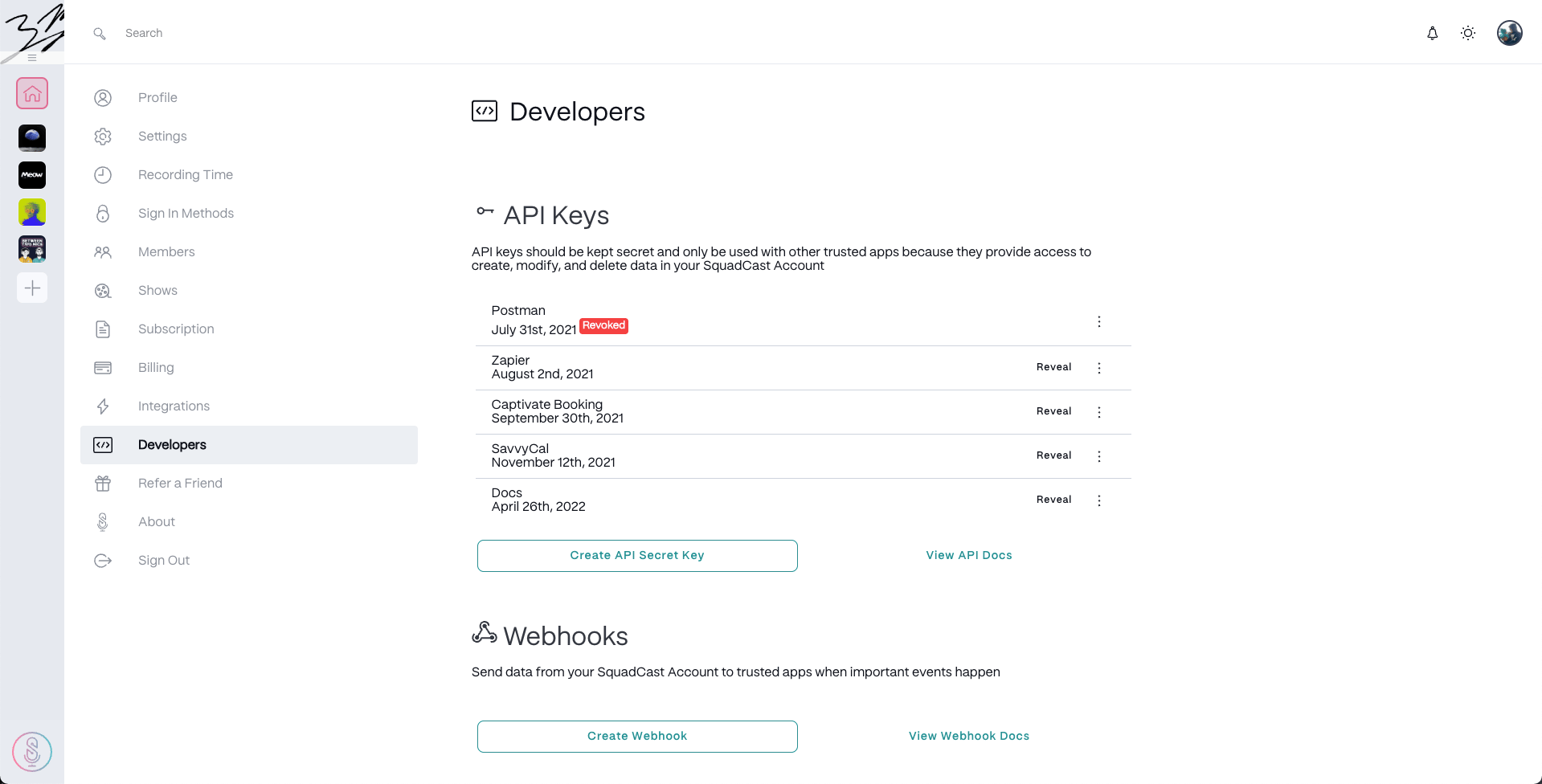
1. Go to your [SquadCast account settings](https://app.squadcast.fm/account/developers) and select the **Developers** tab in the left-hand menu.
2. Click **Create API Secret Key**.
 3. Enter a name for your key and click **Confirm**.
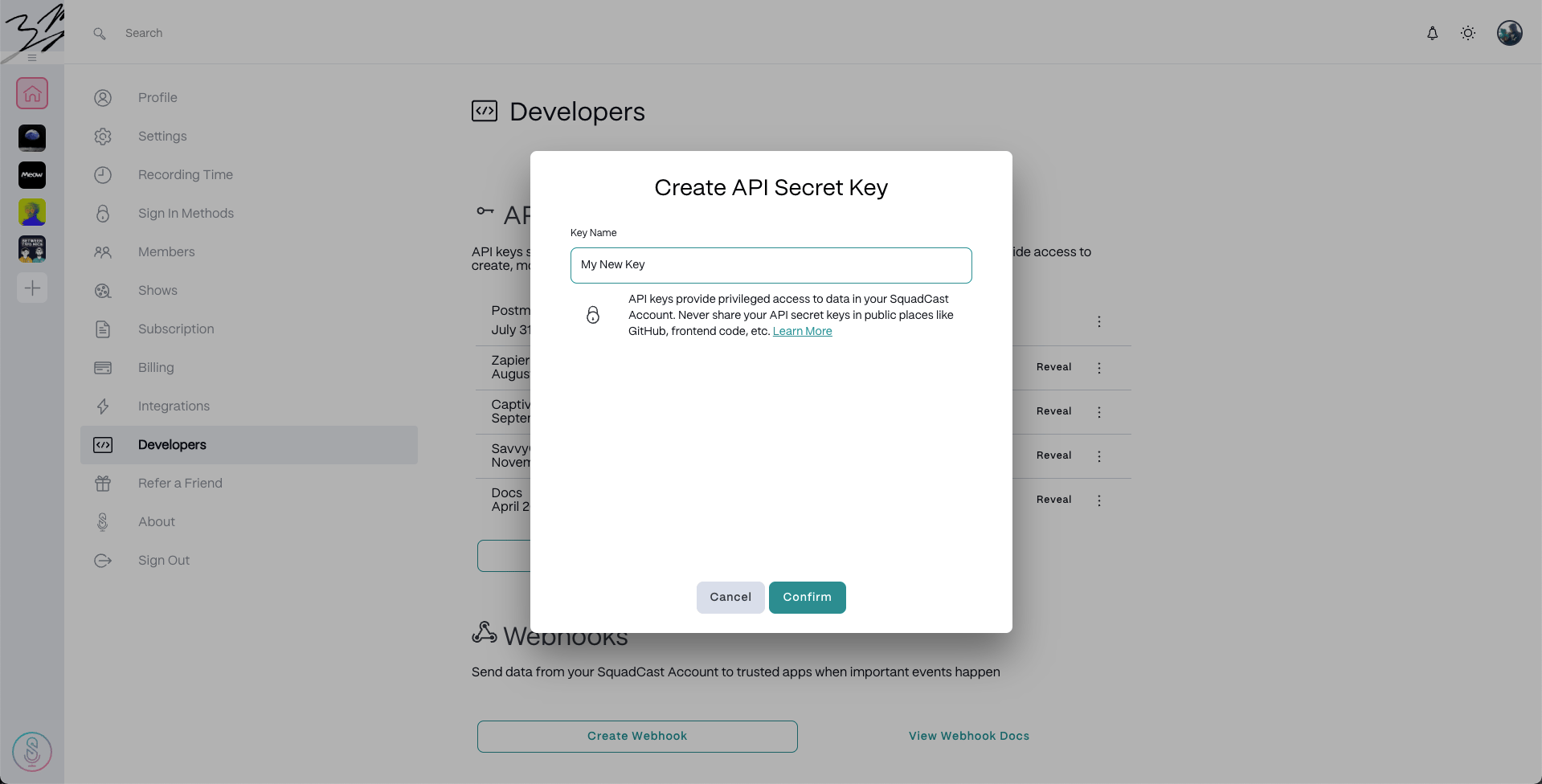 **Key naming tips**
* Use the name of the app you’re connecting with the key.
* Create a separate key for each app. That way, you can revoke access to a specific app if needed.
## API Key options
Once created, you can manage your API keys from the same Developers tab:
* Click **Reveal** to view a key.
* Click the
**Key naming tips**
* Use the name of the app you’re connecting with the key.
* Create a separate key for each app. That way, you can revoke access to a specific app if needed.
## API Key options
Once created, you can manage your API keys from the same Developers tab:
* Click **Reveal** to view a key.
* Click the  ellipses icon to access the **Manage API Key** menu:
* **Copy to Clipboard** – copy the key for use in other apps
* **Revoke Access** – immediately disable a key
* **Reactivate** – re-enable a previously revoked key
* **Apply Backwards Compatibility** – assign a default Show for apps that don’t support multi-step factorization
* Click **View API Docs** to open the full developer documentation.
**What is Backwards Compatibility?**
This setting is used for integrations that can’t support multi-step factorization. It allows you to assign a default Show. If no Show is specified in an API call, SquadCast will default to the first Show in your Organization.
ellipses icon to access the **Manage API Key** menu:
* **Copy to Clipboard** – copy the key for use in other apps
* **Revoke Access** – immediately disable a key
* **Reactivate** – re-enable a previously revoked key
* **Apply Backwards Compatibility** – assign a default Show for apps that don’t support multi-step factorization
* Click **View API Docs** to open the full developer documentation.
**What is Backwards Compatibility?**
This setting is used for integrations that can’t support multi-step factorization. It allows you to assign a default Show. If no Show is specified in an API call, SquadCast will default to the first Show in your Organization.