> ## Documentation Index
> Fetch the complete documentation index at: https://help.descript.com/llms.txt
> Use this file to discover all available pages before exploring further.
# Maximize Recording Quality in SquadCast (4K HD)
> Steps to enable 4k recording in SquadCast.
SquadCast's maximum recording quality setting lets you record video at the highest available resoluton—up to 4K. When enabled, participants with 4K-capable cameras will be recorded in 4K, while others will be recorded at the highest their camera can support.
To use 4K recording in SquadCast, you need a connected Descript account with a Creator or Business plan. This feature is disabled by default in your SquadCast show settings.
To verify your connection, go to the Subscription tab in SquadCast (or [click this link](https://app.squadcast.fm/account/subscription)). If you have a connected Descript plan, you'll see it there. If you need to connect your SquadCast account to your Descript account, see [Connect your SquadCast account to Descript](/squadcast/connect-descript).
**Feature in beta**
4K HD recording is currently a beta feature in SquadCast.[Learn more about the beta designation.](/app-troubleshooting/beta)
## Technical requirements for 4K recording
Before you enable 4K recording, make sure you have:
* **A camera capable of 4K resolution at 30FPS** — If your camera only supports 1080p, your recording will be captured at 1080p even if 4K recording is enabled. [Check out our blog for HD camera recommendations](https://www.descript.com/blog/article/best-vlogging-cameras-to-capture-your-essence).
* **Sufficient internet bandwidth** — 4K recordings create larger file sizes that need more bandwidth to upload. If you or your guests have limited connectivity, reduce the recording quality to 720p or 1080p.
* **Mac recommended** — Windows limits the recording bitrate in web browsers, which can make a 4K recording look worse than 1080p. If you're recording on Windows, we recommend recording at 1080p instead.
* **H.264 encoding support** — Most modern devices support this, but older computers without hardware encoding for H.264 may struggle with bitrate (blockiness) or frame rate (choppiness) at 4K.
## Enable 4K recording for your SquadCast show
This sets 4K as the default recording quality for all future sessions in your show. Participants with 4K cameras will be recorded in 4K, while others will be recorded at their camera's highest resolution.
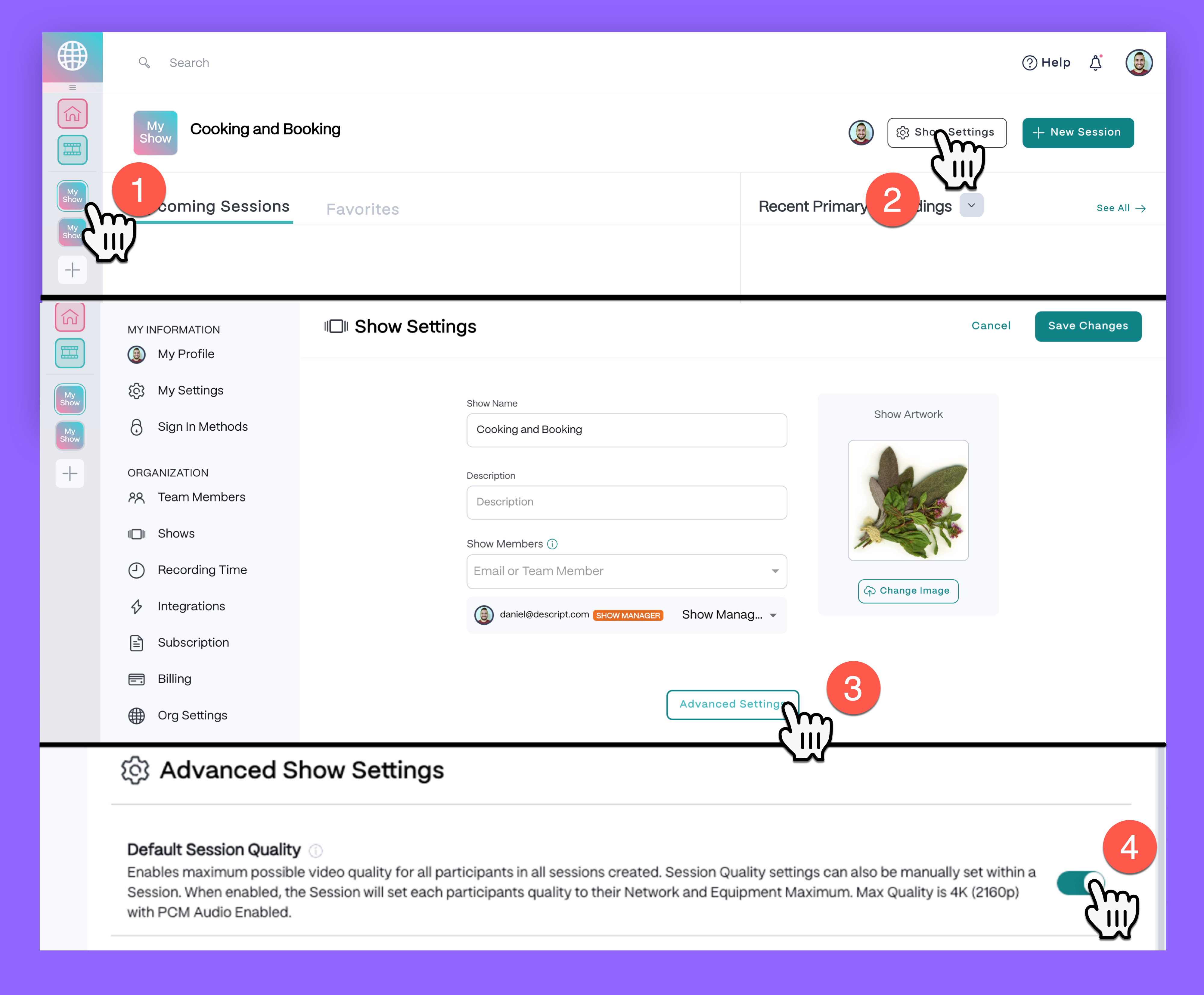
1. From your [SquadCast dashboard](https://app.squadcast.fm), select your show from the left sidebar.
2. Select  **Show Settings** in the top right corner.
3. Select **Advanced Settings**.
4. Turn on **Default Session Quality**.
5. Select **Save Changes** in the top right corner.
Now, if you or anyone else in your recording session uses a 4K camera, SquadCast will record them in 4K, while recording all other participants at the highest resolution of their respective cameras.
**Show Settings** in the top right corner.
3. Select **Advanced Settings**.
4. Turn on **Default Session Quality**.
5. Select **Save Changes** in the top right corner.
Now, if you or anyone else in your recording session uses a 4K camera, SquadCast will record them in 4K, while recording all other participants at the highest resolution of their respective cameras.
 ### Enable 4K recording for a single SquadCast session
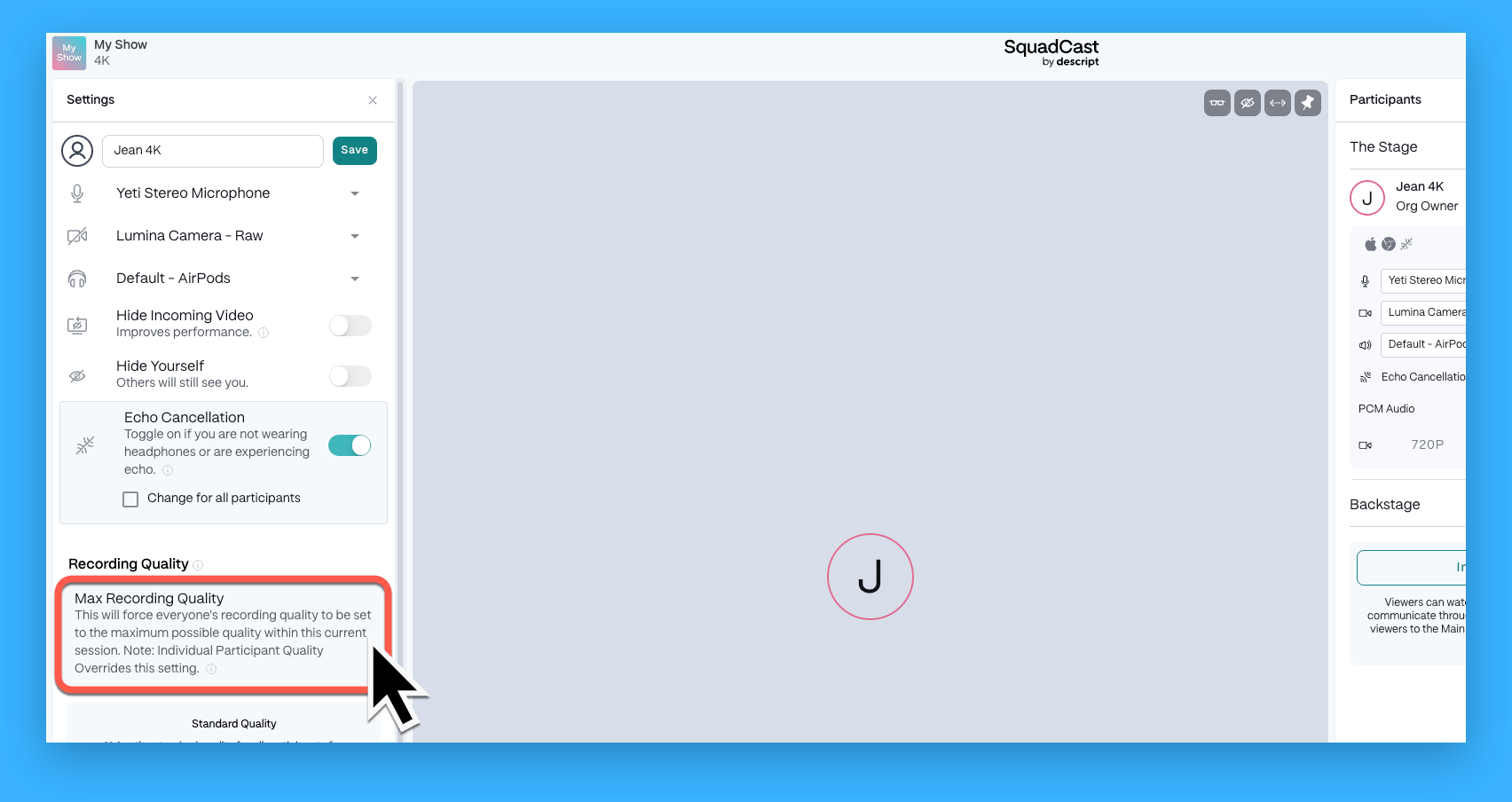
If you're a [show manager](/squadcast/team-members), you can turn on 4K recording for individual sessions without changing your show’s default settings.
1. [Join the session](/squadcast/join-session).
2. Select **Max Recording Quality** in the left sidebar.
### Enable 4K recording for a single SquadCast session
If you're a [show manager](/squadcast/team-members), you can turn on 4K recording for individual sessions without changing your show’s default settings.
1. [Join the session](/squadcast/join-session).
2. Select **Max Recording Quality** in the left sidebar.
 ### Adjust video quality for individual participants
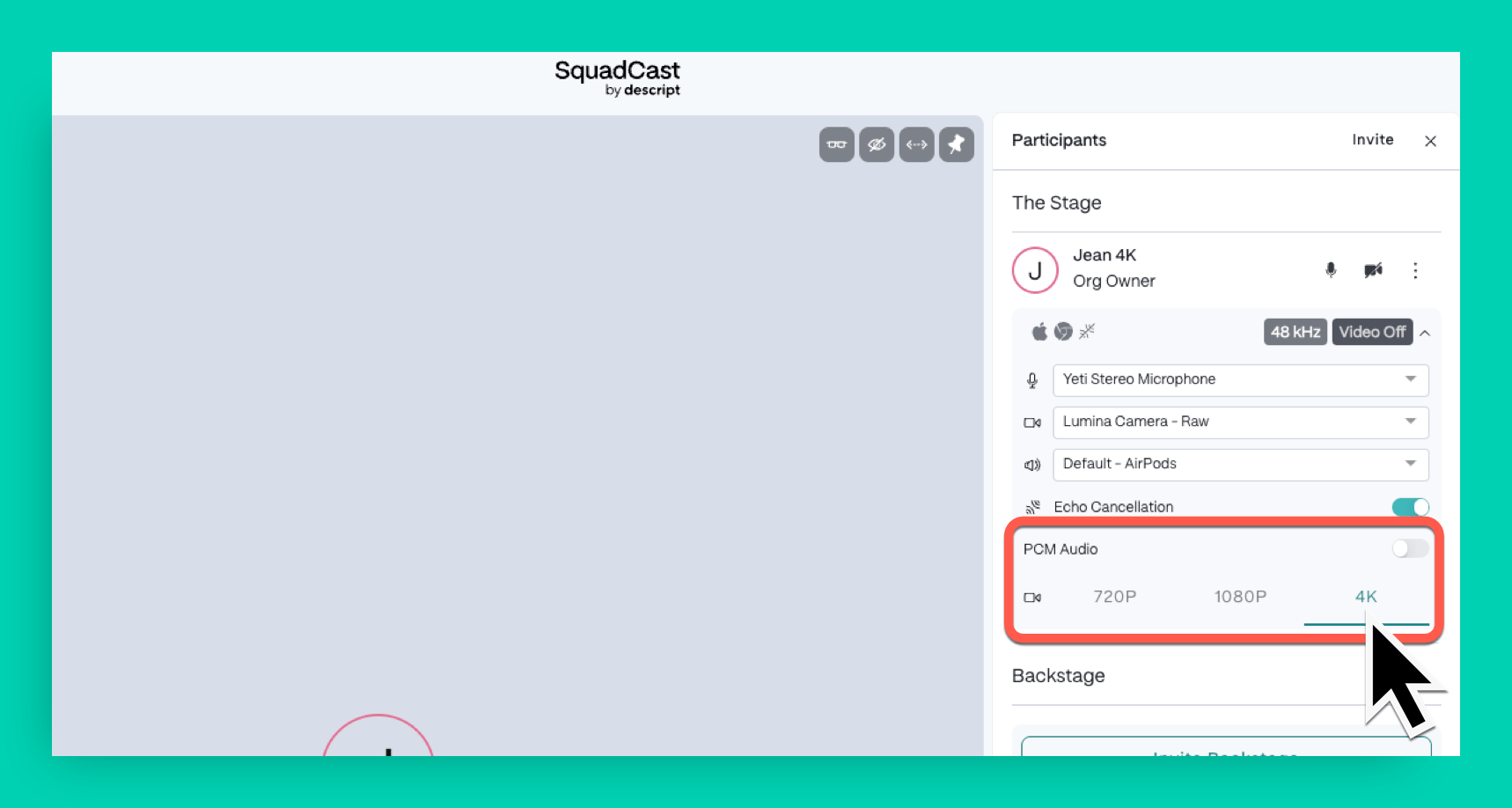
[Show managers](/squadcast/team-members) can change the recording resolution for specific participants during a session.
1. Wait for your guest to [join your session](https://help.descript.com/hc/en-us/articles/23106400360973).
2. Once they're in, adjust their video resolution from the right sidebar.
**Tip:** For participants using Chrome, you can also enable PCM Audio—an uncompressed digital audio format.
### Adjust video quality for individual participants
[Show managers](/squadcast/team-members) can change the recording resolution for specific participants during a session.
1. Wait for your guest to [join your session](https://help.descript.com/hc/en-us/articles/23106400360973).
2. Once they're in, adjust their video resolution from the right sidebar.
**Tip:** For participants using Chrome, you can also enable PCM Audio—an uncompressed digital audio format.
 ## Why is my 4K resolution option disabled?
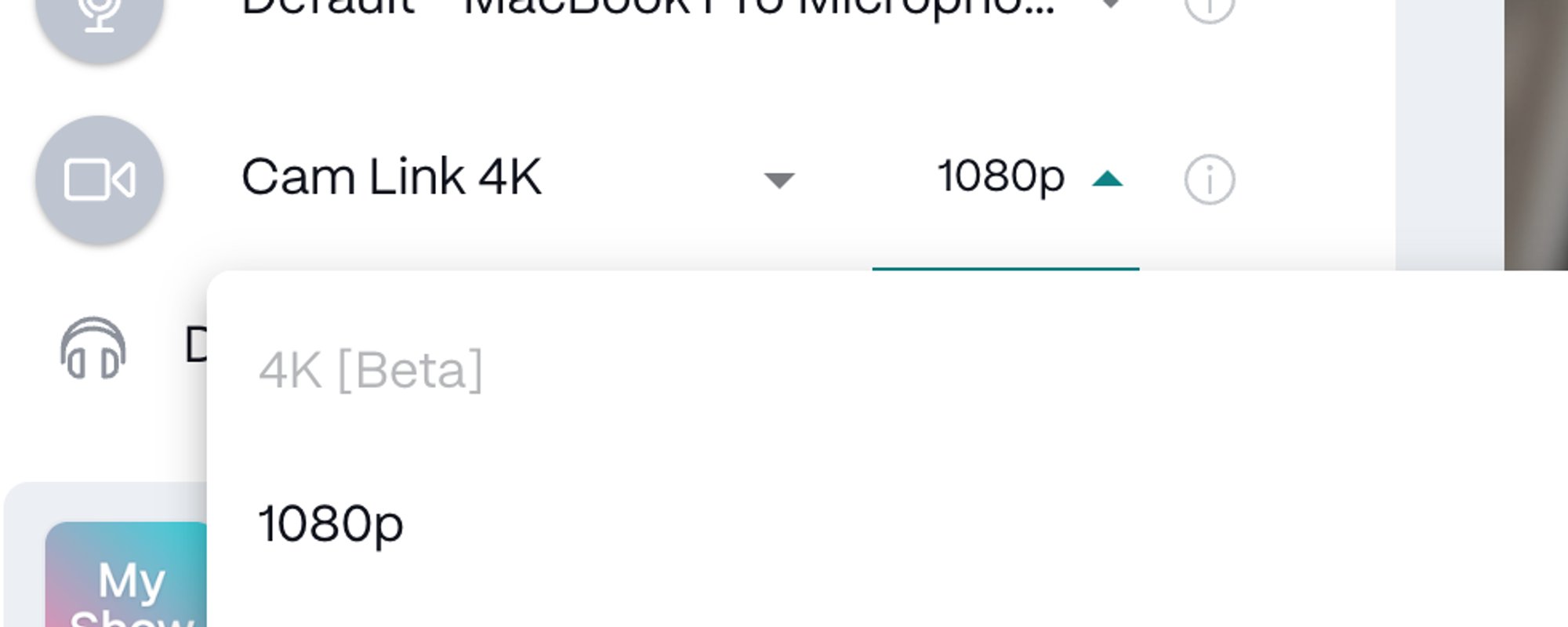 If the 4K recording option is disabled or greyed out, it's usually because:
1. **Your subscription doesn't include 4K** — 4K recording requires a Descript Creator or Business plan.
2. **You're on Windows** — 4K is disabled for Windows users unless the show manager has enabled it in Advanced Show Settings.
3. **Your camera doesn't support 4K** — Only resolutions your camera supports will be available. If your camera should support 4K but it's not showing up, another application might be using the camera at a lower resolution, or the camera may need to be restarted.
If the 4K recording option is disabled or greyed out, it's usually because:
1. **Your subscription doesn't include 4K** — 4K recording requires a Descript Creator or Business plan.
2. **You're on Windows** — 4K is disabled for Windows users unless the show manager has enabled it in Advanced Show Settings.
3. **Your camera doesn't support 4K** — Only resolutions your camera supports will be available. If your camera should support 4K but it's not showing up, another application might be using the camera at a lower resolution, or the camera may need to be restarted.