> ## Documentation Index
> Fetch the complete documentation index at: https://help.descript.com/llms.txt
> Use this file to discover all available pages before exploring further.
# Wordless Media in Your Script (Beta)
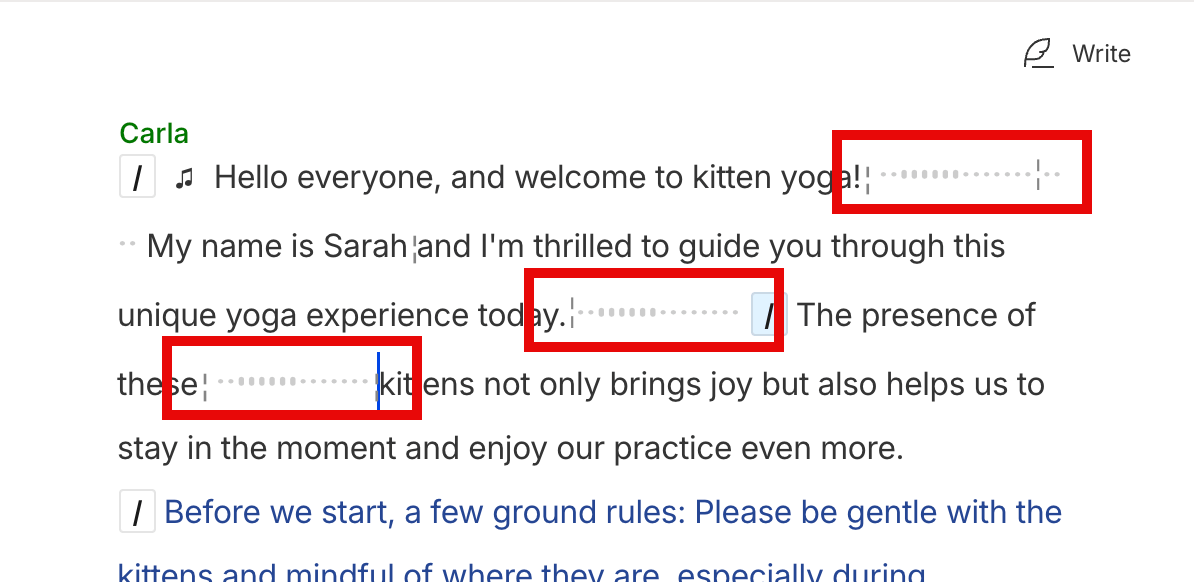
> Wordless media refers to sections of your Descript script that don't contain spoken words—such as silence, dead air, ambient noise, or pauses in your content.
With wordless media turned on, the quiet parts of your recording show up in the script as editable text. You can [correct](/script-editing/correct-your-transcript), copy-paste, [delete, or ignore](/script-editing/delete-vs-ignore) them like words, and the underlying video or audio changes to match.
**Wordless media is disabled by default**
 ## Show or hide wordless media in a specific project
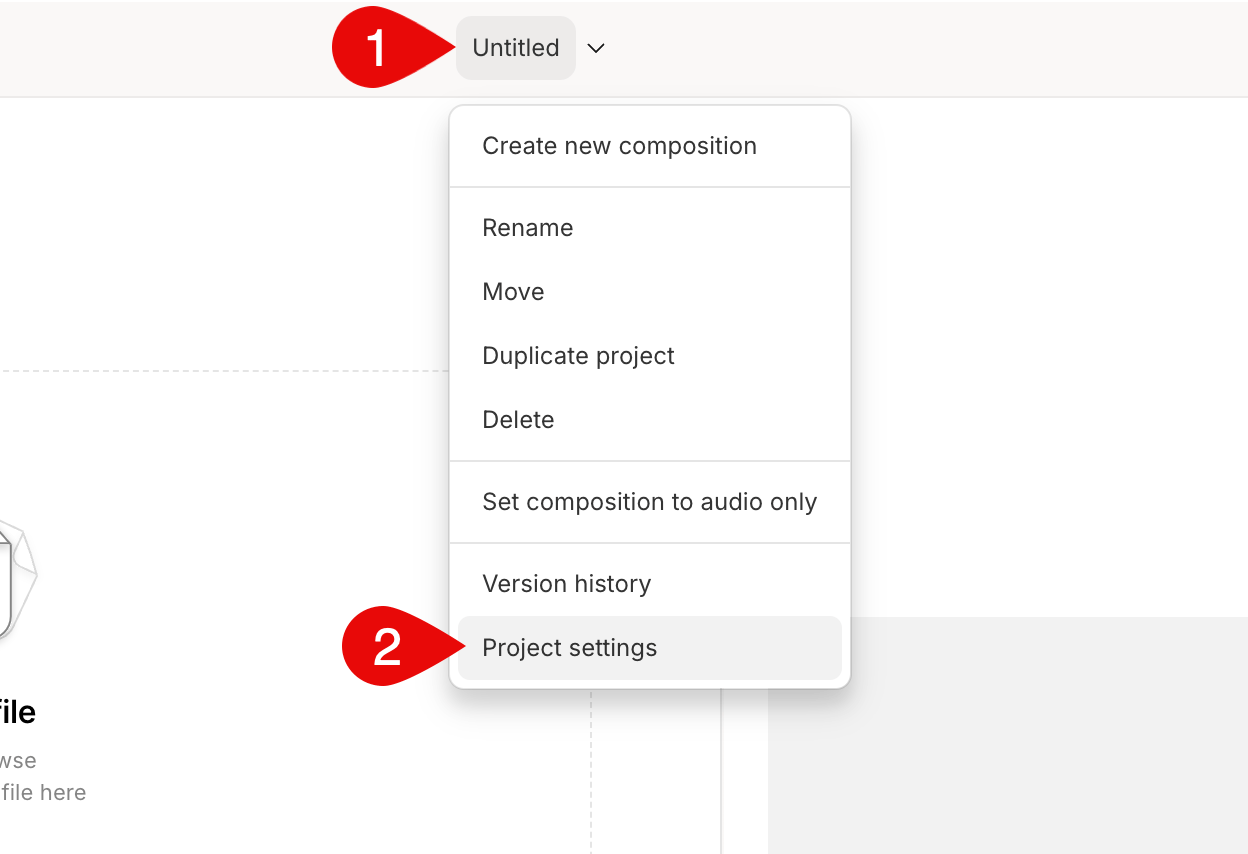
1. Select the project name in the menubar.
2. Click **Project settings** from the dropdown menu.\\
## Show or hide wordless media in a specific project
1. Select the project name in the menubar.
2. Click **Project settings** from the dropdown menu.\\
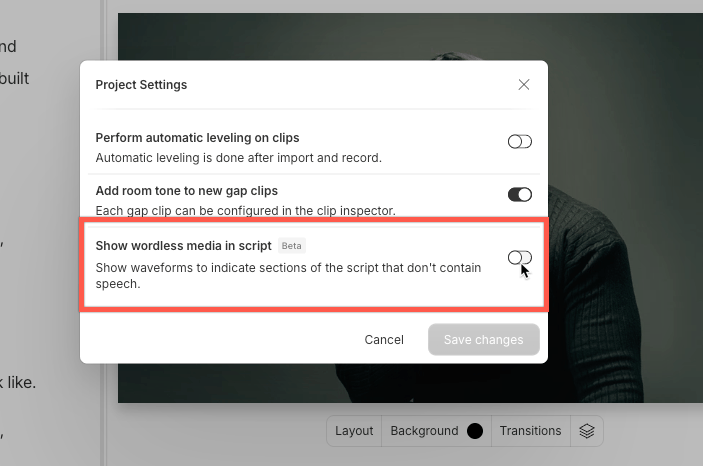
 3. Toggle **Show wordless media in script** to show or hide wordless media in the current project.\\
 ## Enable wordless media for all future projects
If you want wordless segments (like silences or ambient pauses) to show in your scripts by default, enable this in your [App settings](/account-and-app-settings/app-settings). This applies to all new projects you create.
**Changes to App settings only affect new projects.**
To enable wordless media for an existing project, follow the steps in [Show or hide wordless media in a specific project](#show-or-hide-wordless-media-in-a-specific-project).
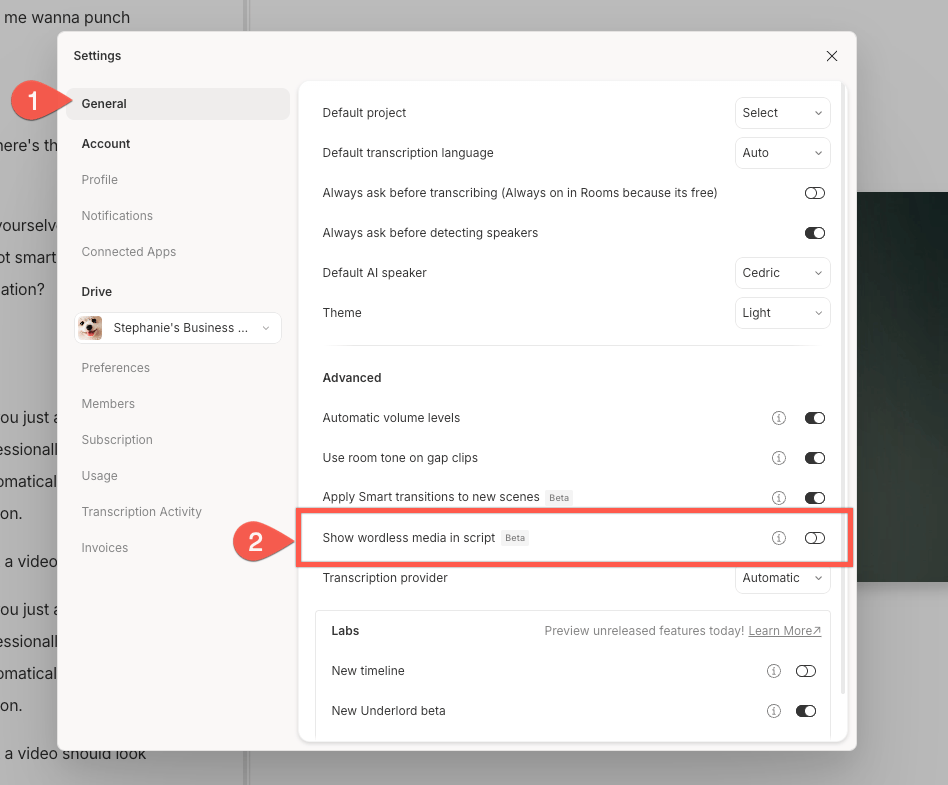
1. Open [App settings](/account-and-app-settings/app-settings) with `Command/Control + , (comma)`.
2. Click the **General** tab in the left sidebar.
3. In the **Advanced** section, toggle **Show wordless media in script** to turn it on or off for all future projects.\\
## Enable wordless media for all future projects
If you want wordless segments (like silences or ambient pauses) to show in your scripts by default, enable this in your [App settings](/account-and-app-settings/app-settings). This applies to all new projects you create.
**Changes to App settings only affect new projects.**
To enable wordless media for an existing project, follow the steps in [Show or hide wordless media in a specific project](#show-or-hide-wordless-media-in-a-specific-project).
1. Open [App settings](/account-and-app-settings/app-settings) with `Command/Control + , (comma)`.
2. Click the **General** tab in the left sidebar.
3. In the **Advanced** section, toggle **Show wordless media in script** to turn it on or off for all future projects.\\
 ## Label wordless media for captions
Labels let you tag ranges of wordless media in the script track so non-speech audio is identified in open and closed captions.
### Add a label
1. Select a range of audio in the timeline using the [Range tool](/timeline/timeline-tools).
2. Right-click the clip and choose **Add label for range**.
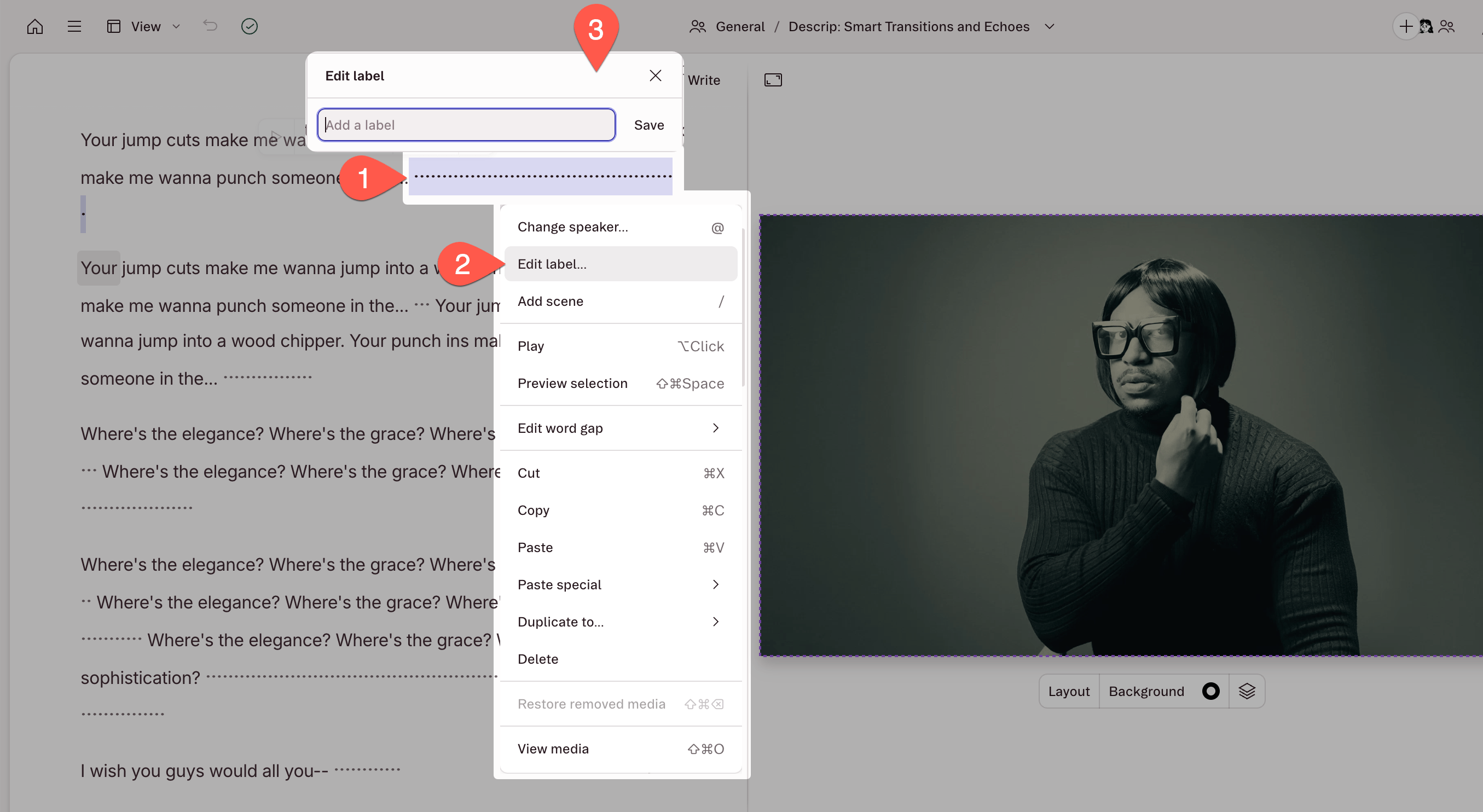
3. Rename the label by right-clicking it in the script, clicking **Edit label...**, then entering a new name and clicking **Save**.
## Label wordless media for captions
Labels let you tag ranges of wordless media in the script track so non-speech audio is identified in open and closed captions.
### Add a label
1. Select a range of audio in the timeline using the [Range tool](/timeline/timeline-tools).
2. Right-click the clip and choose **Add label for range**.
3. Rename the label by right-clicking it in the script, clicking **Edit label...**, then entering a new name and clicking **Save**.
 **Why can't I add a label?**
Labels can only be added to audio and video files that have been transcribed and placed in the [script track of the timeline](/timeline/timeline-overview). If nothing happens after you select **Add label for range**, try [transcribing](/script-editing/automatic-transcription) the file first. Ranges cannot be placed on clips in the layer lane (above the script track) or on multitrack [sequences](/script-editing/multi-track-sequences-overview).
### Remove a label
1. Click the labeled section of audio in your script to select it.
2. Right-click the labeled audio and choose **Edit label...**
3. Click **Remove label**.
After removing a label, restore any text to the audio by [correcting your transcript](/script-editing/correct-your-transcript).
**Why can't I add a label?**
Labels can only be added to audio and video files that have been transcribed and placed in the [script track of the timeline](/timeline/timeline-overview). If nothing happens after you select **Add label for range**, try [transcribing](/script-editing/automatic-transcription) the file first. Ranges cannot be placed on clips in the layer lane (above the script track) or on multitrack [sequences](/script-editing/multi-track-sequences-overview).
### Remove a label
1. Click the labeled section of audio in your script to select it.
2. Right-click the labeled audio and choose **Edit label...**
3. Click **Remove label**.
After removing a label, restore any text to the audio by [correcting your transcript](/script-editing/correct-your-transcript).